Phát Lâm
Author · Hưng Phát Laptop

Phát Lâm

Tôi là Phát Lâm, CEO tại Hungphatlaptop.com, chuyên gia IT với nhiều năm kinh nghiệm trong lĩnh vực đánh giá PC, hạ tầng công nghệ và hệ thống mạng. Không chỉ am hiểu sâu về cấu hình phần cứng, hiệu suất hệ thống và xu hướng thị trường, tôi luôn tư vấn giải pháp tối ưu, giúp khách hàng lựa chọn thiết bị phù hợp với nhu cầu sử dụng, đảm bảo hiệu suất cao, tối ưu chi phí và mang lại giá trị thực sự.

487posts
2021at Hưng Phát Laptop
7topics
Uncategorized Máy tính - PC Tin Tổng Hợp Máy tính xách tay - Laptop Kiến Thức - Thủ Thuật Thiết bị di động - Mobiles Đánh Giá Sản Phẩm
Posts by Phát Lâm (487)
Nhận Biết Lỗi Nháy Đèn Cam Trắng, Không Lên Hình Trên Laptop Dell
Laptops · 28/10/2025 · 7 min read

**Dell Laptop Blinking Amber and White: Error Code Reference and Troubleshooting Guide** If your Dell laptop has started flashing amber and white lights, it can be a stressful experience. These blinking patterns are not random; they are a built-in diagnostic tool used by the system to communicate specific hardware failures. To resolve the issue, you first need to identify the specific error code being displayed. This guide provides a reference for common blinking patterns and the steps you can take to address them. ### Understanding the Diagnostic Patterns Dell laptops typically use a sequence of amber (orange) and white flashes to signal different issues. The pattern is usually read as a series of "cycles." For example, a pattern of "2 amber, 3 white" means the light flashes amber twice, then white three times, before repeating the sequence. #### Common Error Code Reference While specific patterns can vary depending on your laptop's generation and model, here are some common diagnostic signals: * **Amber/White Patterns (General Hardware Failures):** * **2 Amber, 1 White:** System board failure. * **2 Amber, 2 White:** System board failure or BIOS issue. * **2 Amber, 3 White:** Video/Display failure (GPU or integrated graphics). * **2 Amber, 4 White:** Memory (RAM) failure. * **2 Amber, 5 White:** Real-Time Clock (RTC) or CMOS battery failure. * **3 Amber, 1 White:** CMOS battery failure. * **3 Amber, 2 White:** Video/Display failure. * **3 Amber, 3 White:** BIOS recovery issue. * **3 Amber, 4 White:** RAM failure. *(Note: Always consult your specific model's manual if the pattern does not match the above, as Dell frequently updates their diagnostic sequences.)* ### Troubleshooting Steps Once you have identified the pattern, follow these steps to attempt a resolution: #### 1. Perform a Hard Reset Sometimes, static electricity or a temporary power glitch can cause the system to hang. * Turn off the laptop. * Disconnect the AC adapter and any peripherals (USB drives, mice, etc.). * If your model has a removable battery, remove it. * Press and hold the power button for 15-20 seconds to drain residual power. * Reconnect the power (and battery) and attempt to restart. #### 2. Reseat the RAM (Memory) If your error code indicates a memory issue (e.g., 2 amber, 4 white), the RAM sticks may have become loose due to vibration or heat. * Ensure the laptop is powered off and unplugged. * Open the bottom access panel (if applicable). * Remove the RAM sticks and re-insert them firmly into their slots. * If you have multiple sticks, try booting with only one stick at a time to identify if a specific module is faulty. #### 3. Check the Display and Graphics If the code points to a video failure, the issue could be the screen itself or the graphics chip. * Connect the laptop to an external monitor or TV via HDMI. * If the external monitor displays a clear image, the laptop's built-in screen or the internal video cable is likely damaged. * If the external monitor also shows no image or the same error, the issue is likely the motherboard or the GPU. #### 4. Reset the BIOS/CMOS A corrupted BIOS or a failing CMOS battery can trigger lighting errors. * Try resetting the BIOS to factory defaults if you can access the BIOS menu. * If the error persists, the CMOS battery (a small coin-cell battery on the motherboard) may need replacement. ### When to Seek Professional Help If you have attempted the steps above and the blinking pattern persists, the issue is likely a hardware failure that requires professional repair. This could include a faulty motherboard, a failed CPU, or a damaged integrated circuit. If your device is still under warranty, it is highly recommended to contact Dell Support or visit an authorized service center rather than attempting to open the chassis, which may void your coverage.

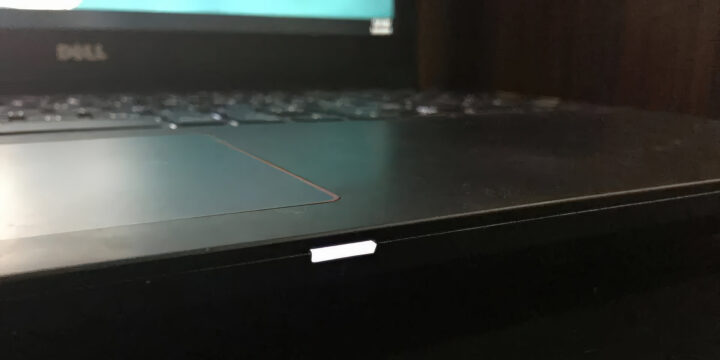
On most Dell laptops, a small LED indicator located on the chassis serves as a highly useful hardware error tool that many…