

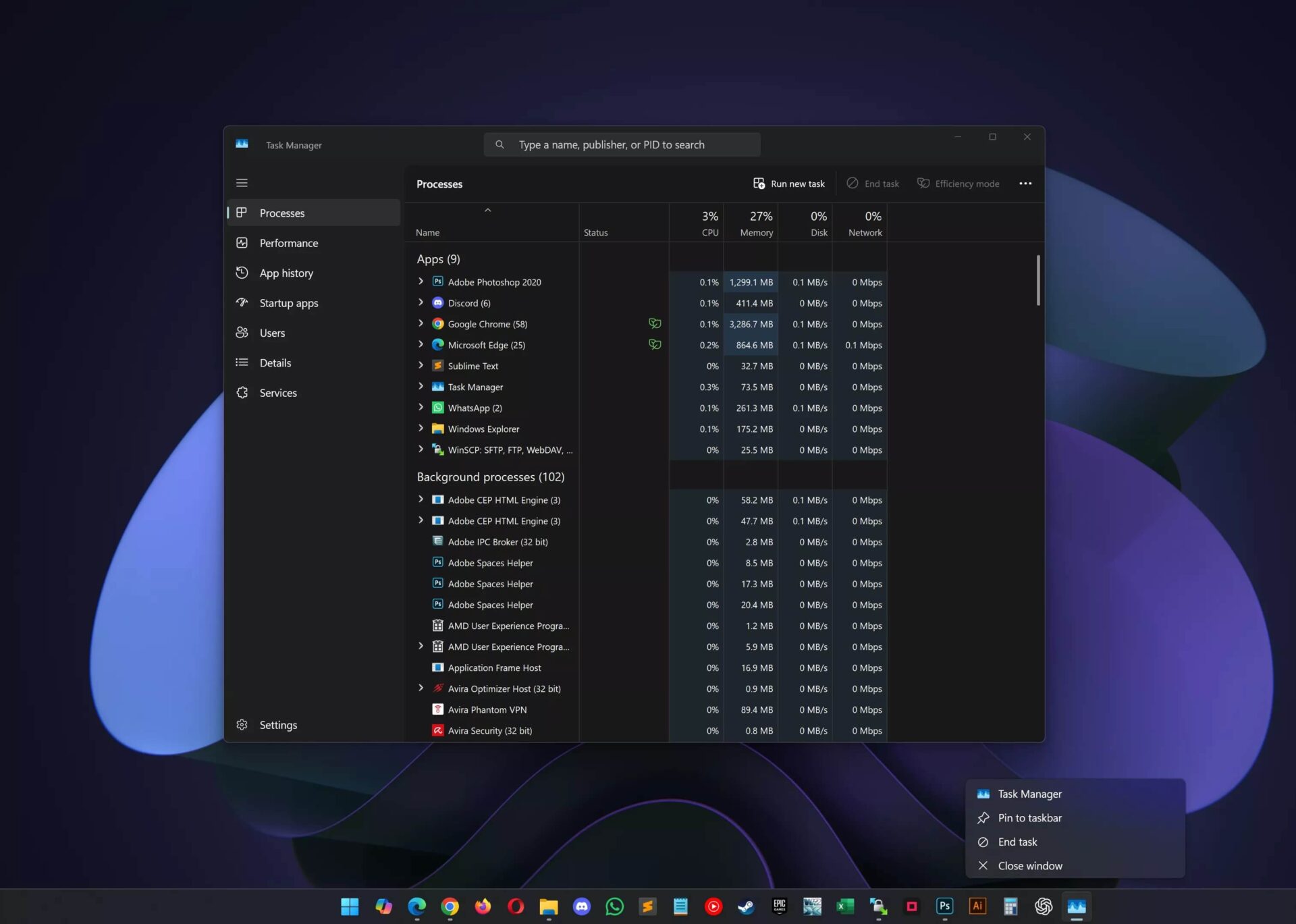
If you have ever experienced an application freezing and had to go through the trouble of opening Task Manager to force quit it, you will certainly find the new improvement in Windows 11 exciting. The 2025 update has added an End Task button directly on the Taskbar, allowing users to terminate frozen applications with just a single right-click. This feature not only streamlines the troubleshooting process but also makes the Windows 11 experience more user-friendly, modern, and efficient than ever before.
How to enable and use the End Task button on the Taskbar in Windows 11
The End Task button is a valuable addition to Windows 11, allowing you to force-stop applications immediately from the Taskbar instead of going through multiple steps in Task Manager. To use this feature, you need to enable it manually following these steps:
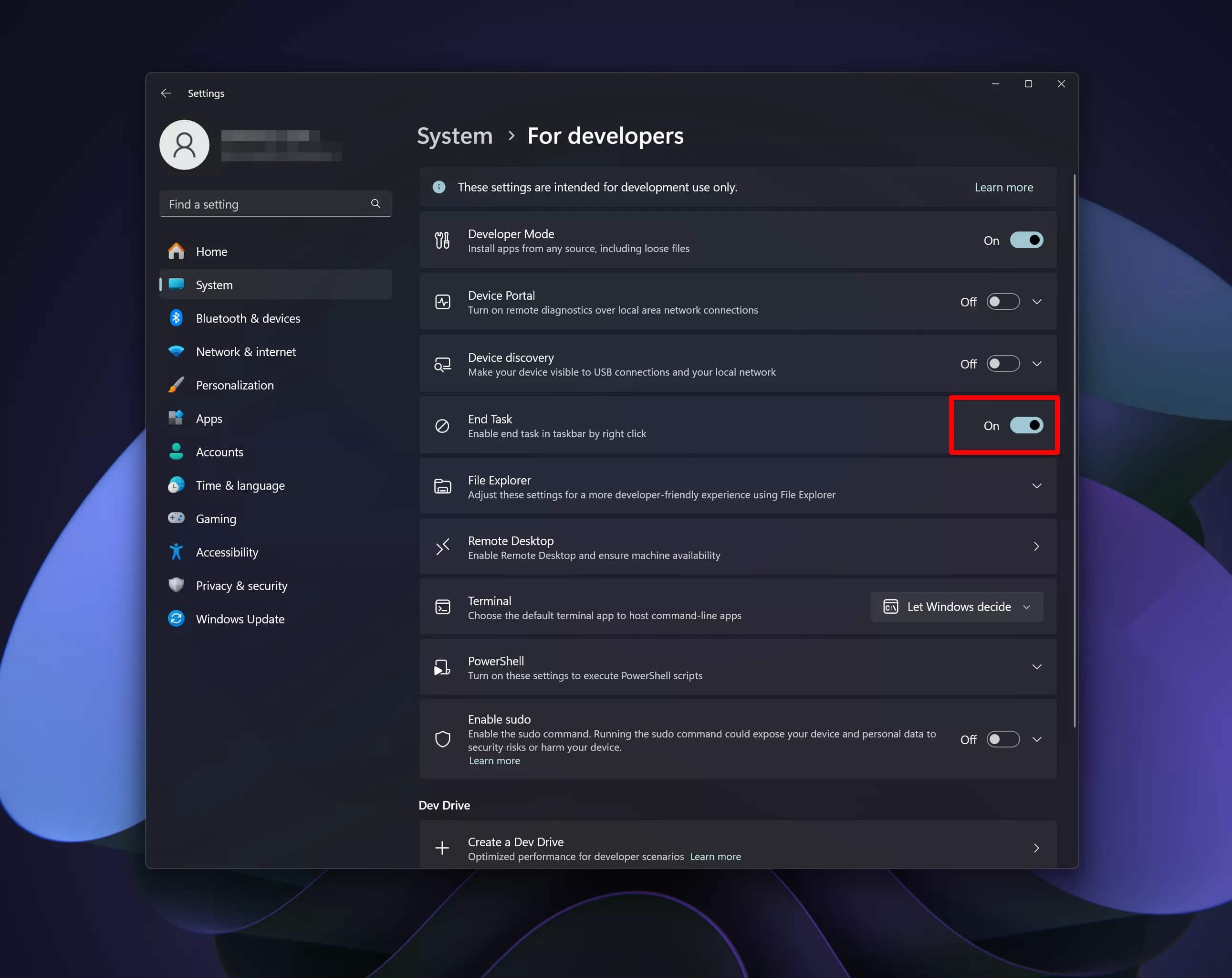
- Open Settings on Windows 11, then select System.
- Access For Developers.
- Here, toggle the End Task option to On.
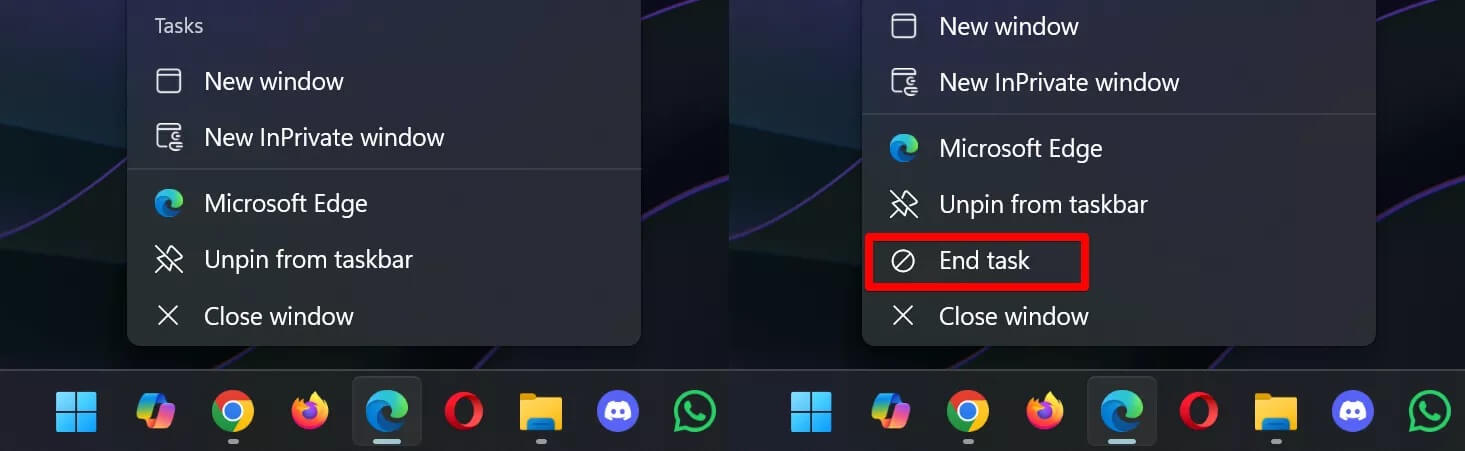
Once activated, when you right-click an application icon running on the Taskbar, the End Task command will appear. When selected, the system will attempt to close the application normally (sending a WM_CLOSE signal). If the application still does not respond, Windows 11 will identify and terminate all related processes, similar to the End Task function in Task Manager. This is particularly useful when an application freezes and cannot be closed through conventional methods.
Note: End Task on the Taskbar only applies to standard user applications and cannot terminate system processes like File Explorer. For these cases, you will still need to use the traditional Task Manager.
Practical benefits of using End Task on the Taskbar and things to note
Adding the End Task button to the Taskbar brings several clear benefits to Windows 11 users:
- Shortens the troubleshooting process when an application freezes, eliminating the need to open and search through Task Manager.
- Saves time and increases work efficiency, which is especially useful when working with multiple applications simultaneously.
- Suitable for both casual and advanced users, as it does not require deep system knowledge.
- Features a user-friendly interface and intuitive operation, helping to resolve issues quickly with just one right-click.
Compared to the standard Close Window button, End Task is more powerful because it can force-stop an application along with all its related processes, even if the application is unresponsive. However, compared to Task Manager, End Task on the Taskbar is only a quick solution for applications; it is not a complete replacement for Task Manager-which remains essential when you need detailed control or need to handle system processes.
However, users should also keep several important points in mind:
- End Task on the Taskbar does not apply to system processes like File Explorer; it is only for standard applications.
- When using End Task, any unsaved data in the application will be lost because the application is forced to close without performing any state-saving operations.
- This feature is not enabled by default; you must manually activate it in Settings > System > For Developers.
In summary: Windows 11 with the End Task button on the Taskbar is a practical improvement that helps users quickly handle frozen applications, saving time and increasing convenience. However, please consider before using it to avoid losing unsaved data, and remember that Task Manager remains an indispensable tool when working with system processes. This is a major step forward in enhancing the user experience on Windows 11, making it particularly suitable for those who frequently multitask or work with multiple applications at once.











