

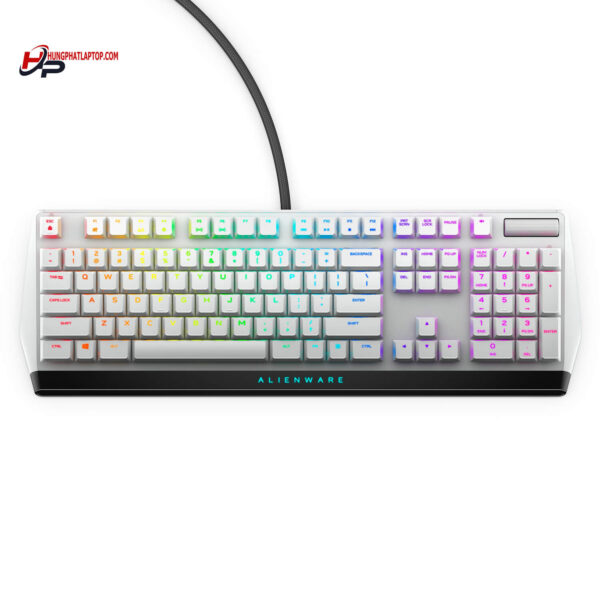
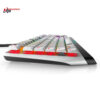
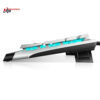
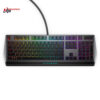
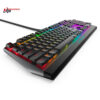
Alienware AW510K Low Profile RGB Mechanical Gaming Keyboard
- CONNECTIVITY: USB
- SWITCH: CHERRY MX Low Profile Red
- LED LIGHT: RGB / 16.8 triệu màu
- COLOR: Lunar Light
- CONDITION: New 100% Full Box
- WARRANTY: Bảo hành 6 tháng
- Standout Features of the Alienware AW510K Keyboard
- 1. Robust and Modern Design
- 2. Exceptional Typing Feel
- 3. Diverse RGB LED System
- 4. Flexible Macro Functions
- 5. Easy Connectivity
- 6. Large, Clear Keycaps
- Alienware AW510K Specifications
- Alienware AW510K User Guide
- 1. Connecting the Keyboard
- 2. Installing Alienware Command Center Software
- 3. Setting Up Personal Hotkeys
- 4. Maintenance and Cleaning
- Summary of Alienware AW510K
A gaming keyboard is one of the most important peripherals for any gamer. In particular, the Alienware AW510K keyboard not only meets gaming needs but also provides a unique interactive experience for users. In this article, we will dive deep into the standout features of the AW510K keyboard and provide instructions on how to use it effectively.
Standout Features of the Alienware AW510K Keyboard
1. Robust and Modern Design
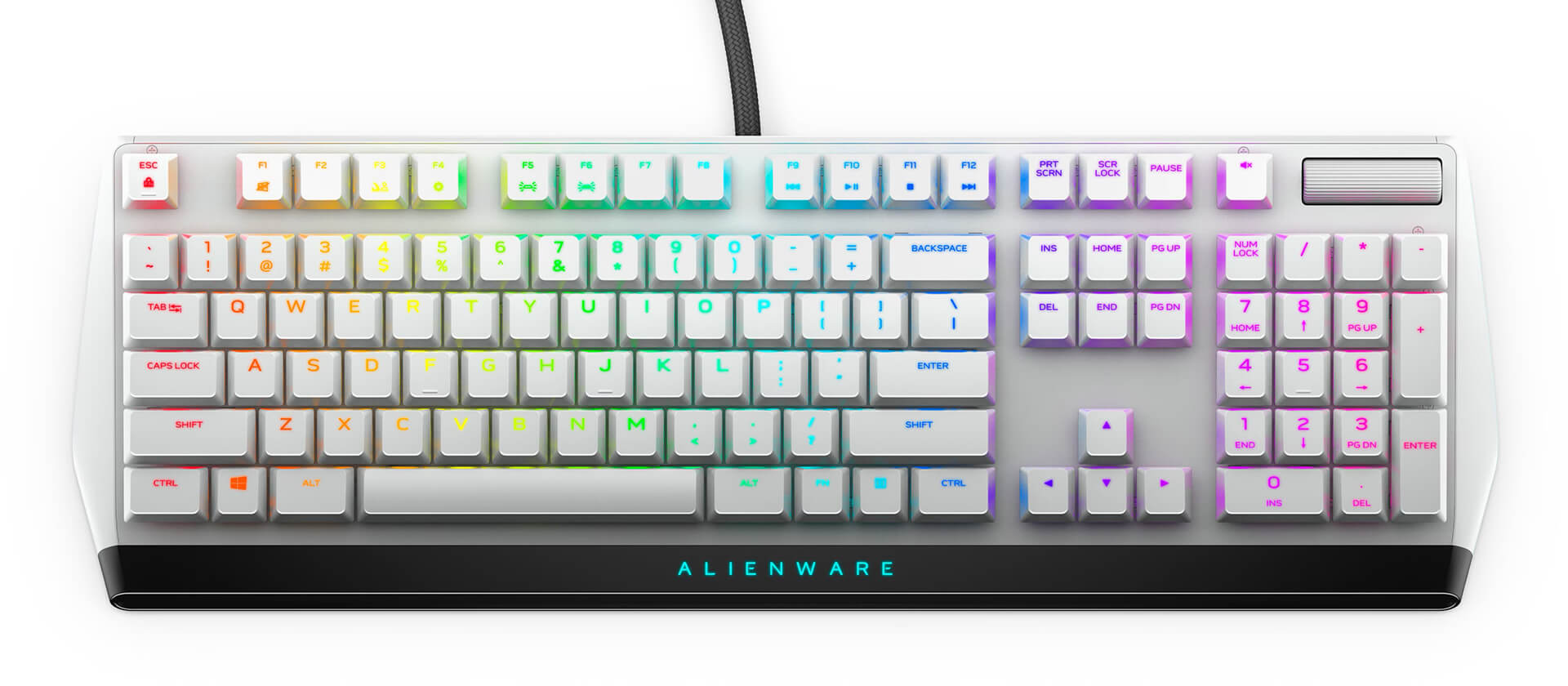
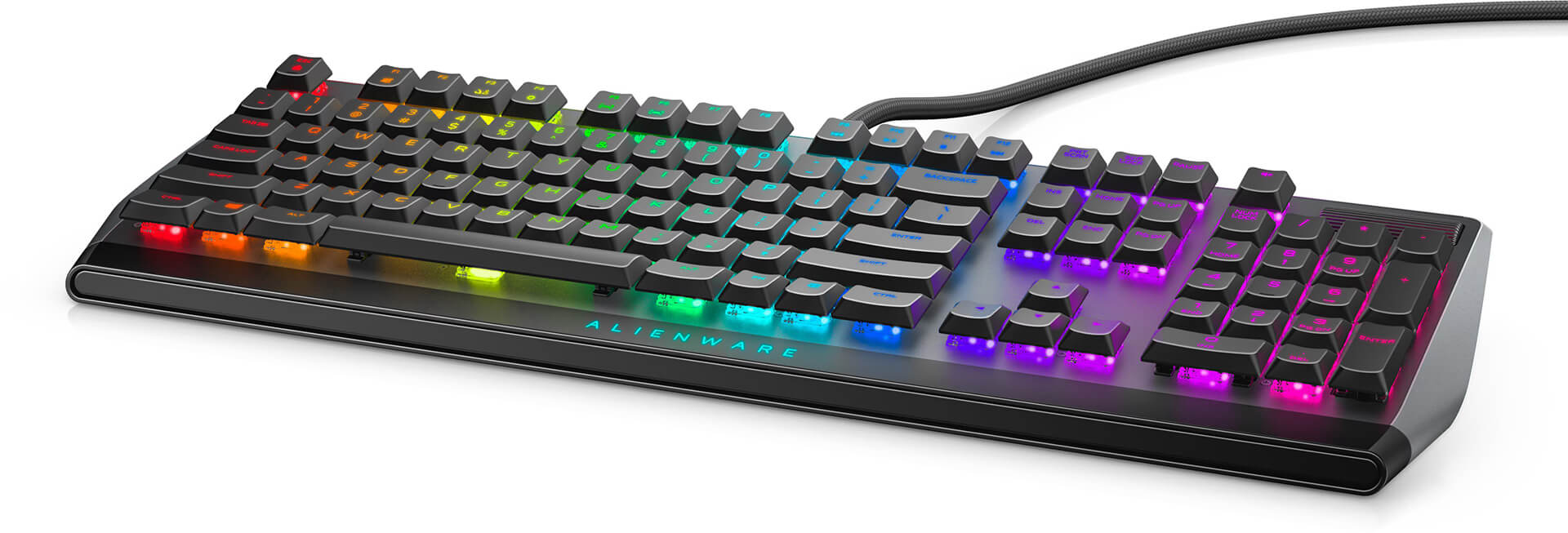
The Alienware AW510K boasts an extremely impressive design with a minimalist yet sophisticated color scheme. The exterior is made from high-quality plastic with a smooth touch, complemented by customizable RGB LEDs so users can freely personalize their gaming setup.
2. Exceptional Typing Feel
The AW510K keyboard utilizes custom switch technology offering rapid response and high precision. With a short key travel, users will experience comfort even when typing for many consecutive hours without fatigue. This is particularly beneficial for those who spend a lot of time gaming or performing office work.
3. Diverse RGB LED System
One of the strengths of the Alienware AW510K is its fully customizable RGB LED system. Users can change colors, patterns, and lighting effects according to personal preference. You can create a colorful gaming atmosphere that matches each game or your current mood.
4. Flexible Macro Functions
The AW510K keyboard supports macro recording, allowing users to program shortcuts to quickly execute complex in-game actions. With just a few clicks, you can configure the keyboard in unprecedented ways, helping to increase speed and accuracy in games.
5. Easy Connectivity
The Alienware AW510K supports USB connectivity with high stability. There is no need to worry about lag or interruptions while gaming. Fast and easy connection allows you to start your experience immediately without any obstacles.
6. Large, Clear Keycaps
The characters on the keyboard are designed to be large and clear, helping users easily identify them even in low-light conditions. This is very convenient for pro gamers.
Alienware AW510K Specifications
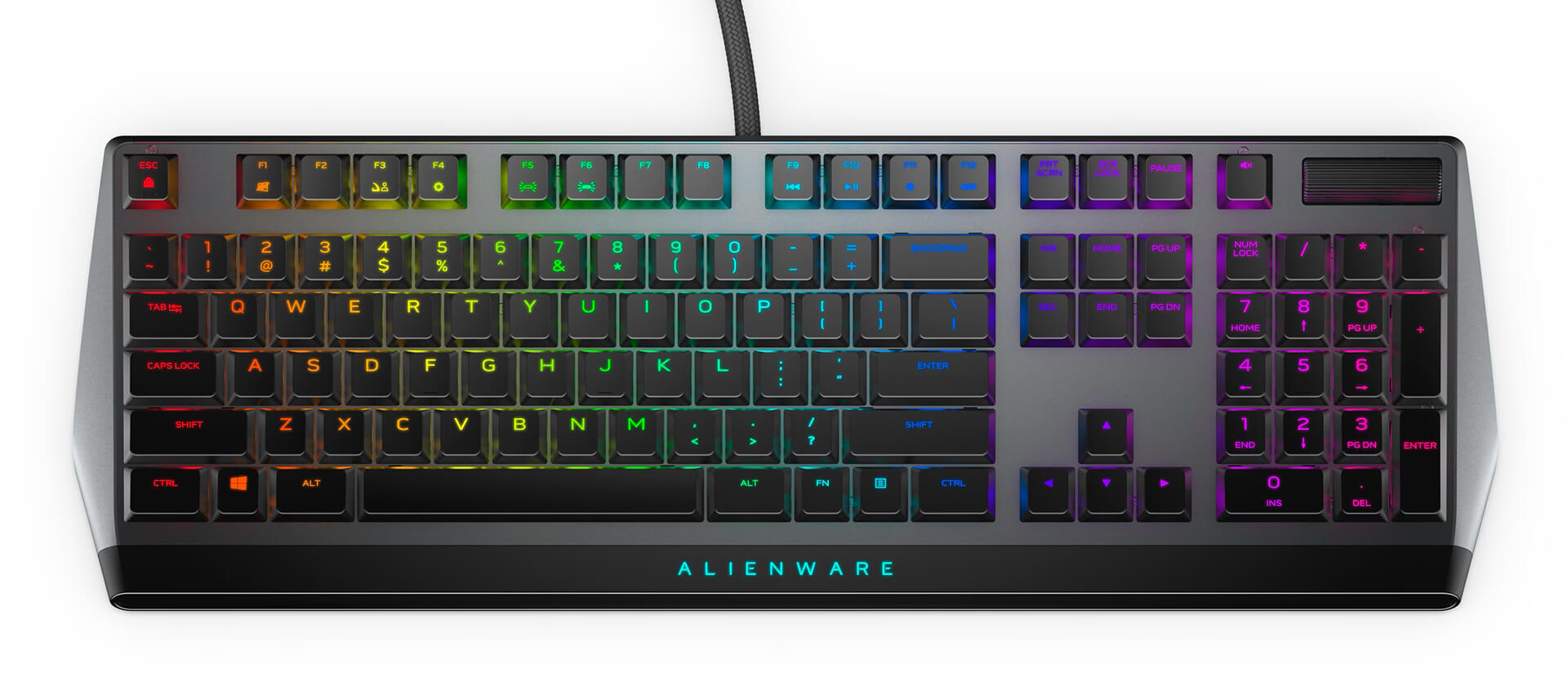
| OVERVIEW | Keyboard LED: RGB / 16.8 million colors Gaming: Suitable Interface: USB Color: Lunar light / Dark side of the moon |
| KEYBOARD FEATURES | Hot Keys: Mute, play/pause, stop, backward, volume -, volume +, skip backward, skip forward Keycap Layout: US English Keyboard Technology: Mechanical Keyboard Switch Type: CHERRY MX Low Profile Red Keyboard Height Adjustment: Yes Key Layout: Full Size (Includes Number Pad) Dimensions (W x D x H): 18.4 * 6.1 * 1.2 (in) Weight: 32.1 oz (9.1 kg) |
| HIGHLIGHTED FEATURES |
|
| CABLE INFORMATION | Cable Type: Braided Cable Length: 6.6 ft (~ 2m) |
| SOFTWARE / OS | Included Software: Alienware Command Center OS Requirement: Windows 10+ |
Alienware AW510K User Guide
1. Connecting the Keyboard
To connect the Alienware AW510K keyboard, plug the USB cable into your computer. The system will automatically recognize the device and install the necessary drivers. No further adjustments are required.
2. Installing Alienware Command Center Software
To take full advantage of the AW510K's features, you should download and install the Alienware Command Center software from the official website. This software is where you can customize the RGB LEDs, record macros, and control all parameters related to the keyboard.
- Customize LED: Open the software and go to the lighting section. Here, you can choose colors, styles, and lighting effects according to your preference.
- Record Macro: Go to the macro recording menu and follow the instructions to program the keys you want.
3. Setting Up Personal Hotkeys
With the macro recording and hotkey functions, you can optimize the keyboard for different games. Simply open the Alienware Command Center software, select the game you want to configure, and then program the keys in the way that feels most convenient to you.
4. Maintenance and Cleaning
To maintain the performance of the Alienware AW510K, clean the keyboard regularly. Use a soft cloth and a mild cleaning solution to clean the keycap surfaces. Avoid using harsh chemicals that could damage the surface and the internal components of the keyboard.
Summary of Alienware AW510K
The Alienware AW510K keyboard is not only a great choice for gamers but also for anyone seeking an efficient input device. With its sophisticated design, incredibly good typing feel, and a wide range of attractive customization features, the AW510K asserts its position in the gaming market. We hope this article has provided you with deep insights into the product and useful usage instructions so that you can have the best experience with the Alienware AW510K.
No comments yet
Q&A about Alienware AW510K Low Profile RGB Mechanical Gaming Keyboard
Frequently asked questions about Alienware AW510K Low Profile RGB Mechanical Gaming Keyboard
What is the warranty for Alienware AW510K Low Profile RGB Mechanical Gaming Keyboard?
Can I buy Alienware AW510K Low Profile RGB Mechanical Gaming Keyboard with home delivery?
Worth a Look
Alienware AW2725Q QD-OLED (27 inch / UHD / QD-OLED / 240Hz)
Alienware AW3425DW QD-OLED (34 inch / WQHD / QD-OLED / 240Hz / Curved)
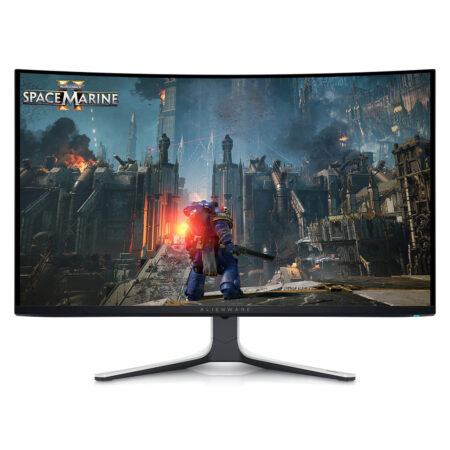
Alienware AW3225QF QD-OLED (32 inch / UHD / QD-OLED / 240Hz / Curved)
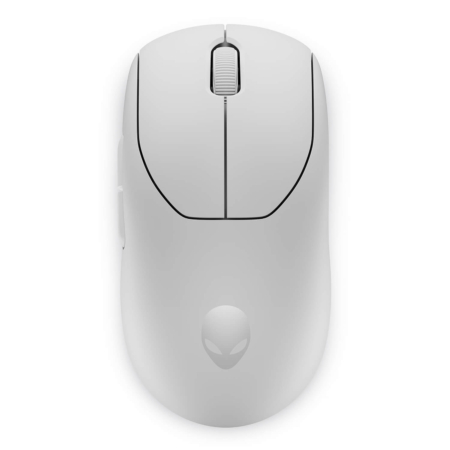 2 configurations
Alienware Pro Wireless Gaming Mouse
 2 configurations




Nguyễn Phú An 07/06/2024Purchased at Hung Phat
Good
Phạm Trần Bảo Anh 26/02/2024Purchased at Hung Phat
For Alienware laptops and accessories, look no further than Hung Phat!
Ngô Minh Tâm 02/03/2023Purchased at Hung Phat
Great, good price, and it's exactly the black color I wanted.
Anh Thành 21/02/2023Purchased at Hung Phat
I love the way the owner provides advice.