

Why You Need to Know Your Computer's Name
Knowing your computer's name does more than just help you identify your device; it is essential for network connectivity, data sharing, troubleshooting technical issues, and system configuration. Additionally, when you need to purchase replacement parts, upgrade hardware, or check software compatibility, knowing your exact model name will save you time and prevent costly mistakes.
Here are the simplest and fastest ways to find your computer's name on both Windows and macOS.
How to Find Your Computer Name on Windows
Whether you are running Windows 10, Windows 11, or older versions, there are several easy ways to locate your computer name and device model.
1. Check via This PC Properties
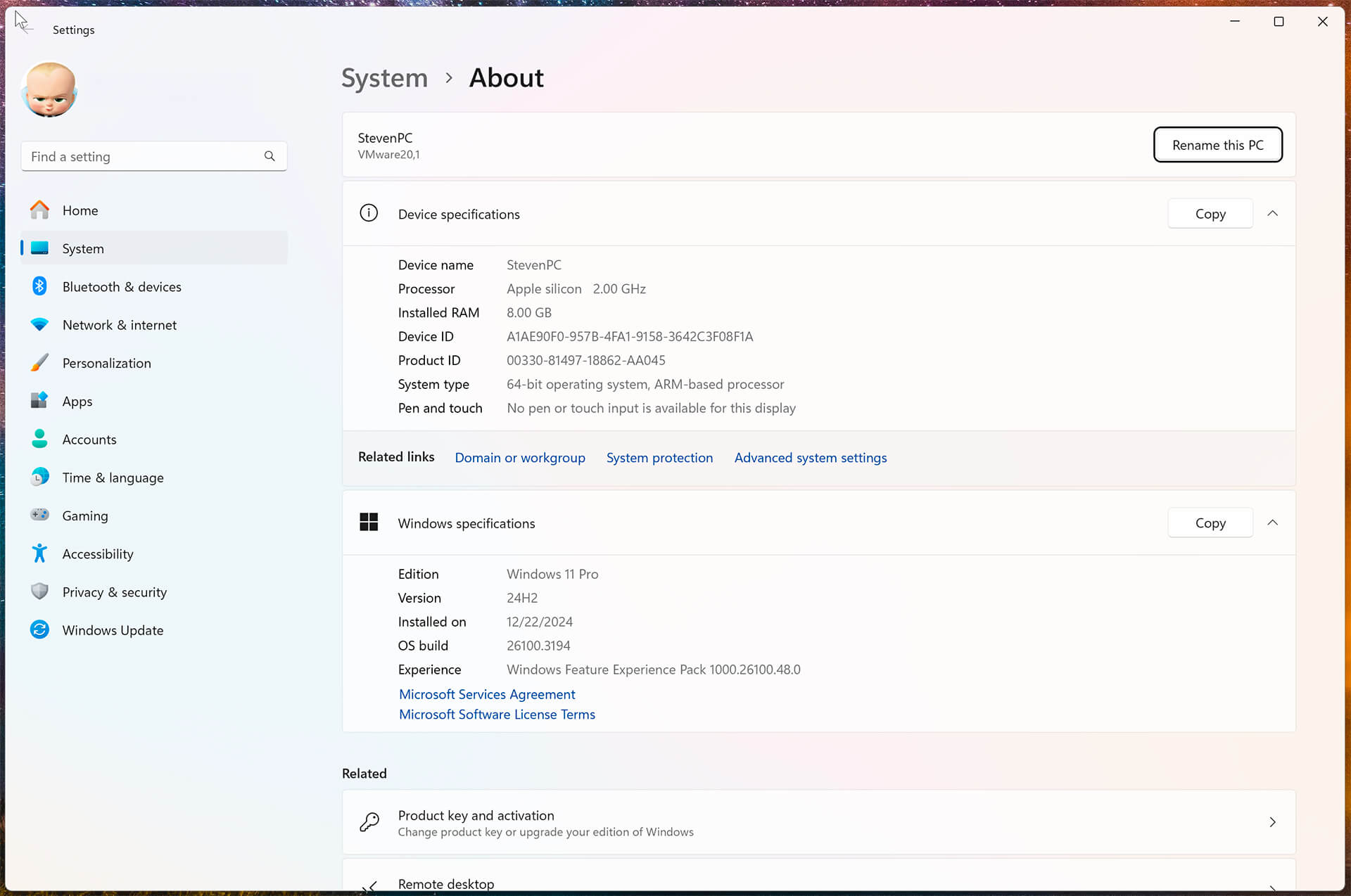
- Right-click the This PC icon on your Desktop.
- Select Properties.
- Your computer name will be listed under Device name or Computer name.
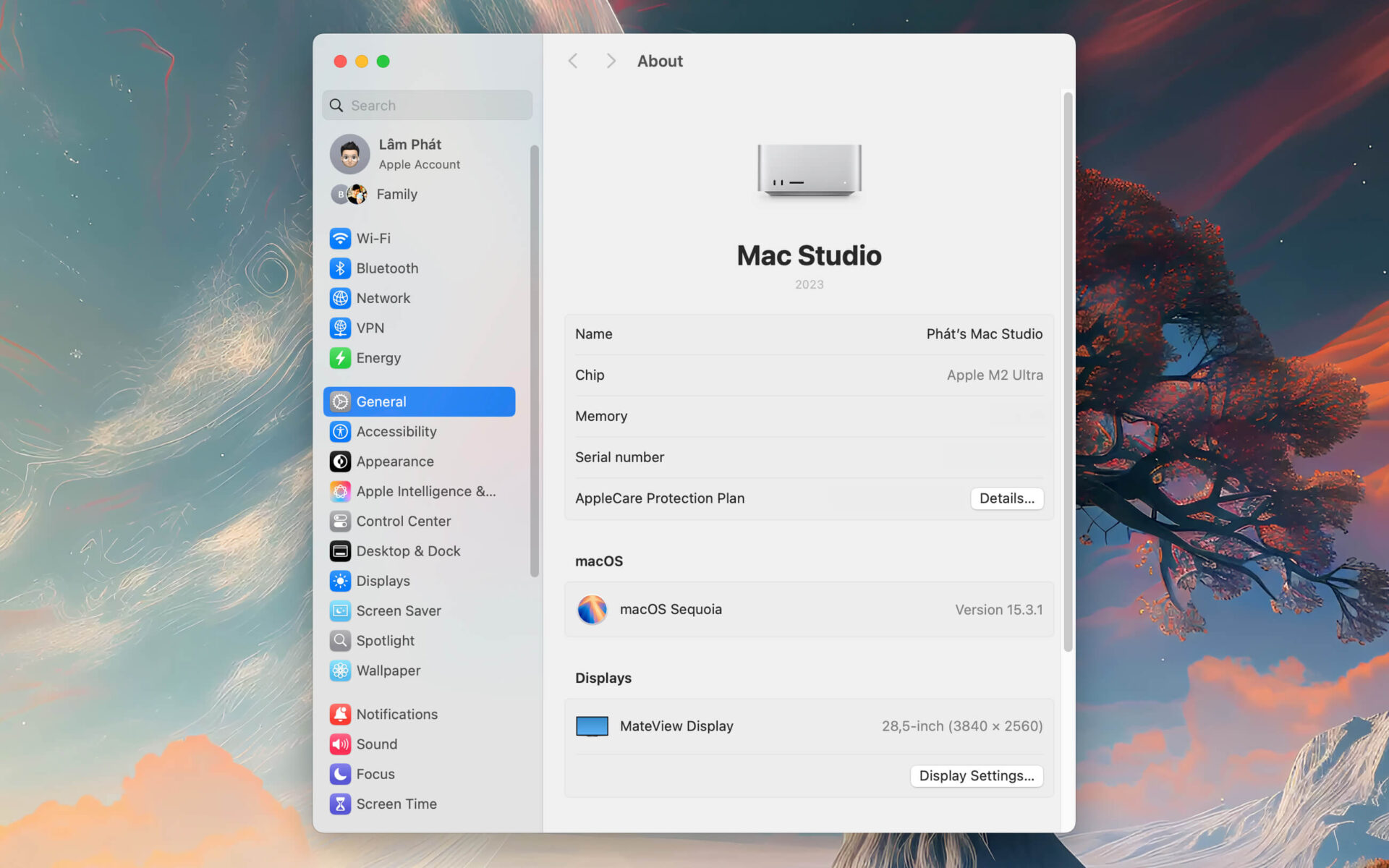
- On Windows 11, you can also find this information under Settings > System > About.
2. Use Command Prompt (CMD) to Find Your Model
If you need to find your specific model name, the Command Prompt is your best tool:
- Press Windows + R, type cmd, and hit OK.
- Type the following command and press Enter:
wmic csproduct get name - The screen will immediately display your computer model name, giving you the exact identification of your device.
3. Use a Keyboard Shortcut for System Info
- Press Windows + Pause/Break.
- The System Properties window will appear, showing your computer name under the Computer name section.
- This is the quickest method if you want to avoid using the Command Prompt.
4. Use the msinfo32 Command for Detailed System Specs
- Press Windows + R, type msinfo32, and hit OK.
- The System Information window will display comprehensive details about your computer, including:
- Model name
- OS version
- Hardware specifications (RAM, CPU, GPU, motherboard, etc.)
- This is the ideal tool if you need a complete overview of your system information.
How to Find Your Computer Name on macOS
If you are using a MacBook or iMac, Apple provides several straightforward ways to check your model name and system configuration.
1. Check via the Apple Menu
- Click the Apple icon (top-left corner of the screen).
- Select System Preferences (or System Settings on macOS Ventura and later).
- Select Sharing.
- Your computer name is displayed right under Computer Name.
2. Use "About This Mac"
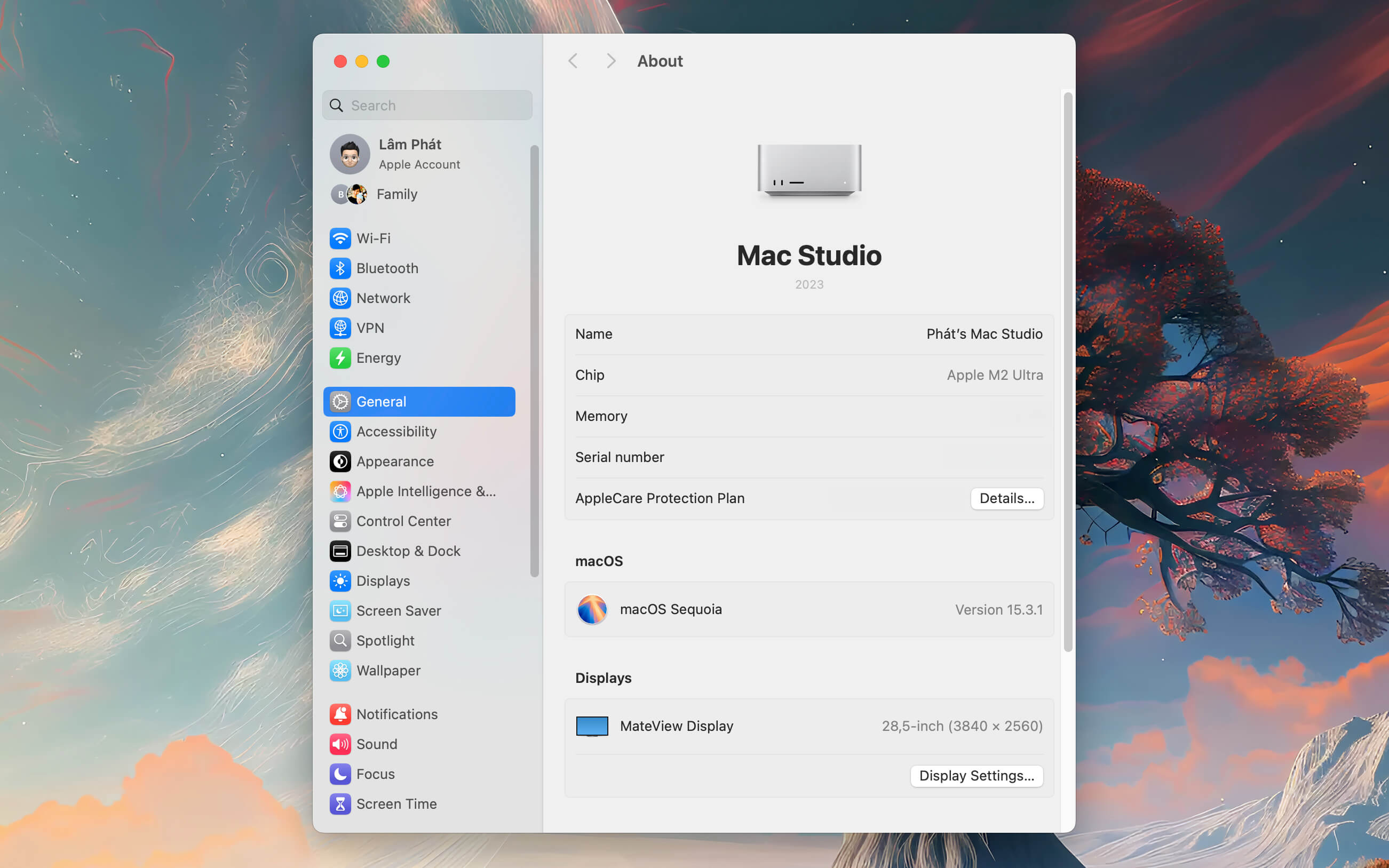
- Click the Apple menu.
- Select About This Mac.
- A window will appear showing your model name, macOS version, and hardware specs like CPU, RAM, and GPU.
3. Use the Serial Number to Identify Your Model
If you need to find the exact model of your MacBook or iMac, you can look up your serial number:
- Click Apple menu > About This Mac.
- Copy the serial number shown.
- Go to https://checkcoverage.apple.com/.
- Enter your serial number to see your exact model name, manufacture year, and warranty status.
Check the Model Name Directly on the Device Hardware
In addition to checking through the operating system, you can often find the computer name printed directly on the chassis:
- Windows Laptops: The name and model are typically printed on the bottom of the laptop or inside the battery compartment (for models with removable batteries).
- MacBooks: The model name is usually engraved on the bottom of the case, along with a serial number that you can use to look up detailed info on Apple's website.
Verifying your computer name and model is vital when configuring devices, updating software, searching for replacement parts, or troubleshooting technical issues. Whether you use Windows or macOS, the methods above will help you quickly find the information you need.
We hope this guide helps you easily identify your computer name and manage your devices more effectively!











