

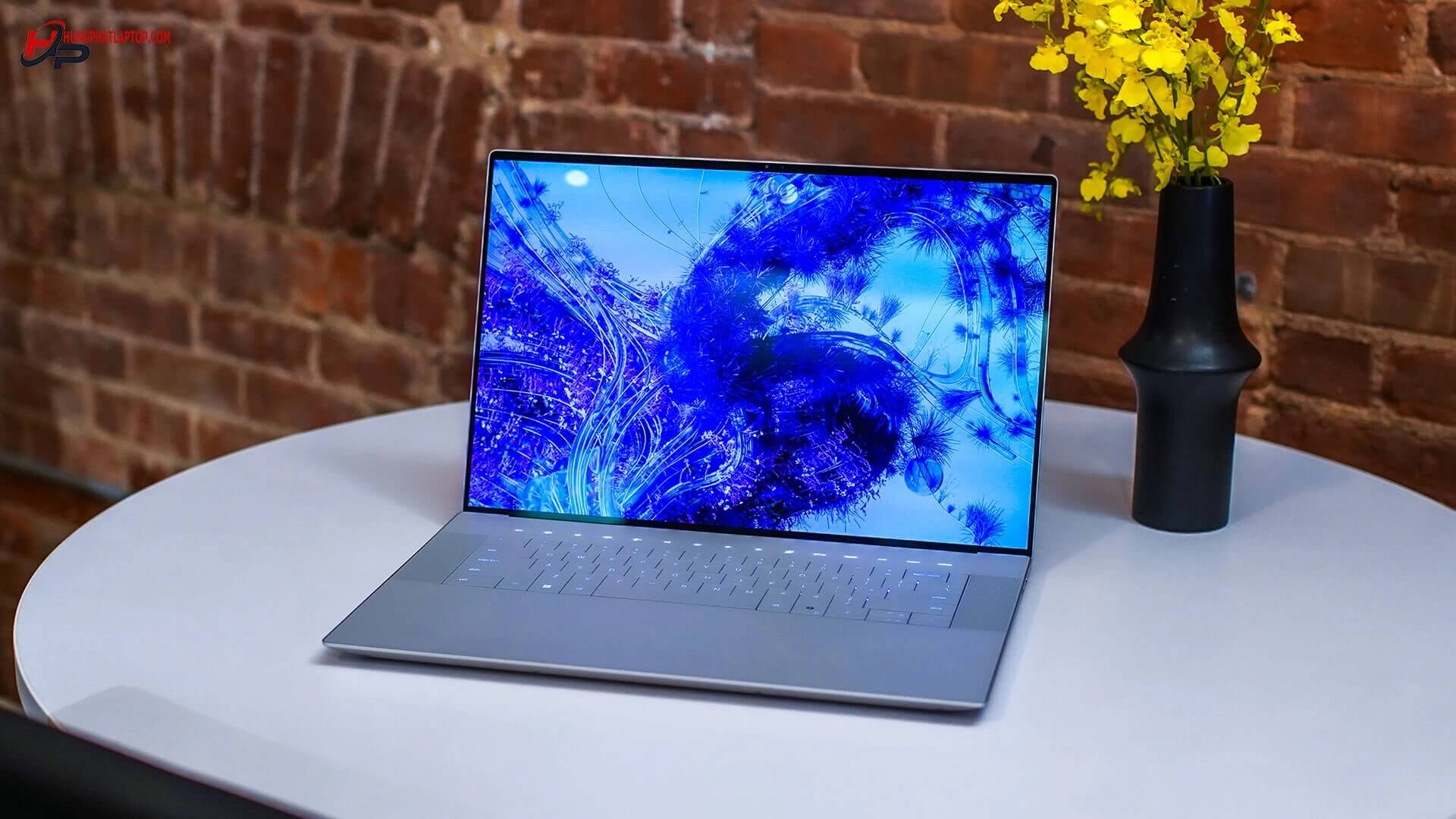
When buying a used Dell laptop, thorough inspection is extremely important to avoid purchasing low-quality products or encountering hardware errors. Used laptops can hide many issues such as damaged screens, faulty keyboards, degraded batteries, bad sectors on the hard drive, or even replaced components.
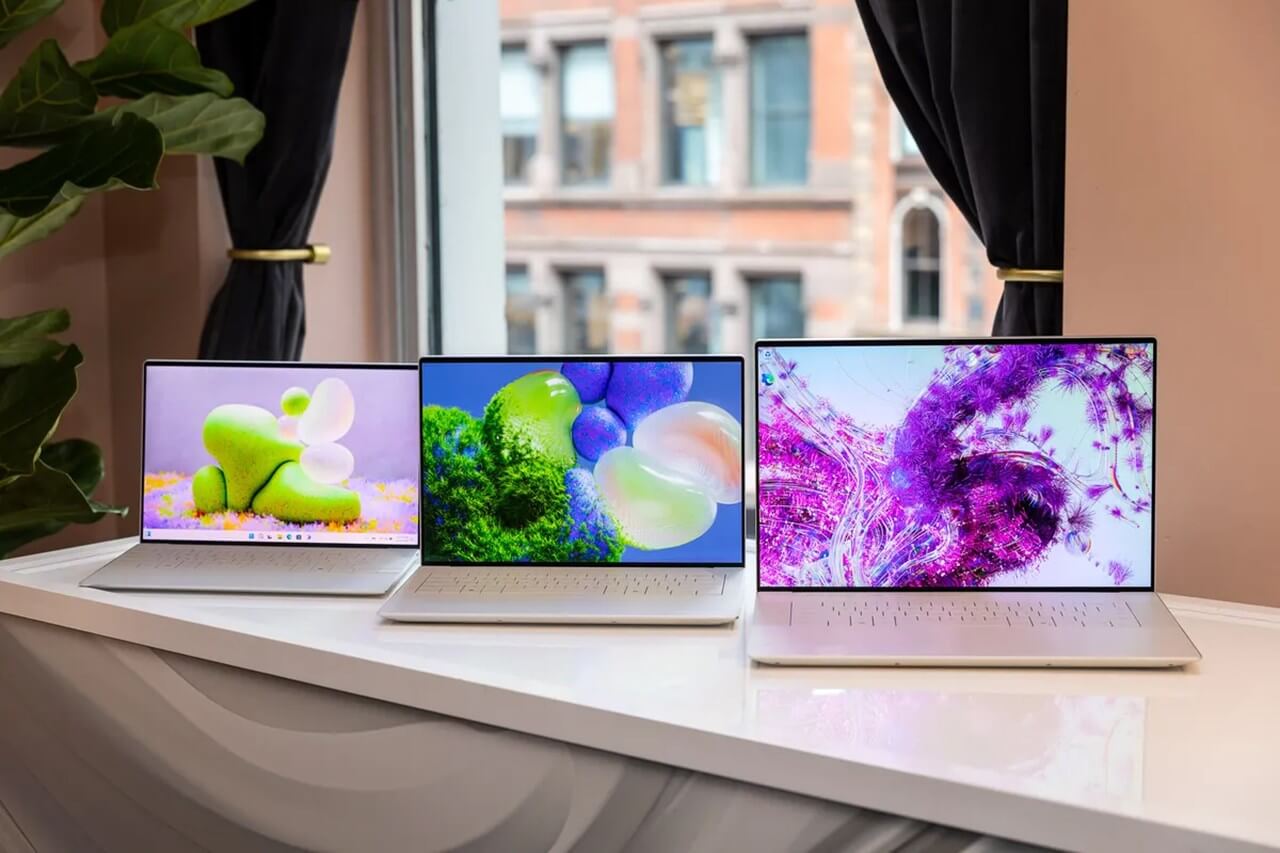
This article will guide you through the detailed way to test a used Dell laptop, from physical appearance to internal hardware and performance, helping you choose the highest quality product that is worth every penny.
1. General Exterior Inspection
The first step is to check the overall laptop appearance:
- Observe the chassis, especially the corners, hinges, and the area around the camera for scratches or cracks.
- Check the hinges: Open and close the laptop lid several times to see if the hinges are sturdy and if they make any strange noises.
- Observe the keyboard to ensure no keys are excessively worn or missing.
- Check the warranty stickers or manufacturer seals to ensure the laptop has not been tampered with internally.
2. Inspecting the Dell Laptop Screen
The screen is an expensive and vital component, so it needs to be checked very carefully:
- Use dead pixel testing software such as Dead Pixel Tester or MyScreenChecker to detect defects.
- Open black and white images; you will easily notice any dead pixels or backlight bleeding.
- Observe the screen from different angles to check color uniformity and avoid color tinting or blurring.
- Check the touch functionality (if it is a touchscreen laptop) by touching the entire screen.
3. Checking the Keyboard and Touchpad
The keyboard and touchpad play a crucial role in the user experience:
- Keyboard:
- Type some text to check the responsiveness of each key.
- Ensure the Enter, Space, Shift, Ctrl, Fn keys work normally.
- Check the keyboard backlight (if available).
- Touchpad:
- Check the smoothness of cursor movement, zooming, and left/right clicking.
- Check multi-touch gestures if the touchpad supports them.
4. Checking Speakers and Audio
- Play music or videos to test the sound quality.
- Check if the speakers are crackling, silent, or distorted.
- Go to Playback Devices to check the audio configuration and ensure there are no driver issues.
5. Checking Webcam and Ports
- Webcam:
- Open the Camera app on the laptop to check image clarity.
- Observe if the webcam is blurry or shows signs of damage.
- Ports:
- Plug in USB, HDMI, the charger, and headphones to ensure they work normally.
- Check the SD card slot if the laptop supports it.
6. Checking Hard Drive and Battery
The hard drive and battery are two components that significantly affect laptop performance:
- Check the hard drive:
- Use Hard Disk Sentinel or CrystalDiskInfo to check the health status of the hard drive.
- If there are signs of bad sectors, consider replacing the hard drive before purchasing.
- Check the battery:
- Use BatteryMon or HWMonitor to check the remaining battery capacity.
- If the capacity is below 60% of its original state, the battery may be heavily degraded.
7. Checking Performance and Operating Temperature
After checking the hardware, evaluate the laptop's performance:
- Check CPU and RAM:
- Open Task Manager (Windows) or Activity Monitor (Mac) to view resource usage.
- Run benchmark software like Cinebench or Geekbench to measure performance.
- Check temperature:
- Use HWMonitor or Core Temp to monitor CPU and GPU temperatures while running heavy tasks.
- If the temperature is too high (>85°C), the laptop may have thermal issues.
8. Checking Network and Wi-Fi Connection
- Connect the laptop to a Wi-Fi network to ensure the Wi-Fi card works well.
- Check network speed using Speedtest.net.
- Plug in a LAN cable to test the Ethernet port if the laptop supports it.
9. Conclusion on How to Test a Used Dell Laptop
Thoroughly checking before buying a used Dell laptop helps you choose a quality device and avoid unnecessary risks. Follow all the inspection steps above to ensure the laptop has good performance and durability over time.
Tips for buying a used Dell laptop:
- Choose to buy from reputable stores with clear warranty policies.
- If possible, inspect the device in person before making a decision.
- Avoid buying laptops that show signs of being opened or tampered with.
- If you are not tech-savvy, ask someone with experience to help you inspect it.
If you are looking for authentic, high-quality used Dell laptops at good prices, please visit Hung Phat Laptop immediately for the best consultation and support!











