

Introduction to the phenomenon where Dell laptop Battery cannot charge beyond 55%
Dell laptops are among the most popular and preferred laptop lines today. However, many Dell laptop users have encountered a situation where the battery cannot charge beyond 55%. This is a relatively common error on Dell laptop models.
When this error occurs, the laptop battery can only be charged to a maximum of 55% capacity. Users have tried disconnecting the charger, removing and reinserting the battery, and recharging, but the situation remains unchanged. This causes frustration and significantly affects the Dell laptop user experience.
Causes of Dell laptop not charging battery beyond 55%
There are several main causes leading to the phenomenon where a Dell laptop cannot charge its battery beyond 55%, including:
- Software error: Battery driver errors or battery management software not functioning correctly.
- Hardware error: It could be due to a faulty battery, a faulty charger, or other components related to battery management and charging being defective.
- Incorrect BIOS settings: Missing the device ownership date setting in the BIOS.
- Battery degradation: After long-term use, the battery degrades and can no longer hold its maximum capacity.
- High battery temperature: If the laptop is running heavy tasks, the high temperature prevents the battery from charging to full capacity.
The most common cause identified is the failure to set the device ownership date in the BIOS. Fixing this error is quite simple and easy.
How to fix Dell laptop not charging battery beyond 55%
To fix the situation where a Dell laptop cannot charge its battery beyond 55%, you need to follow these steps:
Step 1: Enter BIOS
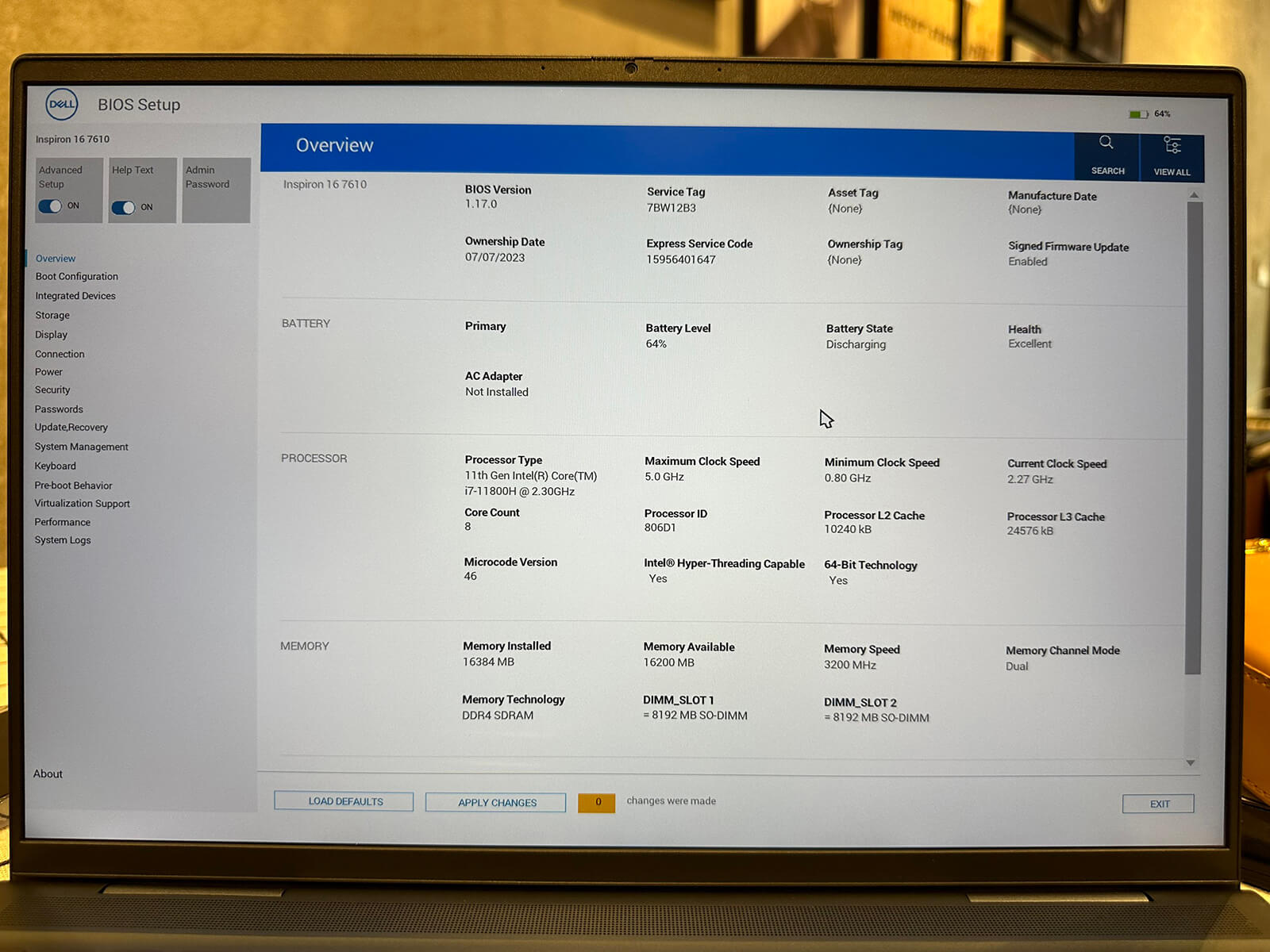
- Restart the laptop and press the F2 key repeatedly to enter BIOS when the Dell logo appears on the screen.
Step 2: Find the First Power On Date option
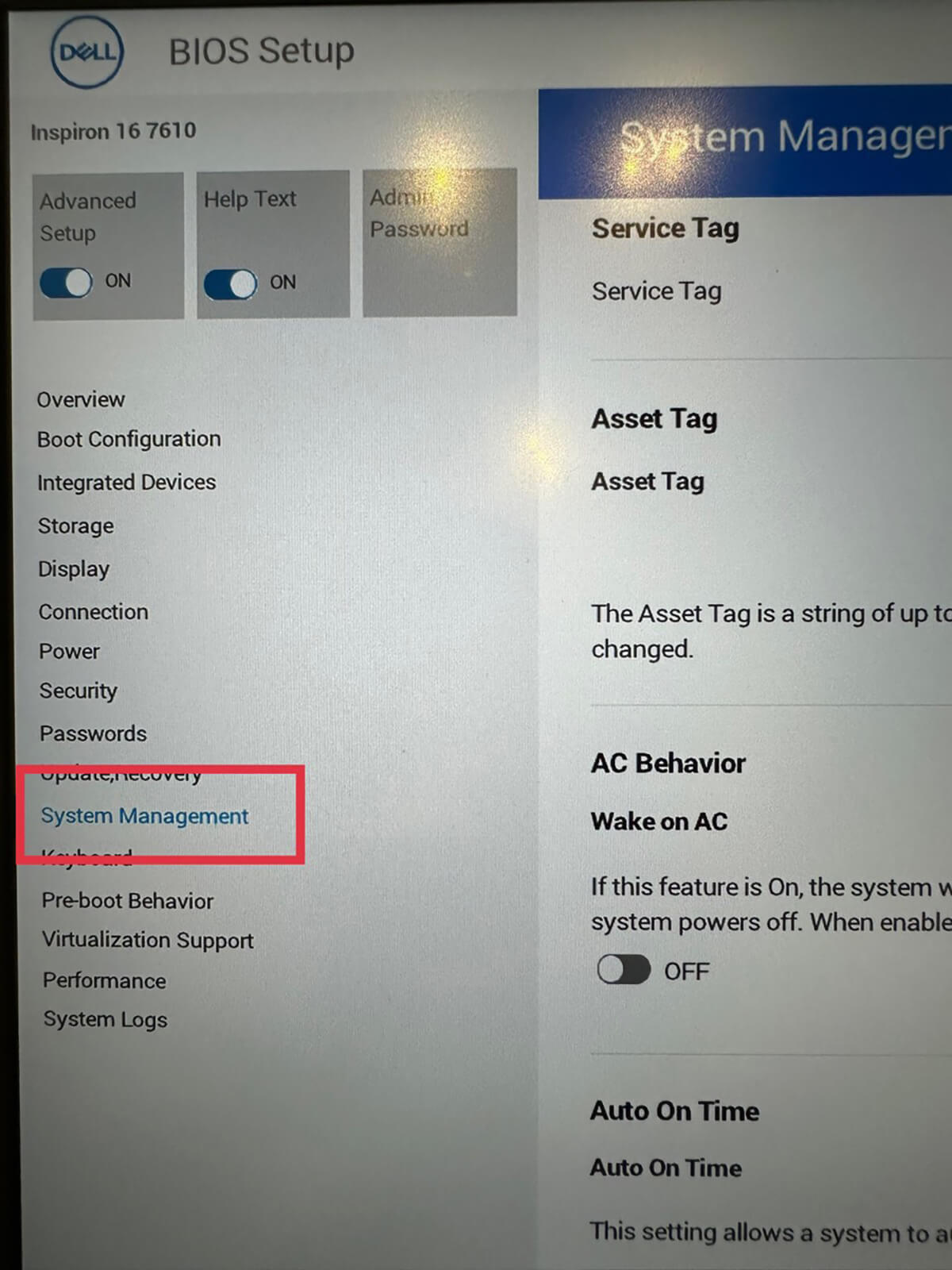
- In the BIOS interface, select the System Management tab on the left.
- Scroll down to find the First Power On Date option.
Step 3: Enable the First Power On Date option
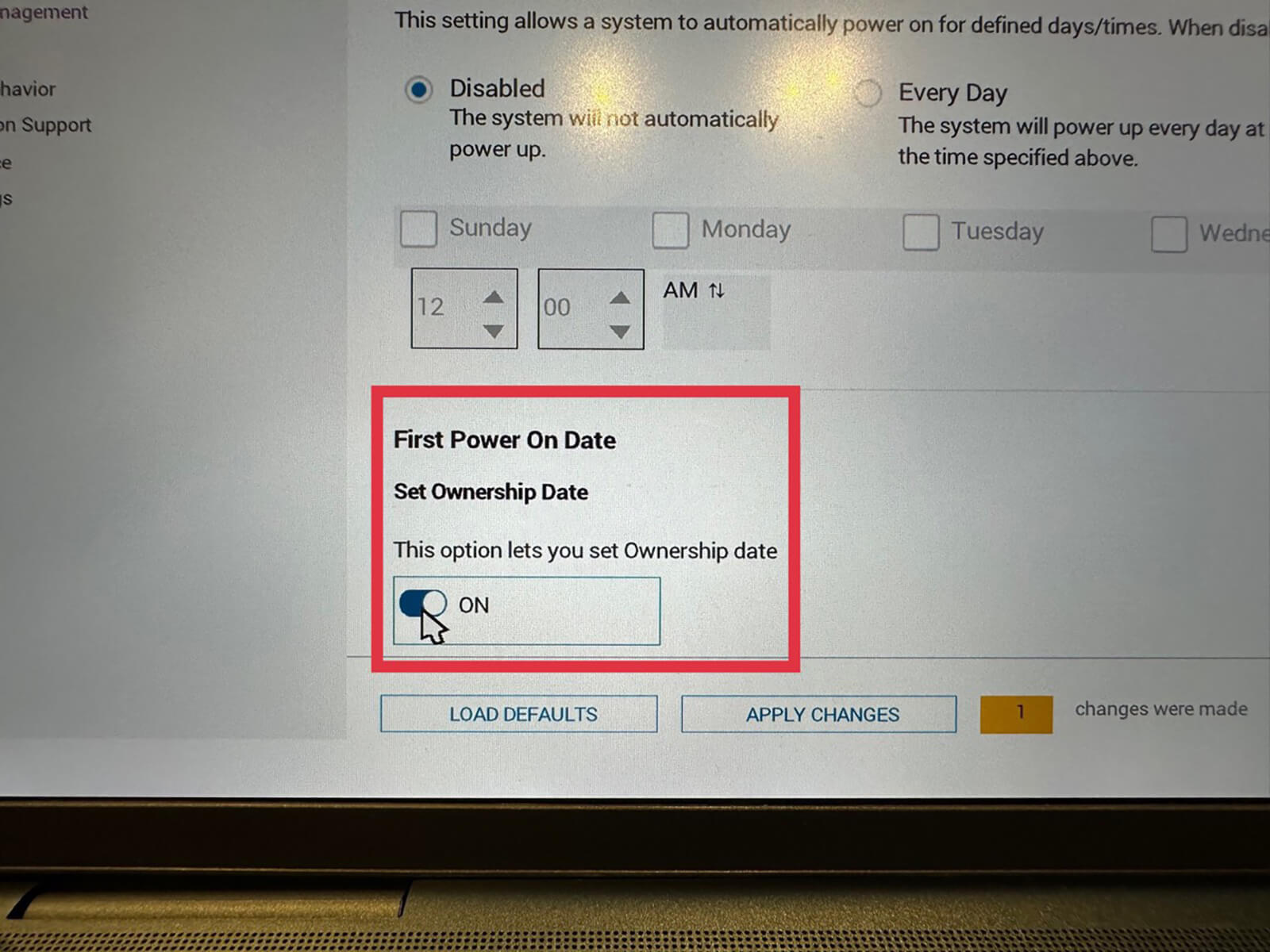
- Set the First Power On Date option to ON.
Step 4: Save settings and exit BIOS
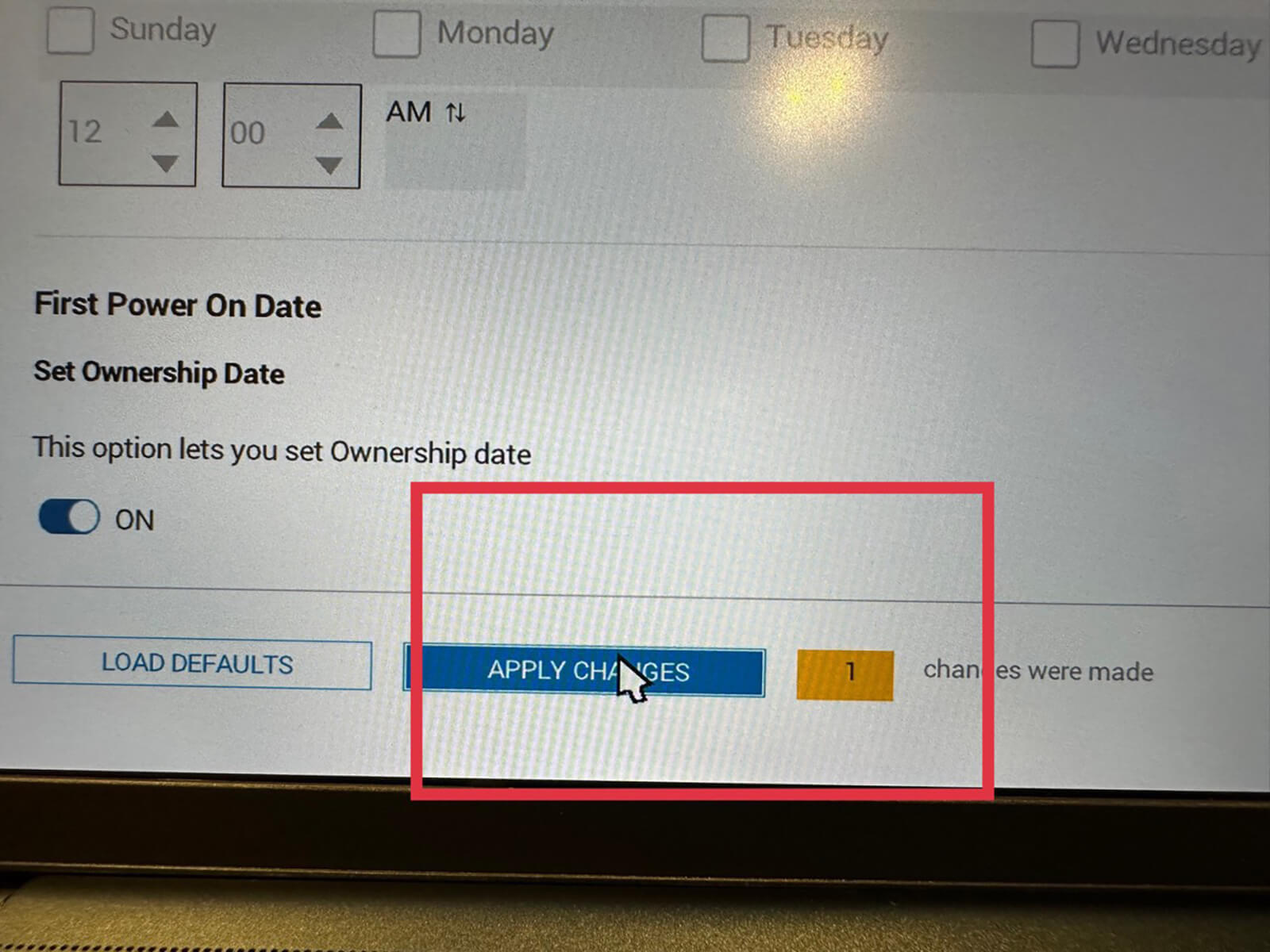
- Select Apply Changes to save the settings.
- Select Save as Custom User Settings to save the configuration.
- Finally, select Exit to exit BIOS.
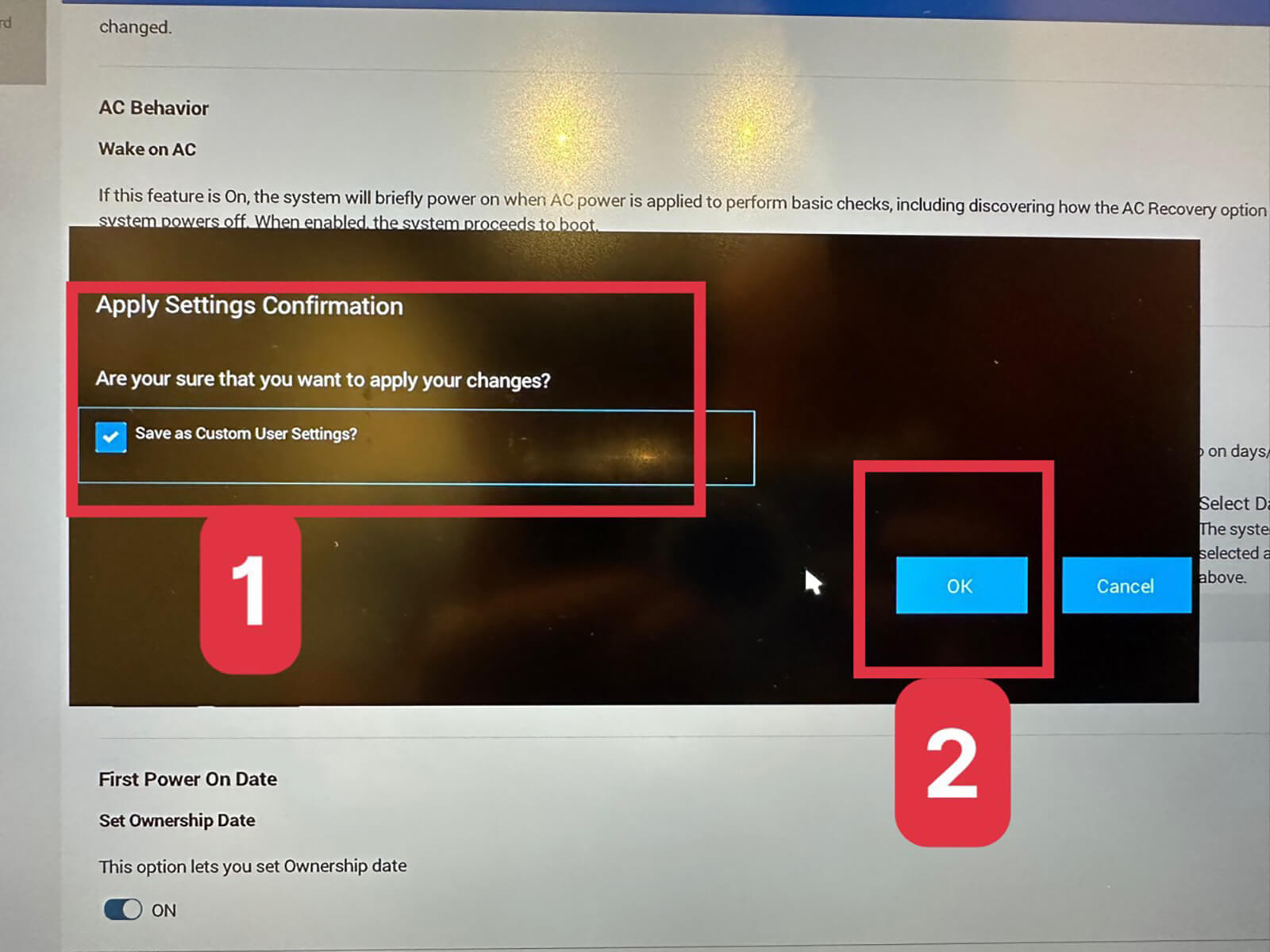
After performing the above steps and restarting the machine, the Dell laptop battery error of not charging beyond 55% will be resolved. You can charge your laptop normally.
Notes when fixing Dell laptop battery errors
To ensure the successful resolution of Dell laptop battery errors, you should note:
- Only perform this when the battery has at least 25% charge to avoid the laptop shutting down unexpectedly.
- Perform the operations carefully, following the instructions exactly when entering BIOS.
- Double-check the settings before exiting BIOS to ensure the First Power On Date option has been enabled.
- After fixing, check the charging status again to ensure the error has been fixed.
If you follow the above steps correctly and still cannot fix the error, you should bring your laptop to Hưng Phát Laptop to be thoroughly inspected and handled.











