Phát Lâm
Author · Hưng Phát Laptop

Phát Lâm

Tôi là Phát Lâm, CEO tại Hungphatlaptop.com, chuyên gia IT với nhiều năm kinh nghiệm trong lĩnh vực đánh giá PC, hạ tầng công nghệ và hệ thống mạng. Không chỉ am hiểu sâu về cấu hình phần cứng, hiệu suất hệ thống và xu hướng thị trường, tôi luôn tư vấn giải pháp tối ưu, giúp khách hàng lựa chọn thiết bị phù hợp với nhu cầu sử dụng, đảm bảo hiệu suất cao, tối ưu chi phí và mang lại giá trị thực sự.

487posts
2021at Hưng Phát Laptop
7topics
Uncategorized Máy tính - PC Tin Tổng Hợp Máy tính xách tay - Laptop Kiến Thức - Thủ Thuật Thiết bị di động - Mobiles Đánh Giá Sản Phẩm
Posts by Phát Lâm (487)
Asus Rog Zephyrus S17 Gx703
Product Reviews · 15/11/2021 · 7 min read

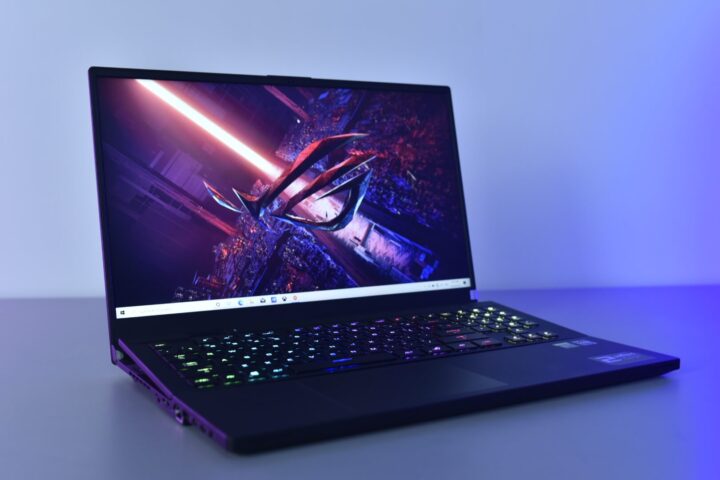
ASUS ROG Zephyrus S17 GX703

Asus has once again pushed the boundaries of high-performance computing with the launch of its latest ultra-slim gaming powerhouse in the Vietnamese…
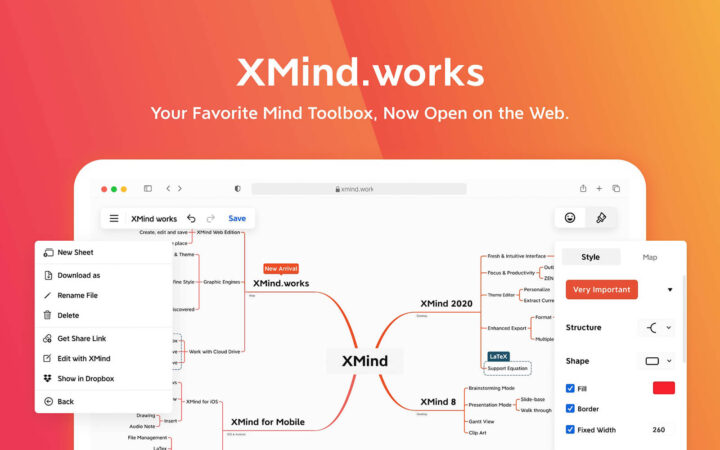

Xmind Là Gì? Cách Cài Đặt Và Vẽ Sơ Đồ Tư Duy Bằng Xmind
Tips & Tricks · 15/11/2021 · 4 min read

**What is XMind? A Guide to Installation and Mind Mapping** XMind is a powerful mind-mapping tool designed to help users organize thoughts, brainstorm ideas, and visualize complex information. Whether you are a student looking to structure study notes, a professional planning a project, or a creative seeking to map out new concepts, XMind provides a versatile platform to transform abstract ideas into structured, visual diagrams. ### **What is XMind?** At its core, XMind is a productivity application focused on visual thinking. Unlike simple drawing tools, XMind is built specifically for mind mapping, offering various structures such as traditional mind maps, logic charts, fishbone diagrams, timelines, and organizational charts. The software is designed to enhance cognitive flow, allowing users to break down large amounts of data into manageable, interconnected nodes. This makes it an essential tool for brainstorming sessions, strategic planning, and complex problem-solving. ### **How to Install XMind** XMind is available across multiple platforms, making it accessible for users on various operating systems. Here is how you can get started: 1. **Visit the Official Website:** Navigate to the official XMind website to ensure you are downloading the legitimate version of the software. 2. **Select Your Operating System:** The software supports Windows, macOS, and Linux. Choose the version that matches your computer's OS. 3. **Download the Installer:** Click the download button for your preferred platform. The download will begin automatically. 4. **Run the Installation File:** Once the download is complete, open the installer file (e.g., .exe for Windows or .dmg for macOS). Follow the on-screen instructions provided by the installation wizard. 5. **Launch the Application:** Once the installation is finished, locate the XMind icon on your desktop or in your applications folder and launch it to begin. ### **How to Create Mind Maps with XMind** Creating a mind map in XMind is an intuitive process. Once you have opened the application, follow these steps to start visualizing your ideas: **1. Choose a Template or Start from Scratch** Upon launching XMind, you can choose from a variety of pre-designed templates or start with a blank canvas. Templates are particularly useful if you want a specific aesthetic or a structured layout like a timeline or a Gantt chart. **2. Create a Central Topic** Every mind map begins with a central idea. Click on the center of the canvas to create your "Central Topic." This represents the core concept or the main subject of your map. **3. Add Sub-topics and Branches** To expand on your central idea, select the central topic and use the shortcut keys (typically the `Tab` key) to create a sub-topic. This creates a branch stemming from the main idea. You can continue this process to create multiple levels of hierarchy, moving from general concepts to specific details. **4. Organize and Structure Your Thoughts** As your map grows, you can rearrange nodes by clicking and dragging them to different positions. XMind allows you to change the relationship between topics, such as turning a sub-topic into a sibling topic or a summary node, ensuring your visual hierarchy remains logical. **5. Enhance with Visual Elements** To make your mind maps more engaging and easier to read, you can customize them with various elements: * **Colors and Styles:** Change the color schemes of different branches to visually categorize information. * **Icons and Markers:** Use icons to highlight important tasks, deadlines, or priority levels. * **Images and Attachments:** You can insert images or attach files directly into your nodes to provide additional context. **6. Export Your Work** Once your mind map is complete, XMind offers several export options. You can save your work in its native format for future editing, or export it as an image (PNG/JPG), a PDF, or even a presentation to share with colleagues or classmates.

Introduction to XMind What is XMind? XMind is a software tool designed to help you outline ideas, analyze complex issues, and develop…

Chrome Os Là Gì? Các Tính Năng Vượt Trội Trên Chrome Os Bạn Không Nên Bỏ Qua
Tips & Tricks · 06/11/2021 · 5 min read

What is ChromeOS? Essential features you shouldn't miss ChromeOS is a lightweight, cloud-centric operating system developed by Google. Designed to be fast, secure, and easy to use, it focuses on web-based applications and cloud computing, making it an ideal choice for users who spend much of their time online. Key features of ChromeOS you shouldn't miss: **1. Speed and Efficiency** One of the most significant advantages of ChromeOS is its speed. Because the operating system is streamlined and lightweight, devices running ChromeOS typically boot up in seconds. This efficiency ensures a smooth, responsive experience, even when running multiple web-based tasks simultaneously. **2. Built-in Security** Security is a core pillar of the ChromeOS experience. The system utilizes "sandboxing," a technique that isolates each web page and application in its own secure environment. If one tab is compromised by malware, the threat is contained and cannot spread to the rest of the system. Additionally, ChromeOS features automatic updates that run in the background, ensuring your device always has the latest security patches without any manual intervention. **3. Seamless Cloud Integration** Since ChromeOS is built by Google, it offers unparalleled integration with the Google ecosystem. Your files, settings, and preferences are automatically synced to your Google Account. This means you can switch between a Chromebook, a tablet, or even a smartphone and pick up exactly where you left off. Google Drive, Docs, Sheets, and Gmail are baked directly into the workflow, making cloud storage and collaboration effortless. **4. Support for Android and Linux Apps** Modern ChromeOS is no longer limited to just a web browser. Through the Google Play Store, users can download and run millions of Android apps directly on their Chromebooks. This opens up a vast library of mobile games, social media apps, and productivity tools. Furthermore, for more advanced users, ChromeOS offers support for Linux, allowing for a more robust desktop-class development and computing environment. **5. Long Battery Life** Because the operating system is optimized to be highly efficient with system resources, Chromebooks are renowned for their exceptional battery life. Many models can easily last an entire workday on a single charge, making them the perfect companion for students and professionals on the move.

What is Chrome OS? Chrome OS is a cloud-based operating system designed by Google, built on the Gentoo Linux foundation. Upon its…

Amd Radeon Software Là Gì? Cách Cài Đặt Và Sử Dụng Amd Radeon Software Đạt Hiệu Quả Tốt Nhất
Tips & Tricks · 02/11/2021 · 5 min read

**What is AMD Radeon Software? How to Install and Optimize It for Peak Performance** For users running AMD graphics hardware, the performance of their system often hinges on more than just the raw power of the GPU itself; it depends heavily on the software driving it. This is where AMD Radeon Software comes in. ### What is AMD Radeon Software? AMD Radeon Software is a comprehensive suite of tools and drivers designed specifically for users with AMD Radeon graphics cards. Rather than being a simple driver update, it serves as a centralized command center for your GPU. The software manages the essential drivers required for your hardware to communicate with your operating system, but it also provides a layer of advanced features. These include performance monitoring, real-time tuning, video encoding settings, and specialized gaming enhancements designed to optimize the visual experience and frame rates. ### How to Install AMD Radeon Software To ensure your system runs smoothly and your hardware is fully utilized, it is vital to have the correct version of the software installed. 1. **Check Compatibility:** Before beginning, ensure your hardware is supported by the latest version of the software. 2. **Download the Official Driver:** The safest and most effective method is to visit the official AMD website. Navigate to the "Drivers & Support" section. 3. **Select Your Model:** Input your specific graphics card model or use the "Auto-Detect and Install" tool provided by AMD. This tool scans your system to identify your exact hardware and fetches the most compatible driver package. 4. **Run the Installer:** Once the installer is downloaded, run the executable file. Follow the on-screen prompts. 5. **Restart Your System:** After the installation is complete, a system restart is highly recommended to ensure all driver components are properly initialized. ### How to Use AMD Radeon Software for Maximum Efficiency Once installed, you can access the interface by right-clicking on your desktop or using the designated hotkey. To get the most out of the software, focus on these key areas: **1. Performance Monitoring and Tuning** The software allows you to monitor critical metrics such as GPU temperature, fan speed, clock speeds, and power usage in real-time. For advanced users, the "Tuning" tab offers the ability to adjust voltage and clock speeds (undervolting or overclocking) to find the "sweet spot" between high performance and thermal stability. **2. Gaming Optimizations (Radeon Super Resolution & Anti-Lag)** AMD includes several proprietary technologies to enhance gameplay: * **Radeon Super Resolution (RSR):** This feature uses spatial upscaling to increase frame rates without a significant loss in image quality, making it ideal for high-resolution gaming on mid-range hardware. * **Radeon Anti-Lag:** This technology reduces input lag by optimizing the communication between the CPU and GPU, providing a more responsive feel in fast-paced competitive games. **3. Video and Display Settings** Beyond gaming, the software allows you to manage color profiles, brightness, and contrast for your monitor. If you are a content creator, you can also manage video encoding settings to streamline your recording and streaming workflows. **4. Keeping Software Up to Date** AMD frequently releases updates that include bug fixes, security patches, and "Game Ready" optimizations for new titles. Regularly checking the "Home" or "Update" tab within the software is essential to ensure your hardware remains optimized for the latest software and gaming releases.

If you own a laptop or PC dedicated to tackling heavy-hitting titles like PES, PUBG, or DOTA 2, and you are running…