Blank pages in Word can disrupt the flow of your document, making it difficult to maintain a seamless and professional layout. To help you resolve this issue, follow the guide below.
Why should you remove blank pages in Word?
A blank page is a completely empty page containing no text, images, or other content. These pages typically appear when you repeatedly press the Enter key, accidentally insert a Page Break or a Section Break (Next Page), or when creating a table in Word.
These blank pages disrupt the visual continuity of your document, cause errors in page numbering, and create aesthetic issues when printing your work.
How to easily delete blank pages in Word
Using the Delete/Backspace keys
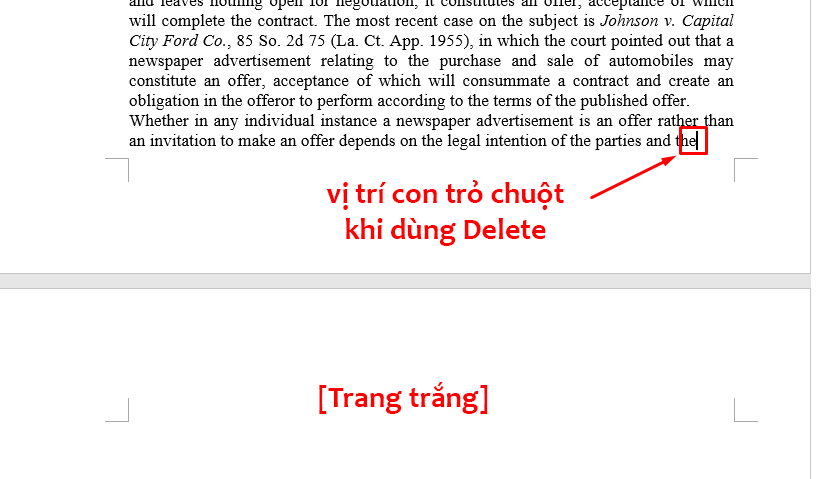
Both of these keys can remove blank pages in Word; the only difference is where you place your cursor. To use the Delete key, place your cursor at the very last character immediately before the blank page.
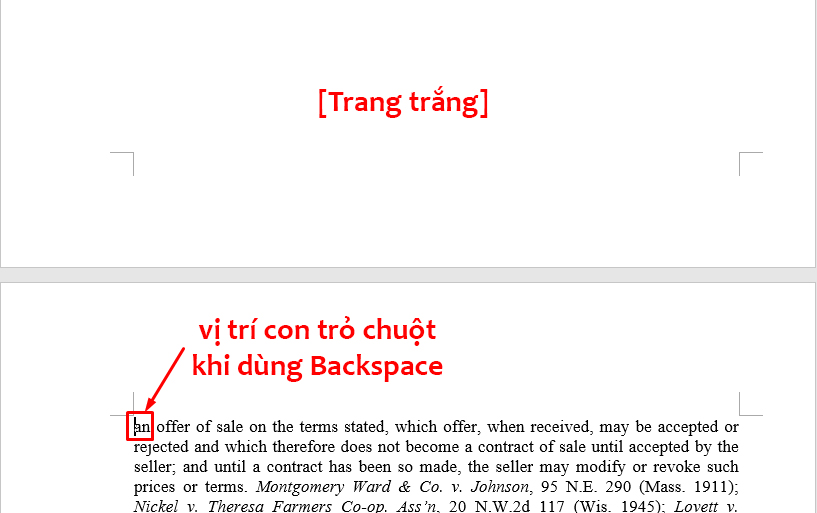
Alternatively, if you use the Backspace key, place your cursor at the first character immediately following the blank page.
Using the Paragraph feature
Deleting blank pages caused by Page Breaks or Section Breaks
Step 1: Go to the Home tab and click the Paragraph icon.
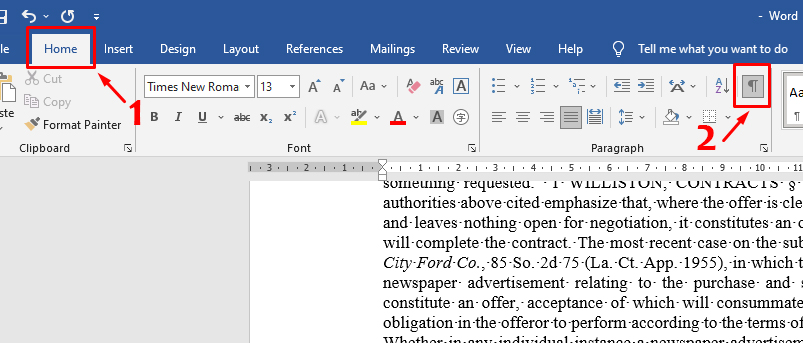
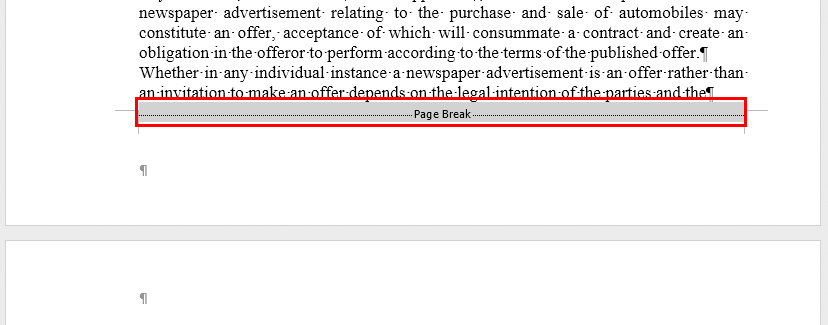
Step 2: The cause of the blank page (the Page Break or Section Break) will become visible. Highlight the Page Break/Section Break line, then press Backspace or Delete to remove it.
Removing a blank page after creating a table in Word
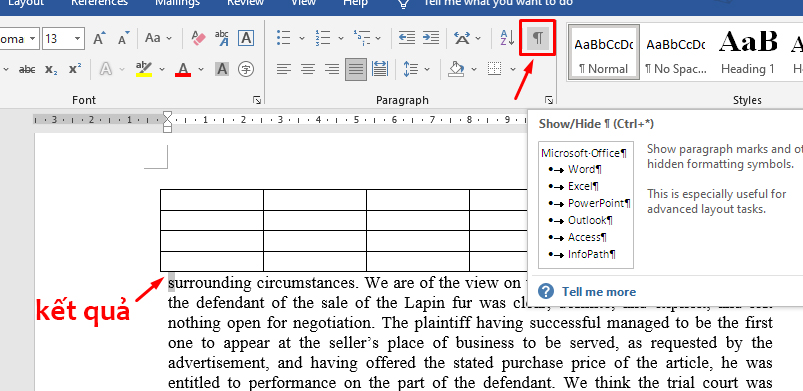
Step 1: Go to the Home tab and click the Paragraph icon.
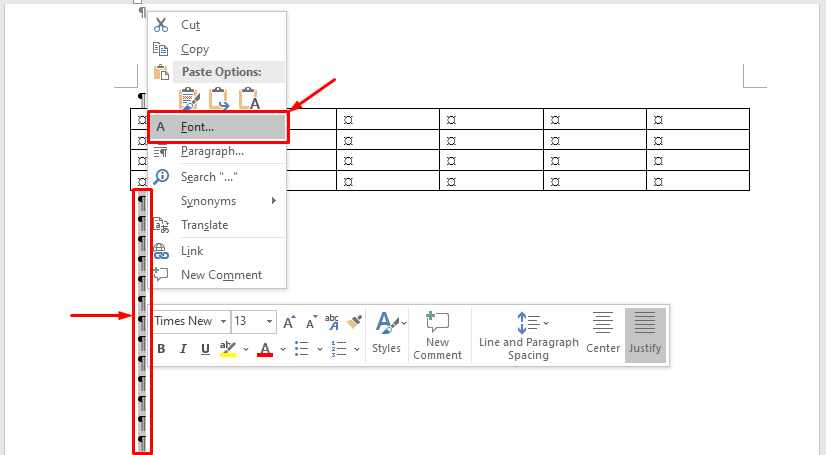
Step 2: Highlight the Paragraph symbol that appears before or after the table. Right-click and select Font…
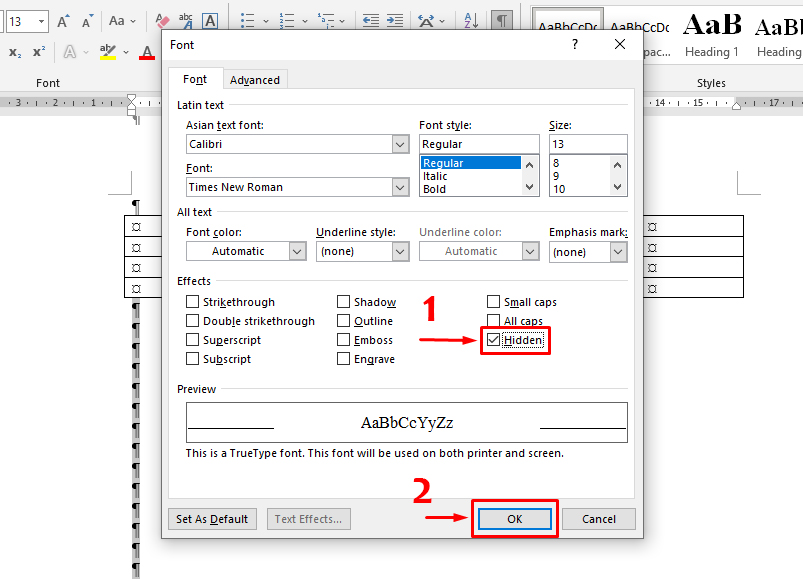
Step 3: In the Font dialog box, check the Hidden box under the Effects section, then click OK.
Step 4: Click the Paragraph icon again, and the blank page will disappear.
Conclusion
Through this article, we hope you have learned several useful methods to quickly and easily delete blank pages in Word. Good luck!