

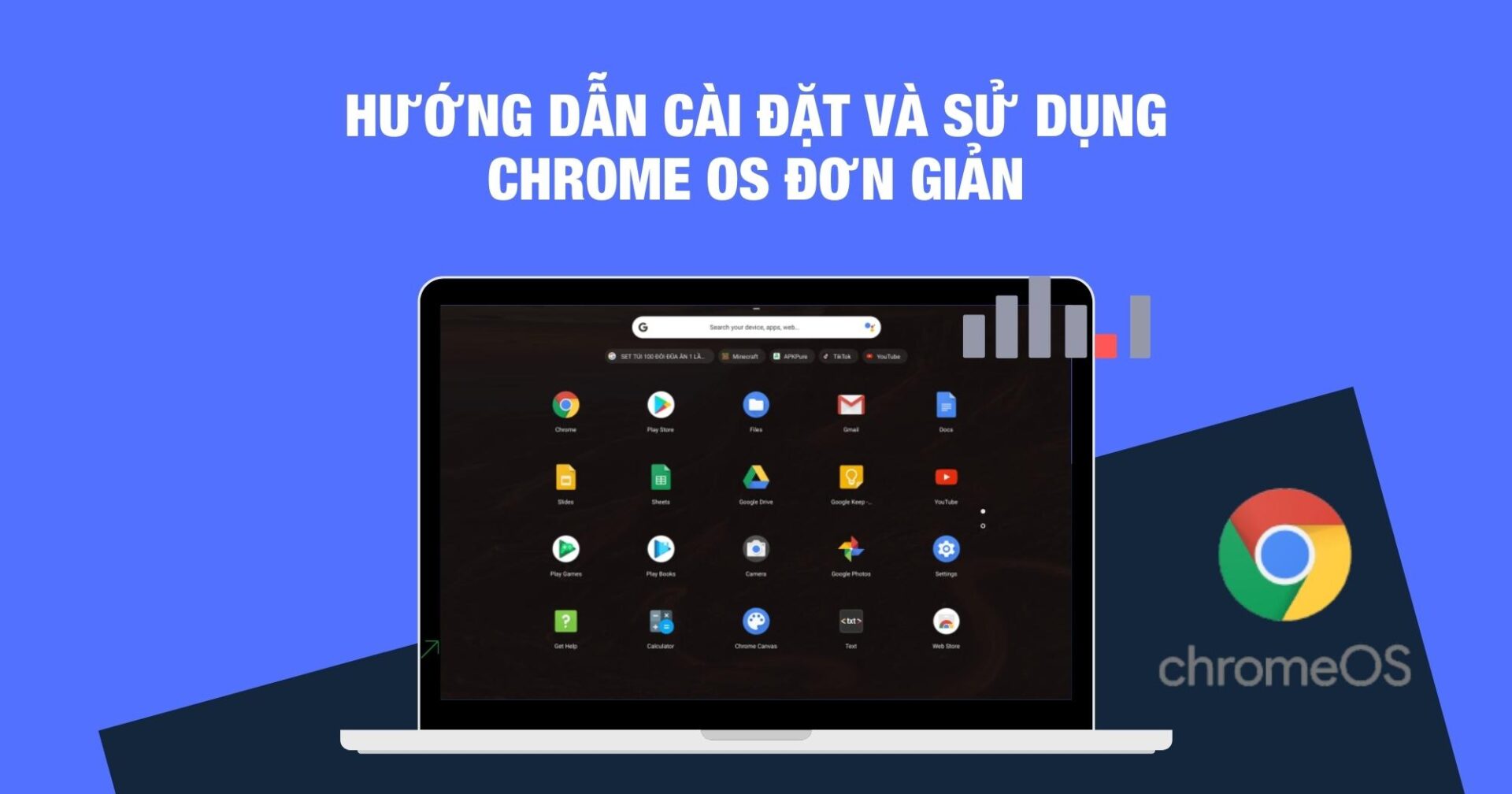
What is Chrome OS?
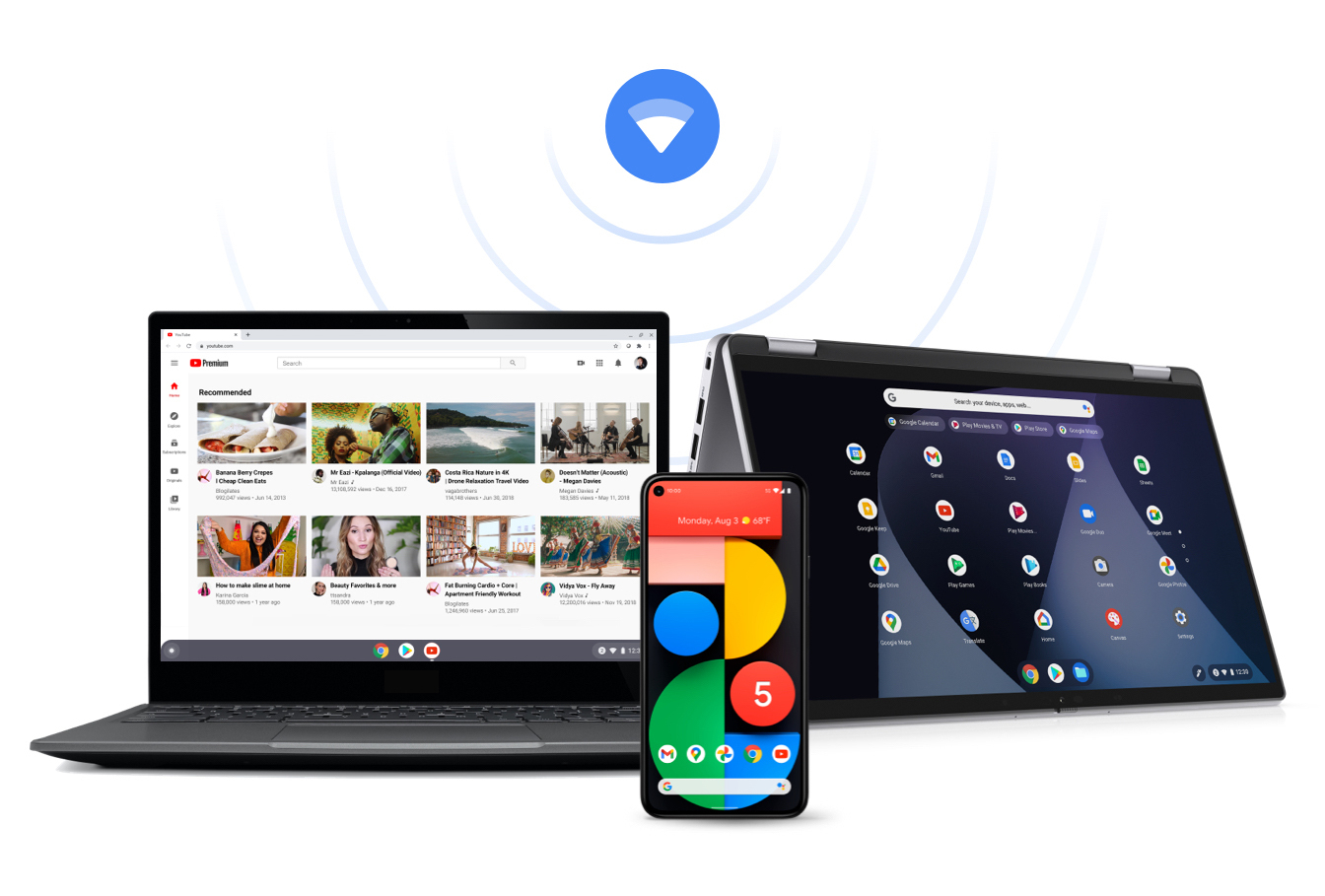
Chrome OS is a cloud-based operating system designed by Google, built on the Gentoo Linux foundation. Upon its release, Google developers championed the "Nothing but the Web" philosophy, establishing Chrome OS as the primary operating system for Chromebooks-devices developed directly by Google.
Key Features of Chrome OS
As a cloud-centric operating system, Chrome OS differs significantly from macOS or Windows. It offers unique features optimized to enhance the user experience compared to traditional operating systems. Let's dive into what makes it stand out.
Smooth and Fast Performance
First, because it is an operating system where most actions are handled through a web browser, it offers incredibly fast boot times. Furthermore, it doesn't require high-end, expensive processors to run smoothly. The interface is highly optimized and streamlined for simplicity.

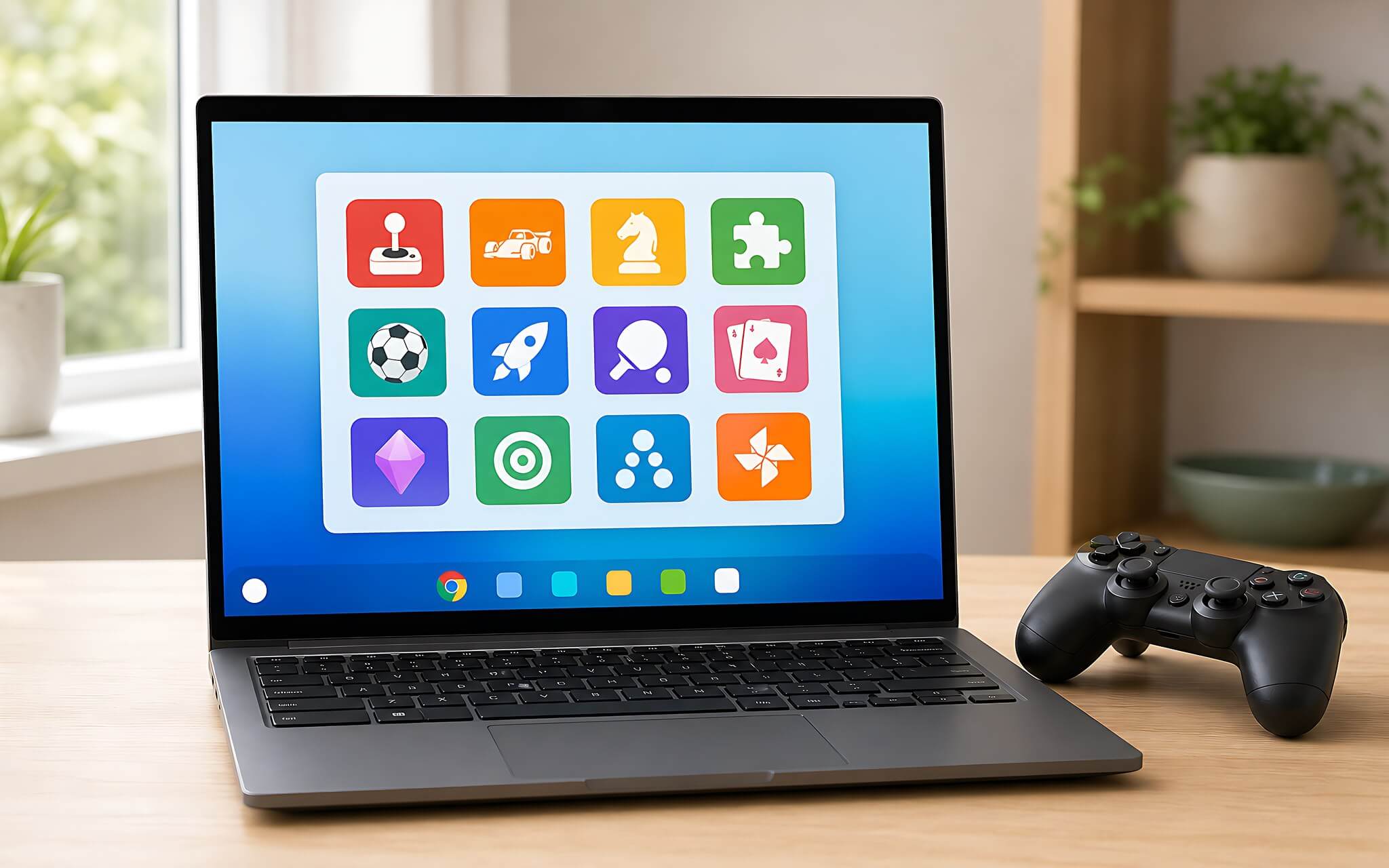
Explore the Massive Google Web Store Game Library
The Google Web Store offers a vast library of games, including popular titles from Android devices. With Chrome OS, you can download and play a wide variety of famous games, available through both free and paid options.
High-Level Security Comparable to Windows/macOS
Security is a major concern for many users, and Chrome OS addresses this head-on. Much like how Windows utilizes "Sandboxing," Chrome OS employs similar security techniques. This sandboxing technology prevents malicious software from accessing or damaging your core system.

Important Considerations When Installing Chrome OS
While Chrome OS offers many exciting features, there are several factors to keep in mind before installing it on your laptop or computer:
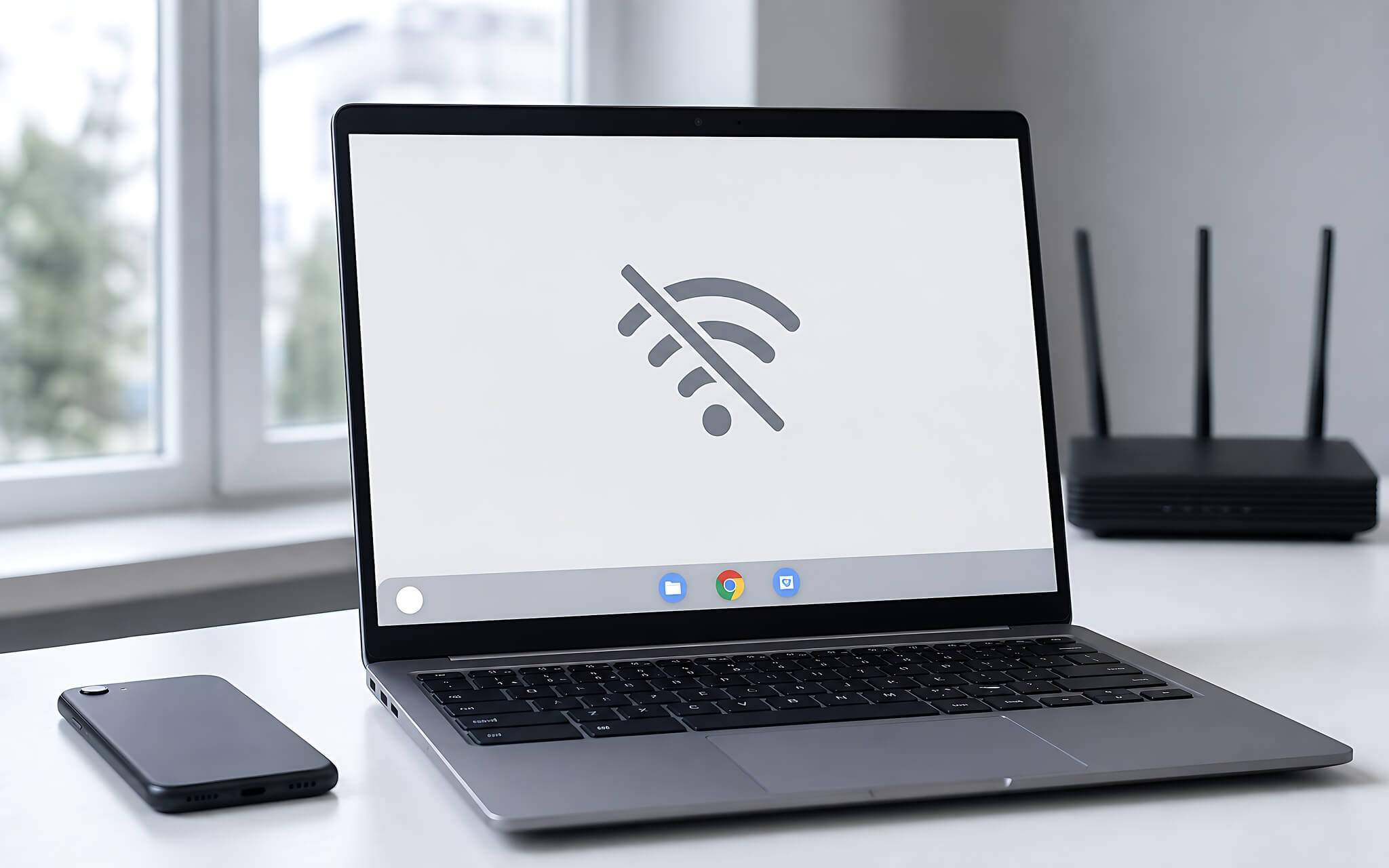
Heavy Reliance on an Internet Connection
Because it is a cloud-based operating system, Chrome OS requires an internet connection to function effectively. This may pose a challenge for users who travel frequently or work in areas with limited connectivity.
Limited Device Compatibility
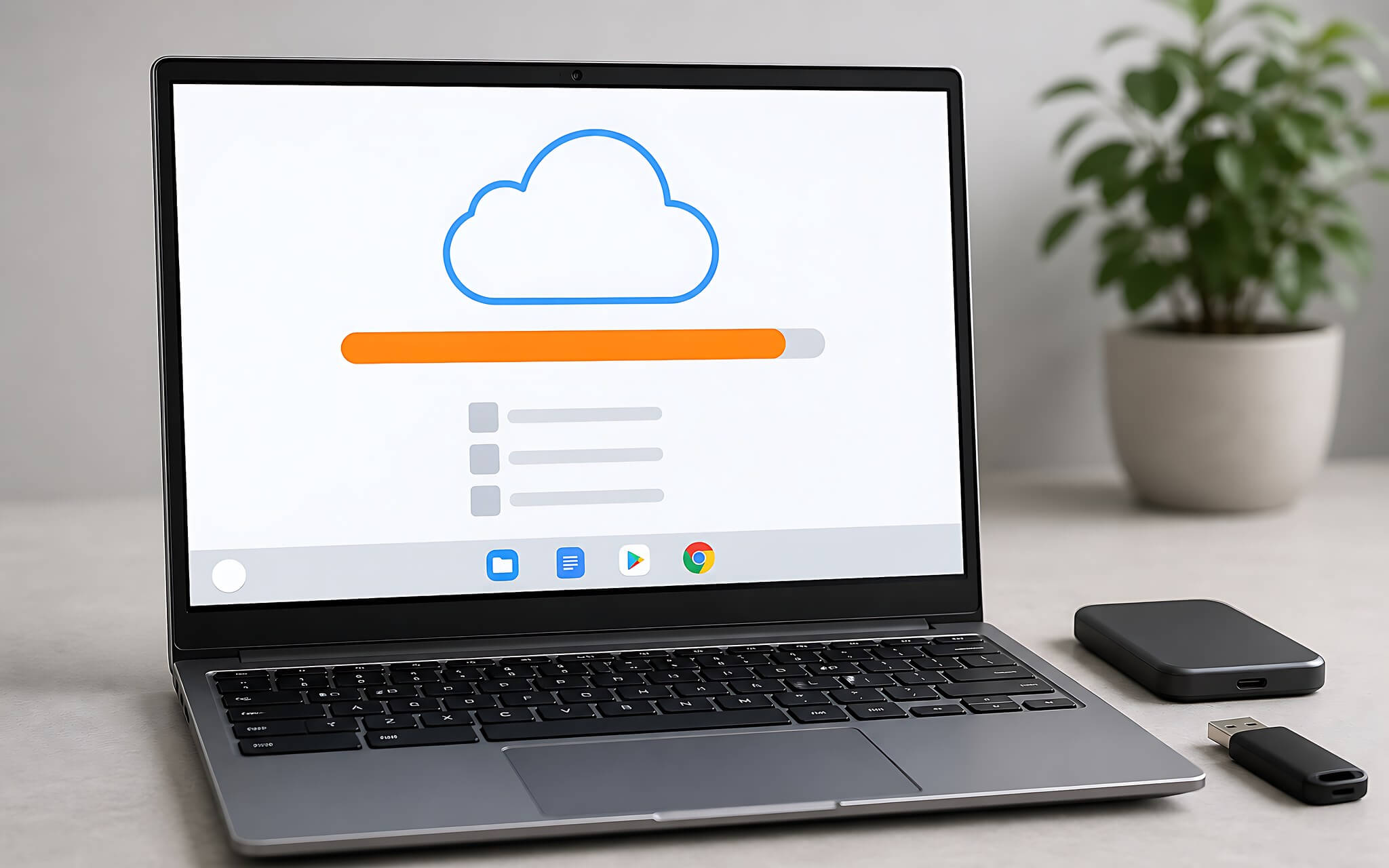
While Chrome OS comes pre-installed on Chromebooks, you can use it on other hardware by installing it via a third-party application using a bootable USB. The following minimum requirements apply:
- USB 2.0 or 3.0 with at least 4GB of capacity.
- USB must be formatted to FAT32.
- CloudReady software must be installed.
- The Chrome browser must be used.
Additionally, you might consider running two operating systems simultaneously (dual-booting) to avoid compatibility issues with Windows-specific applications, such as Microsoft Office, which does not run natively on Chrome OS.
Limited Local Storage Capacity
As mentioned, Chrome OS is built around cloud storage. Consequently, local storage capacity on a Chrome OS device is generally more limited compared to other operating systems.
How to Install and Use Chrome OS via Virtual Machine/Bootable USB
If you find that these features align with your needs, follow these steps to experience Chrome OS:
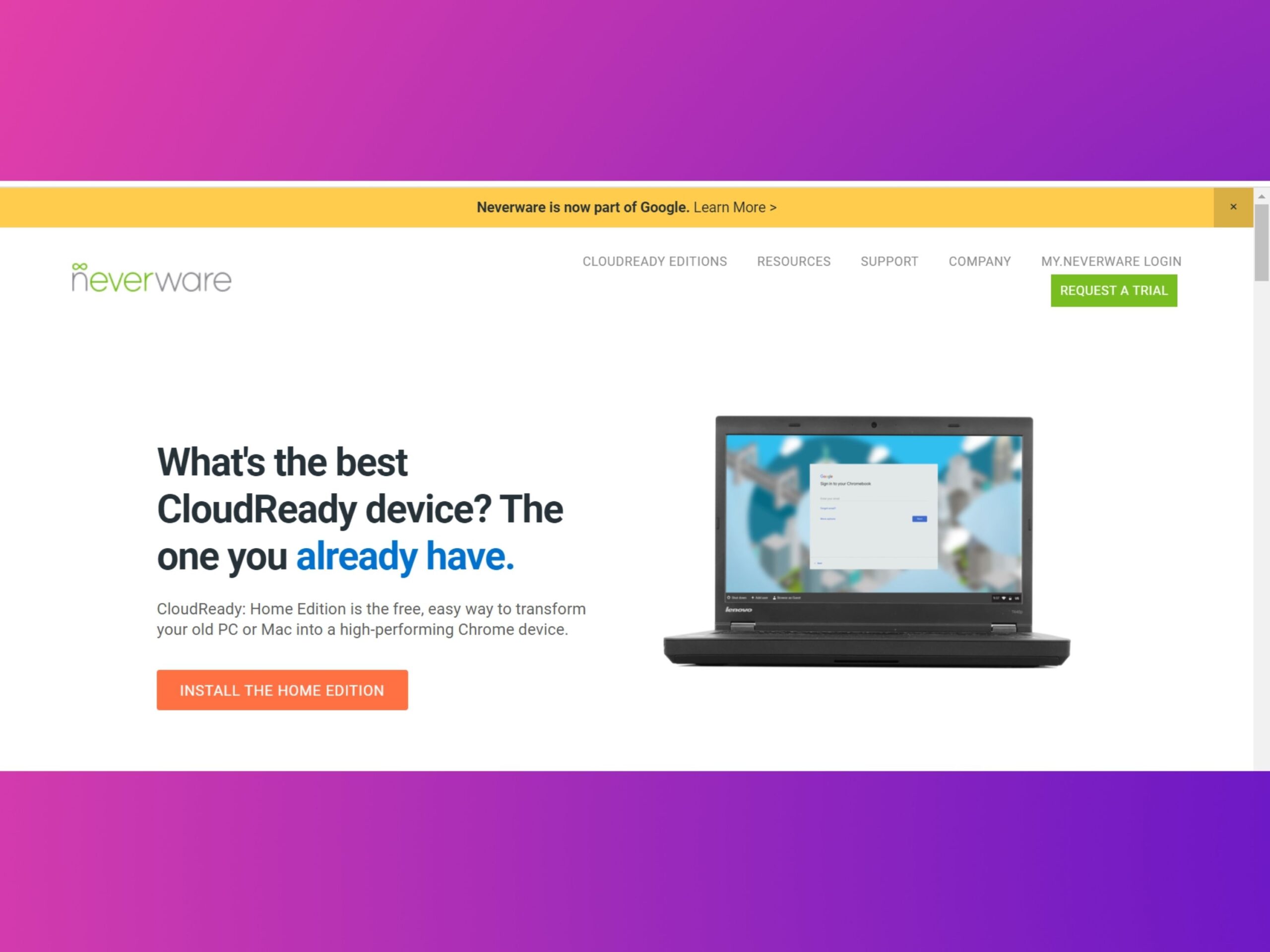
Step 1: Download the CloudReady software using this link to create your USB Maker.
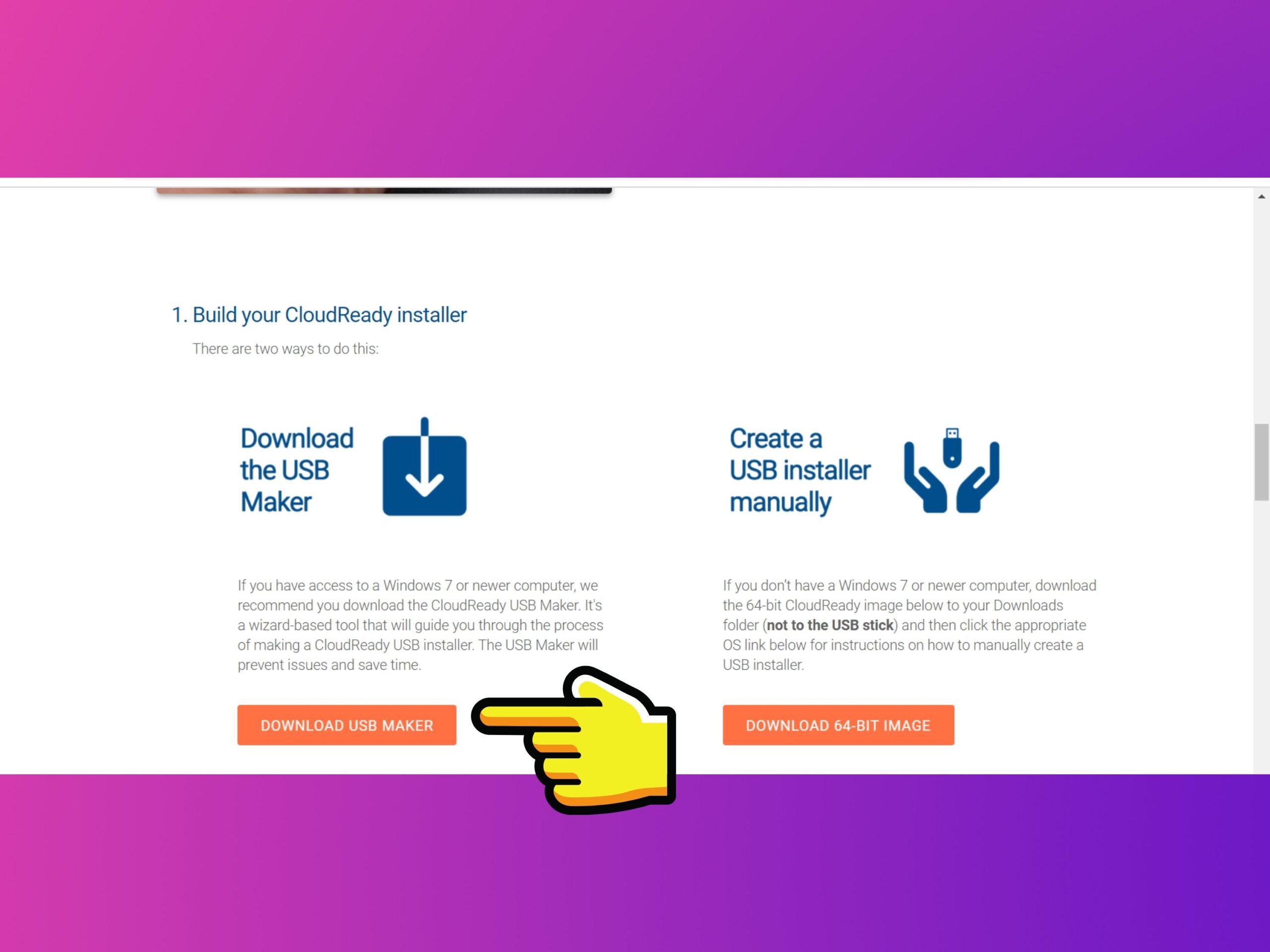
Step 2: On the homepage, click DOWNLOAD USB MAKER.
Step 3: Open the Chrome browser and navigate to Extensions.
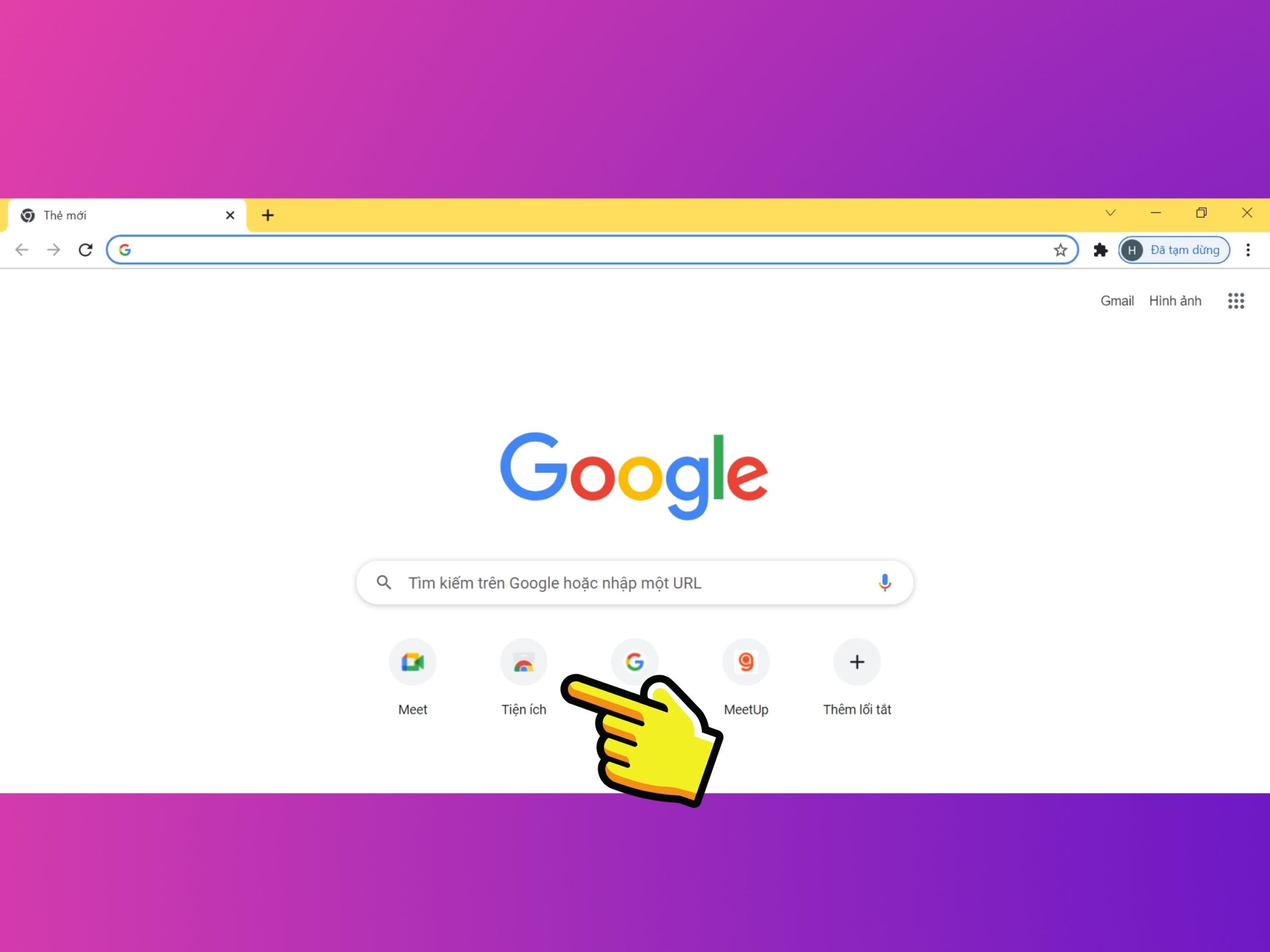
Step 4: In the search bar, type Chromebook Recovery Utility.
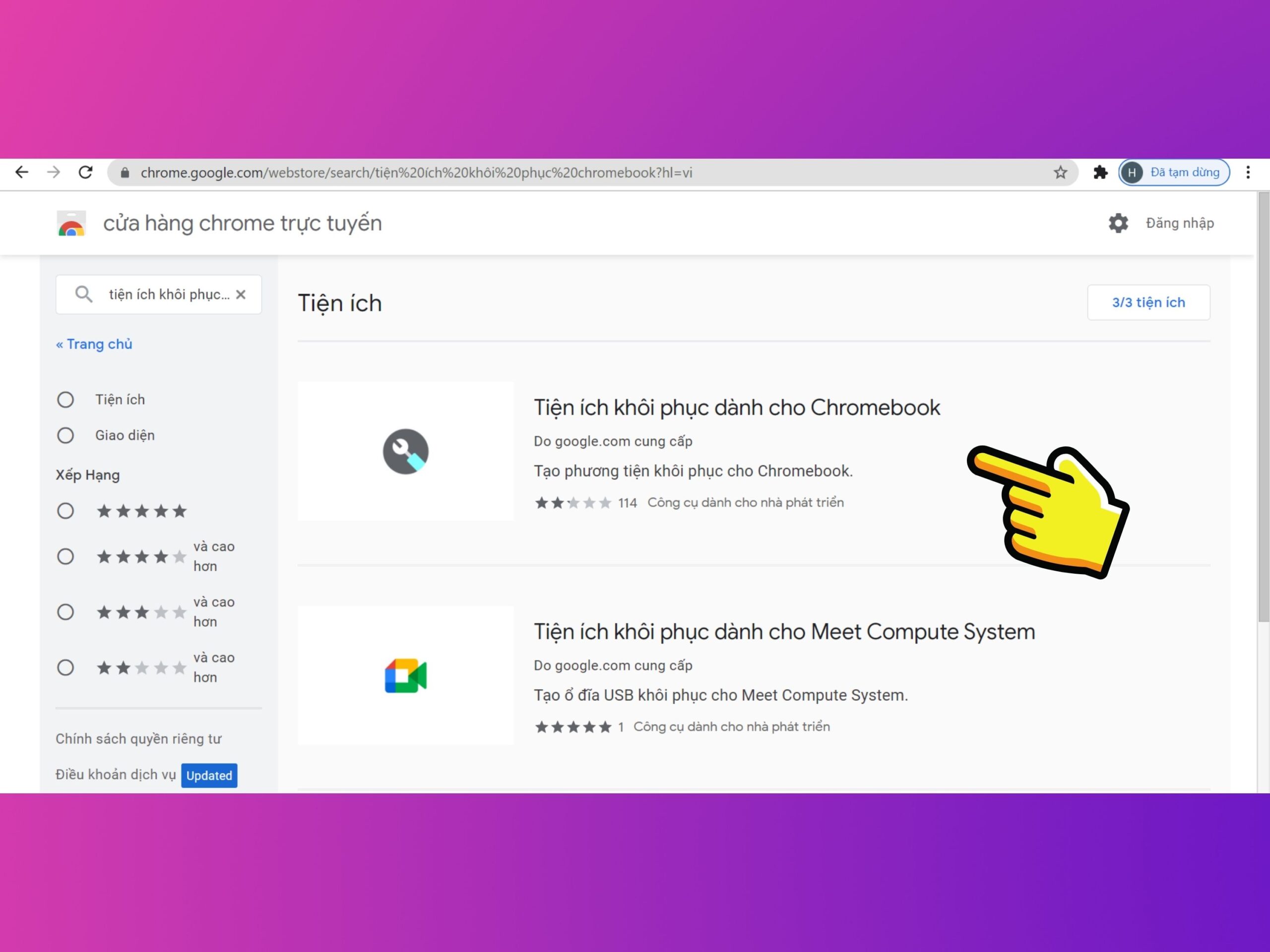
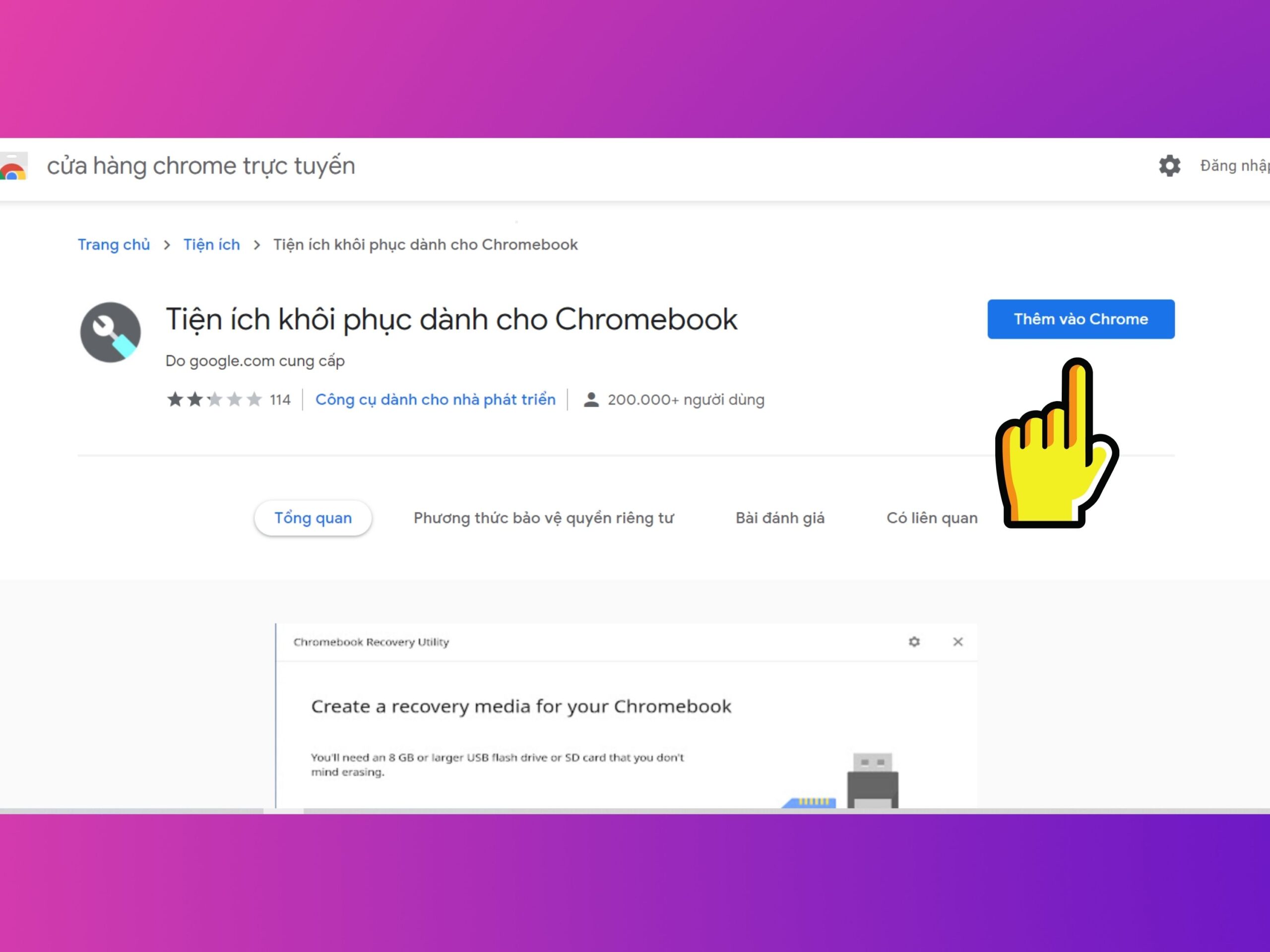
Step 5: Once the extension appears in the search results, click on the Chromebook Recovery Utility and select Add to Chrome.
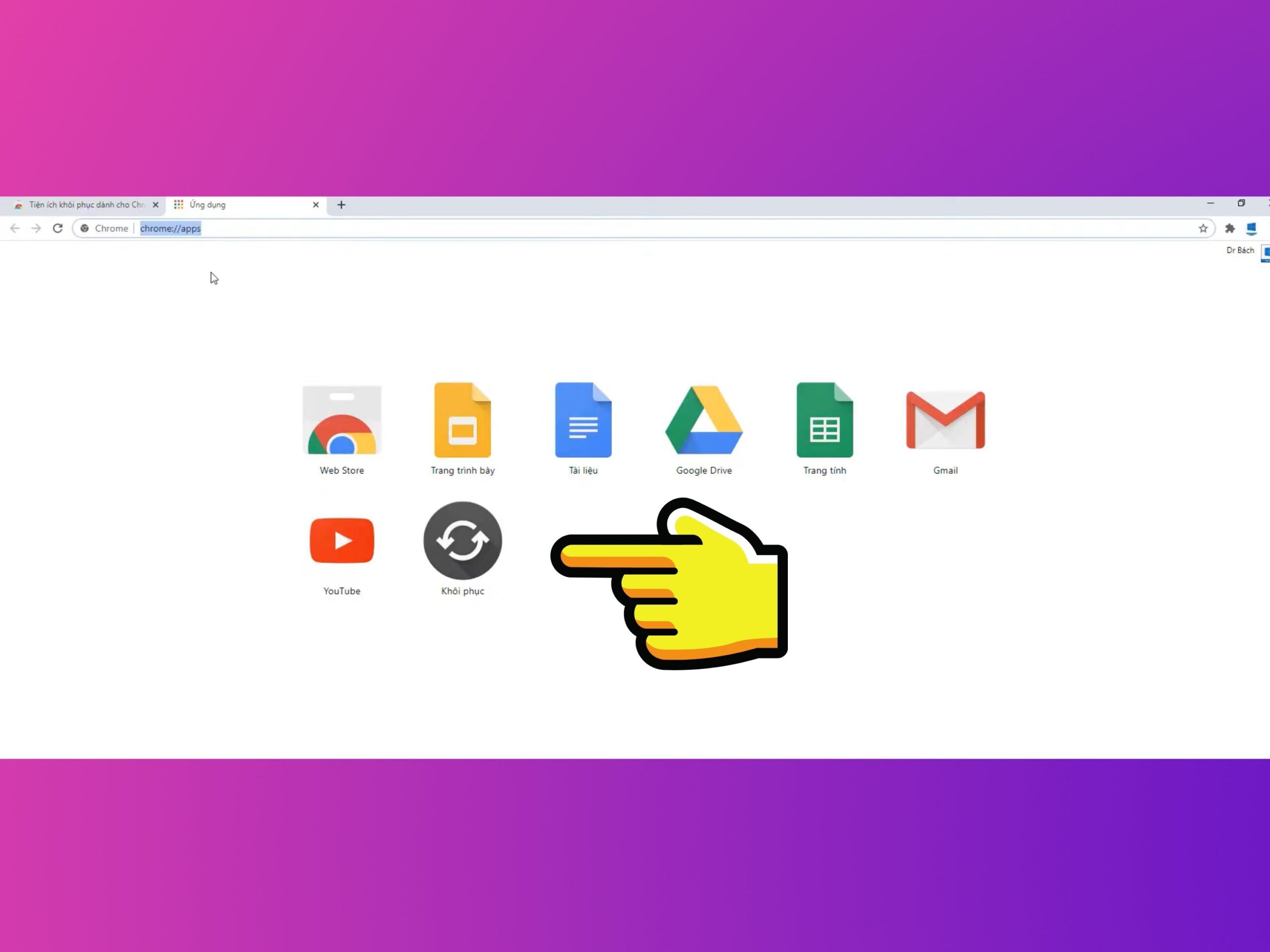
Step 6: After adding it, you will be directed to the Chrome Apps page. Select the Recovery app.
Step 7: Click the Settings gear icon and select Use local image. Then, click the Start button.

Step 8: In the next step, select the CloudReady file you previously downloaded to your computer.
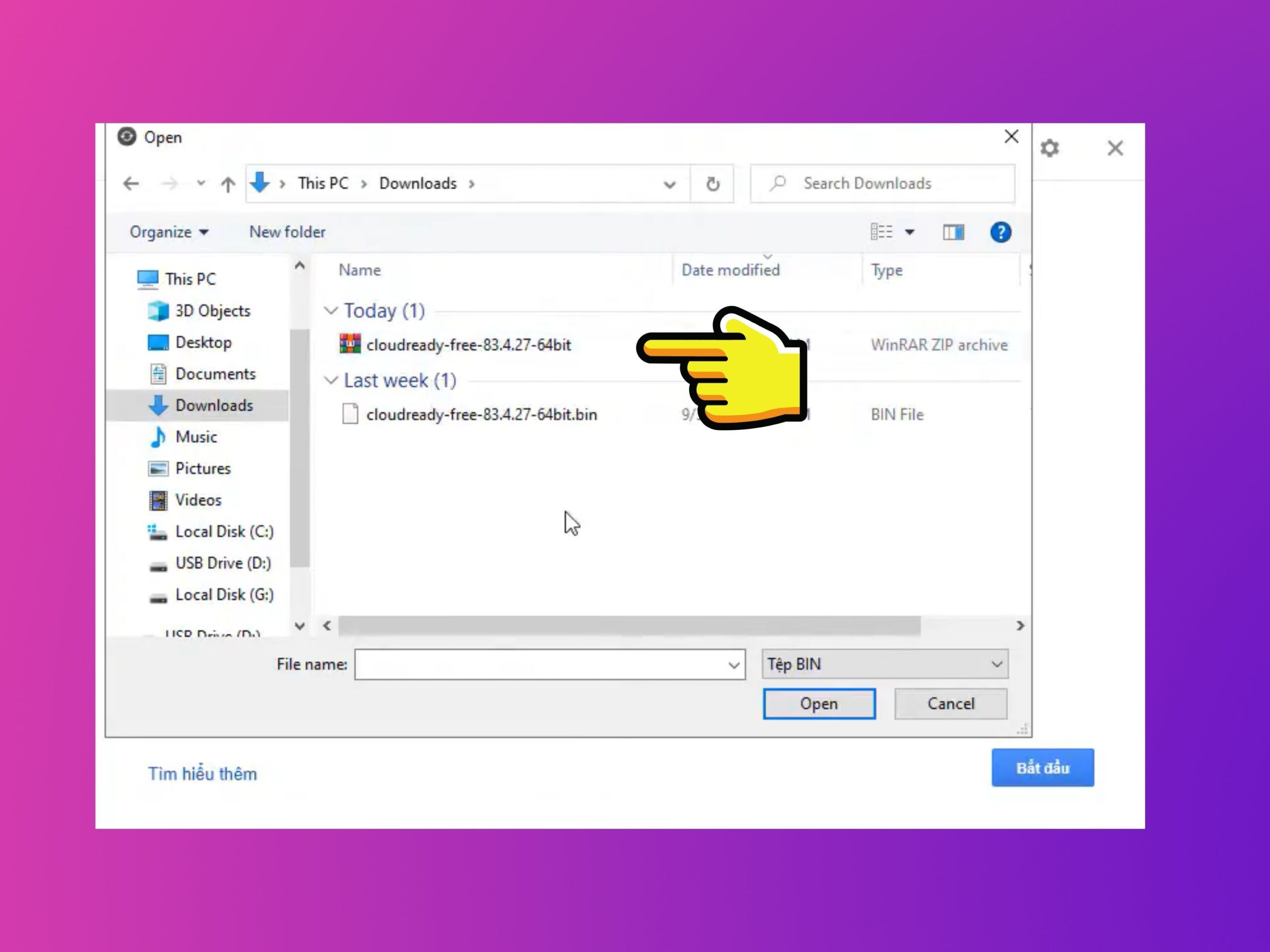
Step 9: The application will ask you to confirm the USB drive you wish to use; select it and click Continue.
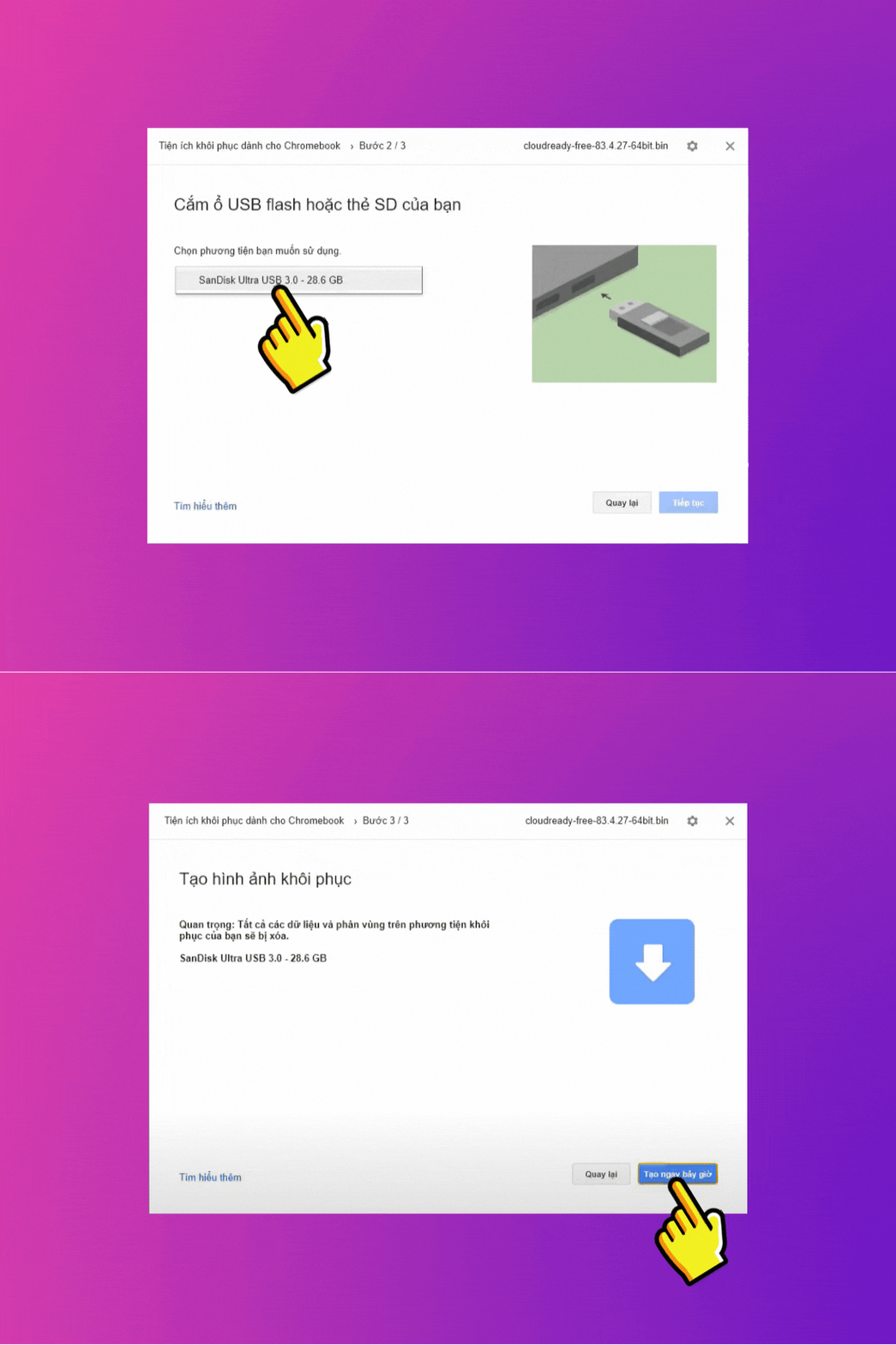
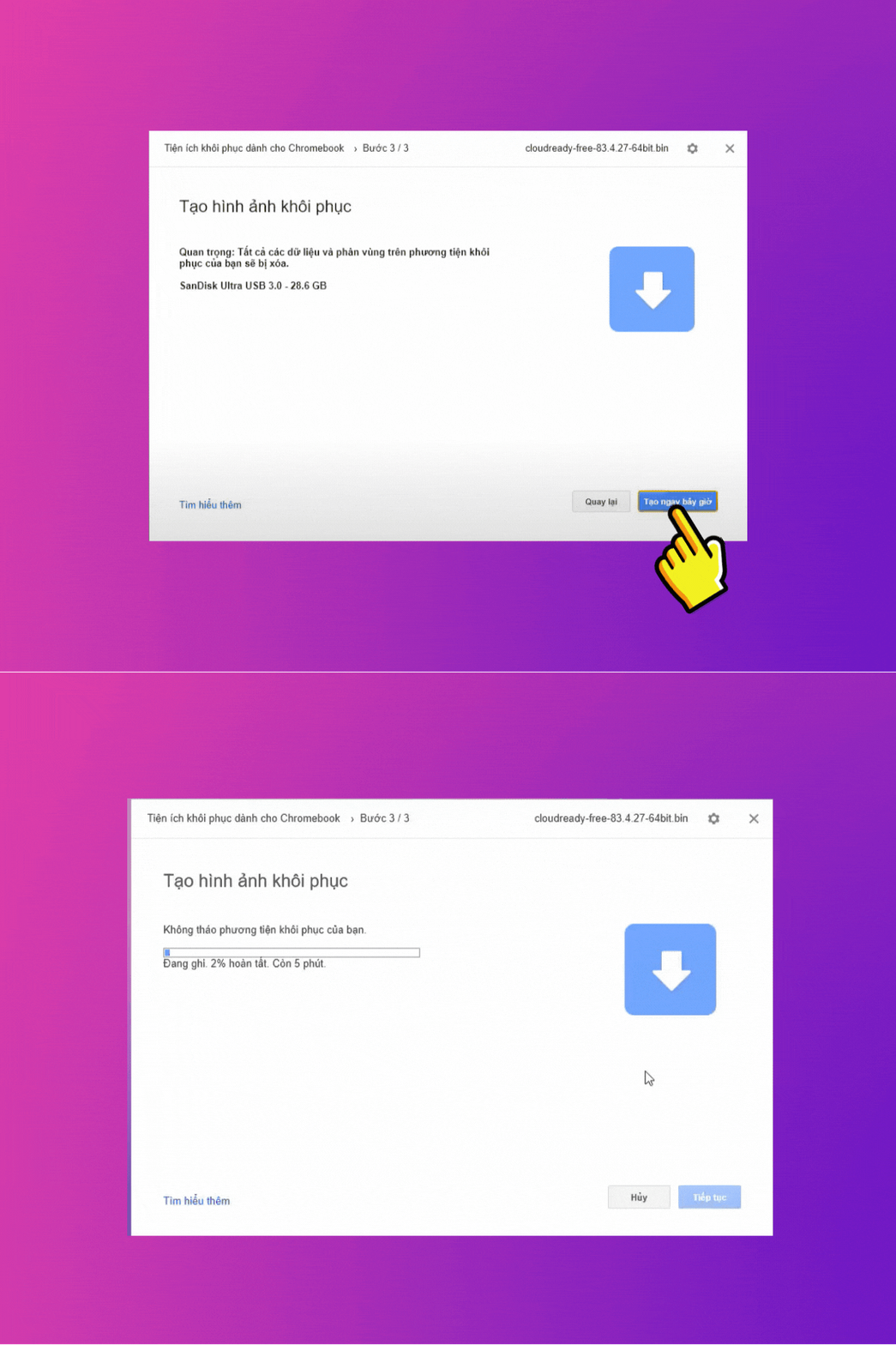
Step 10: Click Create now and wait for the setup process to complete on the USB drive.
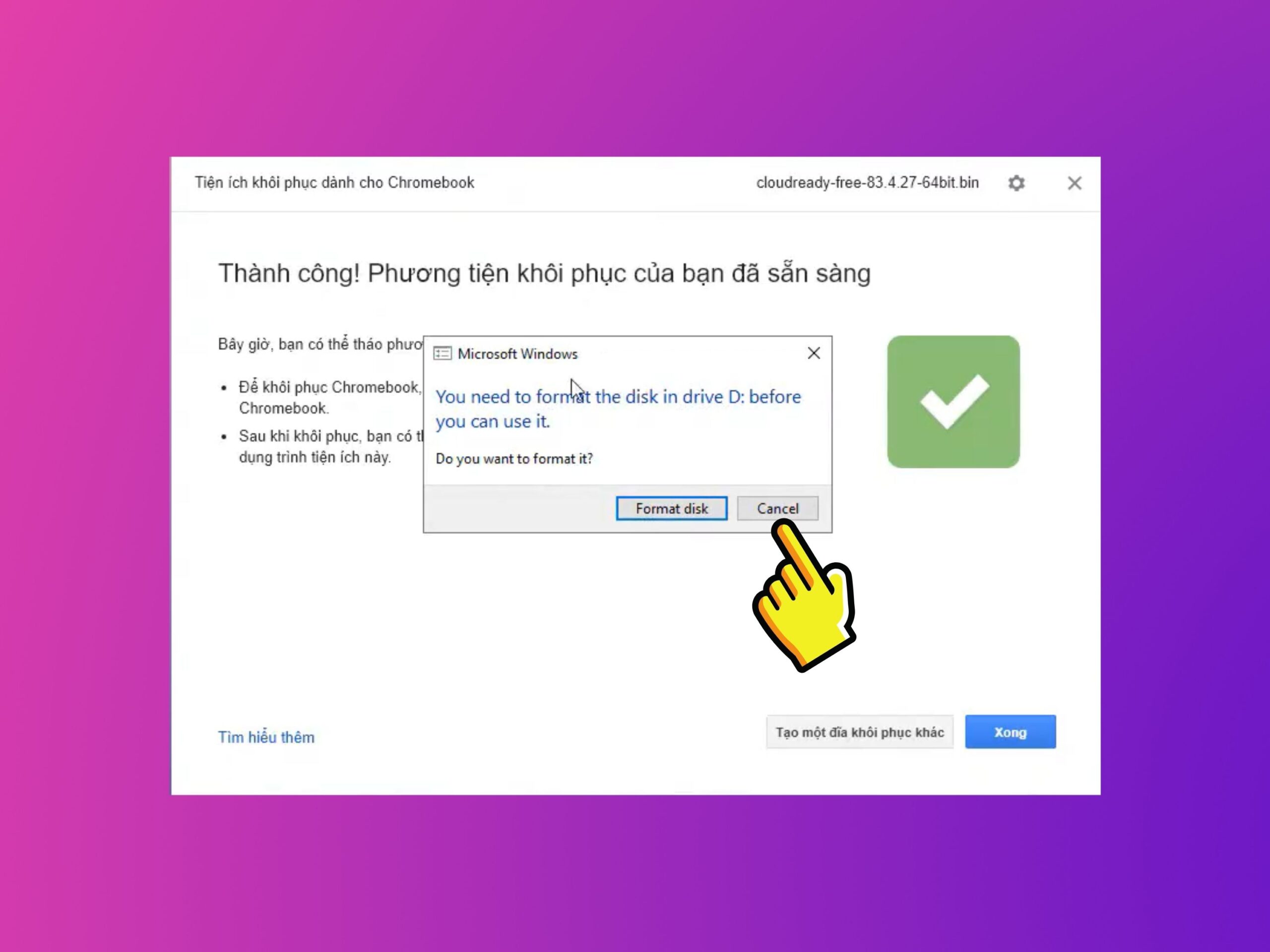
Step 11: Once the process is complete, the system may ask if you want to Format Disk. Select Cancel.
Step 12: Finally, restart your computer and boot from the USB to begin using Chrome OS.
Conclusion: Chrome OS
In this article, we have provided useful information regarding Chrome OS-an operating system highly regarded for its performance by Google. We have also outlined the steps to install Chrome OS on devices that are not Chromebooks. Good luck!











