


Windows operating systems are massive, with many applications, processes, and services running simultaneously. These applications may not be visible to you in the desktop view, but you only need to open Task Manager to discover many processes running in the background.
These processes are the main culprits behind your PC running slowly and taking a long time to load. Most of these processes do not need to run all the time. Therefore, Quantrimang.com has compiled a list of methods to disable these background processes so you can significantly speed up your PC.
How to fix too many background processes and applications running on Windows
Now, let's discuss how to remove unwanted applications and clean up background processes.
1. Manually kill processes using Task Manager
You can free up your system resources by forcing the closure of any running applications that consume a lot of memory. Before using this method, ensure you are not actively using the application you are about to close. Additionally, remember not to terminate Microsoft processes.
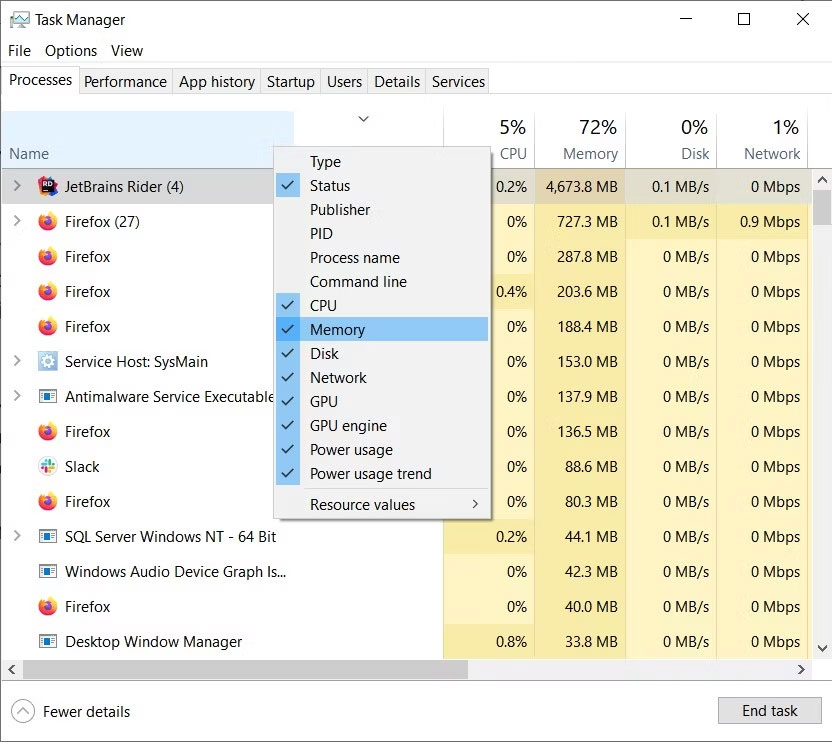
To start, open Windows Task Manager by pressing Ctrl + Shift + Esc or Win + X. Then, navigate to the Processes tab, right-click on it, and ensure the Memory column is selected. This will sort the applications by their memory consumption order.
Select the application you want to close and click the End Task button at the bottom right of the menu. You can also right-click on the application and select End Task from the appearing context menu.
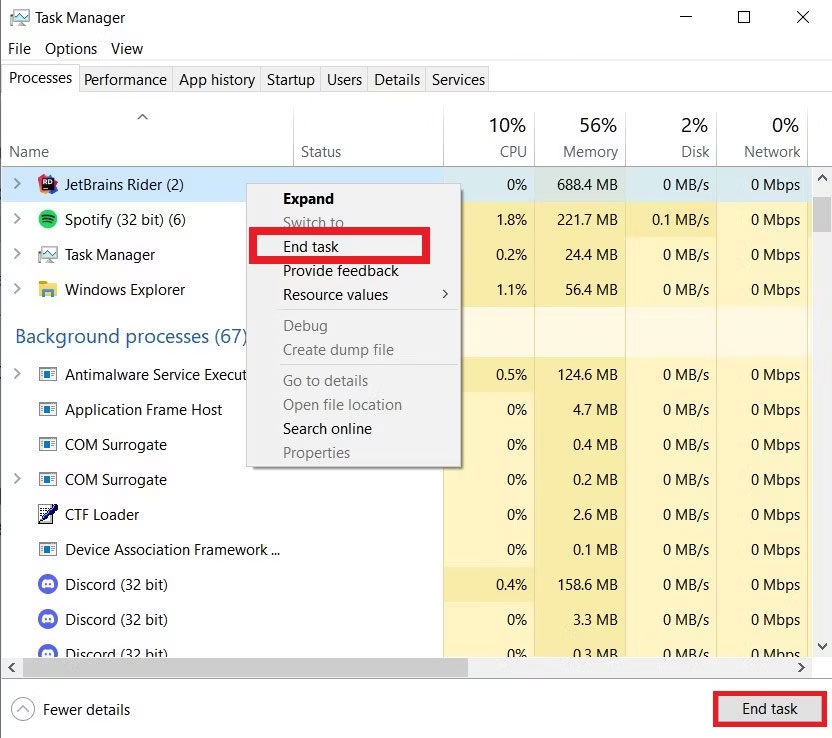
The best types of processes to disable using this method are system tray applications and services, such as Discord, Slack, and antivirus programs. These programs always run in the background and never close, even when you exit their main application window. Therefore, they contribute to the many background processes you often see in Task Manager.
2. Disable startup processes
As the name suggests, startup processes begin running as soon as you boot up your Windows PC. These programs are often the reason your computer takes a long time to start and runs in the background even when not in use.
To reduce the number of startup processes, open Task Manager and click on the Startup tab to open its menu. You will find a list of all startup processes and their enabled status here. Right-click on any process you want to turn off and select the Disable option from the context menu.
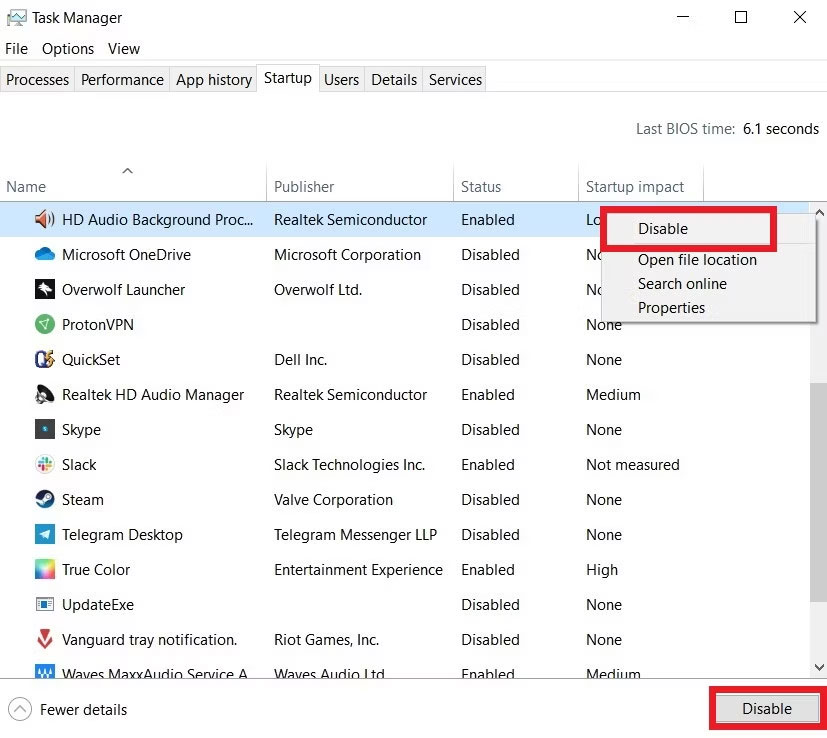
Additionally, you can use the Disable button at the bottom right of the menu. All Microsoft processes in this menu can be safely disabled as they are not critical to your PC. Furthermore, you can use Autorun to manage your startup programs.
3. Remove third-party processes
Third-party processes are activated when you install external software on your computer. They do not have a user interface and run entirely in the background. Much like startup processes, these programs run when you turn on your PC.
You can disable these processes by opening Task Manager and clicking the drop-down menu next to the desired application. Select the Open Services option to launch the Services program.
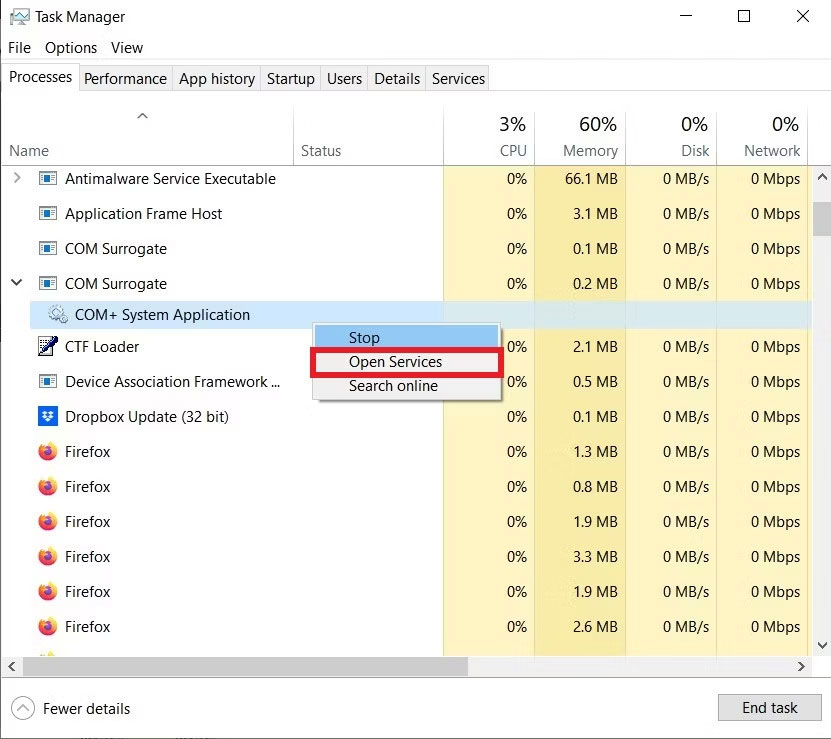
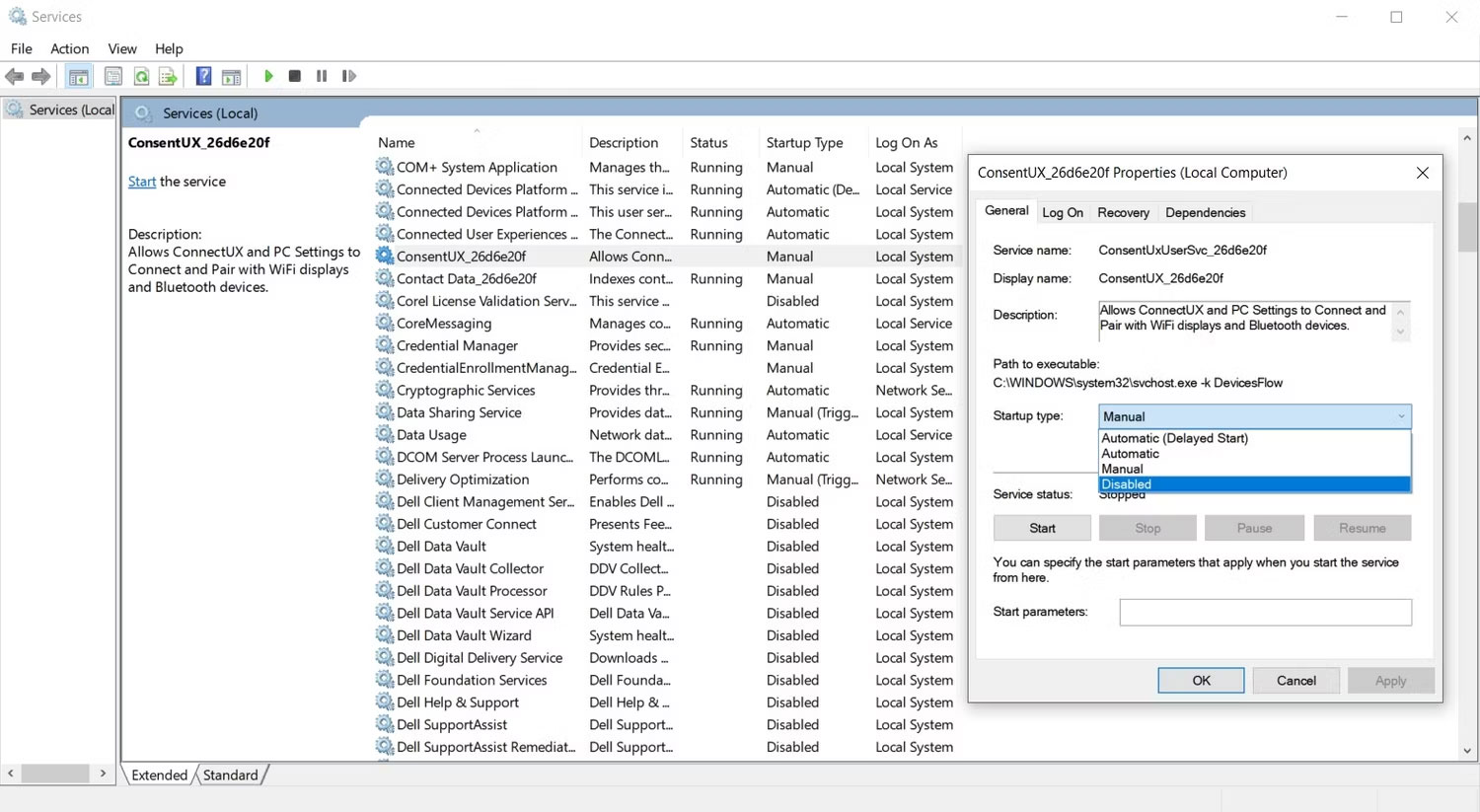
In this program, find the third-party service you want to turn off, right-click on that service, and select Properties. This will open the properties menu for that service. Click the Startup type drop-down menu and select the Disabled option. Click Apply > OK to close the window.
4. Free up system resources with System Configuration
Removing third-party processes one by one can be tedious. Fortunately, there is a faster method to disable these processes in bulk.
Press the Win + R key to launch the Run application. Next, type msconfig into the text box and press Enter. Then, select the Services tab and ensure the Hide all Microsoft services checkbox is selected. Click the Disable all button, then select Apply > OK.
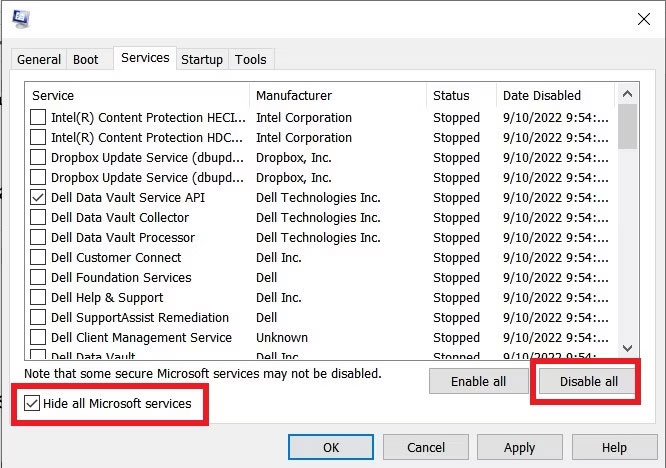
The System Configuration utility will prompt you to restart your PC. Click Restart to apply your changes.
5. Turn off system monitoring tools
System monitoring tools scan your computer to collect performance statistics and resource usage data. They operate inside your computer and consume system resources. Microsoft includes system monitoring tools within your Windows operating system that you should never turn off.
However, some third-party applications also embed system monitoring tools into their installation packages. They run independently of the original software and often appear in the notification tray. Most of these programs do not appear in Task Manager and are very difficult to remove.
Therefore, the best way to remove system monitoring tools is to identify and exclude them when installing the original software. This is another reason why you should be careful and clearly aware of the dangers of third-party applications.
How to prevent the recurrence of too many background processes
Many of the methods discussed previously only work for a single computer session. Everything returns to its original state upon restarting the machine. Therefore, to permanently prevent background processes from running on your PC, you can try the following methods.
1. Turn off background apps
Most Windows applications pre-installed from the Microsoft Store run in the background. These applications do not consume much memory or seriously affect performance. However, if you want to save as many system resources as possible, you can disable them from running in the background.
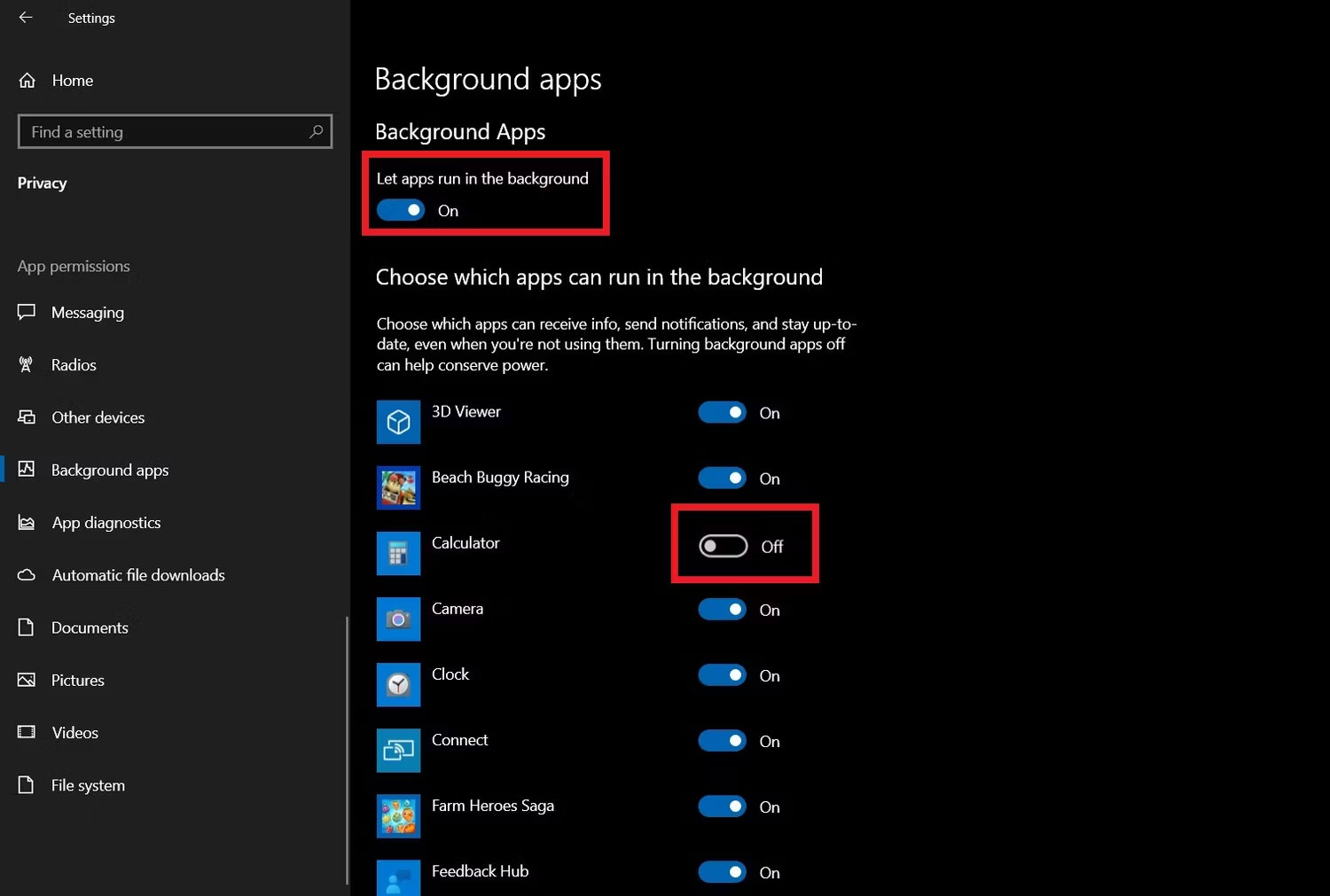
Click the Start menu and select the Settings app. Open the Privacy menu and select the Background apps section. From the resulting menu, you can prevent your PC from running all background apps or turn off individual apps one by one.
2. Uninstall unwanted applications
With the low cost and easy availability of SSDs and HDDs today, we have enough storage capacity to install programs indiscriminately. Most of these applications have no side effects other than occupying storage space. However, some processes running in the background can slow down your PC.
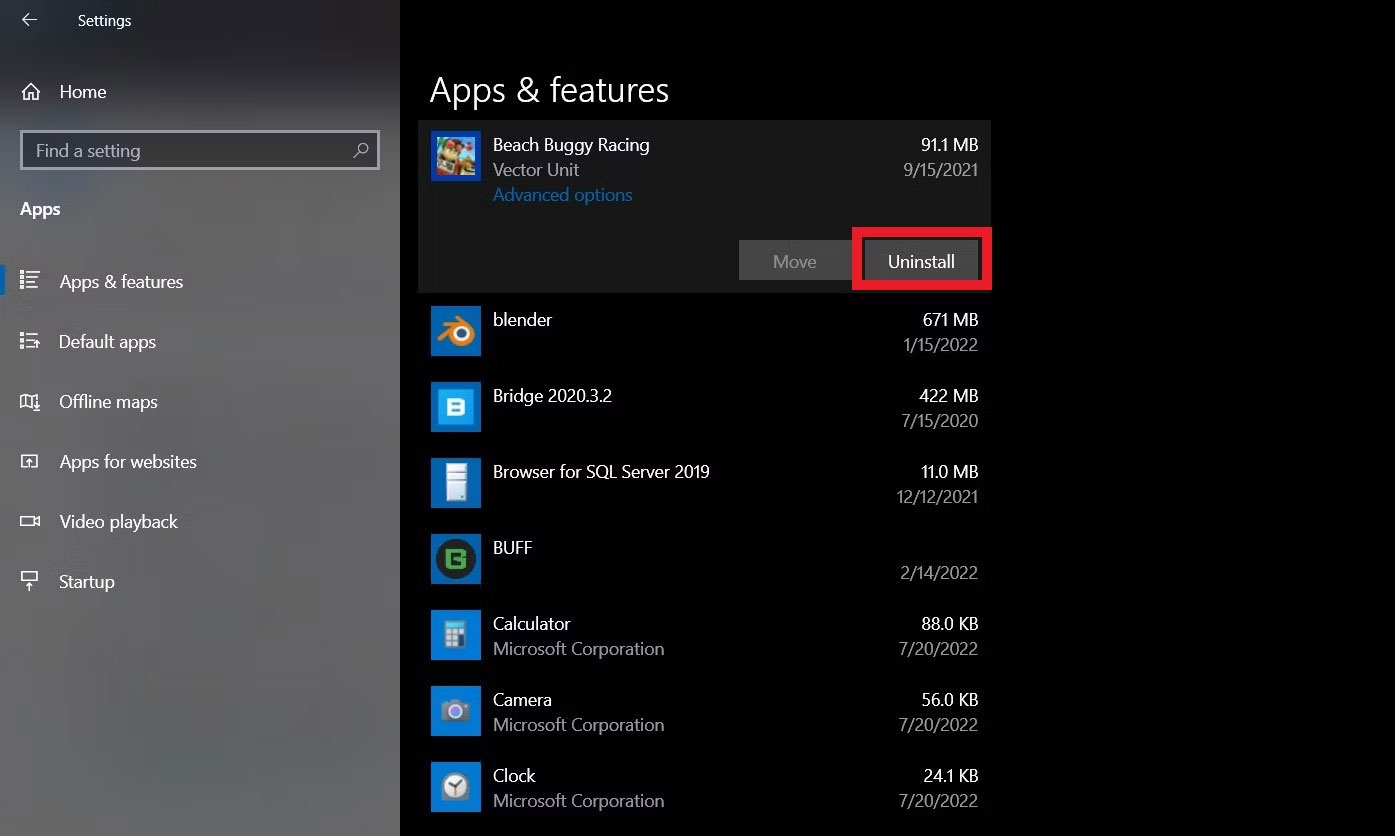
Therefore, it is best to uninstall any application you do not use. To remove a program from your PC, open Settings > Apps. Select any application you want to delete and click the Uninstall button.











