

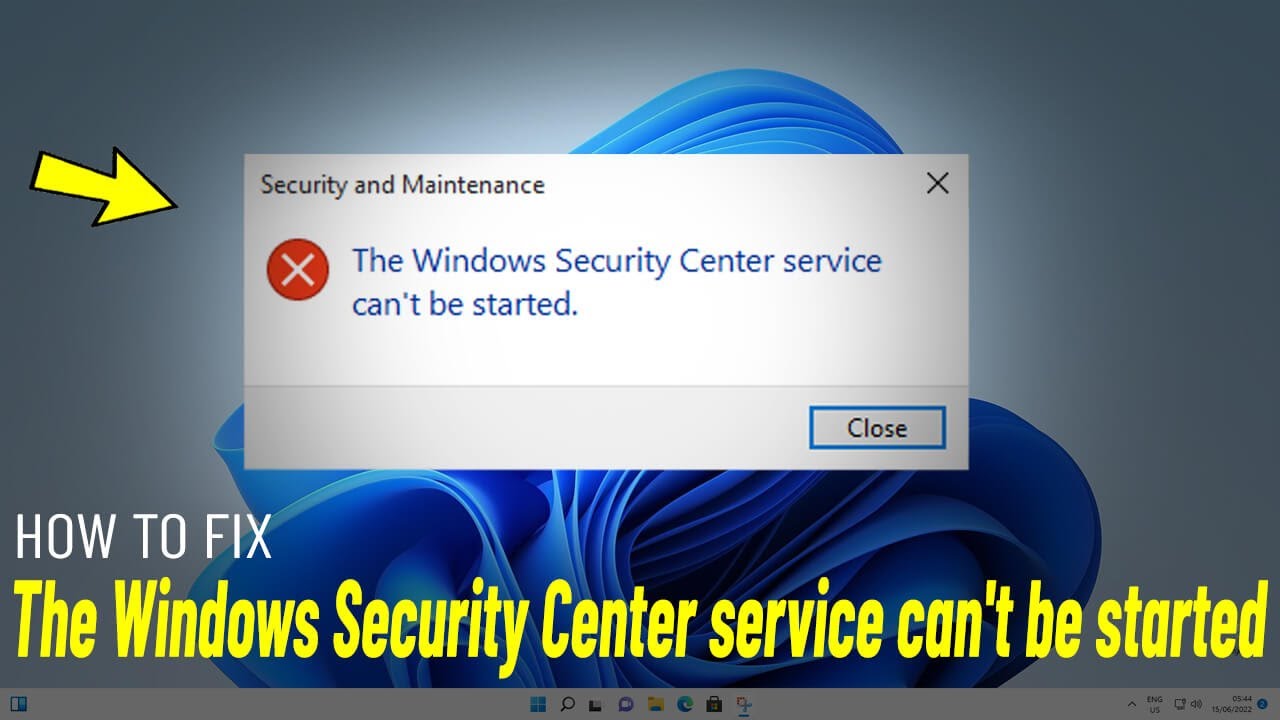
Windows Security Center is an indispensable part of the operating system's security ecosystem. It helps you monitor the status of important security components in Windows, such as Microsoft Defender. Therefore, you may be concerned when you suddenly receive the following error message: "Windows Security Center service can't be started".
Windows Security Center: the longer it remains inactive, the greater the risk to your computer. Fortunately, you can try several troubleshooting steps to resolve the issue.
1. Ensure Windows Security Center is enabled
You can check whether Windows Security Center is enabled in the Registry Editor. Just make sure to create a system restore point first, as even the smallest mistake can make your PC unusable.
Once your system restore point has been created, follow the steps below to enable Windows Security Center:
1. Press Win + R to open the Windows Run dialog, type regedit into the text box, and then press Enter to open the Registry Editor.

2. Click Yes on the UAC prompt.
3. Copy the text below and paste it into the Registry Editor address bar:
HKEY_LOCAL_MACHINESYSTEMCurrentControlSetServicesSecurityHealthService4. Double-click the Start key on the right to edit it.
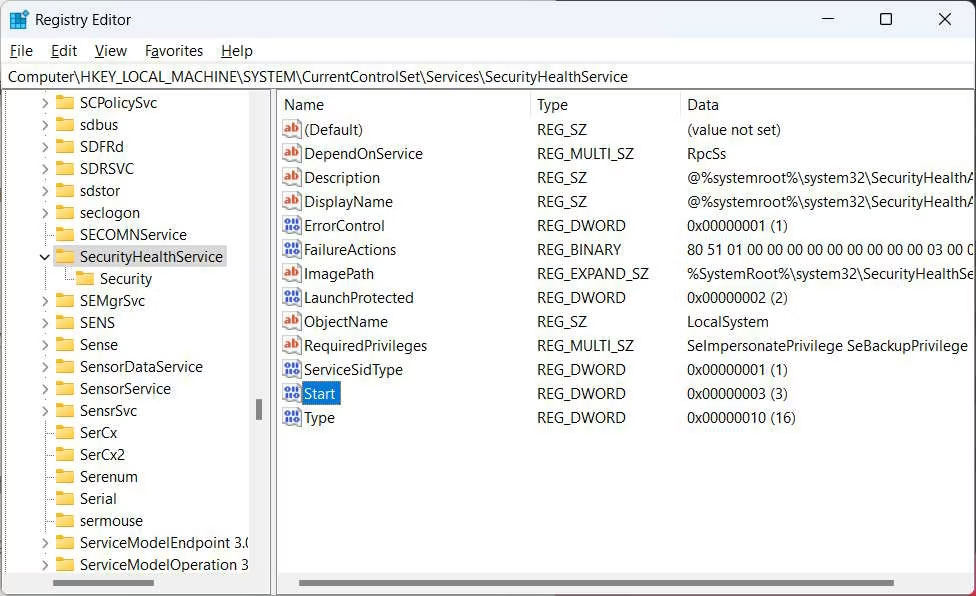
5. If Value data is set to 4, it means Windows Security Center is disabled, so change it to 2.

6. Press OK to apply and save the changes.
7. Perform steps 4 through 6 for the key below:
HKEY_LOCAL_MACHINESYSTEMCurrentControlSetServiceswscsvcNow, restart your computer and see if you still receive the "Windows Security Center service can't be started" error message.
2. Ensure Windows Security Center related services are running normally
For Windows Security Center to start correctly, you need to ensure that the configuration of the services it depends on is not corrupted. To do this, follow the steps below:
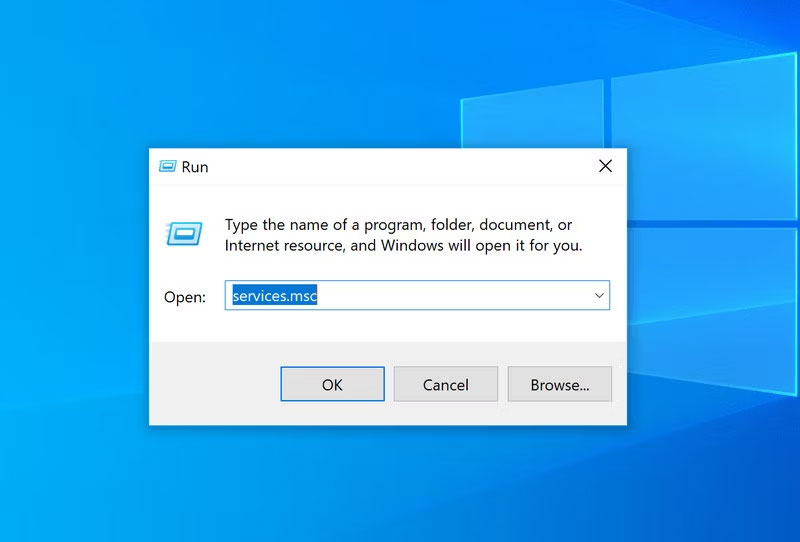
1. Press Win + R to open Windows Run, type services.msc into the dialog box, and press Enter.
2. Locate Windows Management Instrumentation and double-click it.
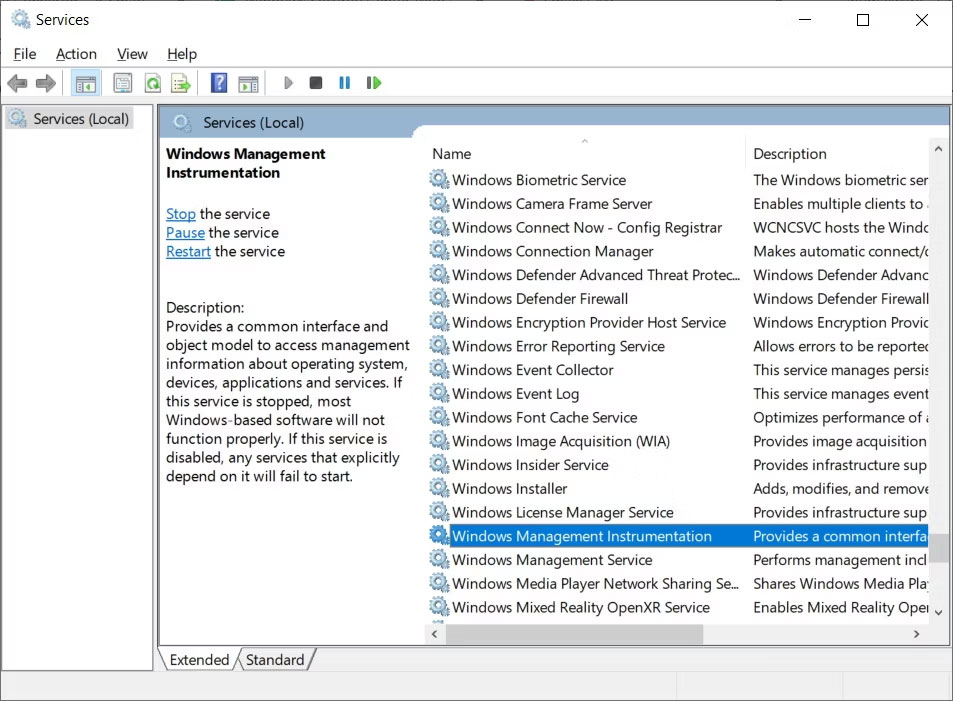
3. In the General tab, ensure that Startup type is set to Automatic. If not, click the drop-down menu and select Automatic.
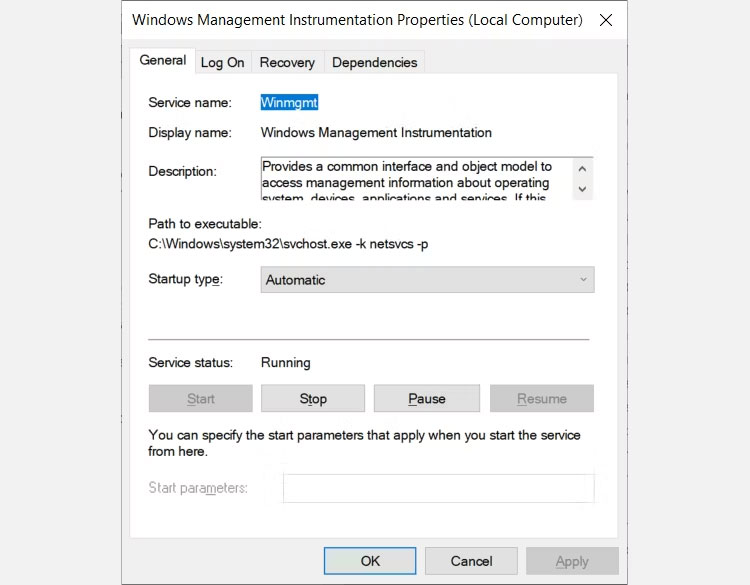
4. Next, ensure that Service status is set to Running and if not, click the Start button.
5. Perform steps 3 and 4 for the Remote Procedure Call (RPC) service.
We do this because Windows Security Center relies on both the WMI and RPC services for many different critical functions. Once you have finished, restart Windows and check if you can now start Windows Security Center.
3. Repair WMI Repository
A corrupted WMI Repository can prevent Windows Security Center from starting, and repairing it can resolve the issue in most cases. To do this, follow the steps below:
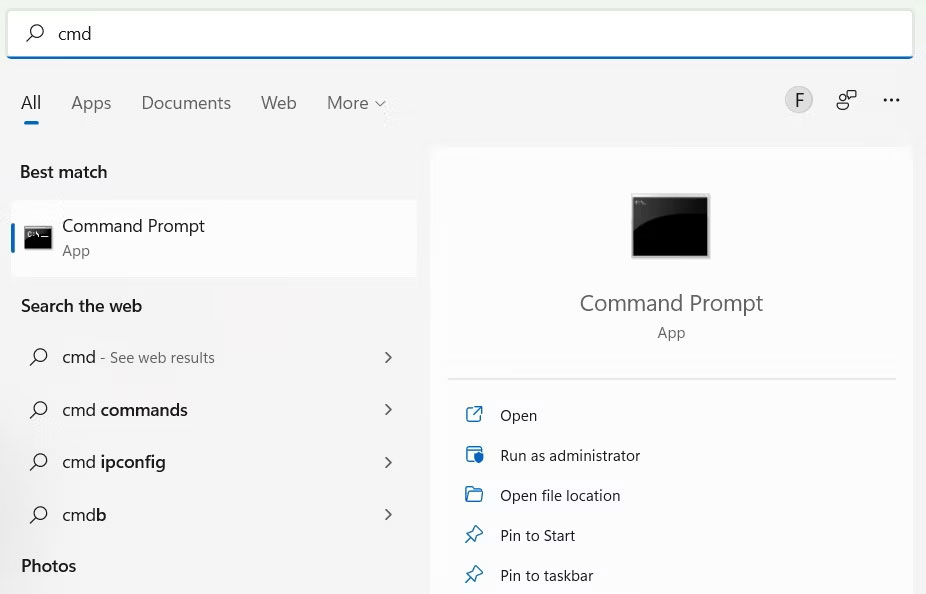
1. Click the Taskbar search bar and type cmd.
2. Right-click the Command Prompt app in the search results and select Run as administrator.
3. Type the command below into the Command Prompt and press Enter to run it:
winmgmt /salvagerepositoryWhen Windows completes the WMI Repository repair, the Command Prompt will display the message: WMI Repository is consistent. Now, restart your computer and check if everything is fine with Windows Security Center.
4. Reset Windows PC
If none of the above fixes work, it might be time to resort to the last option. To fix the error once and for all, you should back up all your data and reset Windows to its factory defaults. Hopefully, you won't need to use this method, but it will be much less troublesome than using a computer without a functioning Windows Security Center.











