

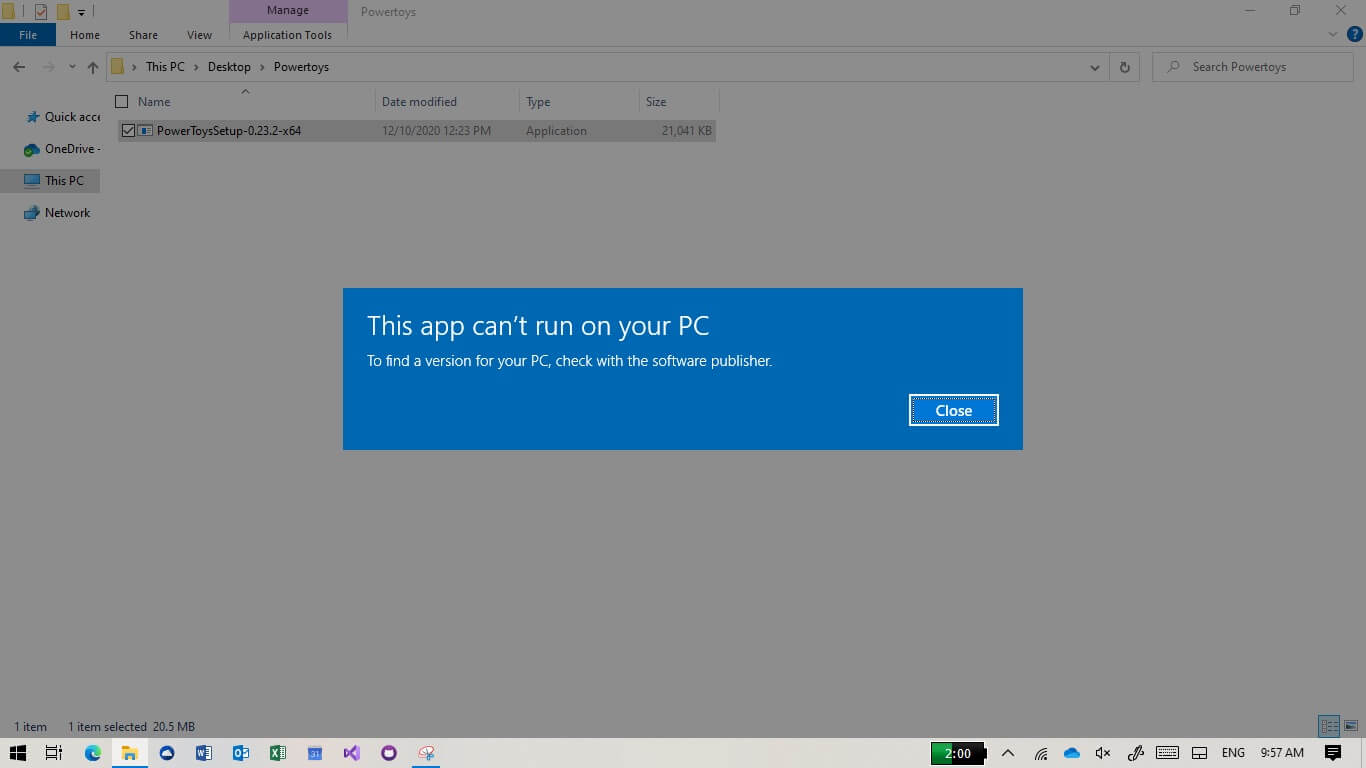
If Windows 10 displays the error "This App Can’t Run on Your PC", there may be several reasons behind this issue. Sometimes the application is incompatible with your system, you have logged in with the wrong user account, or there is a corrupted installation.
Fortunately, there are several fixes you can try. Let's explore and see how to fix the "This App Can’t Run on Your PC" error on Windows 10 through the following article from Quantrimang.com!
1. Check the application version
If you have downloaded and installed an application without checking its properties, the application might be incompatible with your system. For example, you cannot run an application compatible with the 32-bit version of Windows 10 smoothly on a 64-bit system.
Before downloading an application, you should review the system properties. Press Win + I to open Settings and select System. Then, from the left menu, click About.
The Device specifications section will provide you with system information, including the Windows version installed on your computer.
2. Run the application in Compatibility Mode for Windows 10
You may encounter the error "This app can’t run on your PC" when trying to run an old application. To fix this, you should enable Compatibility Mode from the application's properties.
Right-click on the application's executable file and select Properties. Open the Compatibility tab, select Run this program in compatibility mode for and choose a different Windows version from the drop-down menu. Click Apply > OK to save the new settings and try running the application.
3. Run the application as administrator
If the application does not have the necessary permissions to run on your device, Windows may display the error “This app can’t run on your PC”. To troubleshoot, you should launch the application with admin rights.
To do this, right-click on the application's executable file and select Run as administrator. If the application launches without any issues, you can learn how to always run Windows applications with admin rights.
4. Run Windows 10 Program Compatibility Troubleshooter
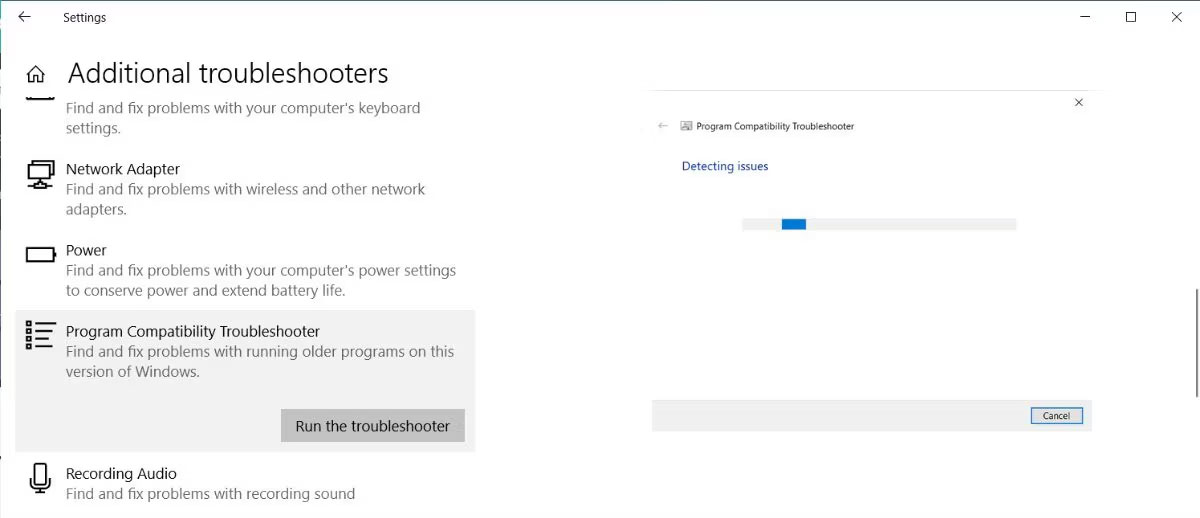
If you are unlucky and cannot find the compatible version, you can ask Windows to choose the version for you. Follow these steps to run the Windows Program Compatibility Troubleshooter:
- Press the Windows + I key to open Settings.
- Go to Update & security > Troubleshoot.
- Click on Additional troubleshooters.
- From the Find and fix other problems list, select Program Compatibility Troubleshooter and click Run the troubleshooter.
- Follow the on-screen instructions.
5. Run a copy of the executable file
This is a slightly unusual trick, but it can be helpful in fixing the error. Copy the application's executable file and paste it into a new location. Then, run the copied file as you normally would.
6. Scan for viruses
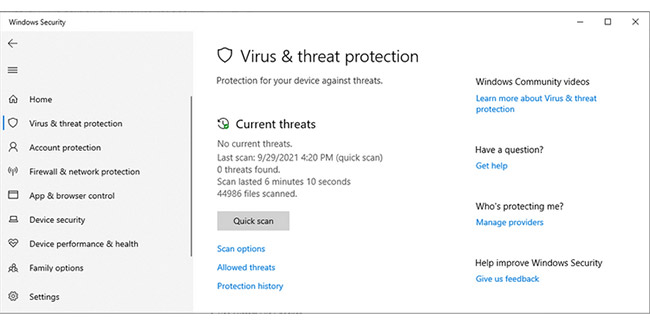
Viruses can prevent an application from running normally, even if the application is compatible with the system. You can use Windows' built-in tools to search for any type of virus on your computer. Here is how you can do it:
Step 1: Right-click Start and go to Settings > Update & Security.
Step 2: From the left menu, open Windows Security and click Virus & threat protection.
Step 3: Click the Quick scan button and wait until Windows 10 completes the process.
7. Run an SFC scan
If the Quick scan tool does not resolve the issue, there is another Windows 10 feature you can use. The System File Checker tool will search for any corrupted or missing system files and automatically replace them.
Open Command Prompt as an administrator and type sfc /scannow. To start the process, simply press Enter. Once the SFC scan is complete, it will display a message informing you if corrupted files were found and replaced on the system.
8. Use the Disk Cleanup tool
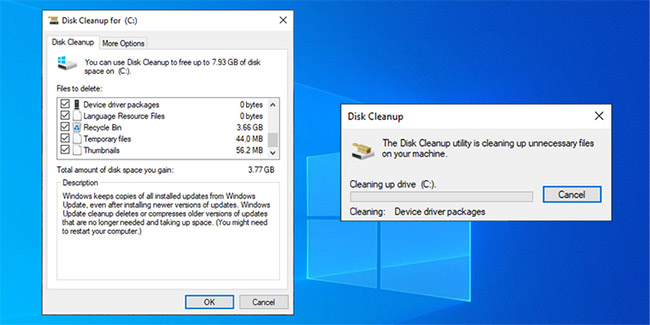
Computers frequently accumulate junk files, especially if you browse the Internet heavily. If these files occupy a lot of space on your hard drive, they can cause application errors. The easiest way to delete these unnecessary files is to use Disk Cleanup.
Step 1: In the Start menu search bar, search for disk cleanup and select Run as administrator.
Step 2: Select the files you want to delete. Disk Cleanup will show you how much space can be reclaimed.
Step 3: Click OK to start the process.
9. Check antivirus settings
Sometimes, your antivirus software can be a bit too cautious and prevent you from running a certain application. In this case, the solution is quite simple. Add the problematic application to the exclusion list in your antivirus software. Additionally, you can try temporarily disabling your antivirus.
10. Enable Developer Mode
If you are still having trouble launching a specific application, there is another solution you can try. Windows Developer Mode allows you to run applications even if they do not come from a trusted source.
To enable Developer Mode, right-click the Start button and select Settings. From there, go to Update & Security > For developers. Then, toggle the switch under Developer Mode.

The article advises that you should only use Developer Mode if you have downloaded the application from a reliable source. Otherwise, you may put your computer at risk.
11. Reinstall the problematic application
If you still encounter the "This app can’t run on your PC" error after trying everything on this list, you should reinstall the application. After uninstalling, visit the official website and download the latest version.
However, remember to clear your browser cache before re-downloading any files. Browser cache helps browsing be faster and reduces server latency by downloading webpage data. However, browser cache can sometimes corrupt downloads on your computer.
This error is not limited to third-party applications, as you may encounter it when trying to launch applications downloaded from the Microsoft Store itself. To prevent this from happening again, download applications from official websites and continuously check applications and your system for new updates.











