

Windows provides the Run as Administrator option, which allows users to run applications and programs with admin privileges. You can also use it to troubleshoot your computer. But what if this feature malfunctions and strips you of your admin rights?
That is where this guide comes in handy. So, let's see what you can do to fix Run as Administrator not working on Windows.
1. Restart your computer
If you encounter issues when running applications with admin privileges, restarting your computer may resolve the Run as Administrator not working issue. This simple solution will resolve any temporary glitches and return the system to its default state.
2. Check your account type
Not all user accounts are the same. To run programs with admin privileges (Run as Administrator), you must have an admin account. Therefore, go to the Control Panel and check your account type. If the account is not labeled as an admin account, switch to another account or create a new one.
3. Check User Account Control settings
Windows User Account Control (UAC) prevents malicious programs from installing on your computer. This security feature can sometimes prevent you from using elevated privileges.
To ensure the issue is not related to UAC, go to the Control Panel and check User Account Settings. If it is set to the highest level, lower it to the default. Here is how to do it:
1. Press Win + S simultaneously to open the search box.
2. Type Control Panel into the search box and press Enter. This will open the Control Panel window.
3. View the items by Large icons in the Control Panel and click on User Accounts.
4. On the right, click Change User Account Control settings. Doing this will open the User Account Control Settings window.
5. Here, you will see a slider with four options: Always notify, Default, Notify me only when applications try to make changes to my computer, and Never notify.
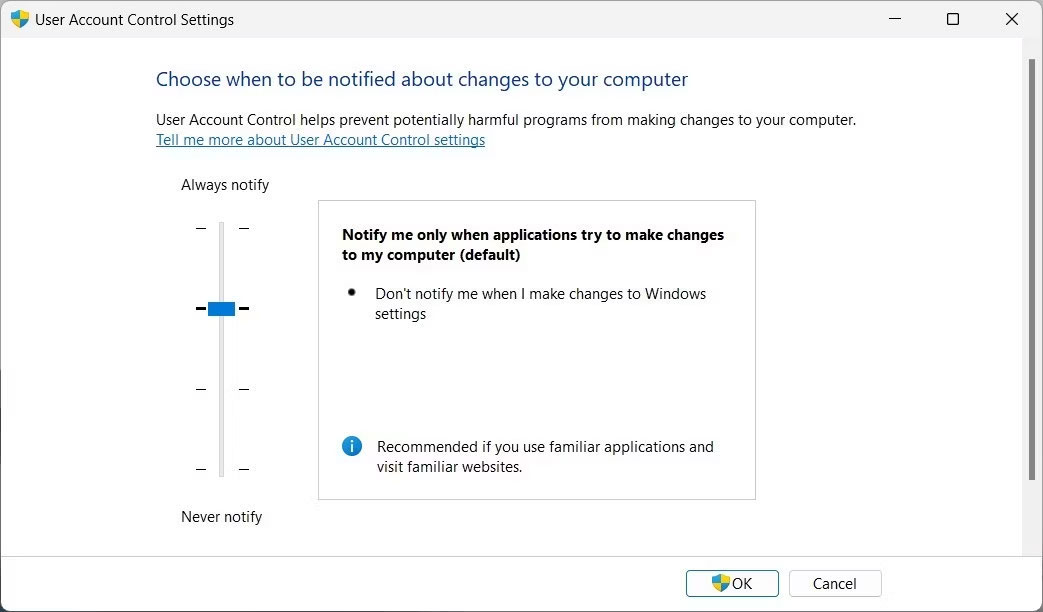
6. Drag the slider to Default, then press OK. This will set your UAC to the default level and allow you to run applications with admin rights.
Now, close the window and restart your PC. Then, try running an application with the Run as Administrator feature and see if it works.
4. Change Group Policy settings
Is the Run as Administrator function still not working even after trying the suggestions above? It is possible that group policy settings are blocking this feature. To fix this, go to the Local Group Policy Editor and check the settings.
Here is what you need to do:
1. Press Win + R simultaneously to open the Run dialog box.
2. Type gpedit.msc into the text field and press Enter. This will open the Local Group Policy Editor window on your computer screen.
3. From the left navigation pane, go to the following path:
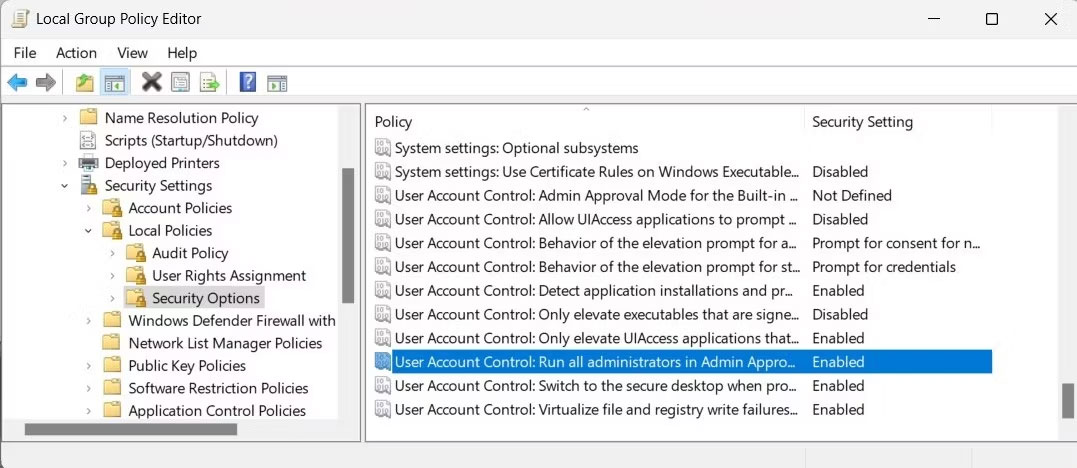
Computer Configuration > Windows Settings > Security Settings > Local Policies > Security Options4. On the right, you will see a list of various security options. Scroll down and double-click the policy User Account Control: Run all administrators in Admin Approval Mode.
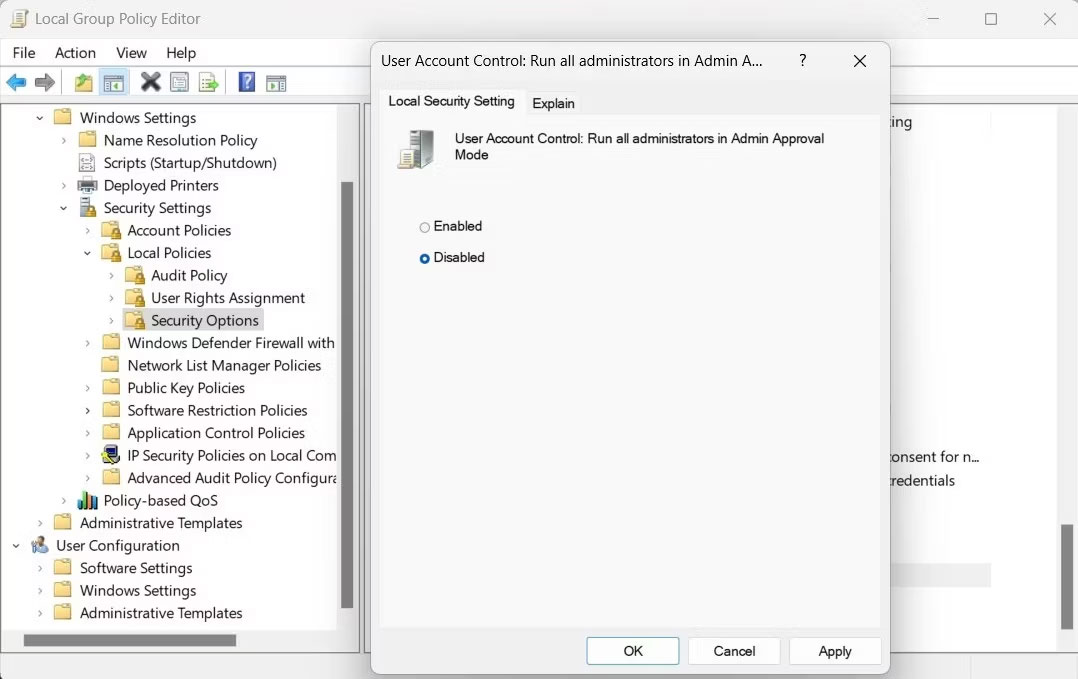
5. Doing this will open another window. Here, select the Disabled option and click Apply > OK.
6. Close the Local Group Policy Editor and restart your computer.
After restarting, try running a program with admin rights (Run as Administrator). It should work immediately. Don't forget to re-enable the Admin Approval Mode setting once you have finished fixing the Run as Administrator issue.
5. Clean up the context menu
When right-clicking a program or file, you usually see the Run as Administrator option in the context menu. If it is missing, you should check if your context menu items are cluttered.
Warning: This solution involves editing the Windows Registry. A single mistake can cause serious problems. Therefore, be careful and create a registry backup before applying any changes.
Follow these steps to clean up the context menu:
1. Press Win + R on your keyboard to open Run.
2. Type regedit into the text field and press Enter. This will open the Windows Registry Editor.
3. If the UAC window appears, click Yes to grant admin permission.
4. In the Registry Editor window, navigate to the following path:
Computer\HKEY_CLASSES_ROOT\*\shellex\ContextMenuHandlers5. Next, expand the ContextMenuHandlers folder and look for any suspicious entries. If you find any, delete them.
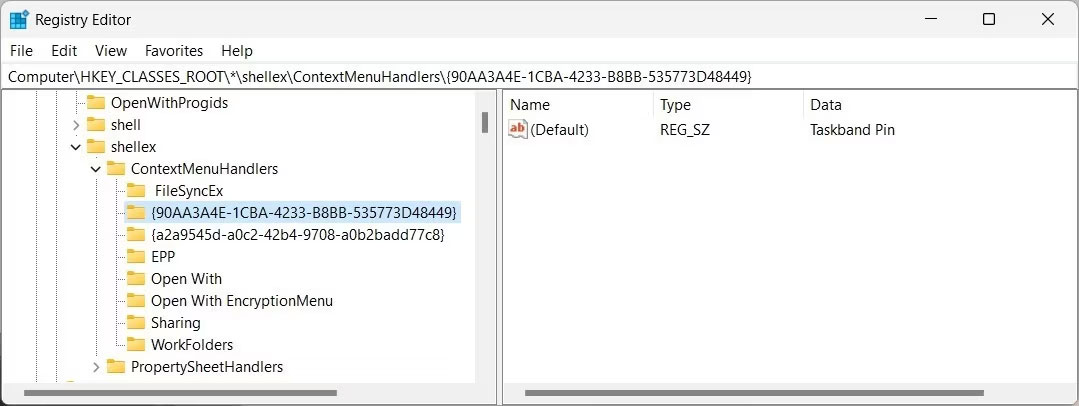
6. Now, exit the Registry Editor and restart your computer.
When the computer restarts, you should see the Run as Administrator option in the context menu. Try running a program with admin rights and see if it works.
6. Try some general troubleshooting methods
In addition to the fixes mentioned above, some general solutions work in all situations. Try these methods if you are still having trouble running applications with admin rights:
- Repair corrupted system files: Corrupted or missing system files on your computer will be restored. Use this to fix the root cause of the problem.
- Perform a Clean Boot: When you start Windows in a clean boot state, the operating system will only run essential services and programs. This helps identify any third-party software causing the issue.
- Create a new admin user account: If the problem persists, try creating a new admin user account and logging in. This will determine whether your current account is corrupted.











