


Each subsequent Windows version features more accessibility to things you have recently opened, such as jump lists that allow you to open what you are working on with certain applications. However, these features can also cause serious headaches for those who value privacy. If you truly want to clear all your recent file history in Windows, this guide will provide several options!
Clear recent files from Windows File Explorer
File Explorer is the hub for everything you have accessed. If you want to clear all your recent files from Windows, this is perhaps where you should start.
Your history will be displayed in the left pane and on the Home screen, under the Quick access section.
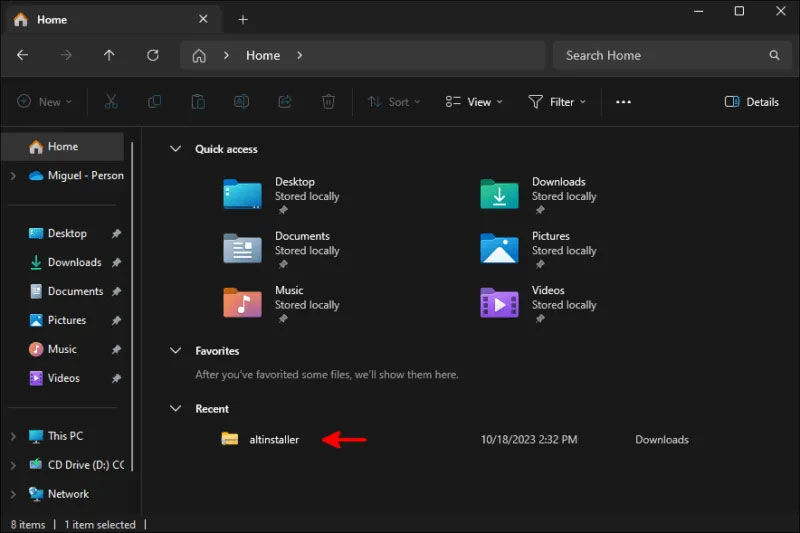
If you only want to clear a single item, right-click on that item, then click Remove from Recent. But perhaps you are here to permanently clear your history.
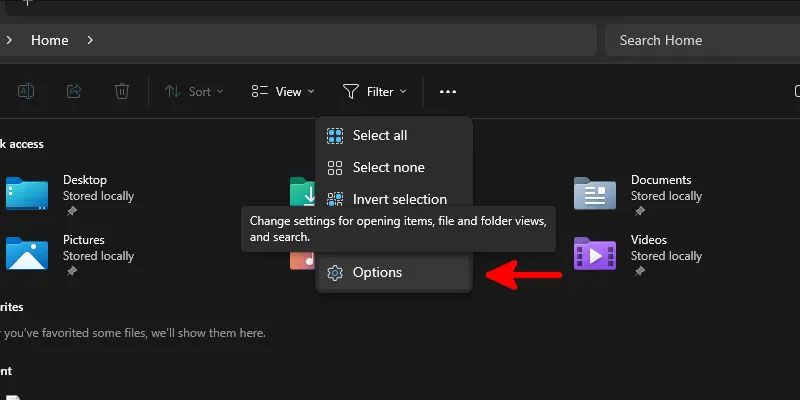
If so, click the three dots near the top of the file list, then click Options.
Inside the Windows Explorer options dialog, on the General tab, uncheck all the options near the bottom in the Privacy section, then click the Clear button next to Clear File Explorer history.
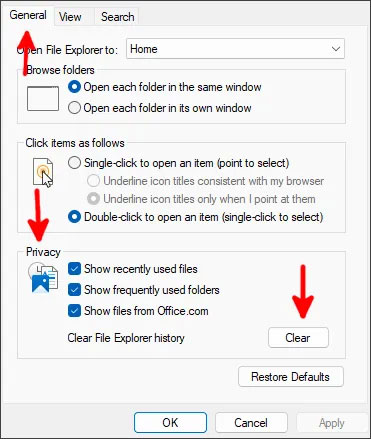
Click OK and watch your history disappear in real-time!
Clear history from Registry
In addition to the Recent list in File Explorer, your registry also stores keys containing the history of what you have typed into its URL bar, as well as all the commands you have run in the Run window (Win + R).
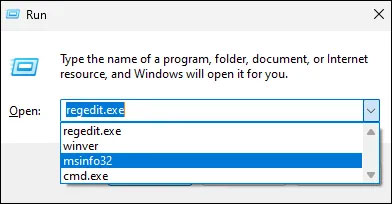
To access the Registry, go to the Start menu, type regedit, and then press Enter.
Navigate to:
HKEY_CURRENT_USER\Software\Microsoft\Windows\CurrentVersion\Explorer
In the Explorer registry section, find the key with a folder icon named RunMRU. Right-click it and delete it.
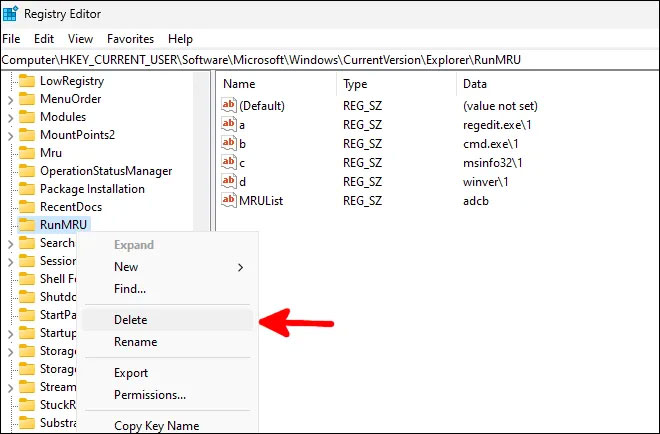
This will immediately clear all your command history.
To clear your path history in File Explorer, scroll down to TypedPaths and delete that path history just as you deleted RunMRU.
If you want to introduce some automation to this process, create a new text file, open it in Notepad, and add the following content:
To clear your command history:
reg delete HKCU\SOFTWARE\Microsoft\Windows\CurrentVersion\Explorer\RunMRU /F 2>nul
To clear your path history in File Explorer:
reg delete HKCU\SOFTWARE\Microsoft\Windows\CurrentVersion\Explorer\TypedPaths /F 2>nul
After adding the lines you want to your batch file, save it as deletehistory.bat or any name you wish and ensure you select All files in the Save as type dropdown.
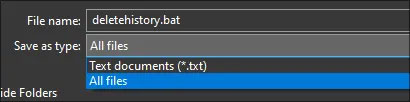
After saving, simply double-click the file to execute it. It will open a command window and quickly disappear after clearing your history items.
If you want this batch file to run every time you start your system, open the Run window and run shell:startup. This will take you to the folder containing all the scripts and utilities you run at startup. Drag your newly created batch file into there and enjoy the feature of automatically clearing history every time you log into Windows!
If you want to clear your history on demand, you will need to access the batch file and run it manually. For your convenience, you might want to create a copy of it in a place that is easier to access than the startup folder.
Disable jump lists from Settings
In addition to the history stored in the Registry and file management utilities, you also have some history stored specifically by Microsoft to provide suggestions in the Start menu, jump lists, and other quick navigation features that File Explorer has.
To remove these, go to the Settings app via the Start menu and click Personalization in the left pane.
Among the available options on the right, scroll down and select Start.
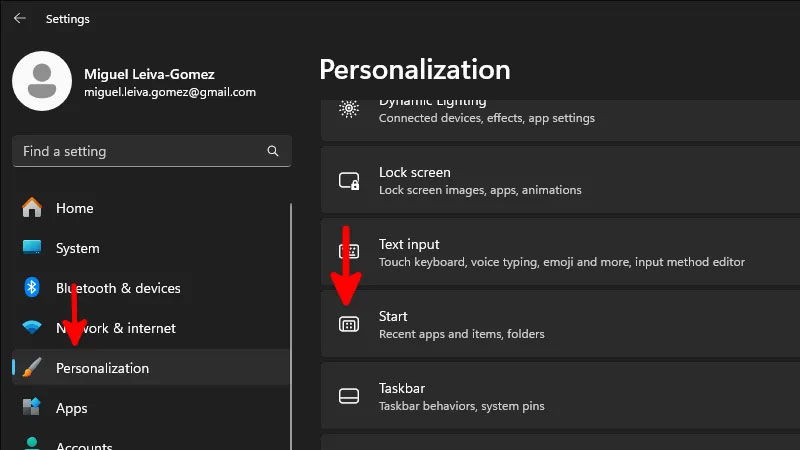
In this menu, turn off the option Show recently opened items in Start, Jump Lists, and File Explorer.
And that's it! You can close the Settings window and get back to your day. Windows will clear any history you have in the areas you just disabled and will stop collecting that history to provide suggestions.
If you are using Windows 10, the process is similar, although the interface will look slightly different than Windows 11.











