


Each active user session on a PC means your computer resources are shared with others, which can affect system performance. If someone is not actively using their session, you can sign out inactive users from your account to reclaim those system resources.
1. Sign out other users using Task Manager on Windows 11
The Users tab in Task Manager monitors all active user sessions on your computer. You can use it to manage Windows user accounts, switch between different user accounts, and sign out other user accounts. However, if you only need to sign out of your current session on Windows 11, the process is much simpler.
You must be logged in as an admin to sign out other user accounts (check if your user account has admin rights if you are unsure). It is important to note that when you sign out a user, any unsaved data from that user may be lost. So, be careful!
To sign out other users using Task Manager:
1. Right-click Start and select Task Manager. Alternatively, use the Ctrl + Shift + Esc shortcut.
2. In Task Manager, open the Users tab on the left to display the number of users currently logged in. If you don't see it, click the Open Navigation button (three horizontal lines) in the top-left corner.
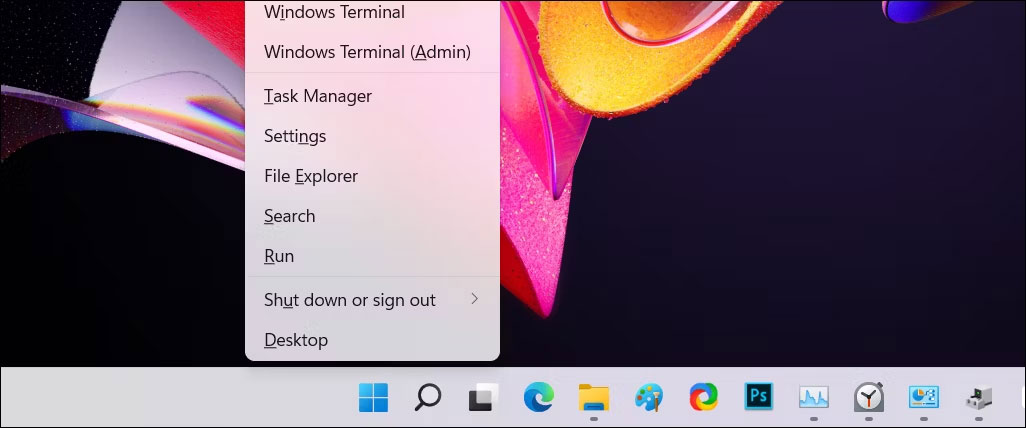
3. In the Users tab, find the account you want to sign out.
4. Right-click the user account and select Sign off.
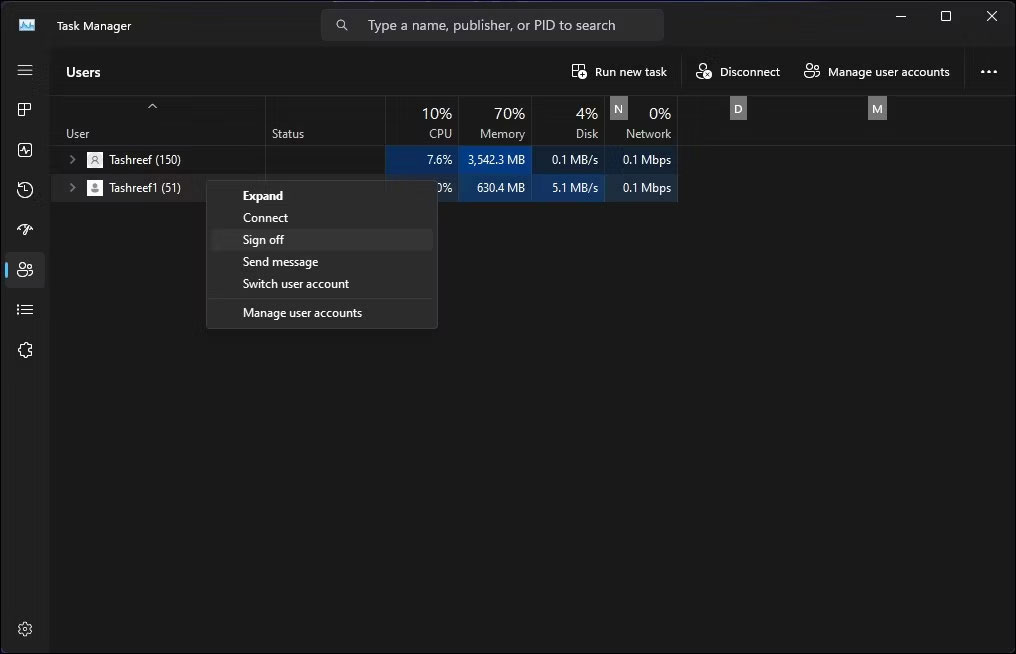
5. Click Sign out user. Windows will close all open applications and running processes, then sign out the user.
2. Sign out other users using Command Prompt
On Windows 11 Pro, Edu, and Enterprise versions, you can use the "query session" command in Command Prompt to check and sign out active user accounts. This command is not available on Windows 11 Home, which limits your options.
To sign out other users using Command Prompt:
1. Press the Win key and type cmd.
2. Right-click Command Prompt and select Run as administrator.
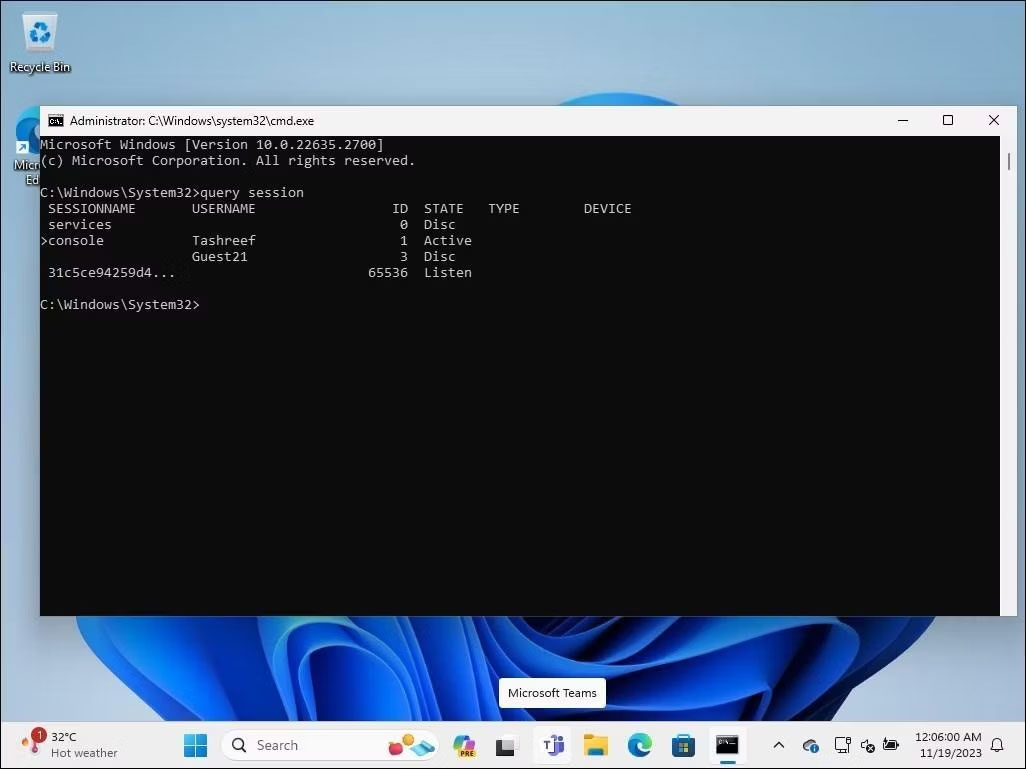
3. In the Command Prompt window, type the following command to view all active user sessions:
query session4. The output will display all active user sessions on your computer. Note the ID of the user account you want to sign out. In this case, we have Tashreef as 1 and Guest21 as 3 in the ID column.
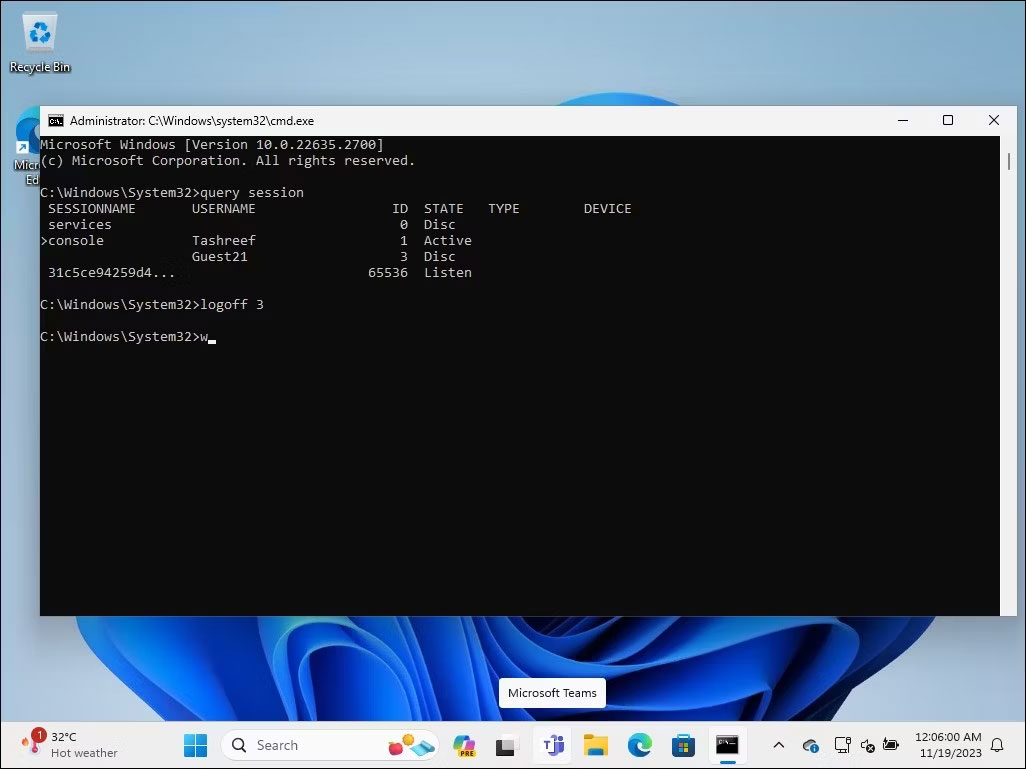
5. Enter the following command to sign out the specified user. Replace the number below with the ID of the user account you want to sign out:
Logoff 36. Once successfully executed, Windows will sign out the specified user account.
7. Once finished, type exit and press Enter to close Command Prompt.
3. Sign out other users using Process Explorer
Process Explorer is part of the Windows Sysinternals Tools, a suite of system administration utilities from Microsoft. Although this free software is very popular among developers and system administrators, anyone can use Process Explorer to access some of its advanced features. Process Explorer is a powerful tool that helps map all currently active processes and DLL files to the accounts running them.
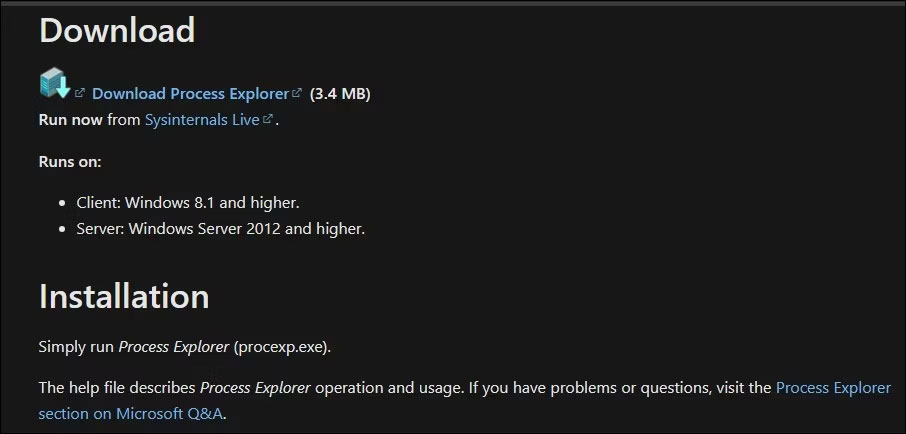
1. Visit the official Microsoft Process Explorer page and download Process Explorer as a zip file to a location on your desktop.
2. Right-click the ProcessExplorer.zip archive and select Extract All. Choose a location and extract the folder.
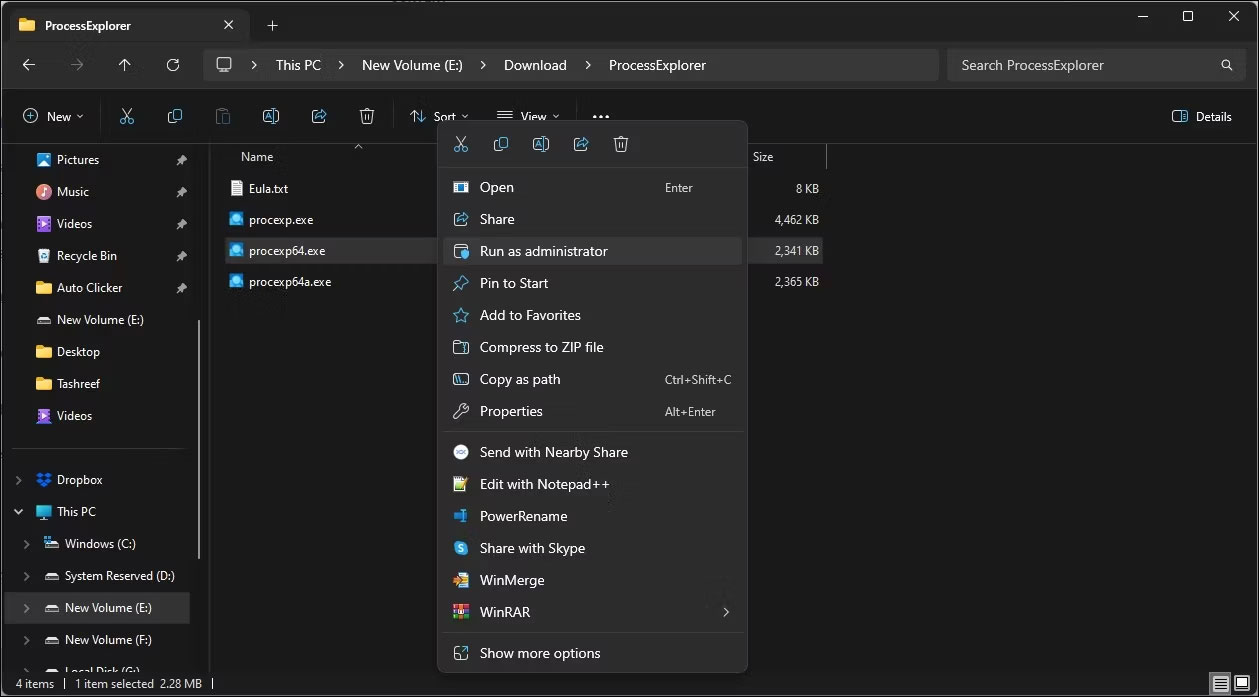
3. Open the ProcessExplorer folder, right-click procexp64.exe, and select Run as administrator.
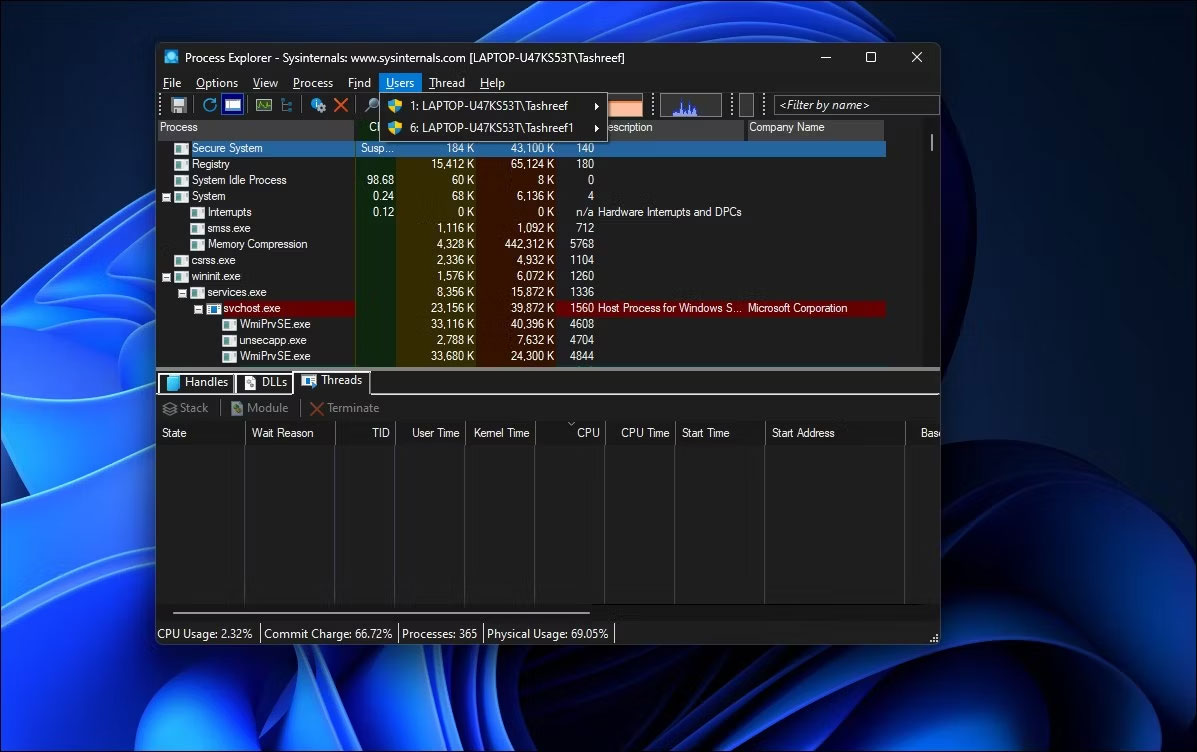
4. In the Process Explorer window, click Users to view all active user sessions.
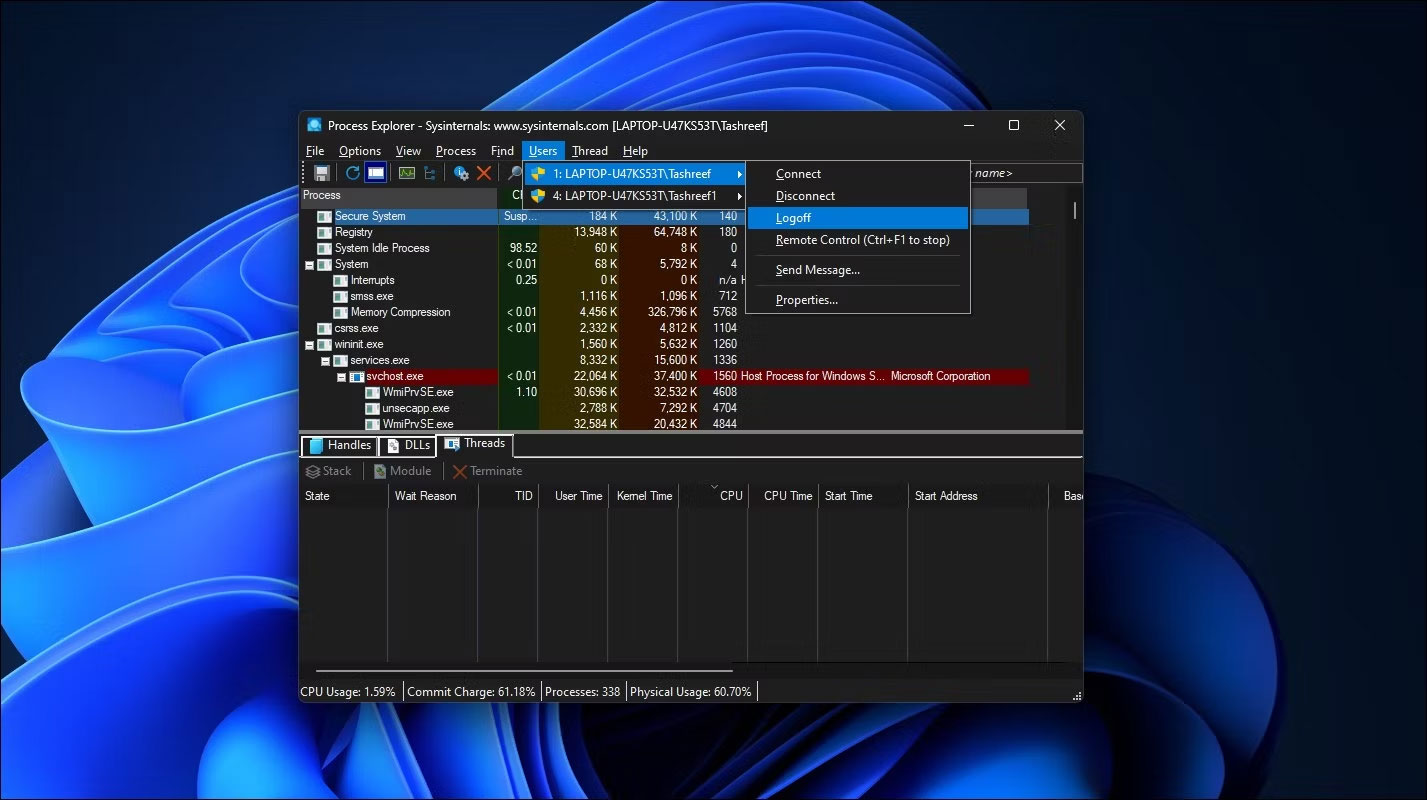
5. Hover your cursor over the user account name and select Logoff.
Process Explorer will sign out the selected user account from your computer. If you encounter an "access denied" error, run the procexp64.exe executable as an administrator and try again.











