

The "lsass.exe Unable to Locate Component" error means that Windows cannot find or load a file required to run the lsass.exe process. This process is critical for managing security policies and user authentication on your device.
The missing or corrupted file could be a system file or a DLL (Dynamic Link Library) file. The lsass.exe process relies on these files to function properly. In this guide, we will show you how to fix the "lsass.exe Unable to Locate Component" error in Windows.
1. Run an SFC scan in Windows Command Prompt
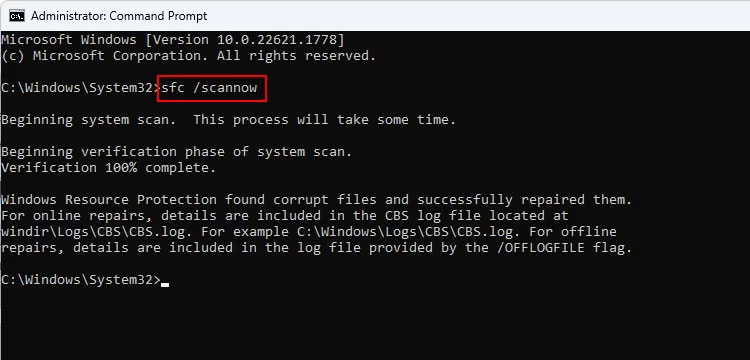
As mentioned above, the "lsass.exe Unable to Locate Component" error can occur due to corruption or the absence of specific files that the lsass.exe process relies on.
Such issues can be resolved by running a system scan using System File Checker (SFC), which was developed by Microsoft to check the system for inconsistencies and corruption.
If an issue is identified, the SFC utility will fix it without requiring any significant input from you. If the issue is caused by corruption, this tool will resolve it. If you are using third-party security software on your computer, you should perform a full system scan with your antivirus program to see if that makes a difference.
2. Replace the Windows oleaut32.dll file
According to many reports, this specific issue can also appear due to the missing oleaut32.dll file required to launch applications. You can fix this by replacing the file with a healthy one from a reliable source.
To do this, you need to create a bootable CD or USB drive with the same Windows version as your device. This way, you can obtain a verified and working copy of the file from the installation media. You will also avoid any potential errors or conflicts that might occur if you attempt to replace the file while Windows is running. However, you should create a system backup before proceeding to ensure safety.
Once you have created the boot drive and a backup, follow these steps to proceed:
- Insert the CD or plug in the bootable USB into your computer and restart.
- During startup, you may need to enter the BIOS or UEFI firmware settings to change the boot order and prioritize booting from the CD or USB drive. The best way to do this is to refer to your computer's user manual or search for online instructions on the manufacturer's website.
- Follow the on-screen instructions to continue, and when your computer boots from the CD or bootable USB, press R to bring up the Windows Recovery Control options.
- Select your preferred settings.
- Now, access Command Prompt as an administrator and execute the command below. This will change the directory to the location containing the oleaut32.dll file:
cd c:windowssystem32 - Now, execute this command to rename the existing file to oleaut32.old:
ren oleaut32.dll oleaut32.old - Next, copy the file from the installation media to your device using the following command. You may need to change the d: drive letter to match your installation media.
copy d:windowssystem32oleaut32.dll c:windowssystem32 - Finally, type "exit" in Command Prompt and close the utility.
- Once completed, remove the CD or bootable USB and restart your computer. After restarting, you can check if the issue has been resolved.
3. Perform a System Restore
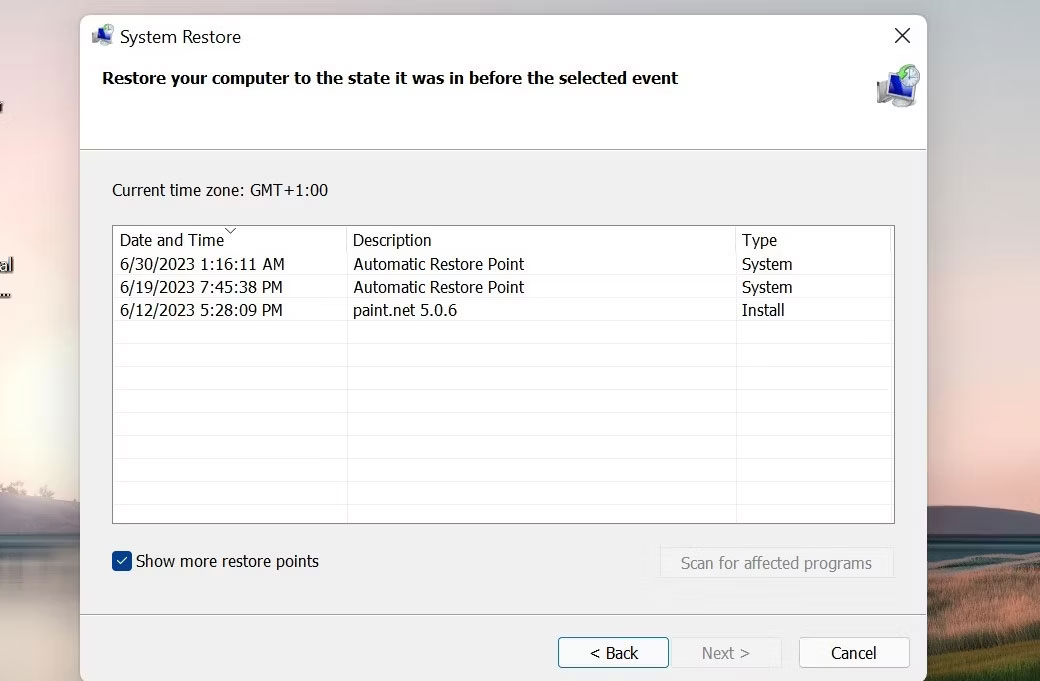
You can also restore your system to a point before the error occurred.
This can be done using the System Restore feature, which works by creating restore points on your computer, typically before performing any significant operations. When you select a restore point, your system will return to the state it was in when the restore point was created, resolving the error in the process.
4. Install the latest Windows updates
If you have pending updates in your system, it is recommended that you take the time to install them. This is because Microsoft regularly releases updates that include fixes for known issues, and by updating your Windows system to the latest version, you may resolve the issue you are experiencing immediately.
If this method does not work, you can perform an in-place upgrade, which reinstalls Windows while keeping your files and applications intact. You will need Windows installation media (USB or DVD) to perform a repair installation.
The lsass.exe error can be frustrating, but the steps above should be able to restore your device to normal status and prevent other issues. However, if none of these solutions work for you, it is best to contact the official Microsoft support team and report the issue to them.











