

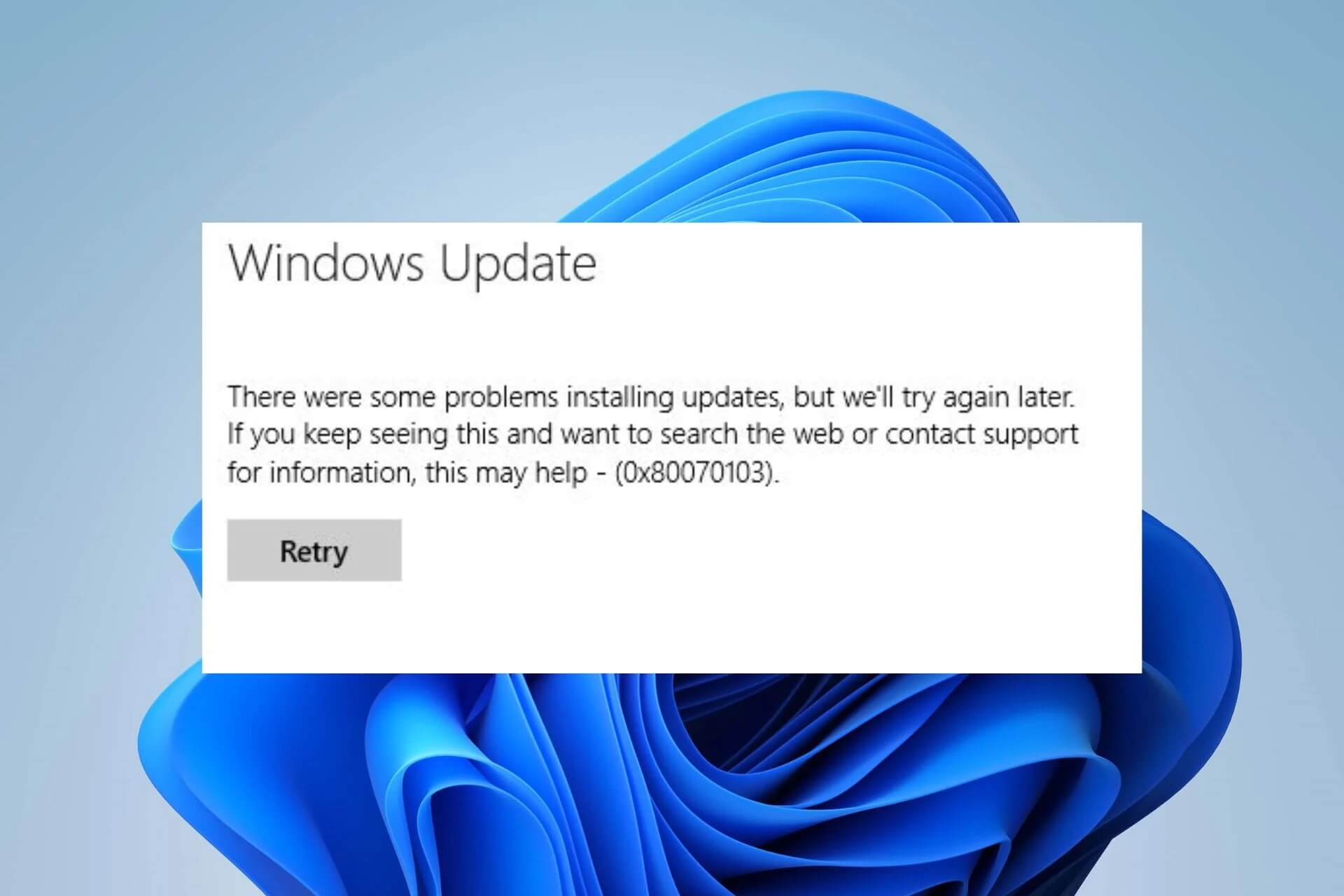
Windows driver error 0x80070103 is displayed when you attempt to install a different version (including a lower compatible option) of a driver that is already present on your system. Follow these steps to eliminate this error message.
While this article focuses on Windows 11, the same steps can also be applied to resolve this error on Windows 10.
Pause and resume Windows 11 updates
Pausing and resuming Windows 11 updates on your computer is one of the simplest ways to resolve the 0x80070103 installation error in Windows 11. This forces Windows to re-check driver updates and fix any temporary issues causing the error.
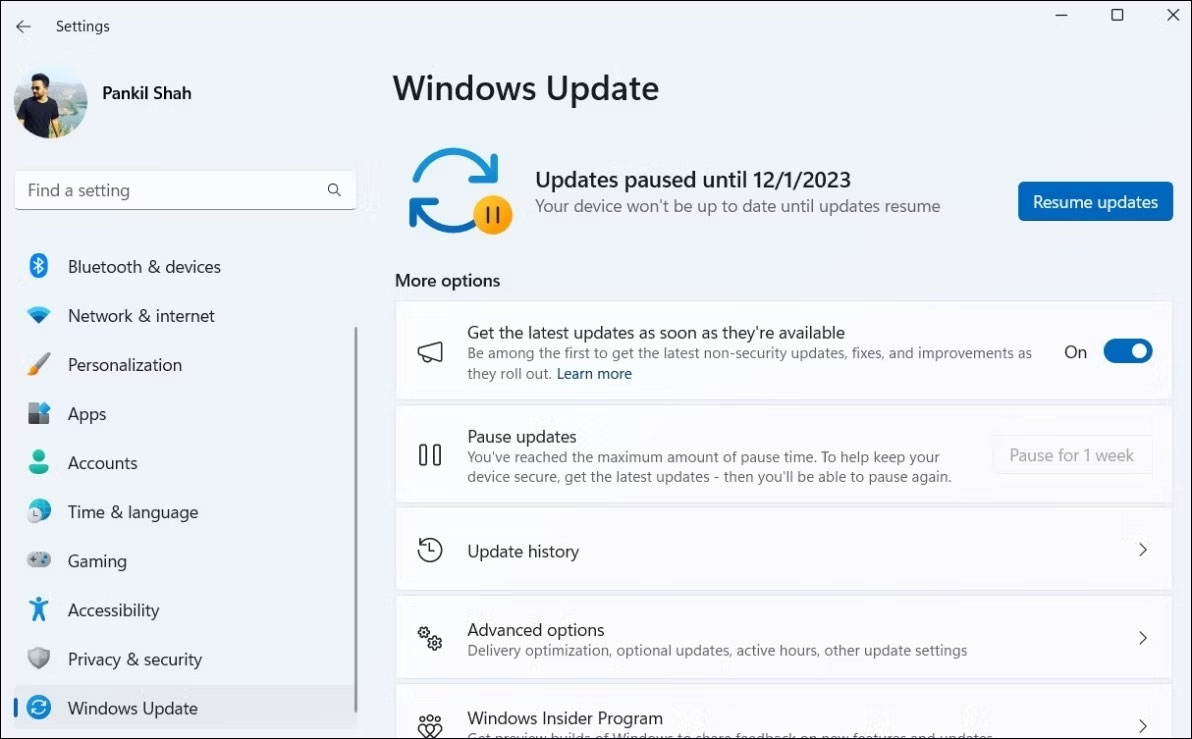
Press Win + I to open Settings and go to the Windows Update tab. Select the Pause for 1 week button (next to Pause updates) on the right. Then, click the Resume updates button. Wait for Windows to check for updates; it should no longer display the problematic driver update.
Hide problematic updates
You can hide problematic updates to fix the 0x80070103 error. To do this, you must use the Show or Hide Updates tool from Microsoft. Here are the steps to follow:
1. Press Win + I to open the Settings app and select the Windows Update tab.
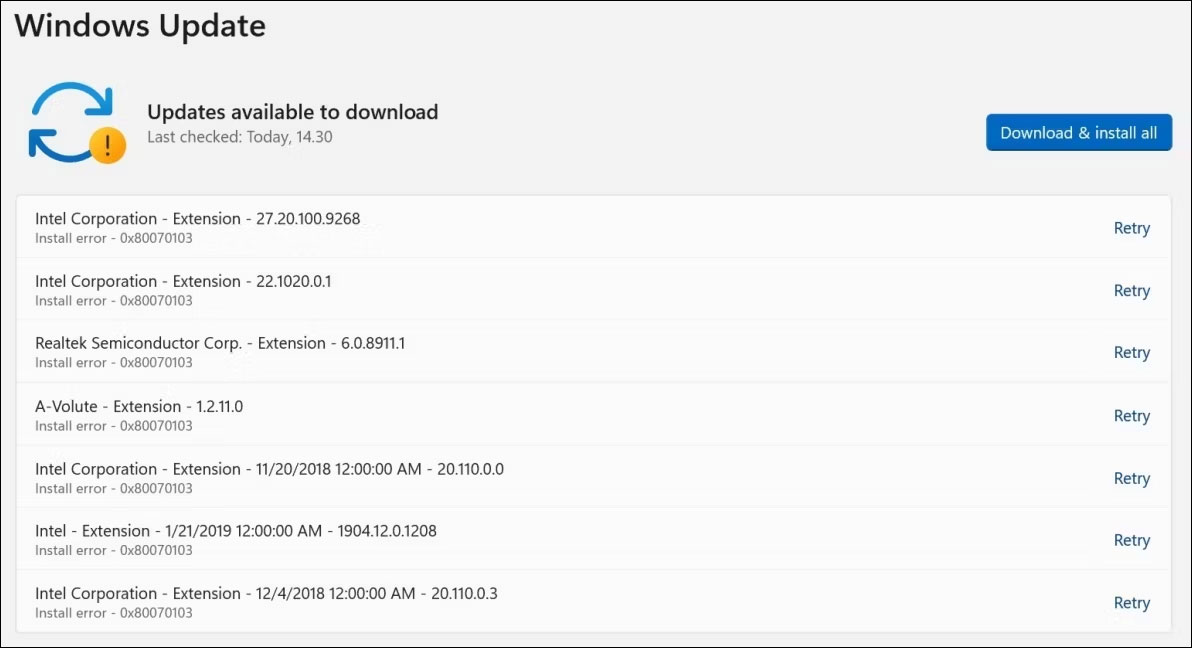
2. Note down the names of the updates causing the 0x80070103 error.
3. Download the Show or Hide Updates tool on your PC.
4. Double-click the downloaded file to launch the Show or Hide Updates tool.
5. Click Next.
6. Select Hide updates.
7. Use the checkboxes to select the updates causing the error for you. If you see this error for several updates, use the checkboxes to select all of them.
8. Click Next.
9. Wait for the troubleshooter to hide the problematic updates, then click the Close button to exit the tool.
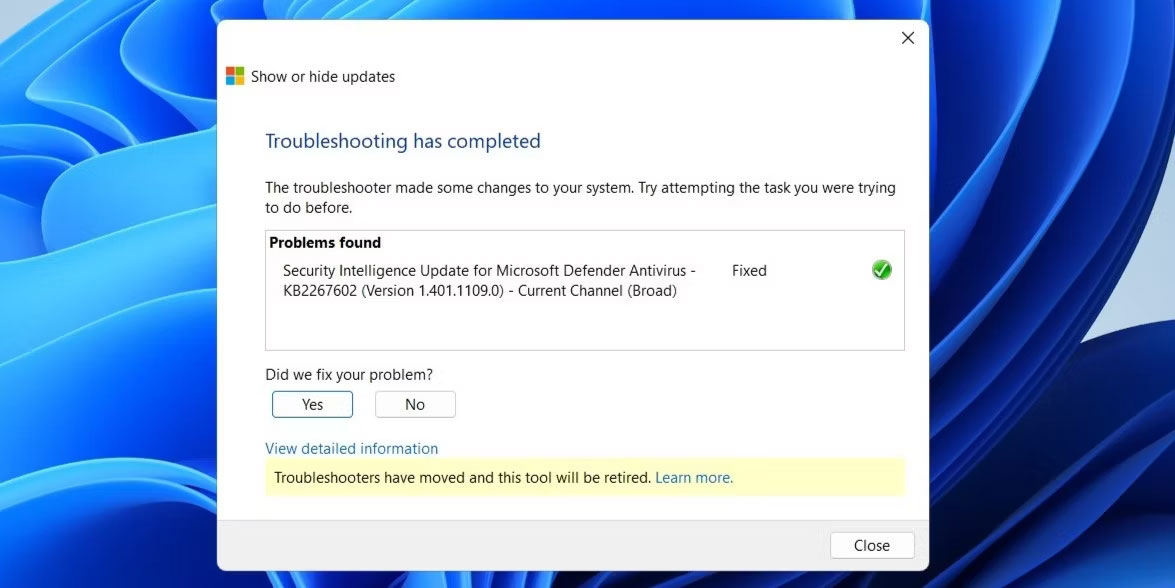
Although the Show or Hide Updates tool is available at the time of writing, Microsoft plans to discontinue it. Instead, you can run the Windows Troubleshooter to access similar functions. Go to Settings > System > Troubleshoot > Other troubleshooters > Windows Update.
After hiding the problematic driver update, you will no longer see the 0x80070103 error in the Windows Update tab.
Reset Windows Update components
Windows Update components on your PC are responsible for downloading and installing updates. If these components are corrupted or malfunctioning, you may encounter various update errors, including the one discussed here.
To fix this, you must reset the Windows Update components by running several commands in Command Prompt or by creating and executing a batch file. Once done, the 0x80070103 installation error will no longer bother you.
Try other general Windows 11 fixes
In most cases, one of the above tips will help fix the error. If not, you can try some general Windows update fixes to resolve the issue:
- Restart the Windows Update service: Temporary issues with the Windows Update service can also cause the 0x80070103 error. You can try restarting the Windows Update service to get it running smoothly again.
- Install updates manually: In cases of persistent issues, you can try manually installing the problematic update. To do this, you must visit the Microsoft Update Catalog and download the update file. Then, you can install the Windows update manually.
- Install optional Windows updates: These updates often include the latest driver files from OEMs. You can manually install these optional Windows updates to see if they resolve the error. Find them in Settings > Windows Update > Advanced options > Additional updates > Optional updates.
Installing the latest updates on your computer is always a good idea to keep your machine running smoothly and securely. However, due to driver conflicts, this process may not always go as expected. Hopefully, these tips will resolve the Windows 11 0x80070103 error and get your PC back to normal operation.











