

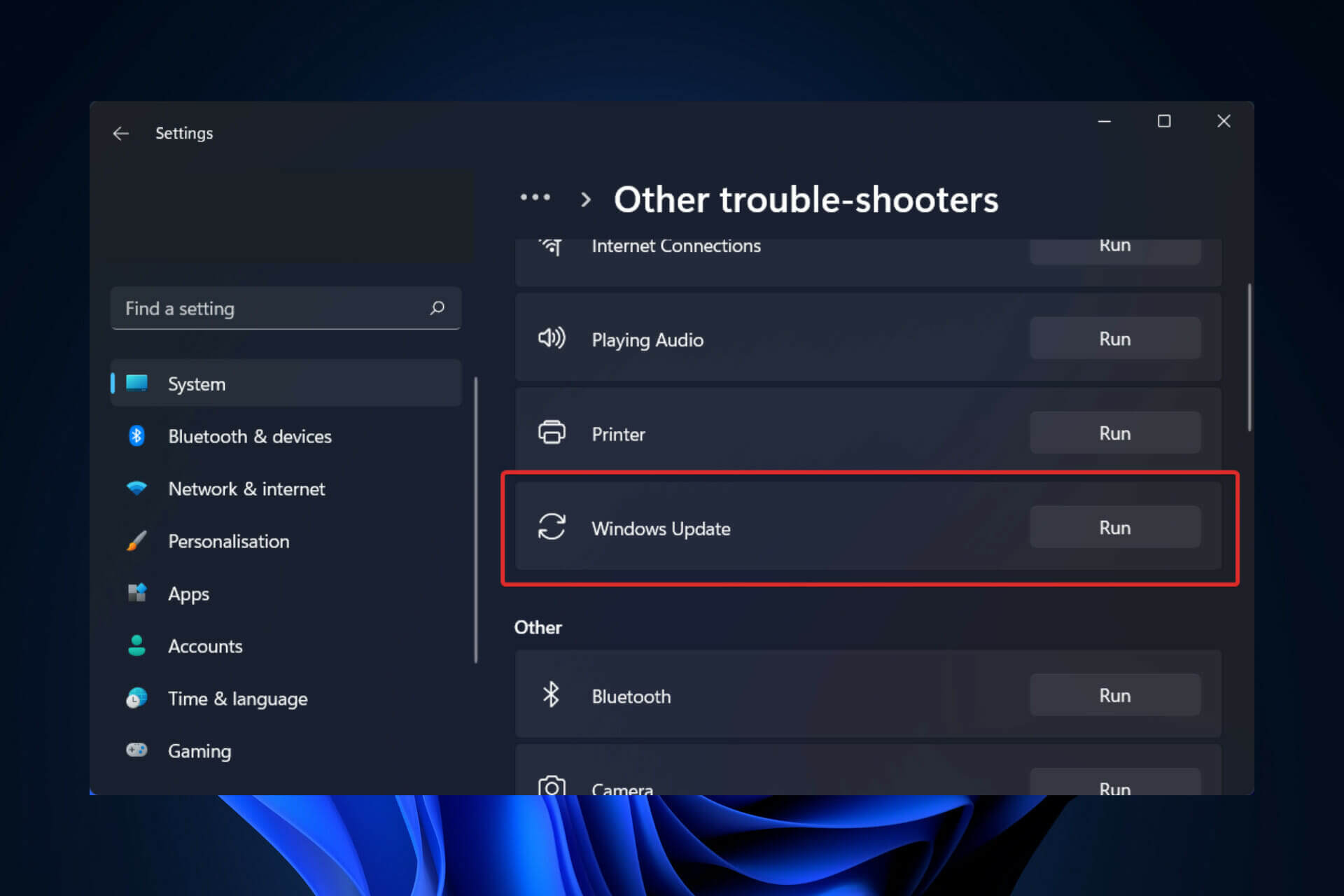
Updating is a vital part of any Windows computer. Therefore, if something is wrong with the updates, it is best to resolve them as soon as possible with Windows Update.
Since Windows Updates are crucial for many things, such as regular malware protection updates, bug fixes, etc., if you cannot install new updates, it means you are using your Windows in a very suboptimal way.
Therefore, here are the best ways to fix Windows Updates not working.
1. Update device drivers
Device drivers are software that makes the various components in your Windows hardware work. If your device drivers have been outdated for a while, it can cause unavoidable conflicts with new updates.
Generally, device drivers are updated automatically along with other Windows updates. However, in cases where that does not happen, you should find and update your device drivers manually.
2. Use the Windows Update troubleshooter
Windows Update is the application that monitors all your Windows update processes. Like any other tool on Windows, it can occasionally glitch or malfunction.
If this is not a recurring issue with Windows, the troubleshooter can help you get out of this error. The Windows Troubleshooter is an all-in-one troubleshooting application that can help you quickly eliminate minor errors.
To run the Windows Update troubleshooter, follow the steps below:
- Go to the search bar in the Start menu, type settings and select the most relevant result.
- Click on Troubleshoot > Other troubleshooters.
- From there, run the Windows Update troubleshooter.
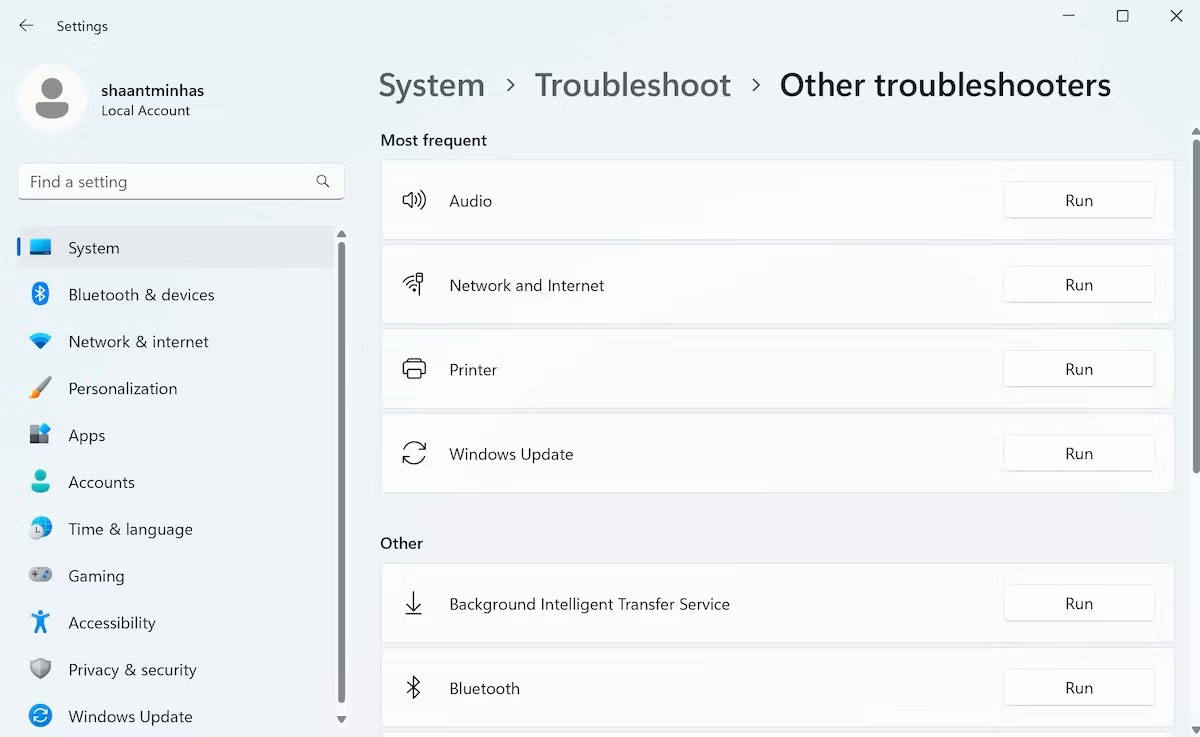
Immediately after you do this, the tool will identify all issues with your PC updates. If any problems are found, the tool will automatically fix them.
3. Check Internet connection
You have been downloading for a while but see little progress. Although there is no official error dialog, you also do not see any updates being downloaded.
In such a case, your Internet connection might be broken. It is best to first check and fix the Internet connection on your PC. Once you have confirmed or established a functioning Internet network, go to the update tool and try the updates again.
If you still encounter errors with Windows updates, do not panic! Move on to the next method below.
4. Check date and time settings
Check the date and time settings on your PC. If something is wrong with these settings, you will certainly encounter issues when updating your Windows PC.
The reason is that Windows updates need your accurate date and time information before downloading and installing new updates. This is very important to help establish the integrity of the updates and thereby avoid tampering or unauthorized access.
So, change your date and time settings on Windows if they appear to be showing the wrong time.
5. Free up disk space
In most cases, if there is insufficient disk space on Windows, you will receive a message or notification. It will explicitly state that you cannot download new updates without free space.
However, even if you do not receive any messages, you should still clear your Windows memory of all unnecessary items that fill up the storage.
There are many ways to free up disk space on a Windows computer. Try whatever works for you and then retry the updates to see if you encounter any issues.
6. Perform a System Restore
While it may not be a method that solves all your real-world problems, when it comes to Windows computers, System Restore is perhaps the next thing to try.
As a free tool from Microsoft, System Restore brings your PC and its settings back to a point where all applications and settings were working well-provided you have created a restore point previously. In this case, by performing a system restore on Windows, you can eliminate Windows Update errors on your Windows 10 or 11.
7. Delete Software Distribution Folder
The Software Distribution Folder is a special folder containing temporary files required to perform Windows updates. These old files can sometimes cause issues with your regular Windows updates if they are not cleared. Deleting old files from the Software Distribution Folder is known to be able to fix all update issues on your PC. Therefore, this method is well worth a try.
You can easily delete the folder using Command Prompt. Here is how to do it:
- Go to the search bar in the Start menu, type cmd and launch it as administrator by right-clicking it and selecting Run as administrator.
- Now, first you must stop the Windows Update Service. Type the following command to do that and press Enter:
net stop wuauserv - From there, type the following command to stop the Background Intelligent Transfer Service and press Enter:
net stop bits - Open File Explorer and go to the following path:
C:\Windows\SoftwareDistribution - Select the contents in the folder and click Delete.
That's it, the Software Distribution Folder will be deleted. Now, restart the Windows Update and Background Intelligent Transfer Service using the corresponding net start wuauserv and net start bits commands. Your Windows will update normally from here.











