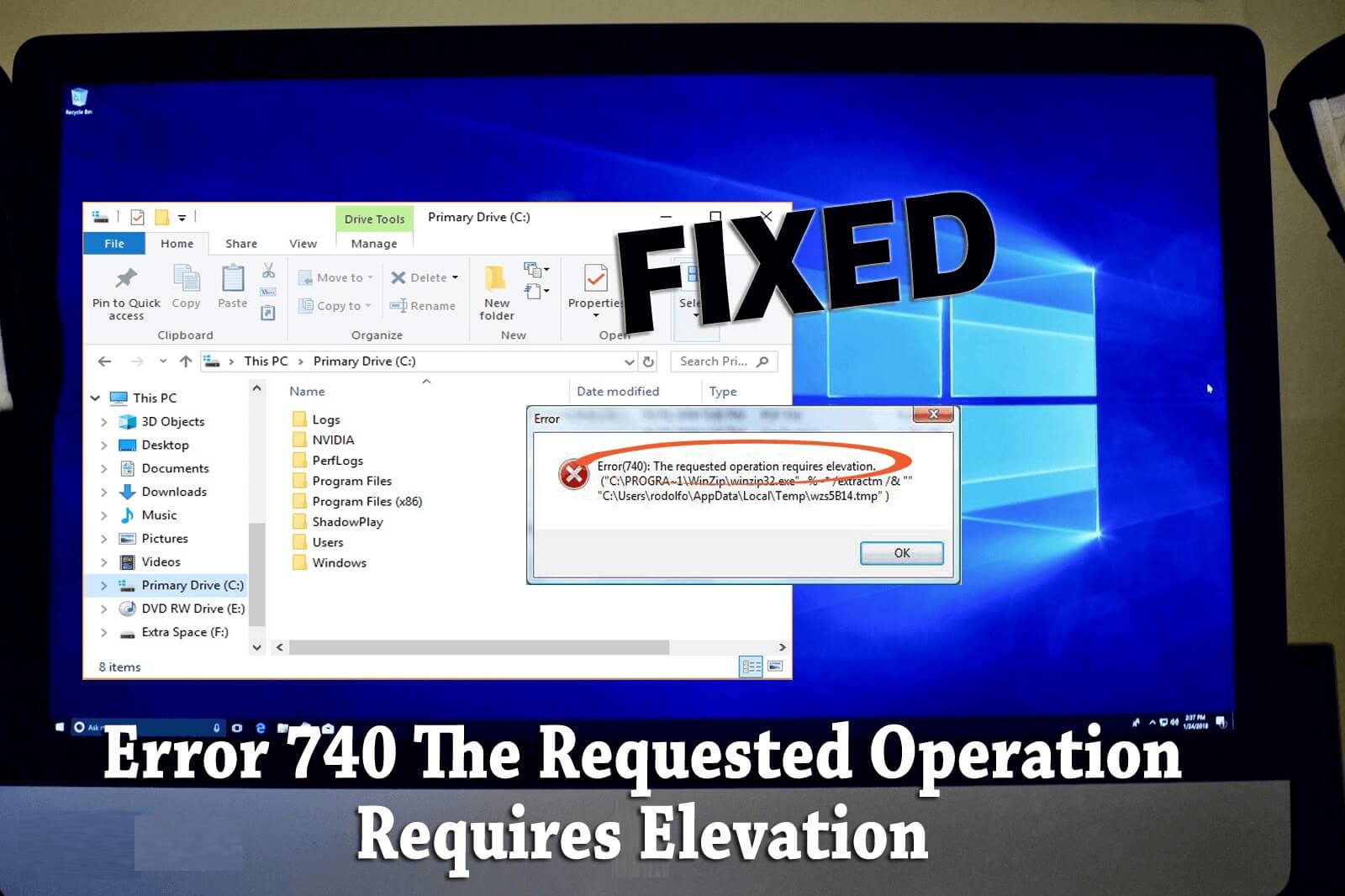
Some users have reported in support forum posts that error 740 occurs when they try to run a program or access a folder on a Windows PC. The error message 740 states, "The requested operation requires elevation". Users cannot access software, folders, or files when error 740 occurs.
This is how you can fix error 740 in Windows 10 and 11.
1. Run affected programs with admin privileges
The error 740 message refers to the need for elevated operations. This is a suggestion to try running the affected programs with admin privileges. See this guide on applications that always run with admin privileges to set up affected EXE files to run as administrator.
2. Set programs to run in Compatibility Mode
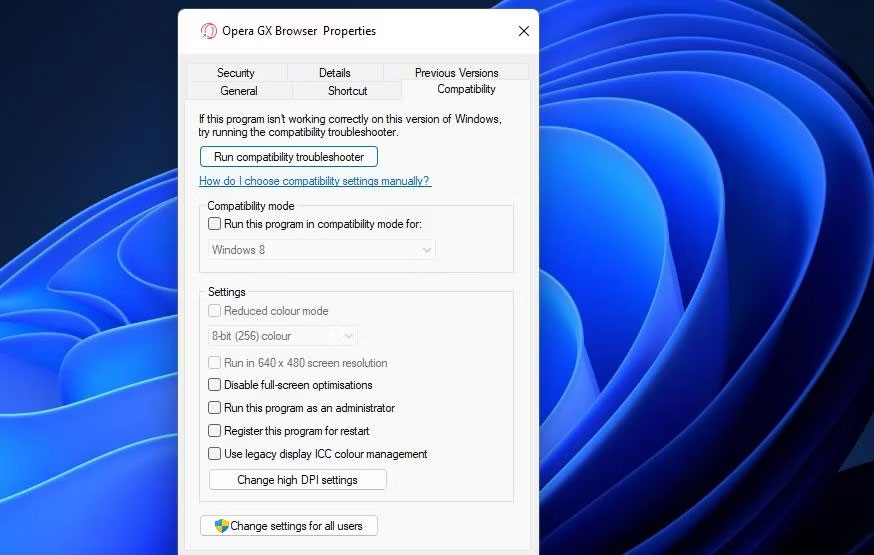
You should also set older programs to run in Compatibility Mode. Doing so can resolve compatibility issues causing error 740. You can set affected programs to run in Compatibility Mode as follows:
1. Open the settings of the affected software in File Explorer.
2. Right-click on the EXE of the affected program (application file) and select Properties > Compatibility.
3. Select Run this program in compatibility mode for and choose Windows 8 or an older platform from the drop-down menu. It is best to choose the Windows platform that the publisher originally released the software for.
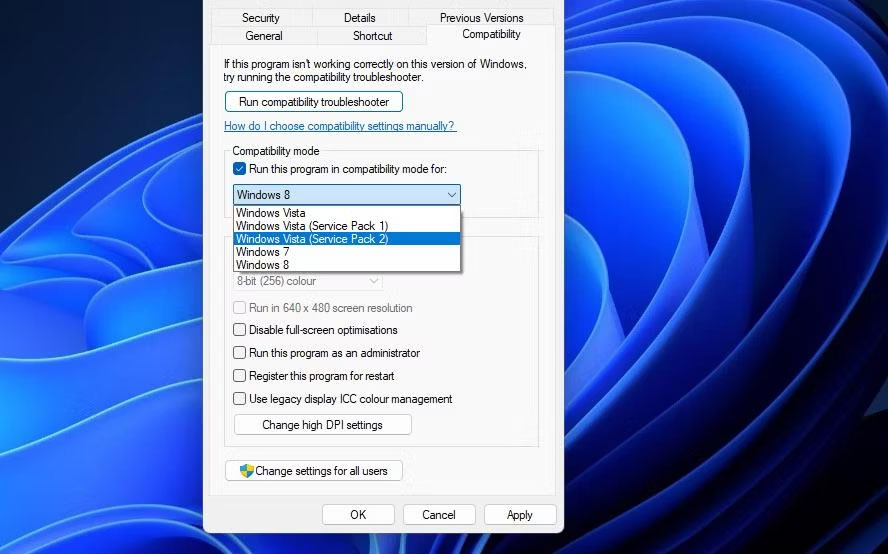
4. Click Apply > OK to save the Compatibility Mode settings.
3. Turn off User Account Control in Windows
User Account Control is a security feature that issues notifications when programs attempt to make changes. UAC can be a potential cause of error 740 when it is set to a very high level. Therefore, try turning off UAC before running the affected applications.
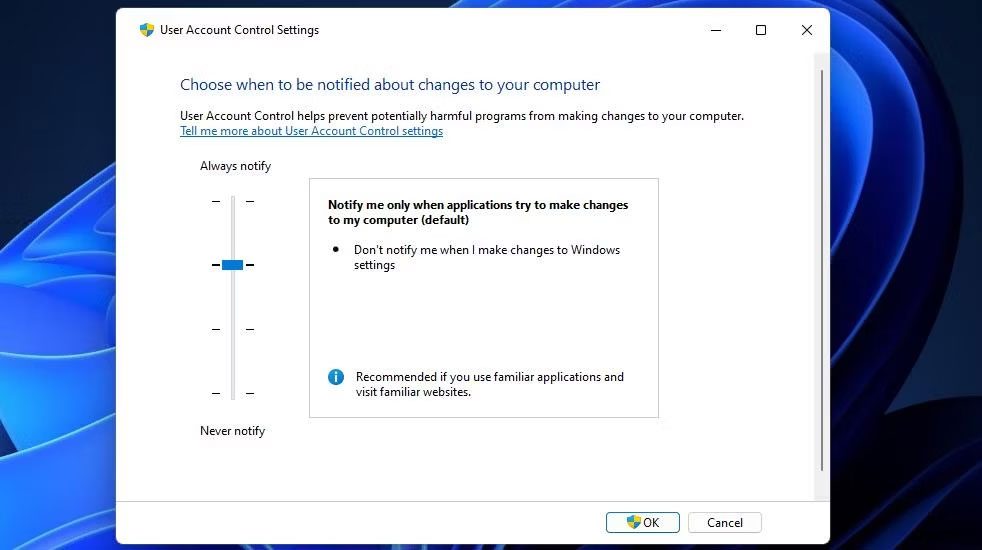
4. Adjust folder permission settings
This potential solution is recommended for users who cannot access specific folders due to error 740. In that case, the error may be a permission issue with the folder that selecting the Replace all child object permission entries option can resolve.
Try selecting the Replace all child object permission setting for the affected folder as follows:
1. Press Win + E to open File Explorer.
2. Open any folder containing the folder where error 740 occurs.
3. Right-click on the affected folder and select the Properties of that folder.
4. Select Security on the window's tab bar.
5. Click Advanced to access other security settings.
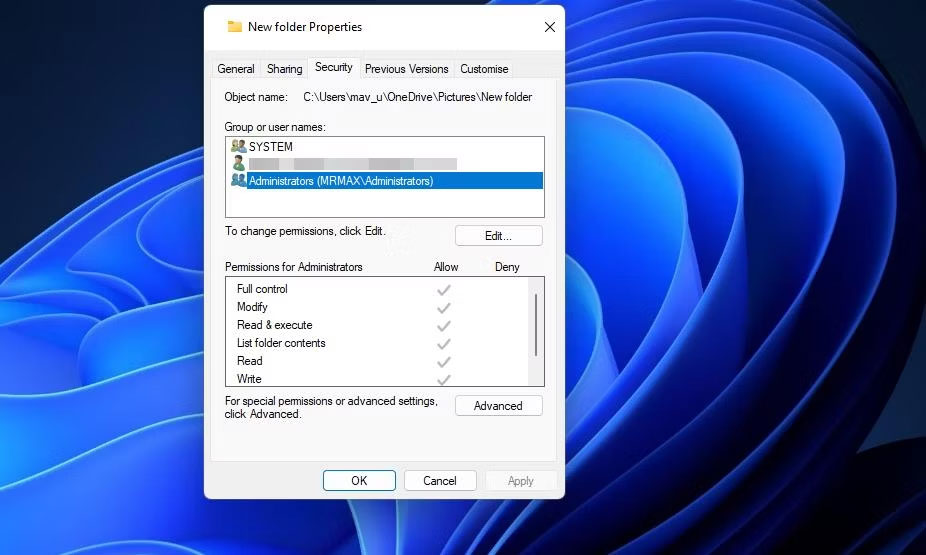
6. Select the Replace all child object permissions entries with inheritable permission entries from this object checkbox.
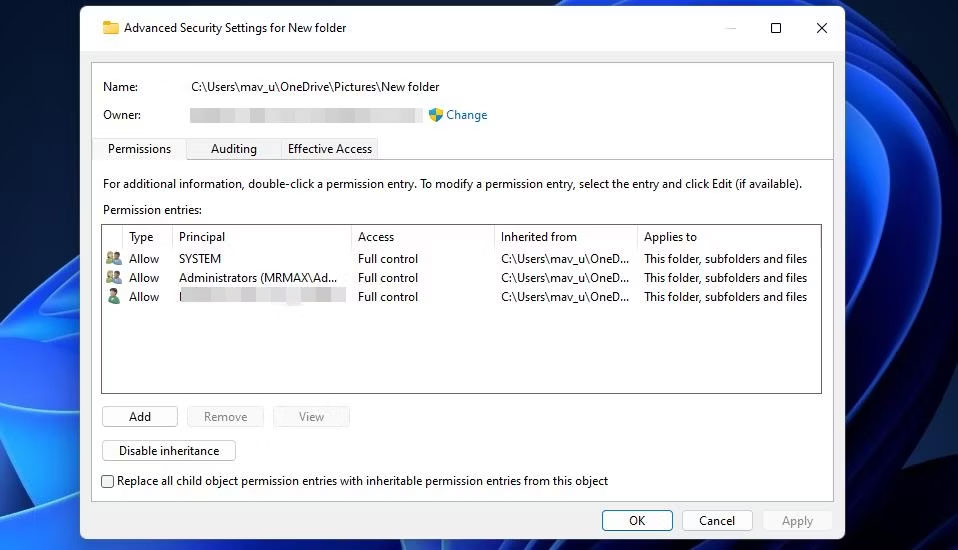
7. Click Apply in the Advanced Security Settings window.
8. Select Yes when prompted to continue.
9. Exit the folder properties window and restart your PC.
5. Modify UAC admin prompt behavior
If your Windows PC has the Group Policy Editor, try changing the behavior of the UAC admin prompt using that tool. Selecting the Elevate without prompting setting for the User Account Control: Behavior policy may fix error 740 for some users.
You can select that option in Windows Enterprise and Pro versions as follows:
1. Open Local Group Policy Editor.
2. Next, double-click Computer Configuration to expand that sidebar navigation option.
3. Double-click Windows Settings and select Security Settings.
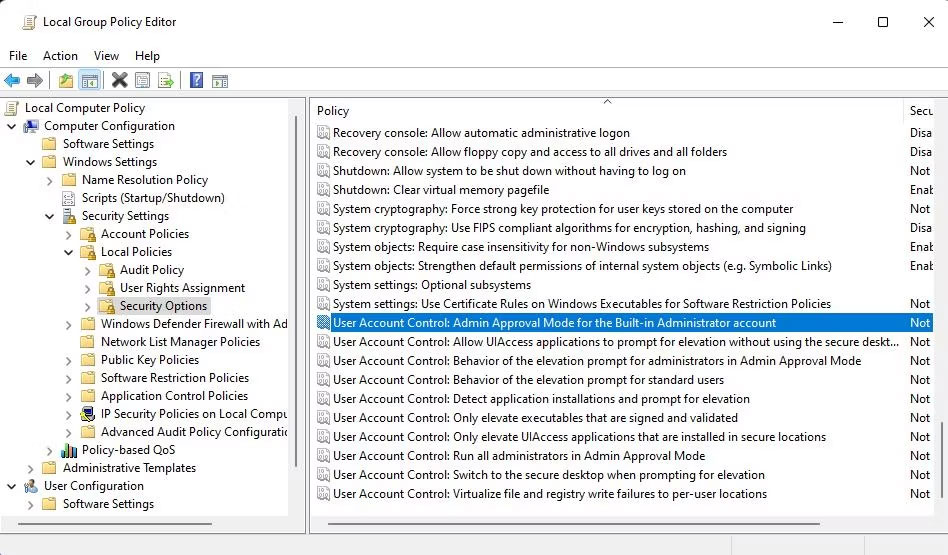
4. Then, go to Local Policies and Security Options to access the User Account Control Policy settings.
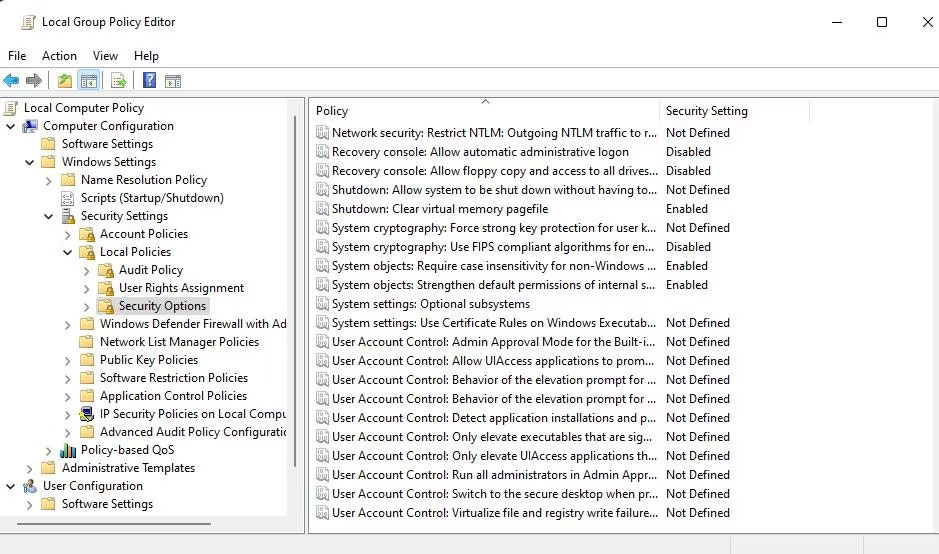
5. Double-click the policy User Account Control: Behavior of the elevation prompt for administrators in Admin Approval Mode.
6. Select the Elevate without prompting option from the drop-down menu.
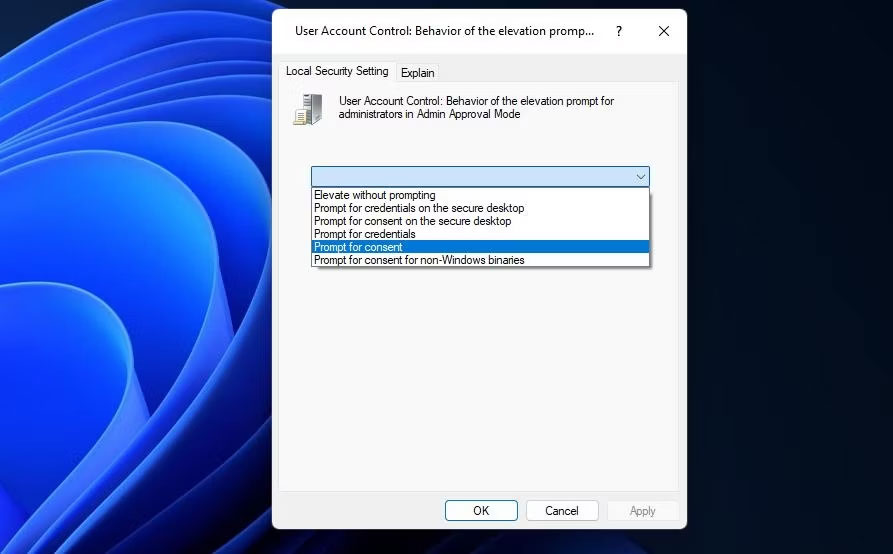
7. Click Apply to set the Elevate without prompting policy.
8. Select OK to close the policy settings window.
9. Restart Windows after closing the Group Policy Editor.
6. Disable Admin Approval Mode in Windows
Admin Approval Mode prompts admin users for task permissions when enabled. It is a strict security policy of the Group Policy Editor that can potentially cause admin permission issues. Follow these steps to turn off Admin Approval Mode.
1. Go to Security Options in the Group Policy Editor following steps 1 to 4 from solution 5.
2. Double-click the policy setting User Account Control: Admin Approval Mode for the Built-in Administrator account.
3. Click the Disabled button if this policy is enabled.
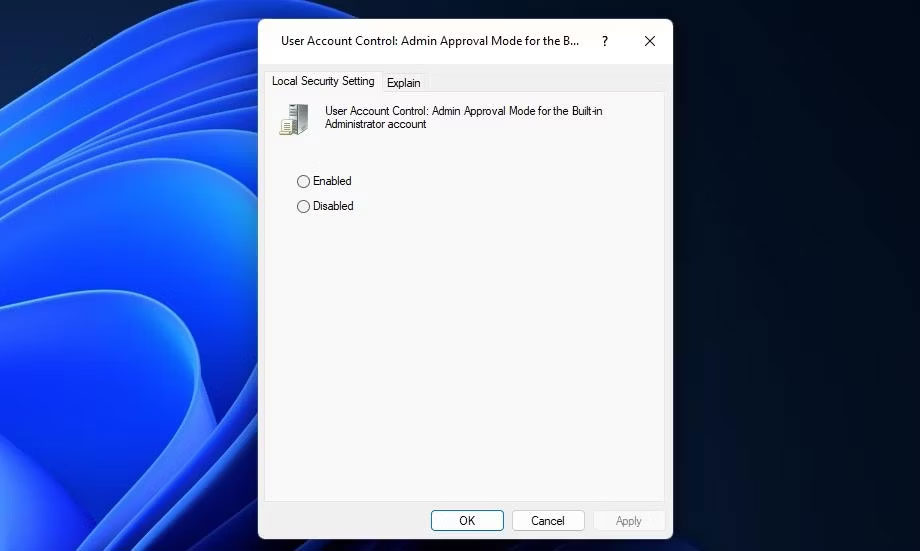
4. Select Apply to turn off Admin Approval Mode.
5. To close the policy window, select the OK option.
7. Disable third-party antivirus software
Have you installed a third-party antivirus or security application on your PC? If so, your third-party security software may cause error 740 by blocking the EXE file you are trying to run. This can happen when the antivirus flags the application file as malicious.
In this case, a potential solution is to temporarily disable the third-party antivirus software before trying to run the affected programs. Find and select the option to disable the antivirus shield by right-clicking the antivirus software's system tray icon. If time-based options are available, select to disable the real-time protection feature for about one hour or longer.
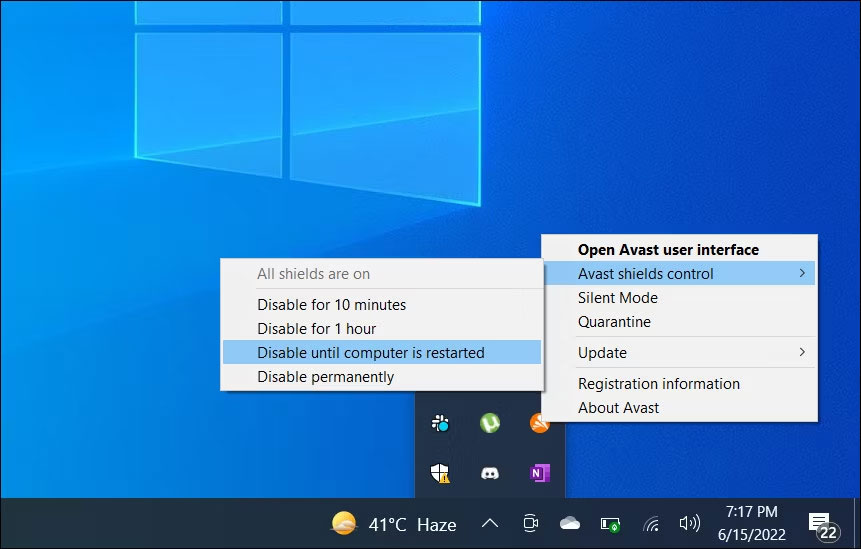
If disabling the security software works, you don't necessarily have to turn off the security software every time you want to run the application file. Your antivirus software will likely include an exclusion list where you can add exceptions for trusted program files. Add the affected EXE file there to exclude it from the antivirus protection process.
8. Switch to a new admin user account for Windows
If the "Requested operation requires elevation" error persists after trying other solutions, your user account may be corrupted. In that case, you may need to create and use a new admin account to resolve this issue. You can move to that account by copying files from the old user account to the new one.

To apply this troubleshooting method for the "Requested operation requires elevation" error, follow the instructions in this article on how to troubleshoot Windows by creating a new user account. First, you need to set up and log in to the new admin account to see if the error occurs there. If not, move your user files to the new account.