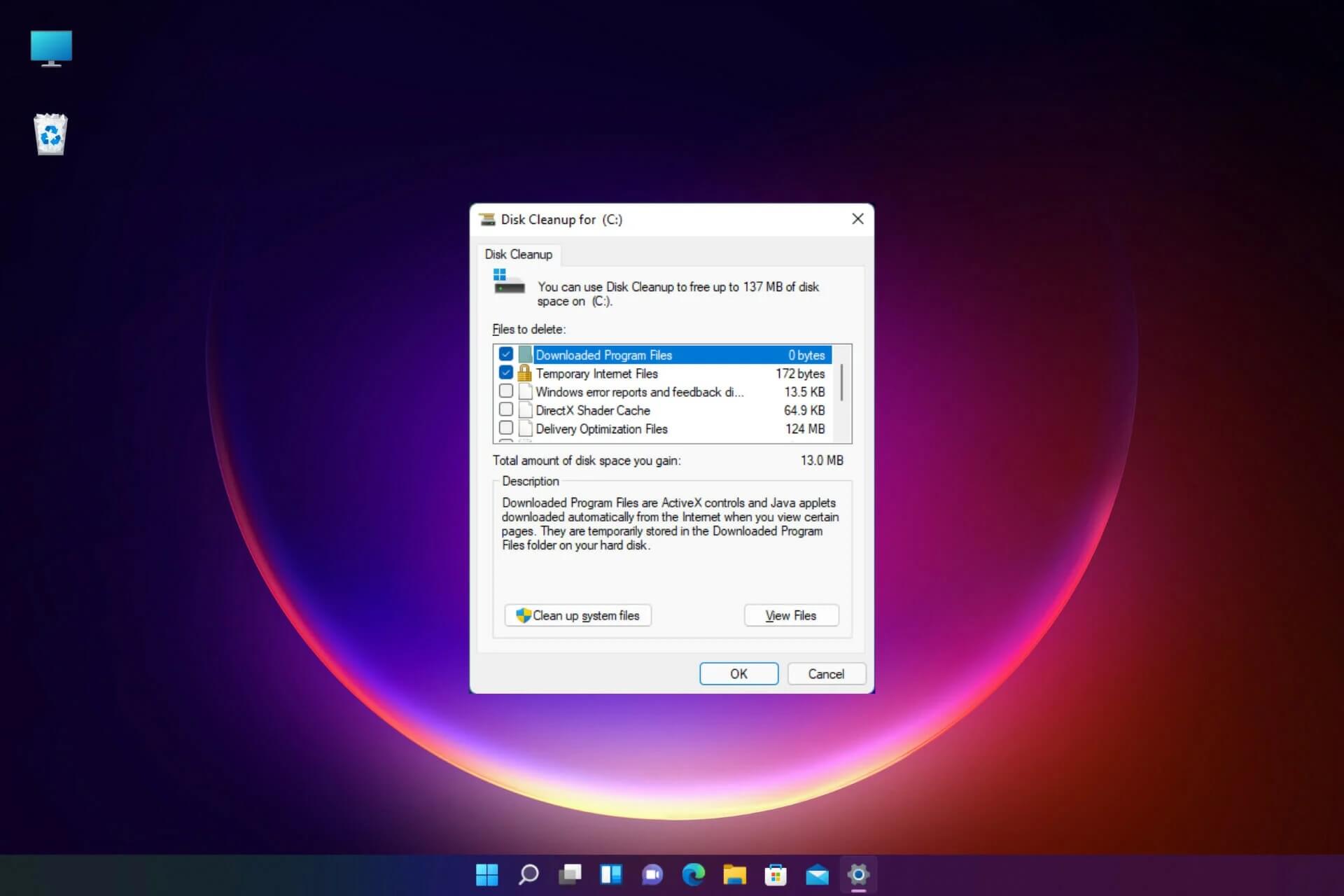
Most people know that the Disk Cleanup utility in Windows can help reclaim storage space on their PC. With just one click, the application scans your machine and shows you many things that can be deleted. While some of these options are quite straightforward, others are not. You certainly don't want to accidentally delete something important and face the Blue Screen of Death. This list includes the types of files that commonly appear in the Disk Cleanup utility and indicates whether they are safe to delete.
File Delivery Optimization
These files can easily consume gigabytes of storage; however, it is not clear what they actually are. Disk Cleanup only states that deleting them is safe if you are not using them. But what are they?
Basically, Delivery Optimization files are Windows update files. When Microsoft releases an update for Windows, many PCs are set to automatically download updates. This can put a strain on Microsoft's servers.
Therefore, to ensure that everyone receives updates in a timely manner, individual Windows PCs are set to store copies of those update files to distribute to other Windows PCs. Essentially, it is like torrenting a file. Unfortunately, these files are stored on the PC's drive, taking up space. Fortunately, you can safely delete them.
File Language Resource
These files are related to the various language packs that come with Windows. They ensure the accuracy of language-related processes when using your PC. The files include various languages, dictionaries, spelling and grammar rules, as well as keyboard layouts. If you believe you will never need another language on your system, you can delete them. However, please note that it does not reclaim much space, so you can leave them be.

File System Error Memory Dump
File System Error Memory Dumps are created whenever your machine encounters a major error or the dreaded Blue Screen of Death. Windows only keeps one of these dump files at a time, overwriting the file each time you encounter an issue. These files can be quite large because they contain a lot of data.
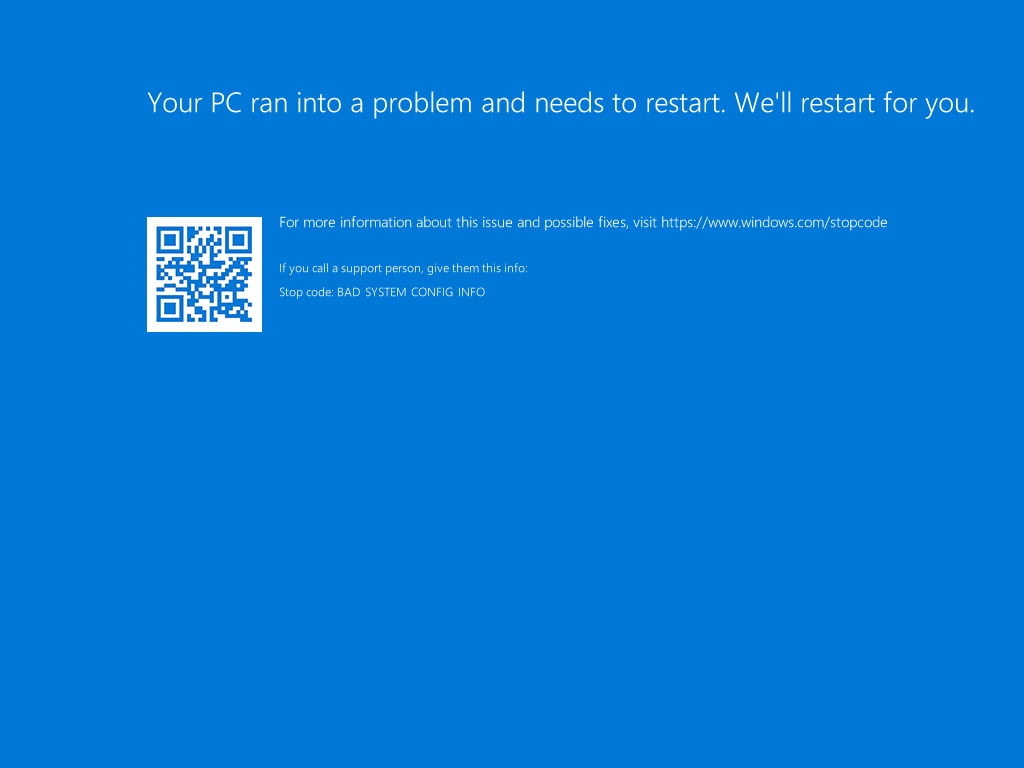
With the .DMP extension, dump files can be used to diagnose issues encountered by the system. That said, an average user might not be interested in exploring the technical reasons behind a malfunction. However, you can send them to Microsoft for analysis, error identification, and potential fixes through future updates. Otherwise, feel free to delete them.
File System Error Minidump
File System Error Minidumps are like the annoying younger siblings of System Error Memory Dumps. They also provide data that can help programmers or developers debug issues encountered by the system. If those don't interest you, go ahead and delete them.
Temporary Files
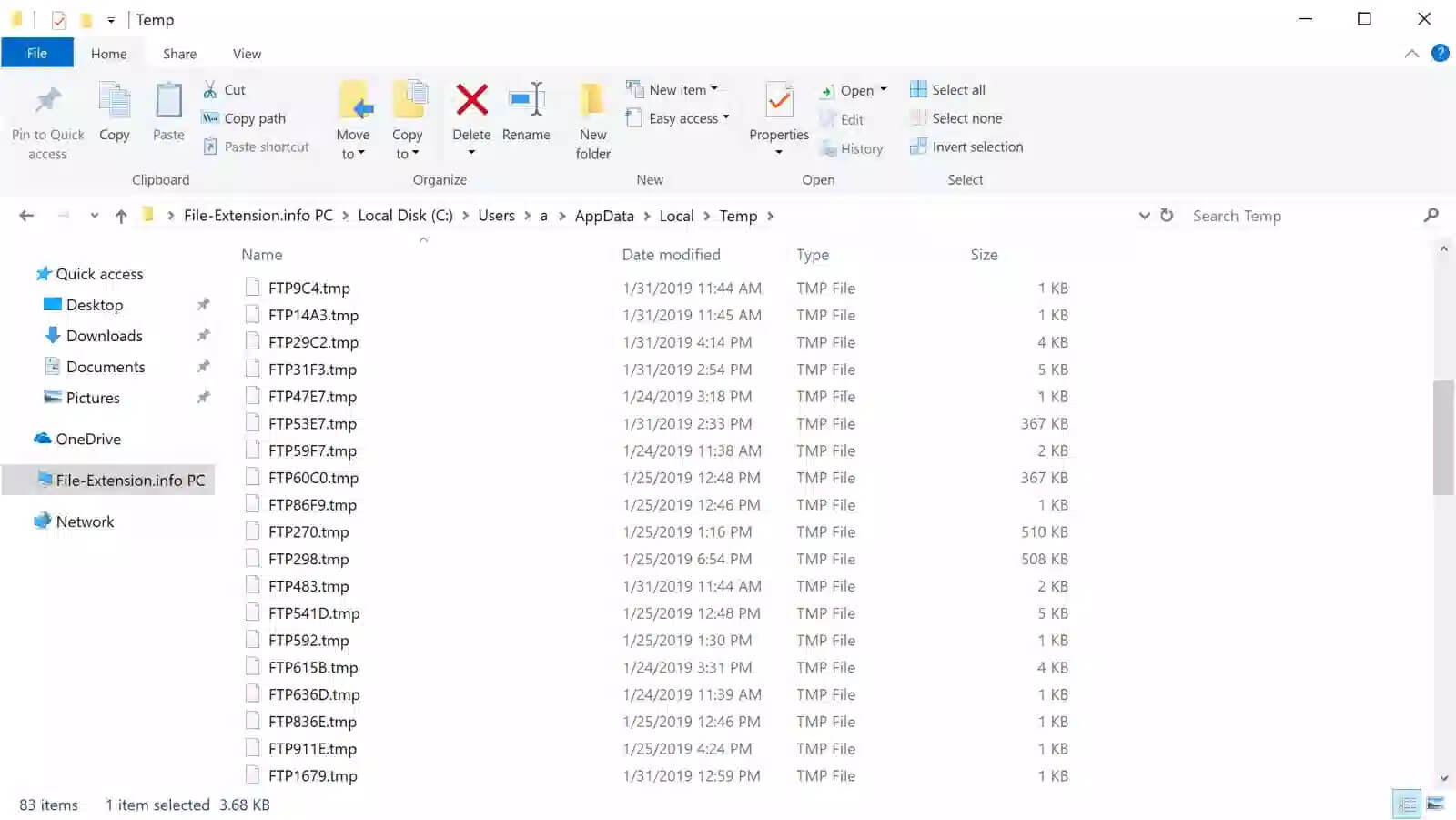
Temporary files are created by applications on your PC. They are used by applications to run more efficiently. Typically, they are automatically deleted; however, you can delete them manually if you wish.
Temporary Internet Files
When you browse the web, some bits are stored on your computer. This is done so that these websites load faster the next time you visit them. This is called browser cache. You can choose to clear the browser cache, but you might want to think twice about this. Deleting these files can actually slow down your browsing experience. Furthermore, the deletion is not permanent. As you browse the web, your browser will collect these bits again.
Thumbnail
When you open a folder containing files such as documents or images, Windows creates a thumbnail image so you can quickly identify the file. You can delete these thumbnails if you want to using Disk Cleanup. But if you access a folder containing these files again, Windows will recreate these thumbnails.
Windows Error Reporting
Windows Error Reporting (WER) is a Windows feature that has existed since Windows XP. When a program encounters an error or the system experiences a serious problem, a .WER file is created. These reports collect data about the system's hardware and software configuration and what occurred. They are automatically sent to Microsoft for evaluation. Stored .WER files appear when you run Disk Cleanup. These reports have already been sent to Microsoft, so unless you want to try and resolve the issue yourself, you can safely delete them.
Windows ESD Installation Files
You might not encounter Windows ESD Installation files when running a Disk Cleanup scan. Microsoft has removed this option from Disk Cleanup in later versions of Windows.
Windows ESD Installation files are what allow your PC to reset itself to factory settings. Generally, these files are quite large. This makes them quite tempting to delete, as you can reclaim gigabytes of storage. However, this article advises you not to delete these files. If you encounter a serious issue that requires you to reset your PC, you will be unable to do so.
Windows Update Log Files
These files are less mysterious. Whenever Windows updates through updates, a log file is created. These log files can be used to identify and troubleshoot issues that occur when your system updates. But if you are not experiencing any issues with recent updates, you can safely delete these files.
Windows Update Cleanup
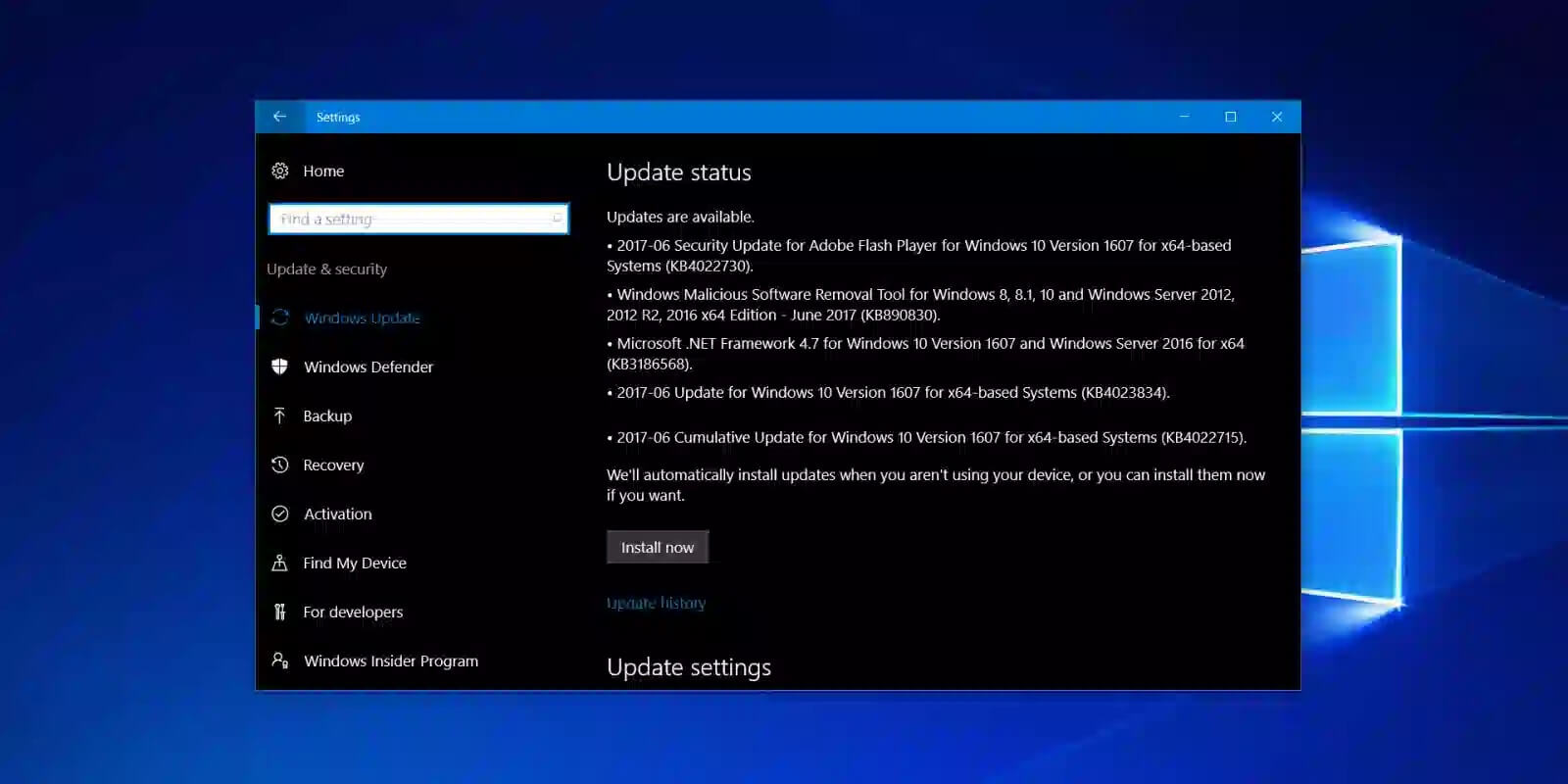
Whenever you update Windows, your system keeps older versions of system files on your hard drive. These files allow you to uninstall updates if you are experiencing issues, allowing you to roll back to an older, more stable version of Windows. In most cases, you can delete these files as long as your PC is running smoothly. However, if you are experiencing persistent issues, you might want to keep these files to roll back the update to determine if the upgrade is the source of the problem.