

Are you experiencing AutoFill issues in Excel? Here are some ways to quickly fix data AutoFill errors in Microsoft Excel.
Although AutoFill is one of the easiest and most popular Excel features, it can sometimes encounter errors. However, do not worry too much. You can easily resolve the issue using the methods below.
Enable Fill Handle in Excel
Occasionally, Excel's AutoFill feature may stop working without any notification. When this happens, the first step you should check is whether the AutoFill option is enabled.
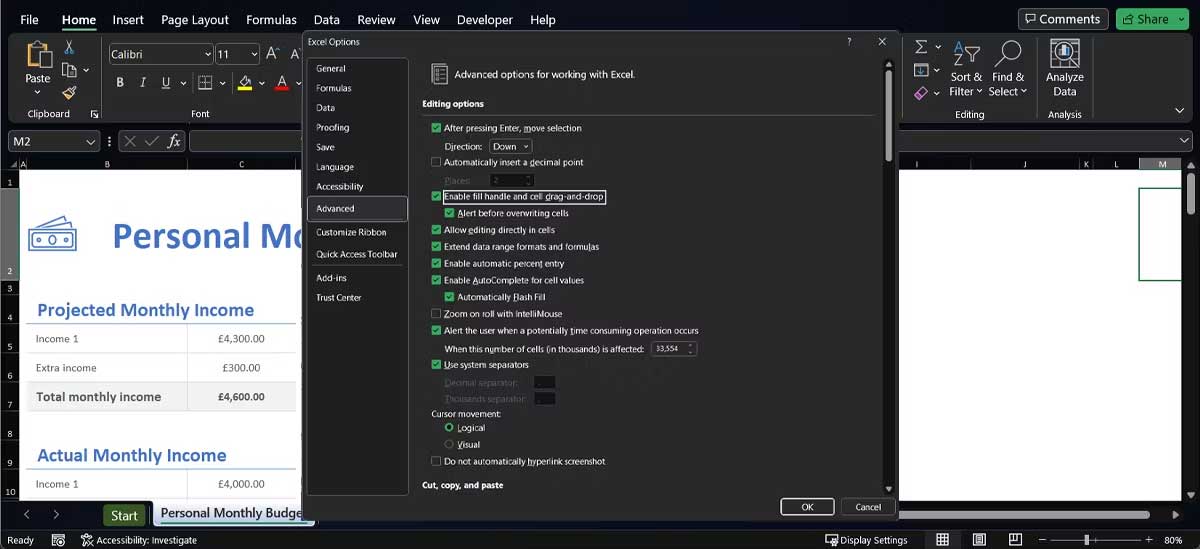
- Open the File menu > Options.
- Here, select Advanced from the left-hand menu and scroll down to the Editing Options section.
- Check Enable fill handle and cell drag-and-drop. Additionally, you should check Alert before overwriting cells to avoid accidentally editing important information.
Provide Excel with more data
Sometimes, AutoFill does not work as expected if you do not provide enough data for the tool to detect the pattern. Try selecting more cells before using AutoFill or manually entering more data before activating the AutoFill handle.
Remove unnecessary filters
The AutoFill feature may stop working if there is a conflict with other Excel tools. For example, if a filter has been applied to categorize Excel data, AutoFill may be unable to detect the pattern it should use.
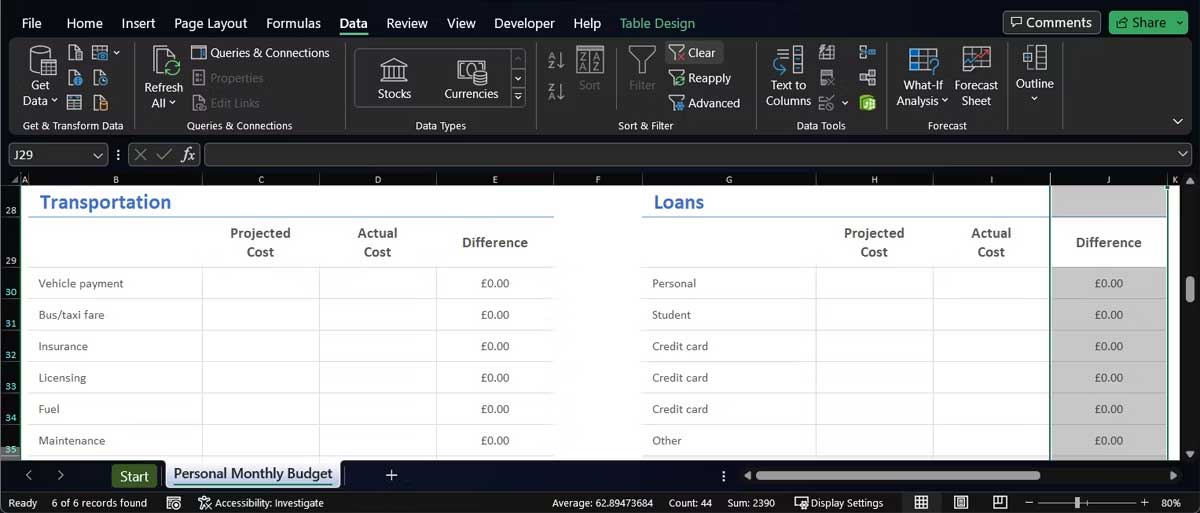
Columns or rows with applied filters usually have a Filter icon in the top cell. To clear the filter, follow these steps:
- Select the row or column containing the filter.
- Open the Data tab.
- From the Filter menu, click Clear.
Stop pressing Ctrl or Cmd
The AutoFill feature behaves differently each time you press & hold Ctrl or Cmd while using it. If you press & hold the key while filling data into a cell, AutoFill will repeat the data instead of extending the number, text, or date sequence.
Now, if it still runs even when you are not actively pressing the Ctrl or Cmd key, the key might be stuck. In this case, you can try a few options:
- Clean your keyboard to remove dust that may interfere with the key's function.
- Disconnect the keyboard if you are using a USB or Bluetooth keyboard.
- Remap the keys to disable the Ctrl or Cmd function.
Enable Automatic Calculation
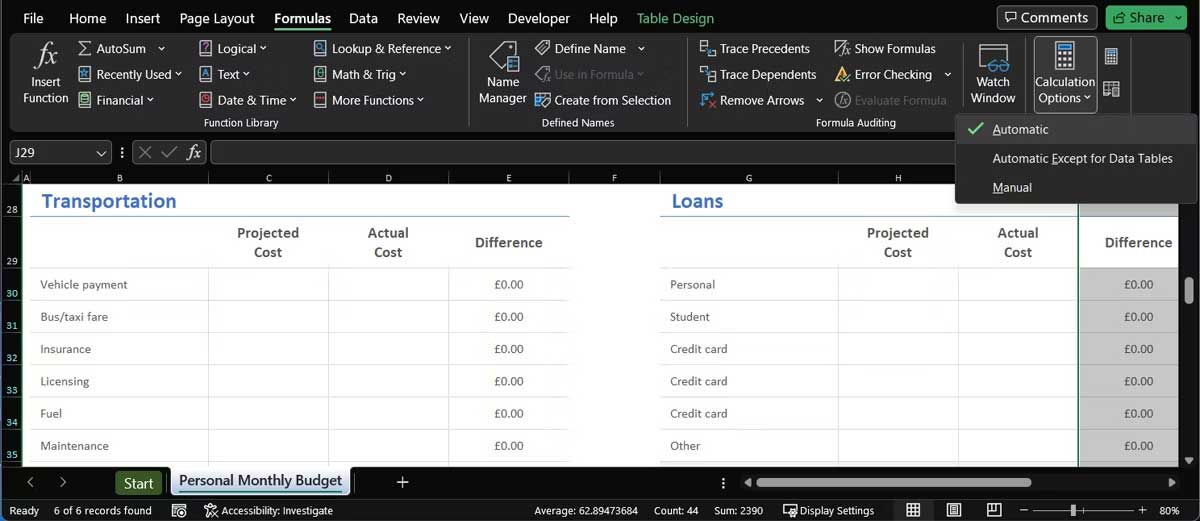
Another setting that can prevent AutoFill from working is the calculation option. In Excel, open the Formulas tab > Calculation Options menu. Here, select Automatic.
Above are the simplest ways to fix AutoFill not working in Microsoft Excel 2019. We hope this article is helpful to you.











