

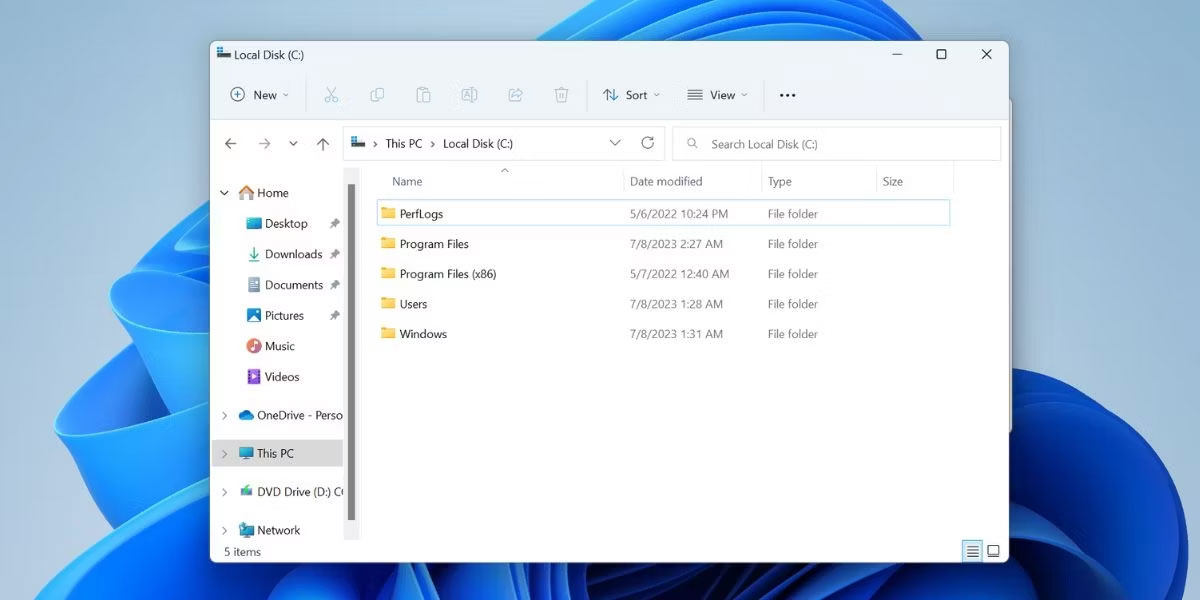
Windows 11 occupies a large amount of storage space on the C drive. After pushing additional bloatware updates and several large software applications, your C drive can run out of space very quickly. You may have noticed a folder named “Windows.old” in your system drive. If you check its size, it can easily consume 8GB or more of storage space.
You cannot simply delete the folder; you must grant ownership of the folder to do so. However, you can delete the folder using several methods that we will discuss in the article below.
What is the Windows.old folder and should you delete it?
Whenever you upgrade to a new version of Windows 11 (via a Windows update) or perform an in-place Windows upgrade, the operating system creates a Windows.old folder. It contains all your old system files and personal files, and you can use it to roll back to the previous Windows 11 version if desired. However, this folder takes up a lot of space on the C drive, which can be inconvenient for users who have just upgraded their PC.
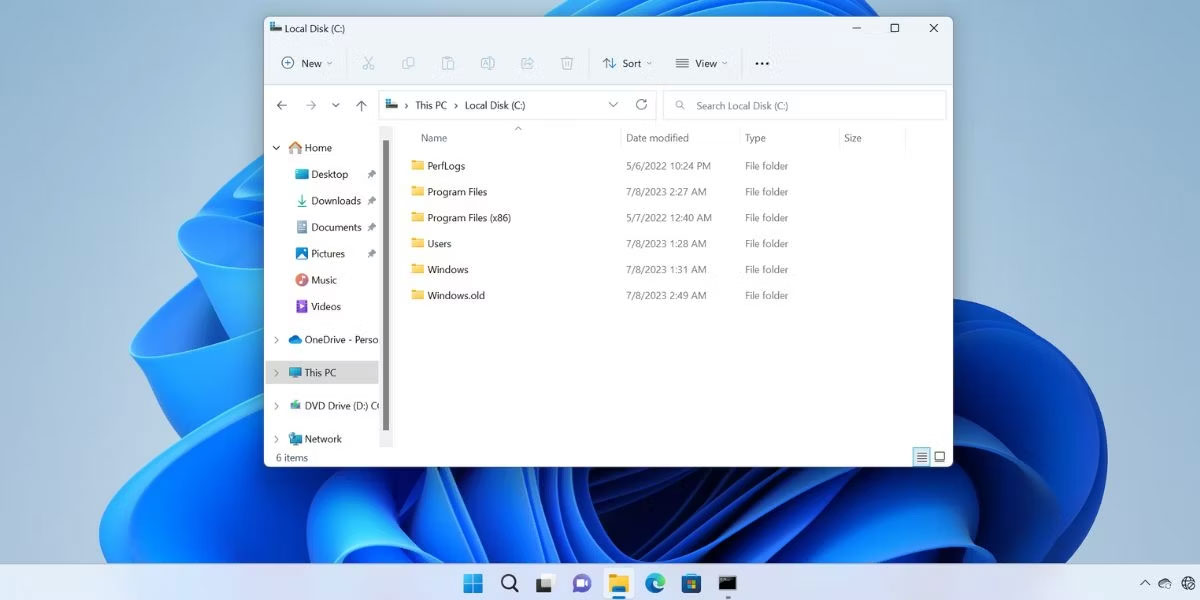
Windows 11 will automatically delete Windows.old 30 days after its creation. But if you need that storage space right now, you can try any of these methods to remove the folder from your PC.
How to delete the Windows.old folder in Windows 11
1. Using Storage Settings
Microsoft introduced the Storage Sense feature with Windows 10, and this feature still exists in Windows 11. It can help you delete temporary files from your PC and also manage OneDrive files. But if you want to clean up manually, you need to access Storage Settings and delete the Windows.old folder from there.
Follow these steps:
- Right-click the Start button to open the Quick Link menu. Click on the Settings option.
- In the System settings section, scroll down and click on the Storage option.
- Wait for the Storage feature to analyze the drive space and files. Then click on the Temporary Files option.
- Here, you will see a list of all items occupying space on the C drive that are no longer necessary. Click the Previous Windows Installation(s) checkbox to select it.
- Then click the Remove Files button at the top.
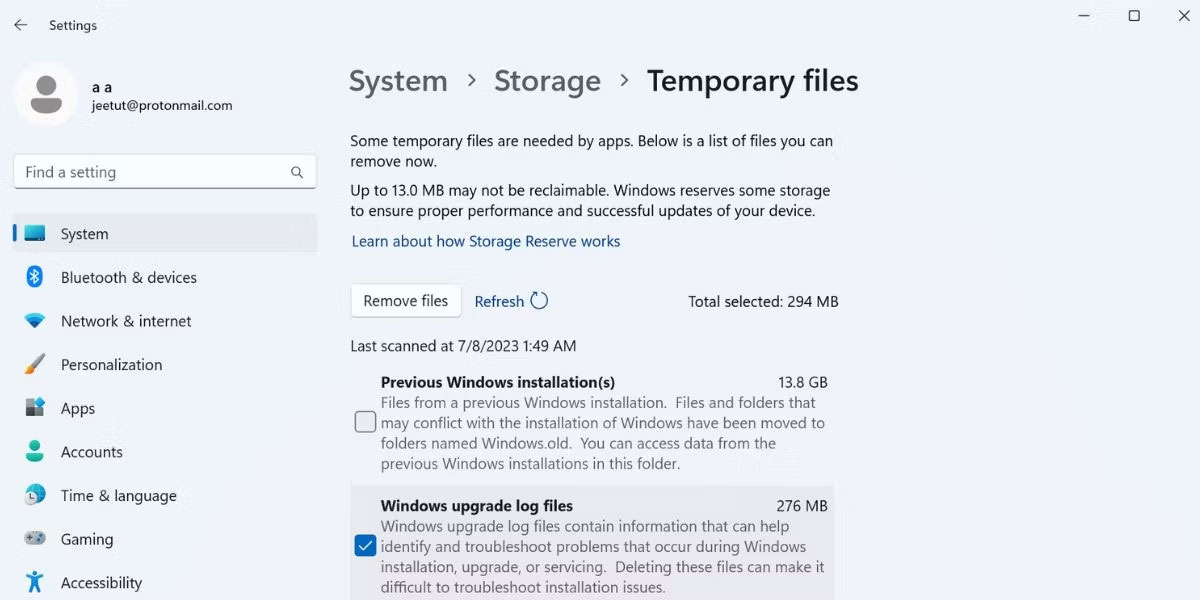
It will take a moment to delete the Windows.old folder and other temporary files on the C drive.
2. Using Disk Cleanup
Although Storage Sense and the improved settings are a new concept, the reliable old Disk Cleanup still works. You can use it to find and delete temporary files on Windows 11 and older operating systems. It does not have a modern user interface, but it can help you locate and delete the Windows.old folder as well as other space-consuming folders like Temporary Windows Update files.
Follow these steps to delete the Windows.old folder using the Disk Cleanup tool:
- Press Win + R to open the Run dialog box. Type cleanmgr and press the Enter key to launch the tool.
- Find the Cleanup system files button and click it. Wait for the utility to scan and locate all temporary files.
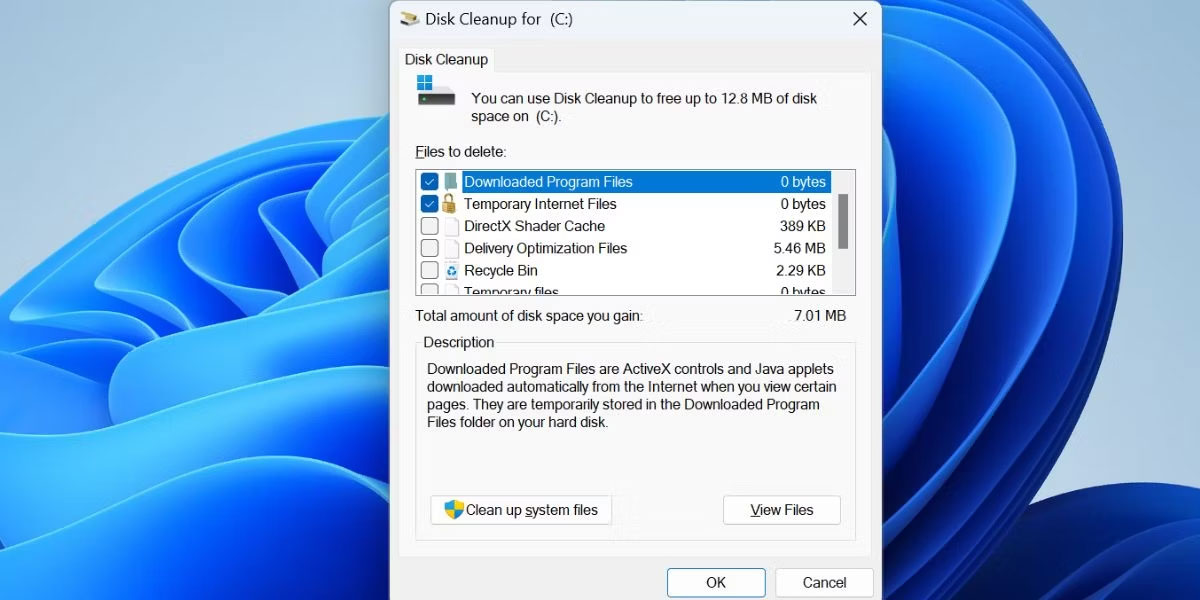
- Scroll through the Files to delete list and find the Previous Windows Installation(s) checkbox. Click it to select it. You can also select other temporary files.
- Click the OK button.
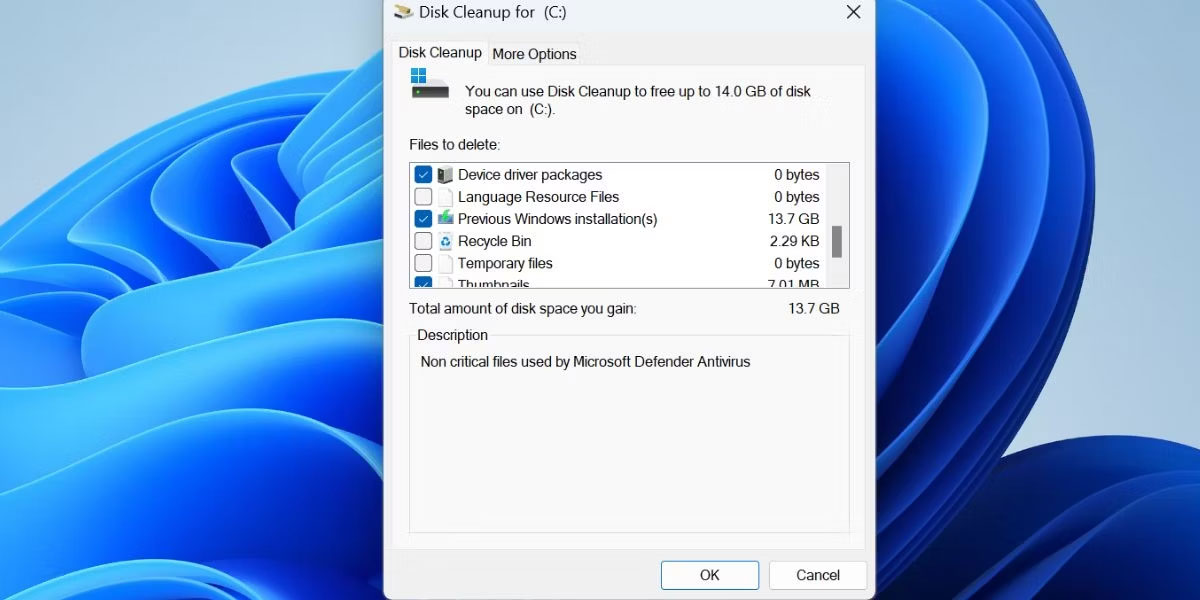
- Confirm your action and click the Delete Files button to delete the Windows.old folder.
3. Using CMD
Follow these steps to delete the Windows.old folder using the Command Prompt tool:
- Press Win + R to open the Run dialog box. Type cmd and press Ctrl + Shift + Enter to open Command Prompt with admin privileges.
- Type the following command and press Enter:
takeown /F "C:\Windows.old" /A /R /D Y
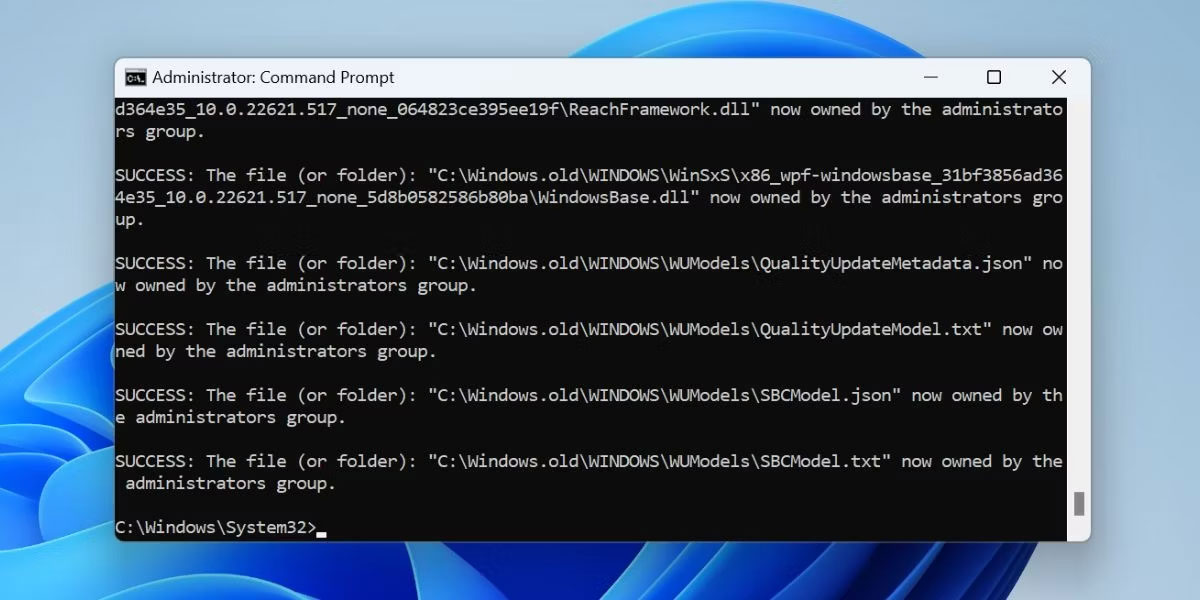
- It will take a moment to take ownership of all folders and files. Then type and execute the following command:
icacls "C:\Windows.old" /grant *S-1-5-32-544:F /T /C /Q
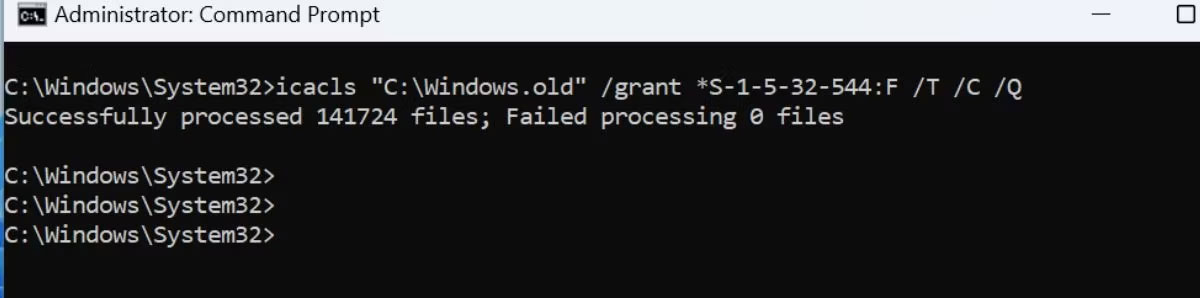
- Finally, execute the following command to delete the folder:
RD /S /Q "C:\Windows.old"
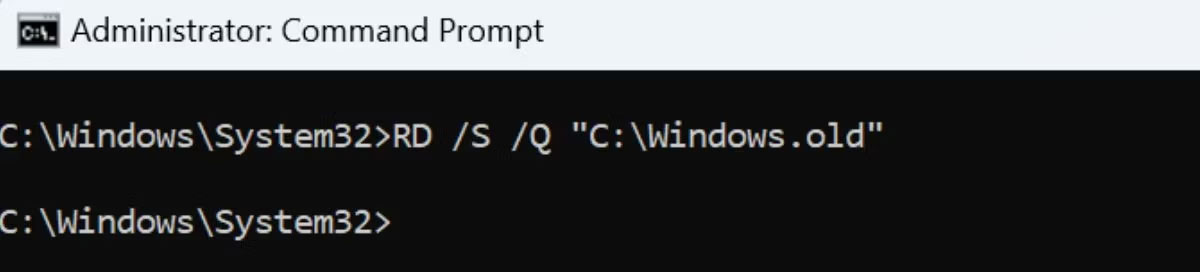
- Close the Command Prompt window.
Good luck to you all.











