

Microsoft is integrating AI technology into all of its popular services, including Windows 11, Microsoft 365, etc... Windows Copilot is Microsoft's AI agent in Windows 11, designed to help you work more efficiently and complete tasks faster.
This article will guide you through activating Windows Copilot AI on Windows 11, although it will require a third-party tool.
What is ViveTool? Why do you need ViveTool to activate Windows Copilot?
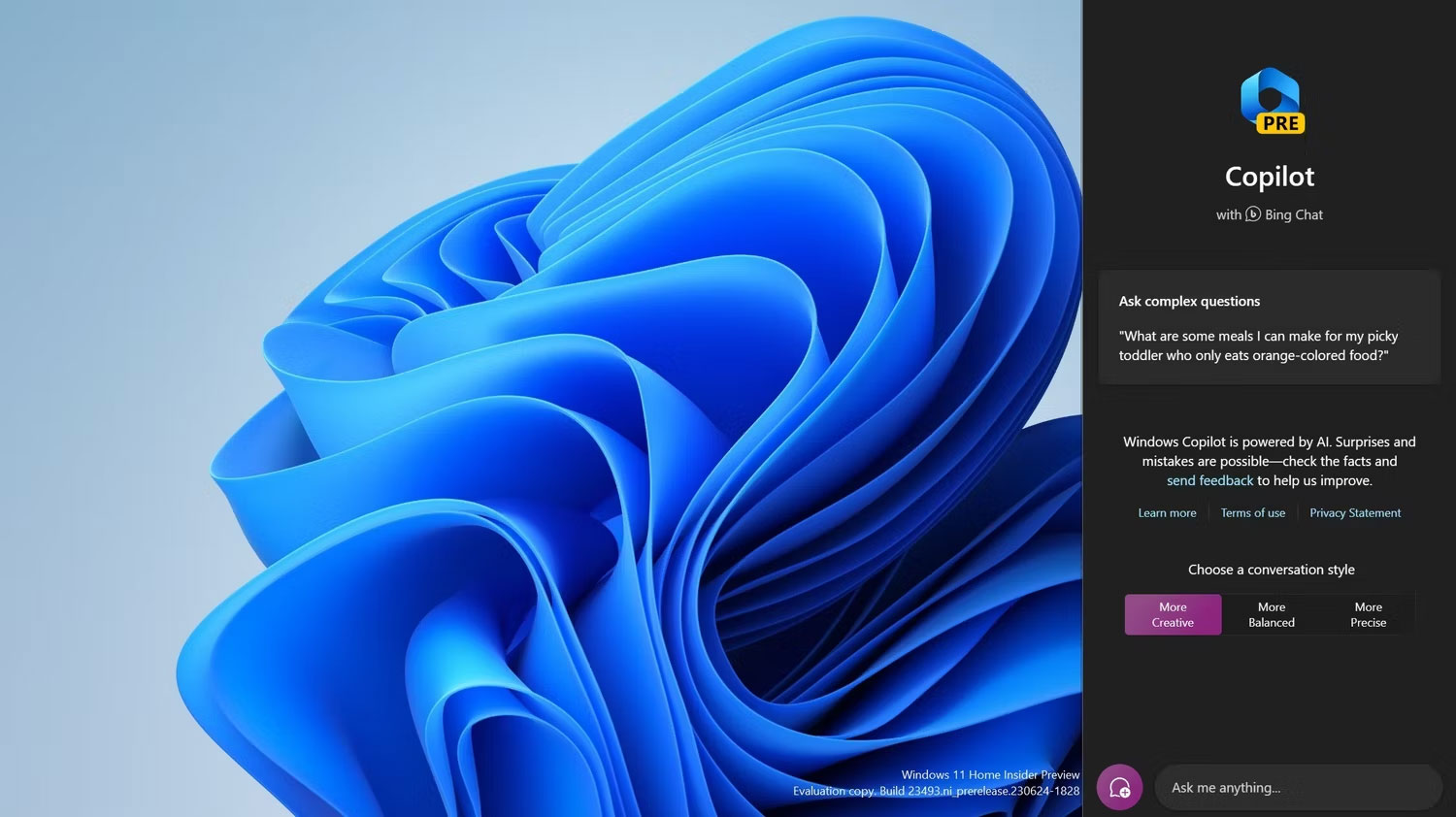
The third-party tool you need is ViveTool, a software that can enable hidden features or features restricted to certain Windows users. Windows Copilot is one such function: At the time of this article, this feature is limited to some Windows users running Windows 11 Dev Insider builds.
You can join the Windows Insider program and register your PC in the Dev Channel through a few simple steps to continue activating Windows Copilot.
Once you have joined the Dev Channel, it is time to download ViveTool. To help you through the process, Quantrimang.com has a detailed guide on how to download and use ViveTool to enable unreleased features.
Note: To activate Windows Copilot using ViveTool, you need to install Windows 11 Dev build 23493 or higher.
How to activate Windows Copilot using ViveTool
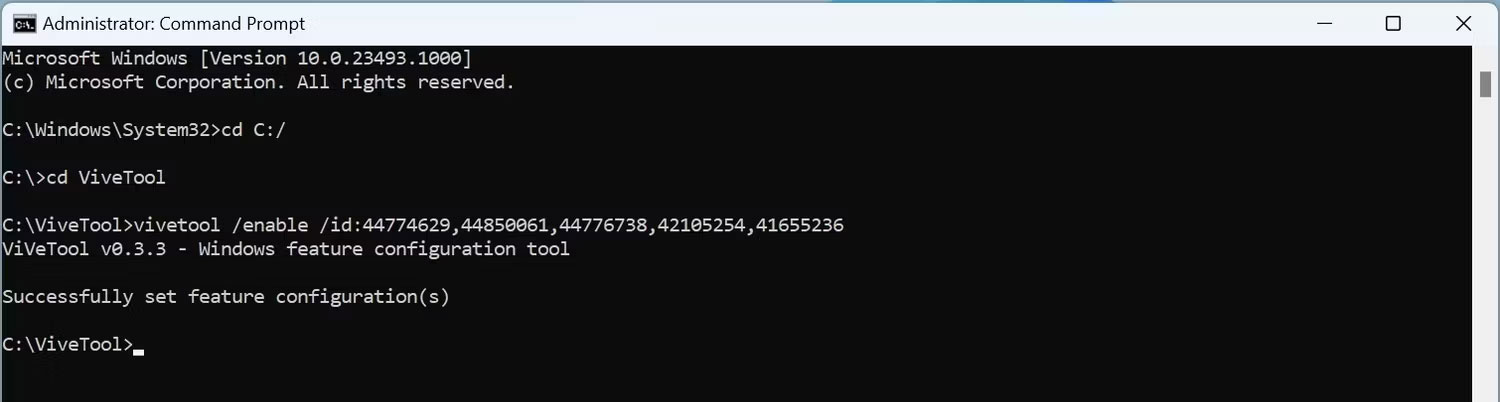
Now, you have successfully installed ViveTool. You have completed half of the process of activating Windows Copilot on your PC. All you have to do now is activate some IDs using Command Prompt and update the Microsoft Edge browser. Below is a step-by-step guide on how to enable those feature IDs and update the browser.
1. Open CMD as an administrator.
2. Enter the command mentioned below, then press Enter on your keyboard.
cd C:ViveToolNote: If you are confused about where to place the extracted ViveTool content, the most convenient way is to choose C:/ViveTool.
3. Copy and paste the following command, then press Enter.
vivetool /enable /id:44774629,44850061,44776738,42105254,416552364. Open Microsoft Edge, go to Help and Feedback, then click on About Microsoft Edge.
5. Wait for the browser to download and install the update.
6. Restart your PC for the changes to take effect.
Note: You may need to restart your PC multiple times if you do not see the Windows Copilot logo on the Taskbar.
Now, you can launch Windows Copilot on your PC by clicking the icon on the Taskbar or pressing the Win + C key on your keyboard. Windows Copilot will open on the right side of the screen. Now, you can try asking it to change your current Windows theme and watch the magic happen. Of course, Windows Copilot can do much more than just changing themes.
Note: Once Windows Copilot is available to everyone, you will no longer need ViveTool to activate it. You will be able to activate it from the Taskbar page in the Settings app. You will find the Copilot toggle switch under the items on the Taskbar page.











