

The Win + Shift + S shortcut in Windows 10 allows users to capture a portion or the entire screen and copy it to the clipboard. In most cases, this feature of the OS works as expected, but sometimes it may become unresponsive. If you are facing this issue, the following article will help you.
1. Clean the keys on Windows 10
Check if anything is stuck under the Win, Shift, and S keys and physically clean the keys on your keyboard.
2. Turn on the Clipboard History toggle on Windows 10
Press the Start button and select Settings.
Select System > Sound and scroll down to find the Clipboard option.
Click on it, and in the right pane, check if the Clipboard History toggle is turned on.
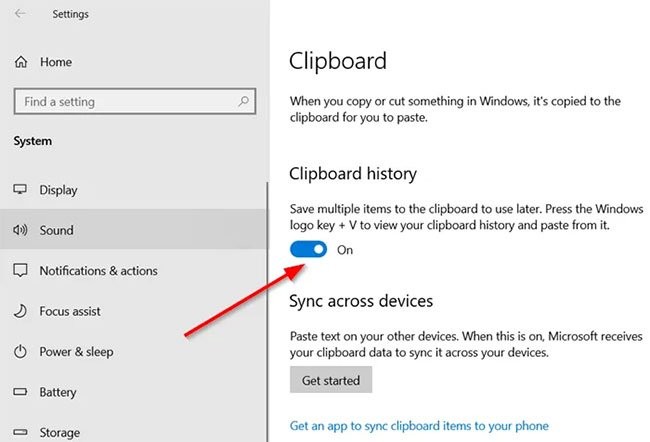
If not, switch the toggle to the On position.
3. Check the Snip & Sketch toggle on Windows 10
Once again, open Settings, select System, and navigate to the Notifications & actions section.
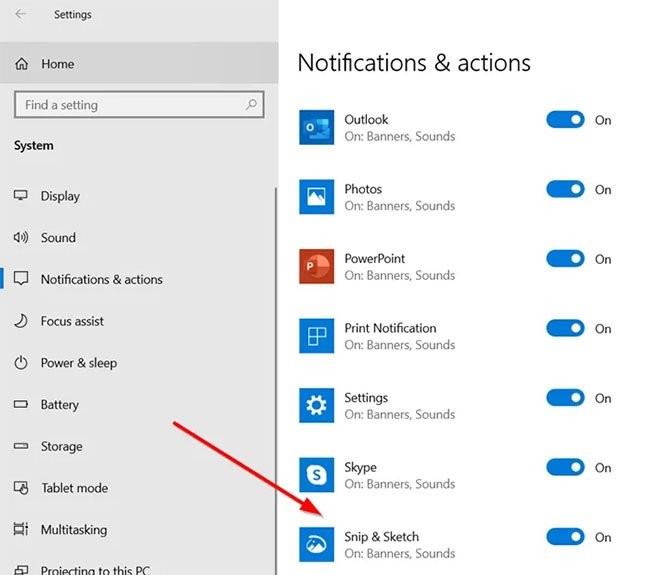
Here, ensure that the Snip & Sketch toggle is set to On.
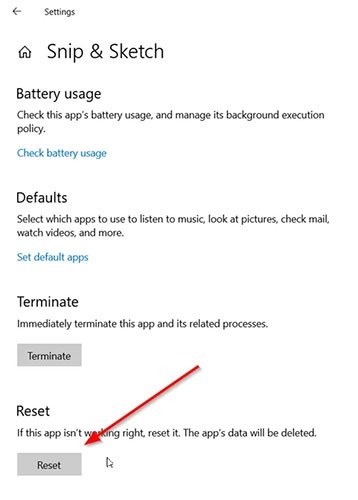
4. Reset Snip & Sketch on Windows 10
If the above methods do not yield the desired results, try resetting Snip & Sketch. To do this, go to Settings > Apps > Apps & features. Here, click on Snip & Sketch.
You will see the Advanced options link appear under the option. Click on it and press the Reset button on the next screen.
Additionally, you can uninstall and reinstall the app from the Microsoft Store. Go to Settings > Apps > Apps & features and you will see the Uninstall button for Snip & Sketch. Proceed to uninstall the app. Then, access the Microsoft Store and reinstall the app.
5. Unplug and replug USB devices on Windows 10
Unplug and replug your USB devices, such as game controllers, etc., and see if that helps.
6. Use PrintScreen instead of Win + Shift + S on Windows 10
Alternatively, you can use the PrintScreen key instead of Win + Shift + S.
To do this, press Win + I to open Settings > Ease of Access > Keyboard, locate the Use the PrtScrn button to open screen snipping option, and turn this feature on.
7. Troubleshoot in Clean Boot State on Windows 10
Third-party processes can also interfere with the operation of the Windows + Shift + S shortcut. To identify the culprit, perform a Clean Boot and troubleshoot manually.
Good luck with your troubleshooting!











