

The Windows 11 version released by Microsoft not only features a more beautiful and sophisticated interface but also brings users many new features, with clearly improved speed and performance. Many people choose to experience Windows 11, while others install Win 11 on their machines to try out this new operating system but find themselves unaccustomed to the new interface or inconvenienced by several minor bugs.
If you have installed Windows 11 on your machine but find it unsuitable and want to downgrade Windows 11 to Windows 10, this article will guide you through the process.
How to downgrade Win 11 to Win 10 without losing data
This is the first method that Hung Phat Laptop wants to introduce to you. This is also the method most users are interested in when downgrading Win 11 to Win 10 to avoid losing their important data.
Note: To avoid errors during the process, it is best to back up all your data so that you can restore it if any issues occur.
The steps are as follows:
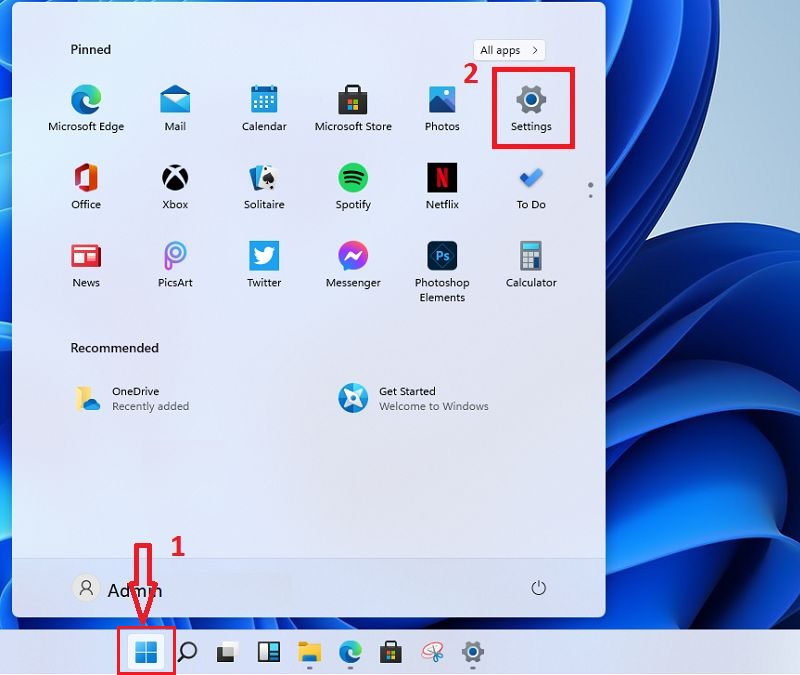
Step 1: First, press the Windows + I keyboard shortcut to enter Settings. Alternatively, you can click on the Windows icon in the bottom-left corner of the screen.
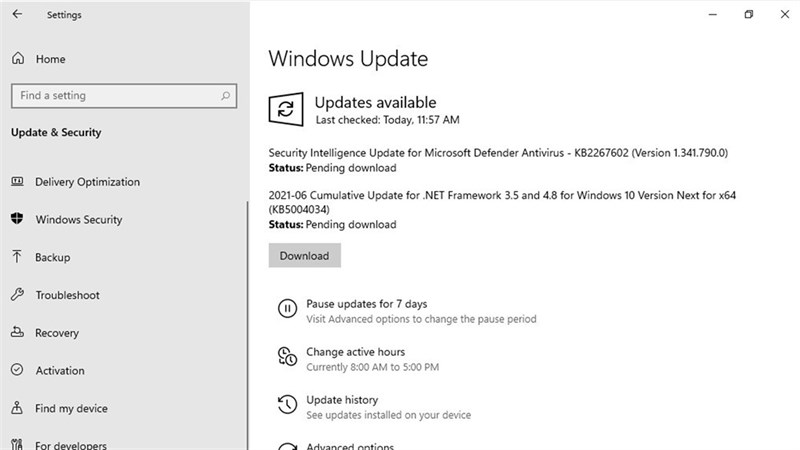
Step 2: Next, find and select Update & Security.
Step 3: Click on Recovery and then select Go Back to the previous version of Windows 10.
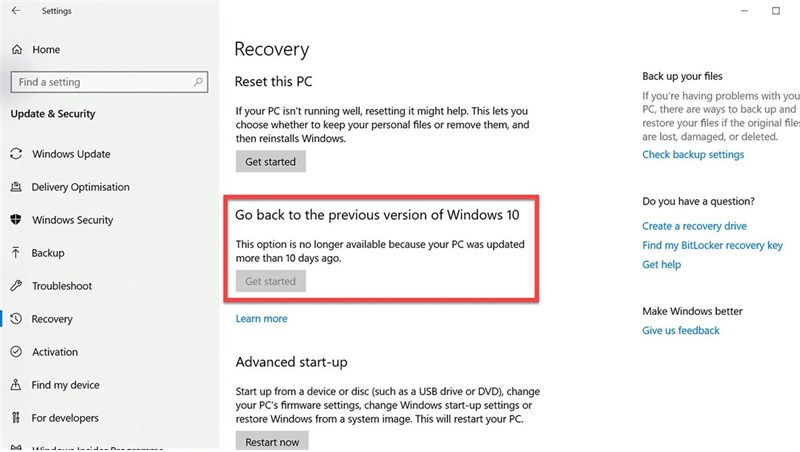
Step 4: Finally, select Get Started to begin the downgrade process. Just wait about 30 minutes and everything will return to its original state.
How to switch from Win 11 back to Win 10 within the first 10 days
If you have upgraded to the Windows 11 Insider version, you can still downgrade within the first 10 days of use. To downgrade Win 11 to Win 10, follow these steps:
Step 1: Open Settings by pressing the keyboard shortcut, then scroll down and select Windows Update -> select Advanced options -> select Recovery.
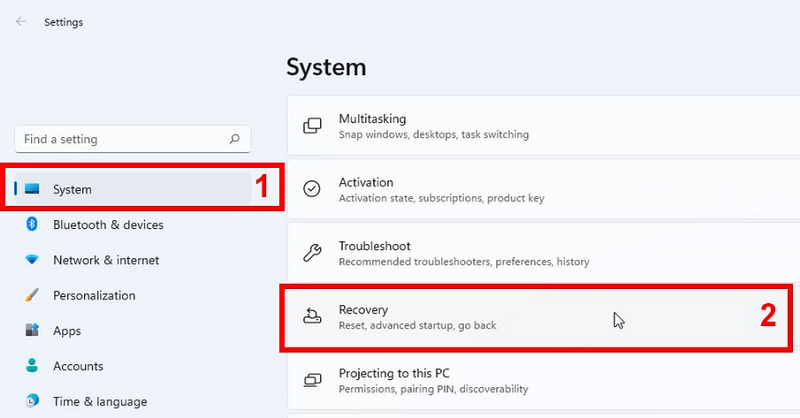
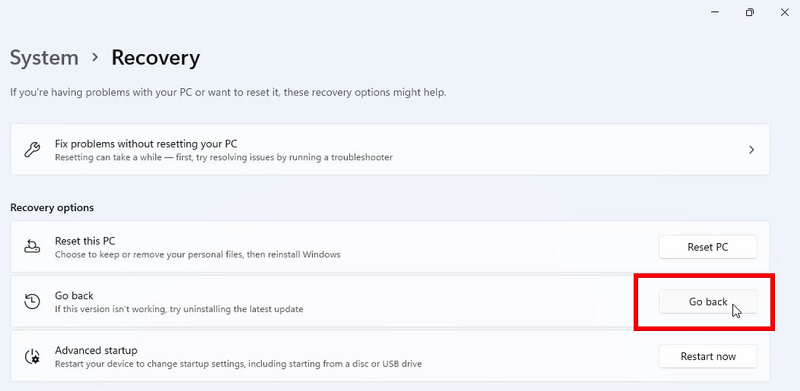
Step 2: Next, in the Recovery Options section, select Go Back to proceed with downgrading the operating system.
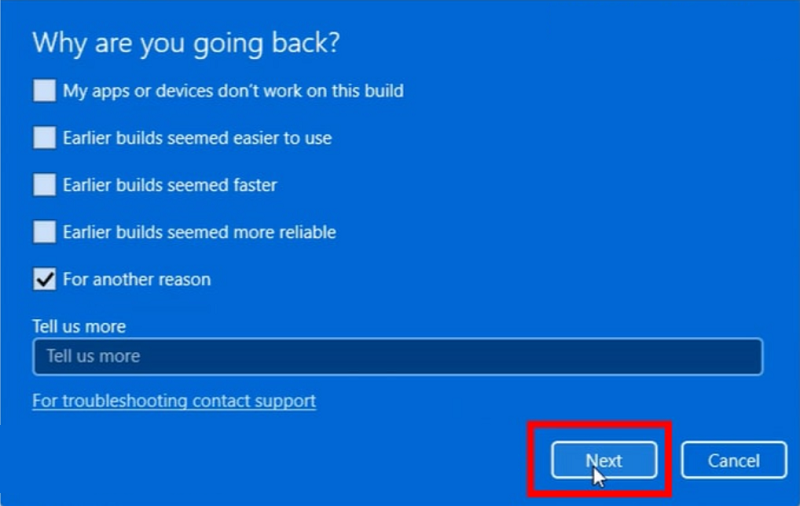
Step 3: When asked why you want to go back to Win 10, you can choose any of the available reasons or write your own answer for Microsoft.
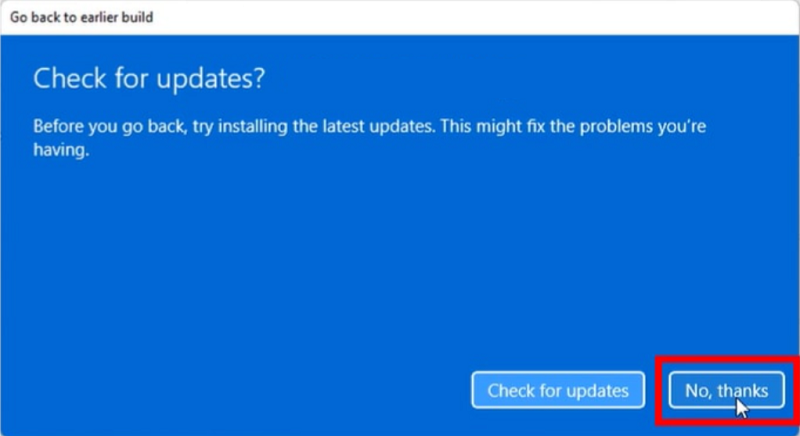
Step 4: Select No Thanks to continue the process.
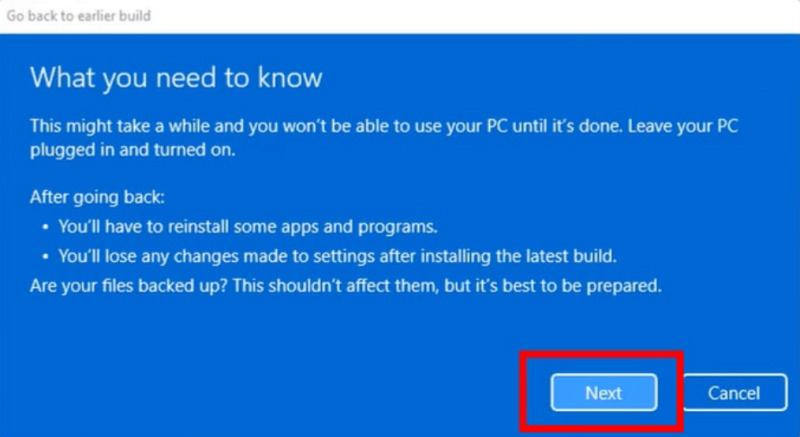
Step 5: At this point, Microsoft will remind you to check your installed programs and request that you back them up. Select Next to continue.
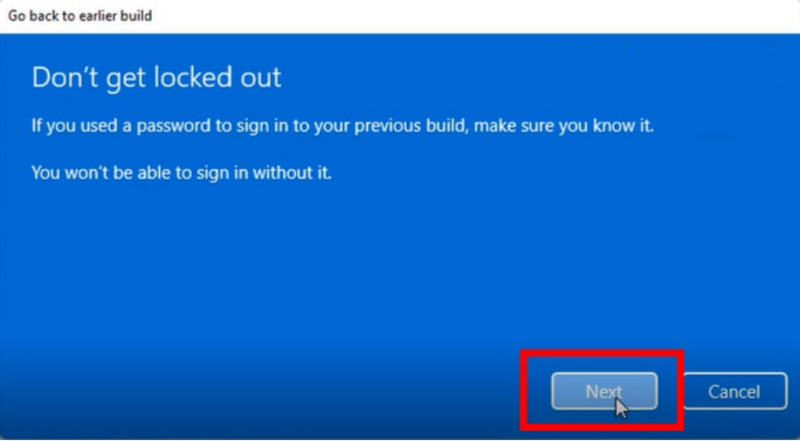
Step 6: Next, you will be reminded to remember your password for logging in; select Next to continue.
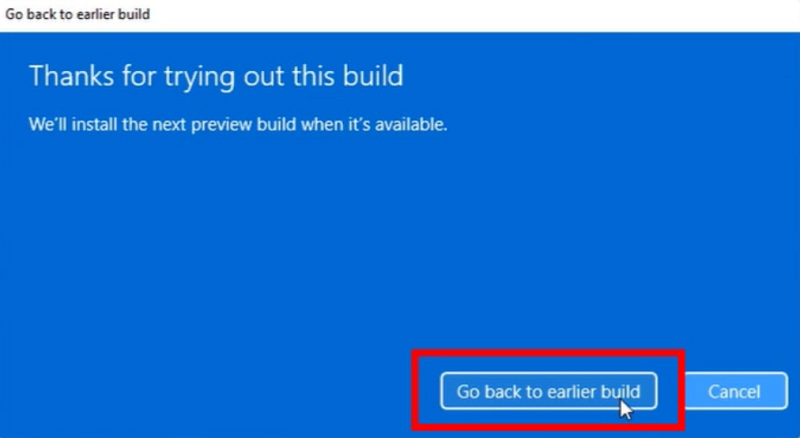
Step 7: To start the downgrade process, select Go back to an earlier.
Step 8: Finally, after the downgrade process is successful, enter your account password to log in.
How to switch from Win 11 to Win 10 using the Windows Recovery Environment feature
The Windows Recovery Environment feature is abbreviated as Windows RE. This is a useful feature that allows for handling and fixing many Windows operating system errors. In particular, users can use it to remove or downgrade Windows operating system updates.
From the Settings menu, you can easily access Windows RE or hold down the F11 key to access it. Note that each laptop model will have a different key combination. Therefore, if pressing F11 does not work, you can try pressing F8, F9, or F12.
How to downgrade Win 11 to Win 10 using the Windows RE feature is as follows:
Step 1: In the Windows RE interface, select See advanced repair options.
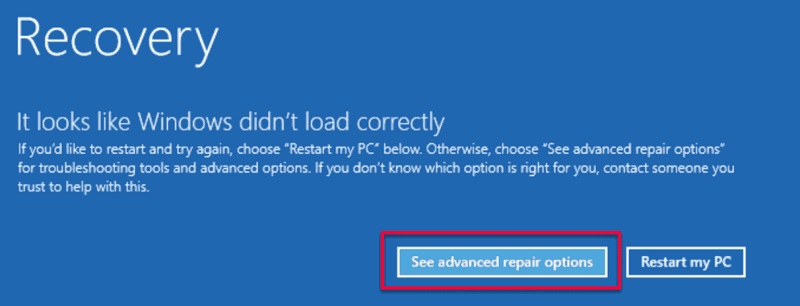
Step 2: Next, select Choose an option and then select Troubleshoot.
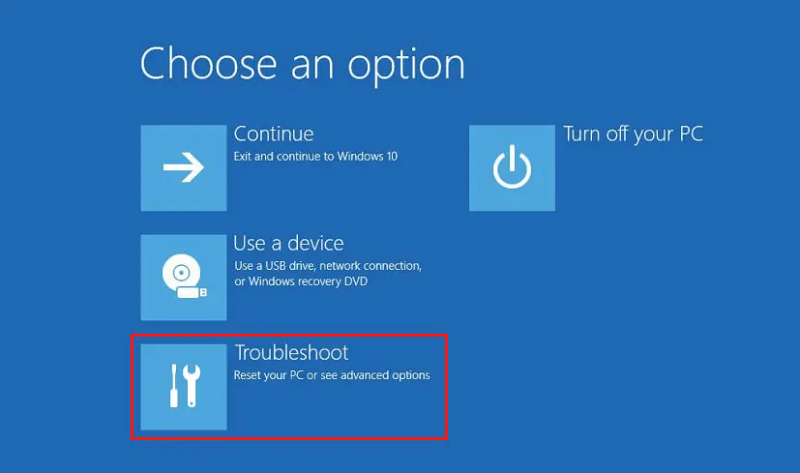
Step 3: Next, click on Advanced options.
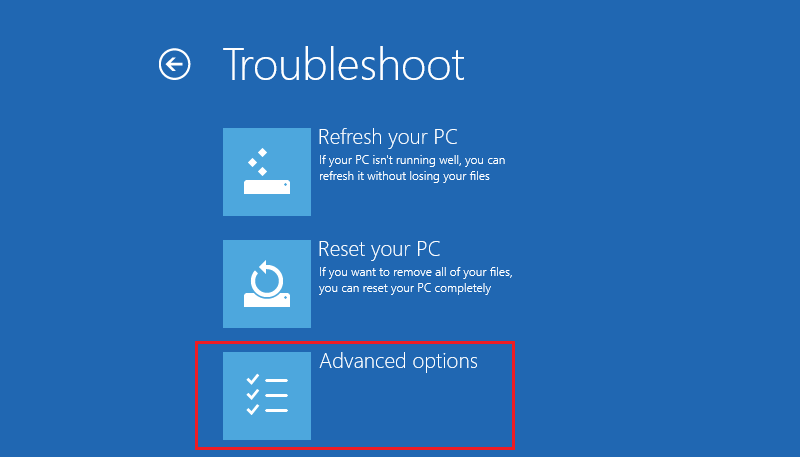
Step 4: When a new window appears on the screen, select Uninstall Updates.
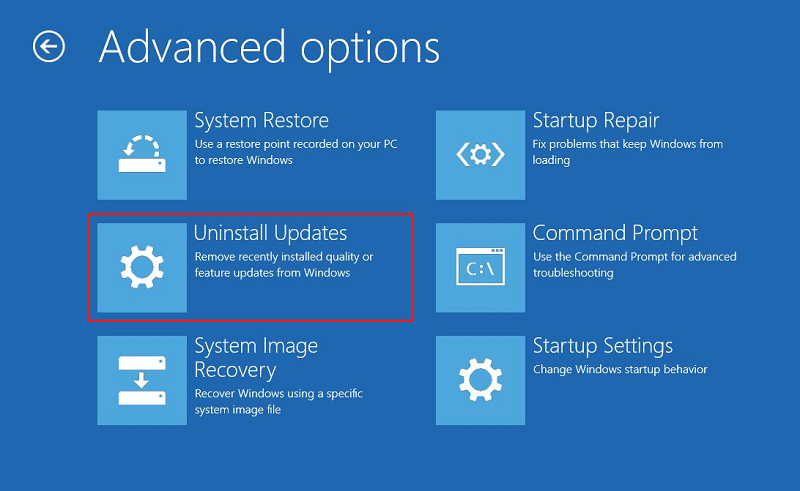
Step 5: At this moment, two options will appear on the screen; select Uninstall latest feature update.
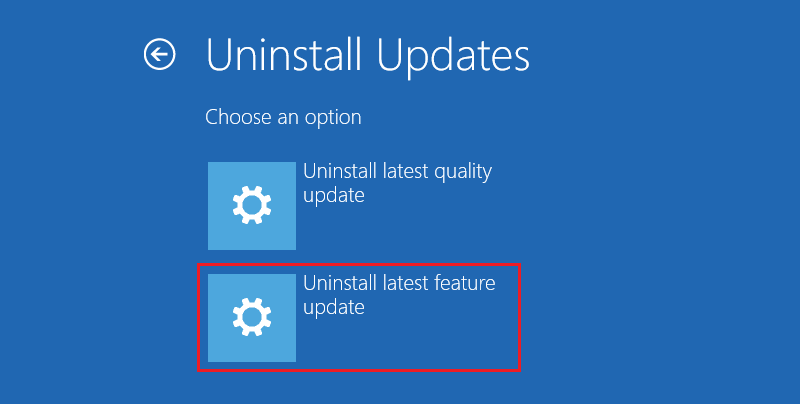
Step 6: Finally, to confirm the process, click on Uninstall feature update.
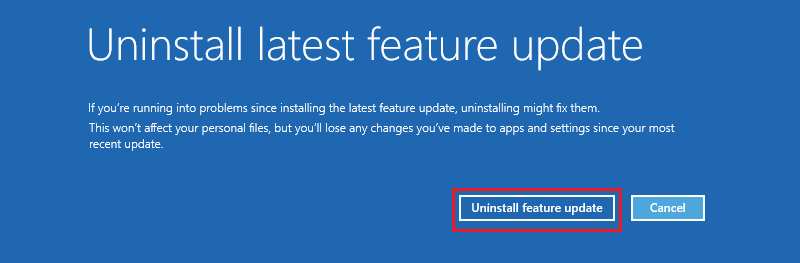
You only need to wait a moment for the system to perform automatically. If prompted, you need to click Next or Yes to confirm entering the Windows 10 operating system.
Issues that may occur when downgrading Win 11 to Win 10
You can upgrade your computer from Windows 10 to Windows 11 and also downgrade back later during use. However, after downgrading from Windows 11, the operating system may encounter some technical issues, so you should pay attention before deciding to do this.
When opening Task Manager and selecting the Performance tab, the Wi-Fi graph may not be displayed. After restarting the computer, it may return to normal. Or, after you install an application like Win Terminal from the Store, when you try to open it from the Start menu, it will not work; instead, it will be redirected to the Microsoft Store.
You can try this with another application and the result will be the same. After downgrading Win 11 to Win 10, you may encounter various other errors. If the operating system operates unstably or many minor errors appear after you downgrade, it is best to reinstall Windows 10 to resolve the issue completely.
Thus, Hung Phat Laptop has guided you on the simplest way to downgrade Win 11 to Win 10 without losing data. If you no longer feel like using the Windows 11 operating system, you can return to the previous Windows 10 experience. We wish you success.











