

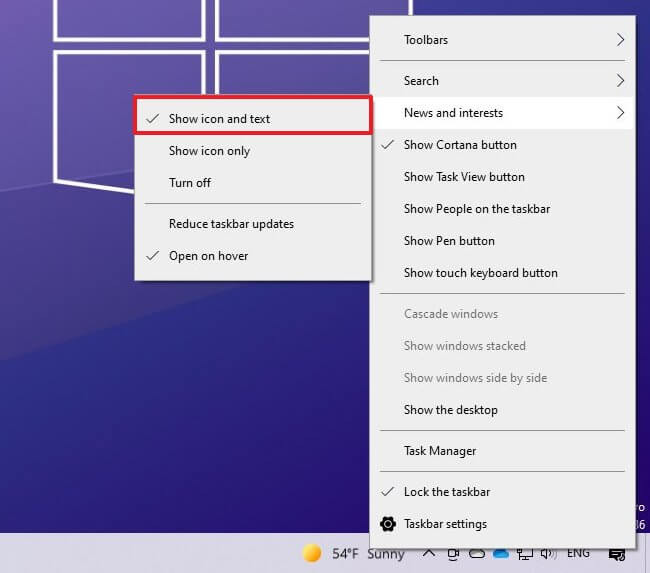
On Windows 10, News and Interests is a new widget appearing in the taskbar, next to the notification area, starting with build 21286 for version 21H2 or build 19043.962 for version 21H1, designed to provide you with quick access to trending news, sports, stocks, and weather information.
The idea behind this feature is to help you stay updated directly on your computer, so you don't need to pick up your phone to check news and other information throughout the day.
While it is a good idea, please note that News and Interests is enabled by default, and it is not something everyone wants, as this widget can cause unnecessary distractions. If you feel the widget is not for you, the good news is that Windows 10 includes options to turn this feature off.
In this guide, you will learn the following steps to disable the News and Interests widget on Windows 10.
1. How to enable News and Interests on Windows 10
1.1. Enable News and Interests on the Windows 10 Taskbar
To enable the news widget in the taskbar, follow these steps:
1. Right-click on the taskbar.
2. Select the News and Interests menu and click the Show icon and text option.
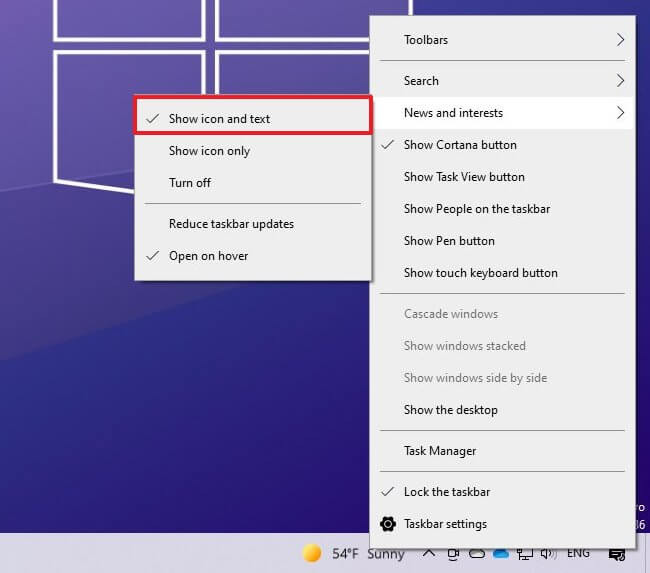
3. (Optional) Select the Show icon only option if you want to keep the widget using less space in the taskbar.
Once you have completed the steps, the widget will appear near the notification area.
1.2. Enable News and Interests via Registry
To enable the News and Interests widget in the Windows 10 taskbar, follow these steps:
1. Open Start.
2. Search for regedit and click on the top result to open the Registry.
3. Navigate to the following path:
HKEY_CURRENT_USERSoftwareMicrosoftWindowsCurrentVersionFeeds4. Right-click the Feeds key, select the New submenu, and choose the DWORD (32-bit) Value option.
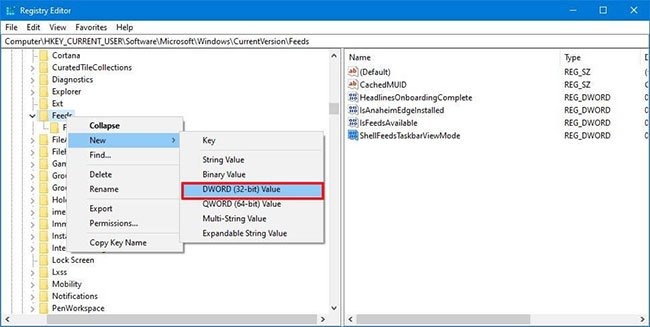
5. Name the new key ShellFeedsTaskbarViewMode and press Enter.
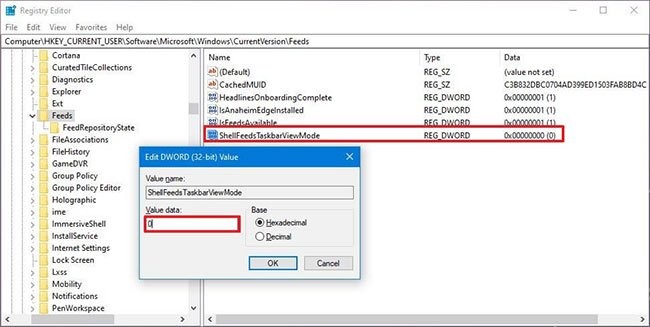
6. Double-click the newly created key and ensure the value is set from 2 to 0 to activate News and Interests using the Show icon and text option.
7. (Optional) Double-click the newly created key and ensure the value is set from 2 to 1 to enable News and Interests using the Show icon only option.
8. Click the OK button.
9. Restart your computer.
Once you have completed the steps, the News and Interests widget will be available on the taskbar.
2. How to disable News and Interests on Windows 10
2.1. How to disable News and Interests on the Windows 10 Taskbar
To disable the News and Interests widget on the Taskbar, follow these steps:
1. Right-click on the taskbar in Windows 10.
2. Select the News and Interests menu and select the Turn off option.
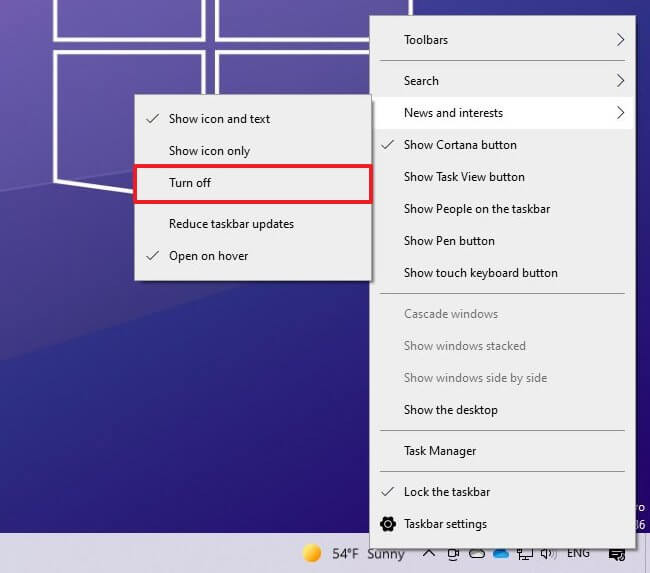
3. (Optional) Select the Show icon only option if you want the widget to take up less space in the taskbar.
Once you have completed the steps, the widget will no longer be available on the taskbar.
2.2. How to disable News and Interests via Registry
Warning: Modifying system files can corrupt your Windows settings if not done correctly. This article assumes that you know what you are doing and have previously created a full backup of your computer. Proceed with caution!
To disable the News and Interests taskbar widget via Registry, follow these steps:
1. Open Start.
2. Search for regedit and click on the top result to open the Registry.
3. Navigate to the following path:
HKEY_CURRENT_USERSoftwareMicrosoftWindowsCurrentVersionFeeds4. Right-click the Feeds key, select the New submenu, and choose the DWORD (32-bit) Value option.
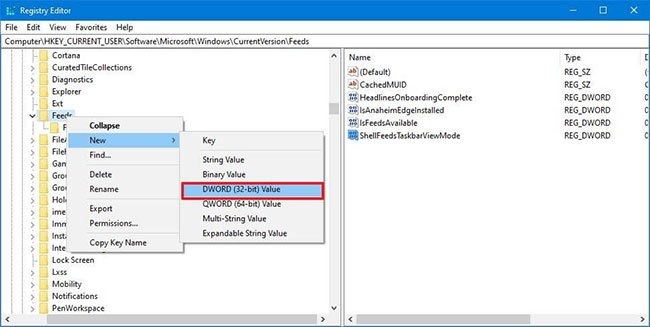
5. Name the new key ShellFeedsTaskbarViewMode and press Enter (if applicable).
6. Double-click the newly created key and ensure the value is set from 0 to 2 to disable the feature.
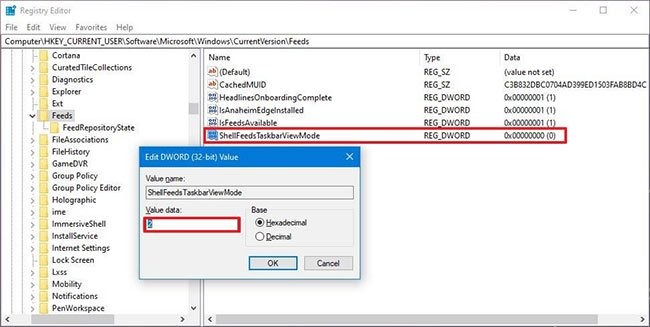
7. Click the OK button.
8. Restart your computer.
Once you have completed the steps, the news widget will be disabled on your device.
2.3. How to disable News and Interests in Local Group Policy Editor
Note: Local Group Policy Editor is only available in Windows 10 Pro, Enterprise, and Education editions.
1. Open Local Group Policy Editor.
2. On the left side of the Local Group Policy Editor, click to expand Computer Configuration, Administrative Templates, Windows Components and News and interests.
3. On the right side of News and interests, double-click the policy Enable news and interests on the taskbar to edit it.
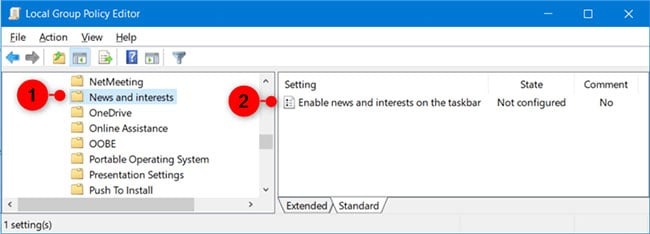
4. To enable News and Interests on the Taskbar for all users, select Not Configured or Enabled, then click OK. (Not Configured is the default setting).
To disable News and Interests on the Taskbar for all users, select Disabled, then click OK.
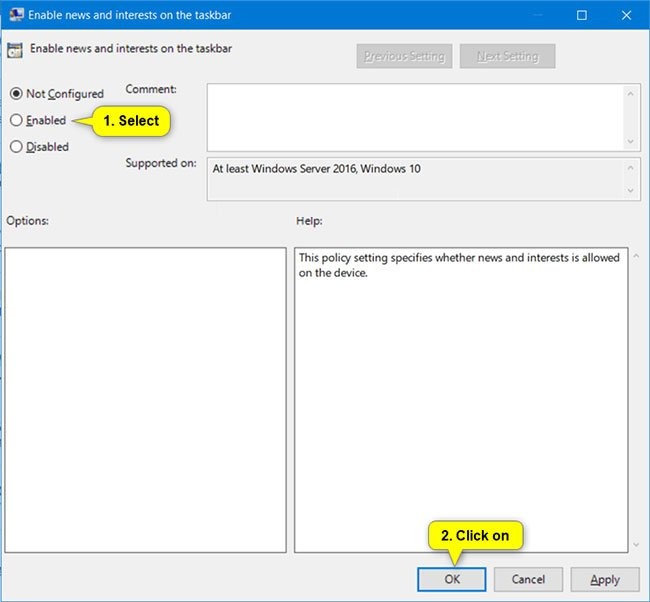
5. Once finished, you can close the Local Group Policy Editor if you wish.
6. Restart the explorer.exe process, log out and log back in, or restart your computer to apply the changes.
Good luck with your implementation!











