
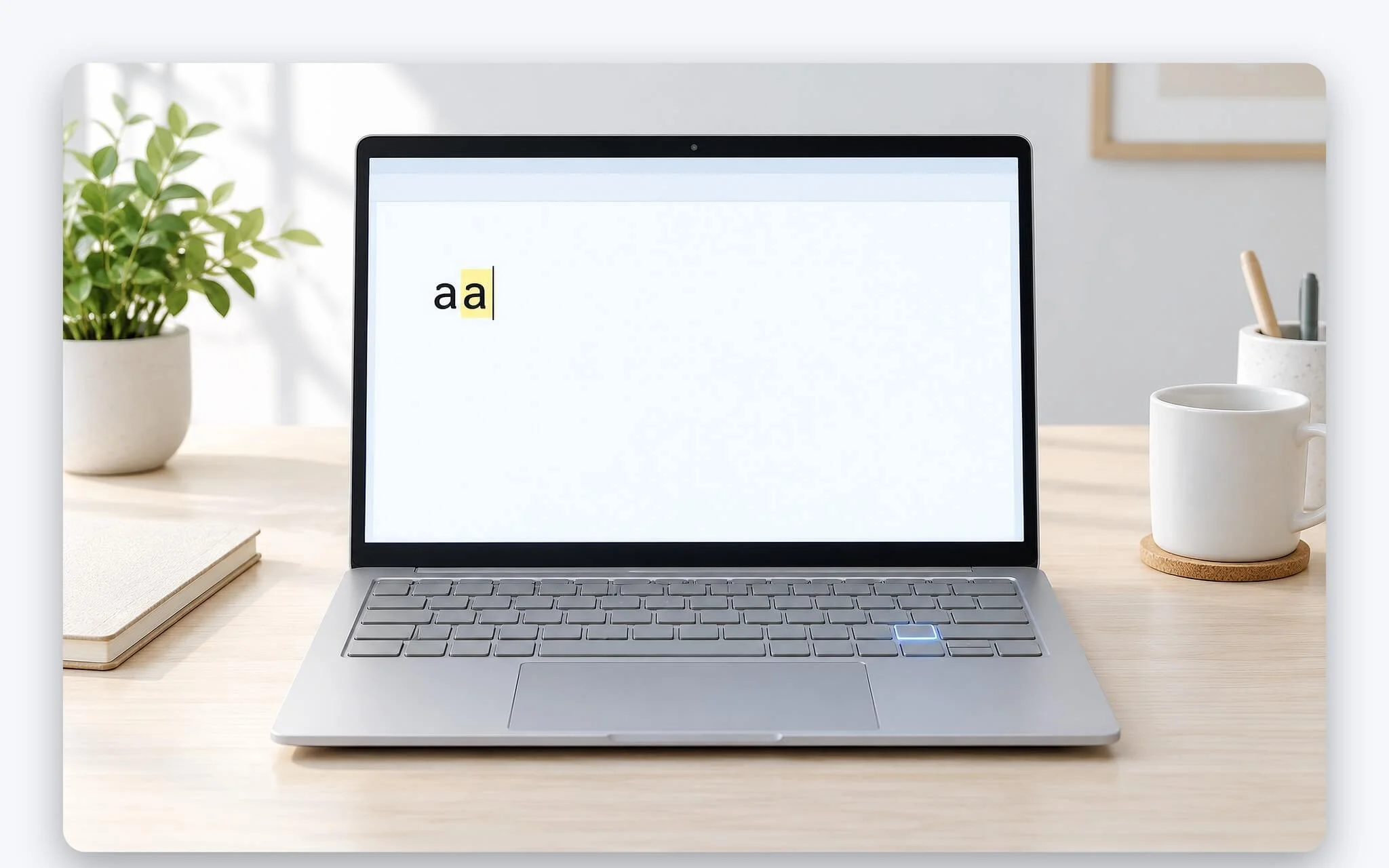
Pressing the "a" key just once only to see two consecutive "a"s appear on screen is a classic symptom of key chatter, known technically as keyboard chattering. This issue differs fundamentally from an unresponsive key: the switch still registers, it just registers extra inputs. Put simply, the contact under the key bounces several times with each press, and the keyboard mistakenly counts it as two keystrokes. This article explains the mechanics of contact bounce, how to pinpoint the faulty key, how to enable Bounce Keys in Windows 11 as a temporary workaround, and the signs indicating it is time to replace the keyboard.
What Key Chatter Is and How It Differs From Key Repeat When Held Down
Key chatter occurs when you press and release a key once, but the laptop registers two presses, sometimes three. The extra character sits immediately adjacent to the intended one, turning words like "con" into "coon". This double-character glitch commonly affects high-traffic keys such as the spacebar, E, A, or Backspace, and it appears intermittently rather than on every single press. The root of the problem lies in the signal emitted by the switch, not your typing force.
This issue must be distinguished from the intentional key repeat feature in Windows. When you hold down a key, the operating system waits through a repeat delay before outputting characters continuously. According to the SystemParametersInfo documentation on Microsoft Learn, the repeat delay has four levels, ranging from about 250 ms at level 0 to about 1 second at level 3, while the repeat rate runs from about 2.5 to about 30 times per second. Actual values also depend on the hardware. In other words, a quick tap with an immediate release does not reach the threshold to trigger key repeat.
So how do you tell them apart? If extra characters only appear when you hold a key down, that is normal key repeat, or the repeat delay is set too short - a threshold you can adjust under Keyboard in Control Panel. When an extra character pops up even on a very quick tap, almost simultaneously with the intended character, that is key chatter. An unresponsive key is the exact opposite: the switch sends no signal at all, requiring a different fix and falling outside the scope of this article.
Contact Bounce and Debounce Filtering Inside Laptop Keyboards
Underneath every laptop key sits a small switch. With the scissor-switch design typical of laptops, the keycap presses down on a rubber dome, which in turn pushes two membrane layers together to close the circuit. The keyboard controller continuously scans the key matrix to detect which switch is closed. The problem is that mechanical contacts do not close cleanly in a single event. Analog Devices' technical article Switch Bounce and Other Dirty Little Secrets describes how switches typically change states multiple times within tens of milliseconds when closing or opening; for example, a small push button can bounce for about 5 ms across 10 state transitions.
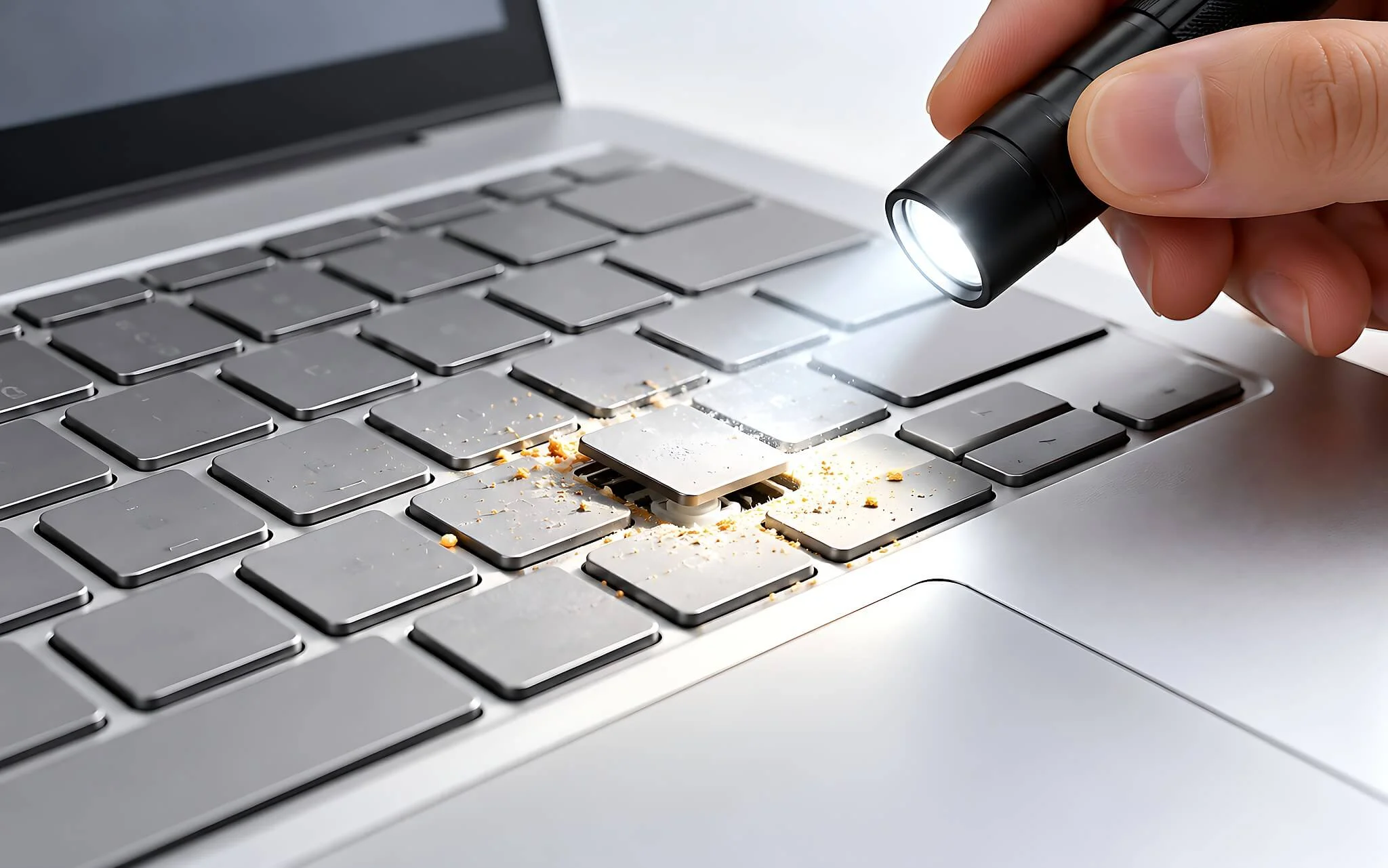
To avoid counting every bounce as a separate keystroke, firmware uses a technique called debouncing. Analog Devices describes this as a software low-pass filter, where a signal must maintain its state across several consecutive samples before being accepted. For the dedicated MAX6816 debouncer chip, the nominal delay is 40 ms, with an error margin of 20 ms. Documentation for the open-source keyboard firmware QMK sets a default debounce threshold of 5 ms and notes that contact stabilization time varies with switch type, lifespan, and typing style.
In reality, key chatter occurs when bounce duration exceeds the manufacturer's preset debounce threshold. Worn or oxidized contacts, degraded rubber dome elasticity, or trapped debris causing an uneven keycap all make the signal flutter longer than normal. The controller detects two distinct circuit-closing sequences and sends two characters. Because a laptop keyboard's debounce threshold usually resides in firmware and cannot be adjusted from Windows, reinstalling drivers rarely resolves double-typing issues.
How to Accurately Identify the Faulty Key Through Typing Tests
The first step is confirming exactly which key is malfunctioning. Open Notepad and type each key slowly, roughly 20 times per key, lifting your finger completely between presses. Any key that produces extra characters despite light, decisive presses is chattering. Test letter keys, number keys, the spacebar, Enter, and Backspace in sequence, since chattering on the spacebar or Backspace is easily overlooked when only watching visible text. Note down the list of faulty keys for use in subsequent steps.
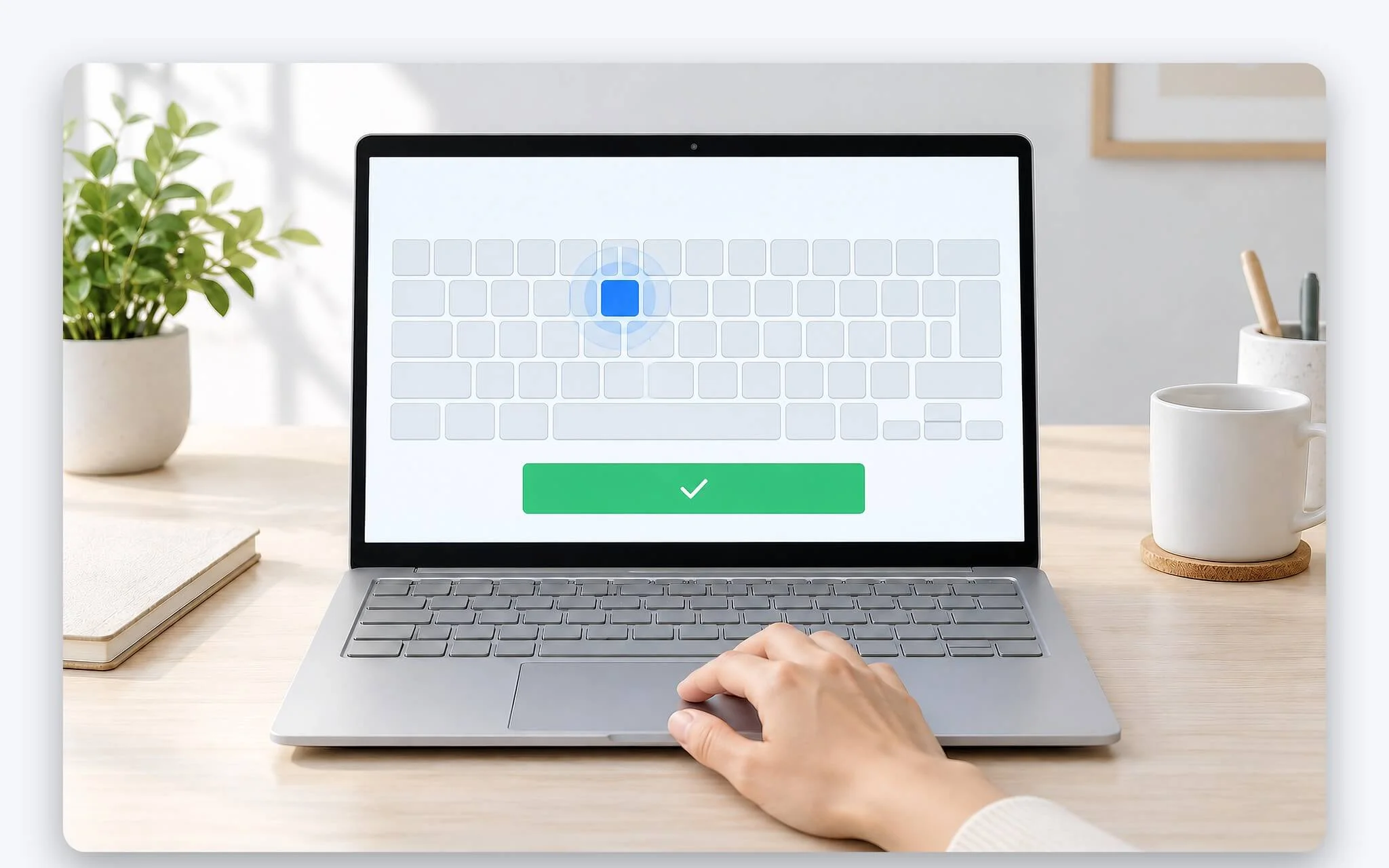
The second step is using a keyboard testing tool. Browser-based keyboard test sites or similar utilities display each individual press and release event. A valid keystroke generates only one pair of events. If you see two consecutive pairs back-to-back from a single tap, that indicates key chatter originating from the key signal itself, not the text editor. This tool also helps record whether the issue occurs on every press or only intermittently, which is essential information when bringing your laptop in for warranty service.
The third step is ruling out software factors. Plug in an external USB keyboard and type the same passage. If the external keyboard types normally while the laptop keyboard continues to double-type characters, the cause lies in the hardware, independent of software settings. If both produce extra characters, turn off your Vietnamese input method and test again, since Telex mode converts two consecutive "o"s into "ô", masking the issue. The article UniKey and EVKey on Laptops: How to Type Smooth Telex and Fix Missing Tone Marks explains how to adjust your input method when the issue stems from that side.
Enable Bounce Keys in Windows 11 to Temporarily Block Duplicate Keystrokes
Once you have identified chattering keys but cannot replace the keyboard right away, Windows includes a built-in feature called Bounce Keys under Filter Keys. According to the FILTERKEYS structure documentation on Microsoft Learn, this feature specifies a delay in milliseconds that must elapse after releasing a key before Windows registers another press of that same key. Any duplicate keystrokes triggered during this debounce interval are ignored, preventing repeated characters from appearing in your text.
| Time Parameter | Value | Source |
|---|---|---|
| Bounce time of a small pushbutton switch (measured example) | about 5 ms | Analog Devices |
| Default debounce threshold in QMK firmware | 5 ms | QMK Documentation |
| Nominal delay of the MAX6816 debouncer IC | 40 ms (20 ms tolerance) | Analog Devices |
| Windows keyboard repeat delay at level 0 | about 250 ms | Microsoft Learn |
| Windows keyboard repeat delay at level 3 | about 1,000 ms | Microsoft Learn |
| Maximum delay value for Bounce Keys | 20,000 ms | Microsoft Learn |
To enable this in Windows 11, open Settings, select Accessibility, scroll to the Interaction section, and click Keyboard. Turn on Filter keys, expand the section to view details, toggle on "Ignore unintended keystrokes" (Bounce Keys), and select a delay from the drop-down list. In Vietnamese language settings, these options are located under Trợ năng. Acer support documentation also notes a quick shortcut: hold down the right Shift key for 8 seconds and select Yes to enable Filter Keys.
Bounce Keys comes with trade-offs. Microsoft Learn explicitly notes that when this feature is enabled, Repeat Keys and Slow Keys must be disabled, and each Filter Keys timing parameter is capped at 20,000 ms. Setting the delay too high degrades typing responsiveness by blocking intentional consecutive keystrokes, such as typing double letters like "oo" in Telex or hitting Backspace twice quickly. Start with a short delay from the list, test it across several paragraphs, and only increase the value if duplicate characters persist. Because Bounce Keys applies globally across all keys rather than just the chattering ones, it should only serve as a temporary workaround.
Safely Cleaning Key Gaps on Thin Scissor-Switch Keyboards
If an affected key feels gritty, travels unevenly, or makes a crunching sound, debris trapped beneath the keycap may be causing it to chatter by preventing the switch contacts from making and breaking cleanly. Shut down the laptop completely, unplug the charger, and tilt the machine so gravity helps dislodge loose debris. Next, use a can of compressed air to blow along each row of keys, holding the nozzle a few centimeters from the surface and spraying in short bursts to prevent condensation. A soft brush helps sweep dust away from the edges of the keycaps without removing them.
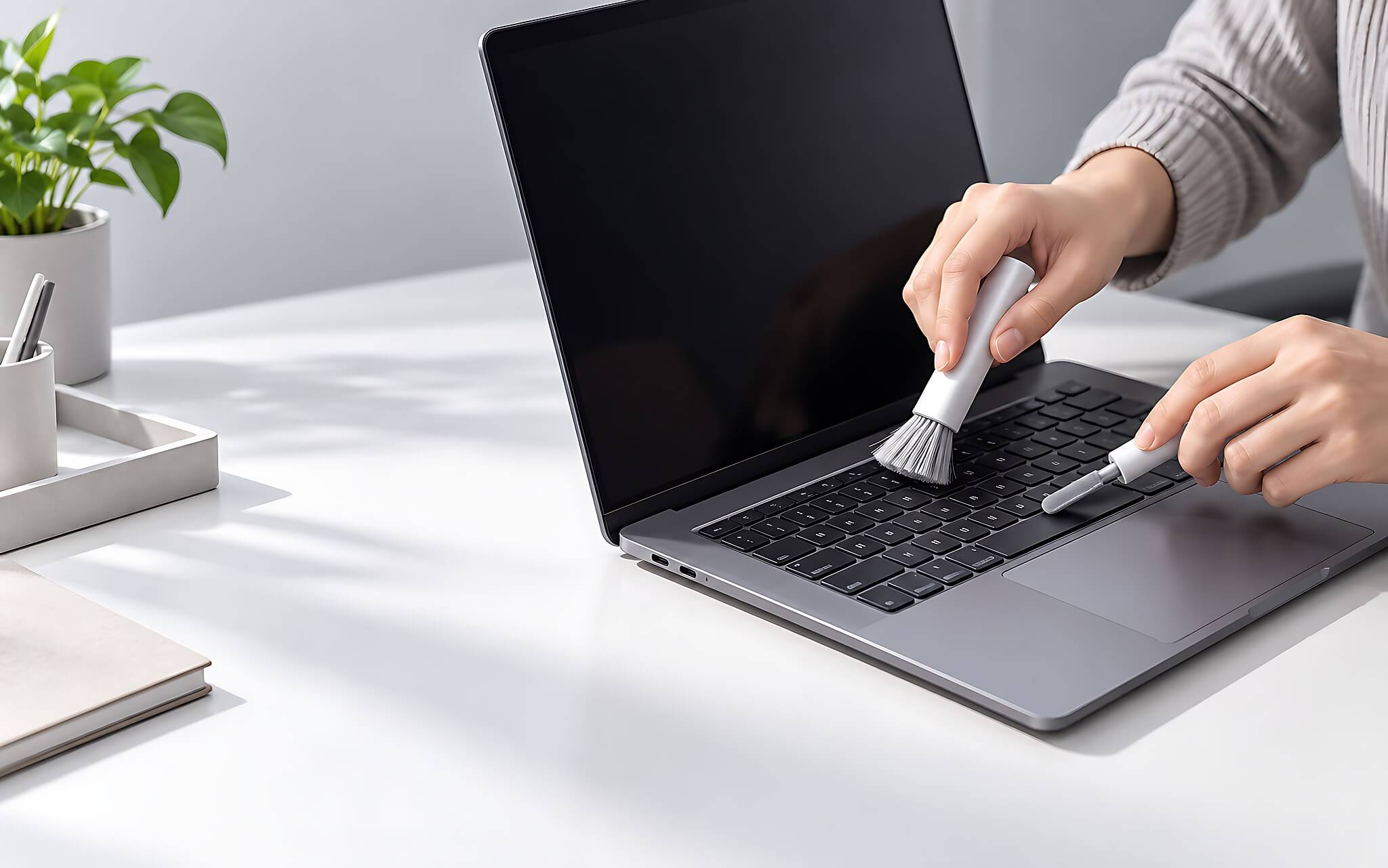
The critical detail with laptop keyboards is their ultra-thin scissor mechanism. Keycaps are anchored by tiny plastic clips that hook into the scissor frame, and these clips break easily when pried at the wrong angle. A single broken clip causes the keycap to wobble, press off-center, and worsen key chattering rather than fixing it. For that reason, avoid prying off keycaps with screwdrivers or fingernails on thin laptops, especially without the manufacturer's official disassembly guide for that exact model.
Never spray cleaning solutions or rubbing alcohol directly into the key gaps, as liquid seeping into the membrane layers can cause erratic behavior across neighboring keys as well. After clearing out the dust, retest the list of faulty keys you noted earlier. If duplicate keystrokes decrease significantly, loose debris was the primary culprit. If the chattering remains unchanged, the internal contacts or membrane have likely degraded, pointing toward a hardware repair.
When to Replace the Keyboard Instead of Relying on Temporary Fixes
Bounce Keys and cleaning are only effective when key chattering is limited to a few keys and remains stable. Three signs indicate it is time to consider replacing the keyboard. First, the number of chattering keys increases week over week. Second, the issue affects keys you frequently hit in rapid succession, such as Backspace or the spacebar, where debounce delays cause more frustration than relief. Third, the problem surfaces after liquid spills, as moisture can corrode the traces on the membrane, typically causing the damage to spread over time.
| Symptom | Severity | Recommended Action |
|---|---|---|
| 1 to 2 keys occasionally output duplicate characters, no liquid exposure | Mild | Clean key gaps and continue monitoring |
| Issue persists after cleaning on only a few keys | Moderate | Enable Bounce Keys with a short delay as a temporary workaround |
| Number of faulty keys increases over time | Severe | Plan for a keyboard replacement |
| Issue appears after a liquid spill | Severe | Turn off the laptop and take it in for inspection promptly |
| Laptop remains under warranty | Varies by issue | Submit for warranty service; do not disassemble the keyboard yourself |
The difficulty of replacing a keyboard depends heavily on the laptop's chassis design. Some models feature a modular, screw-in keyboard that can be replaced independently. Many thin laptops, however, have the keyboard heat-staked or riveted directly into the palmrest assembly (often called the C-cover), requiring the entire top case assembly to be replaced. The most reliable way to determine your laptop's construction is to consult the manufacturer's Hardware Maintenance Manual or Service Manual for your specific model number.
If your laptop is still under warranty and the chattering has spread to multiple keys, prioritize taking it to an authorized service center or the retailer, accompanied by a list of the malfunctioning keys and a screen recording of your test session on a keyboard tester. Disassembling the keyboard yourself before submitting a claim can void your warranty coverage. While waiting for service, an external USB keyboard combined with Bounce Keys set to a short delay will keep you working. Always back up your data before handing over the laptop, as replacing a C-cover assembly typically requires removing numerous internal components.
Frequently Asked Questions
If a brand-new laptop keyboard registers double keystrokes out of the box, is it a hardware defect? There is a strong chance that the switch contact was defective straight from the factory. You can test it using a keyboard testing tool and an external USB keyboard as outlined above. If hardware-level chattering is confirmed, a new laptop should ideally be returned for an exchange or serviced under warranty rather than repaired on your own.
Does Windows Bounce Keys slow down typing speed? Not noticeably in most situations, because the delay applies only to subsequent presses of the exact same key. Typing different keys consecutively remains completely unaffected. Only intentional repeated characters, such as typing double "o" in Telex, risk being dropped when the delay is set too long.
Do mechanical keyboards on gaming laptops experience the same issue? Yes. Mechanical switches still rely on physical metal contacts that bounce upon actuation and release, and QMK documentation notes that settling times vary depending on switch design and wear. Once contact degradation exceeds the firmware's debounce threshold, mechanical keys will chatter just like scissor-switch keys.