Pressing every key shortcut without the keyboard lighting up, or watching it turn on only to shut off immediately, is a common frustration when working in low light. A keyboard backlight is an LED strip placed beneath the keys that shines light through the characters so you can see the keys clearly in the dark. This guide walks you through how to tell if your laptop has a backlit keyboard, key shortcuts by brand, brightness control software, BIOS timeout settings, troubleshooting steps, and signs of hardware failure.
How to Tell if Your Laptop Has a Backlit Keyboard Before Turning It On
Not every laptop comes with a backlit keyboard, even between configurations under the very same model line. An owner's manual for a Dell Latitude model clearly notes two keyboard types: a standard keyboard and a backlit keyboard, meaning the same chassis can come in both backlit and non-backlit variants. Before trying to turn on the keyboard backlight, you should confirm which version your laptop is, saving you the trouble of troubleshooting a backlight on a laptop that never had one.
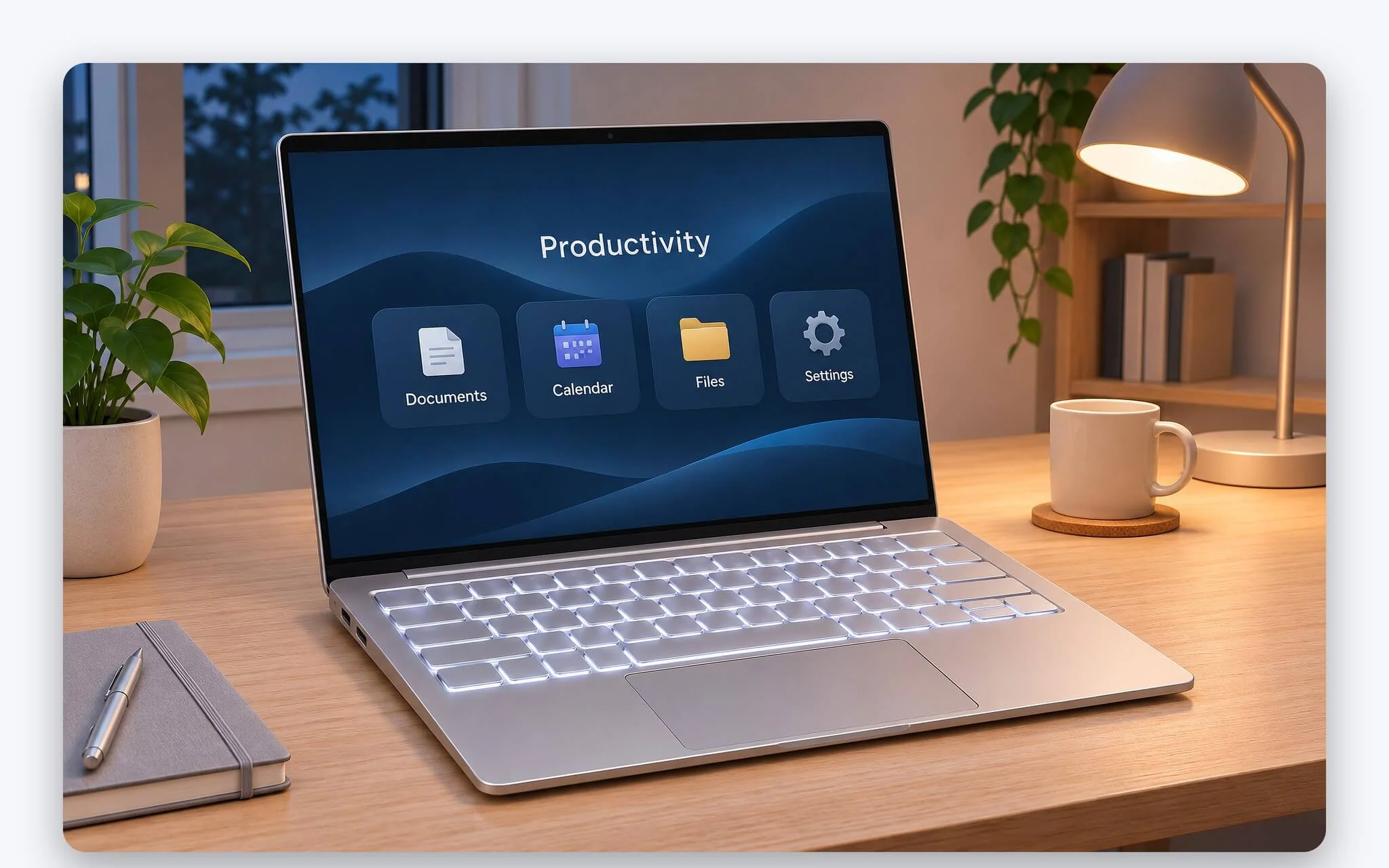
A simple way to check is to examine the function row and the spacebar. A Dell blog guide recommends looking along the top row of keys for an icon of a small light, while on many ThinkPad models, this icon sits on the spacebar. ASUS notes that if you do not see any light icon on the keys, you should check the hotkey chapter in the manual for your specific model, as that laptop may not support a backlit keyboard.
A more definitive way to verify is to look up the specs by model number on the manufacturer's support site, which typically includes a line specifying a backlit keyboard. Lenovo also notes that each model's keyboard supports only a subset of the general hotkey list. When buying a machine, you should clearly ask whether the configuration includes a backlight, as many product lines sell backlit and non-backlit versions side by side with nearly identical exteriors.
Fn Key Shortcuts to Turn on the Backlight by Brand: Lenovo, Dell, HP, ASUS
Each manufacturer places the backlight key in a different location, so the method to turn on the keyboard backlight on one laptop may not work on another. The table below summarizes shortcuts documented in official manufacturer materials. For models not listed in the table, your best bet is to look for the icon printed on the key, as key placements can vary across model revisions and regional markets.
| Brand and Model Line | Key or Shortcut | Operation According to Official Documentation |
|---|---|---|
| Lenovo ThinkPad (2026 documentation) | Fn + Spacebar | Turn the keyboard backlight on or off |
| Lenovo IdeaPad Slim 5 (Gen 10) | Key with backlight icon | Adjust, increase, or decrease brightness |
| Dell Latitude (backlit model) | Fn + F5 | Turn on the backlight; does not apply to non-backlit models |
| HP ENVY, Pavilion, OMEN, Spectre | Typically F5, F9, or F11 | Press repeatedly to cycle through brightness levels |
| ASUS (most models) | Fn + F7 | Press repeatedly to increase brightness, then turn off |
| ASUS (select models) | Fn + F4 and Fn + F3 | F4 increases brightness, F3 decreases brightness |
| ASUS gaming series | Fn + Up/Down arrows | Up arrow increases, Down arrow decreases |
For ASUS, the page [Notebook] How to enable Backlit Keyboard notes that most models use F7 to enable the keyboard backlight, some models use F3 and F4, and gaming models typically use the Up and Down arrow keys. For HP, a guide on the company's website states that the backlight key is typically F5, F9, or F11, though some models use the Right arrow key, with each press cycling sequentially through off, low, medium, and high brightness levels.
On the Lenovo side, the user manual for 2026 ThinkPad models lists the Fn + Spacebar shortcut to turn the keyboard backlight on or off, whereas IdeaPad manuals identify the key by the icon printed on it rather than naming a specific key. For Dell, the shortcut table for a Latitude model lists Fn + F5 with a note that it does not apply to non-backlit keyboards. On other product lines such as XPS or Inspiron, the location of the backlight key varies by lineup, so you should consult the manual for your exact model number.
Adjusting Backlight Brightness in Vantage, MyASUS, and Windows Dynamic Lighting
Beyond keyboard backlight shortcuts, most manufacturers provide dedicated software for fine-tuning keyboard illumination. Hardware maintenance documentation for the ThinkPad T14s series instructs users to open the Vantage app, select Device, and then go to Input & Accessories to customize keyboard settings. For ASUS, the company's backlight troubleshooting page notes that MyASUS and Armoury Crate are the two apps used to adjust lighting, while HP states that OMEN Command Center controls the lighting system on OMEN laptops.

For laptops with RGB keyboards, Windows 11 includes a Dynamic Lighting section under Settings, Personalization. According to Microsoft's Control Dynamic Lighting Devices in Windows page, the Use Dynamic Lighting on my devices toggle turns this feature on or off; when turned off, devices revert to their default behavior. The feature supports the open HID LampArray standard and provides sliders for brightness intensity and color effects.
One detail to keep in mind is that manufacturer software and Windows can compete for lighting control, preventing the keyboard backlight from illuminating according to your selected preferences. Microsoft explains that when the Brightness and Effects controls have no effect, a background RGB control app likely has higher priority. To resolve this, open Background light control and drag your preferred app to the top of the list, or turn off Dynamic Lighting so the manufacturer's software retains control of the keyboard backlight.
Backlight Turns Off Automatically After a Few Seconds Due to BIOS Timeout
A common situation that often leads users to believe the backlight is broken occurs when the keyboard lights up while typing, then shuts off after a few seconds of inactivity. In reality, this is an intentional power-saving timeout rather than a hardware defect. Owner documentation for a Dell Latitude model lists two settings, Keyboard Backlight Timeout on AC and Keyboard Backlight Timeout on Battery, which apply when plugged into power and when running on battery, respectively, with both defaulting to 10 seconds.
| Dell BIOS Timeout Option | Equivalent in Seconds | Notes |
|---|---|---|
| 5 seconds | 5 | Turns off quickly, reducing power consumption |
| 10 seconds | 10 | Default value when plugged in and on battery |
| 15 seconds | 15 | Suitable for intermittent typing |
| 30 seconds | 30 | Stays lit longer after the last keystroke |
| 1 minute | 60 | Ideal when alternating between reading documents and typing |
| 5 minutes | 300 | Backlight remains illuminated almost continuously while working |
| 15 minutes | 900 | Longest duration among the timed options |
| Never | Does not turn off | Stays on continuously, which reduces battery life |
The same document also outlines a Keyboard Illumination section featuring three settings: Disabled, which turns the backlight completely off at 0%; Dim, which runs it at 50% brightness; and Bright, which sets it to 100%. If this option is set to Disabled, pressing the keyboard backlight shortcut key will not turn it on, regardless of how many times you press it. For that reason, if the keyboard backlight fails to illuminate on a Dell laptop, you should verify this setting in the BIOS before assuming there is a hardware fault.
Other manufacturers implement similar mechanisms using slightly different setting names. An HP support guide notes inactivity timeouts and automatic ambient-light adjustment options on select models, alongside recommendations to check whether the backlight is enabled in the BIOS. Lenovo points out that backlighting draws extra power and can shorten battery life depending on brightness, meaning that configuring a sensible timeout can help preserve overall battery runtime.
Keyboard Backlight Won't Turn On Despite Pressing the Right Key: Causes and Fixes
Once you are certain your laptop has a backlit keyboard but it will not turn on, the first thing to rule out is Fn Lock. IdeaPad documentation explains that depending on the FnLock setting, top-row hotkeys are triggered either by pressing them directly or in combination with the Fn key. ASUS also notes that the function key lock setting determines whether pressing F7 or Fn + F7 toggles the keyboard backlight, so try both before concluding there is a defect.
| Symptom | Common Cause | Solution |
|---|---|---|
| Pressing the backlight key produces no response | Fn Lock inverts F-row key functions | Try pressing the key with and without Fn |
| Backlight turns on and then shuts off after a few seconds | Timeout configured in BIOS or OEM software | Increase the timeout duration or select Never |
| Keyboard backlight will not turn on despite correct key presses | Backlight option disabled in BIOS | Re-enable the backlight setting or restore BIOS defaults |
| Backlight stops working after an update | Driver or OEM software issue | Reinstall system control drivers and update BIOS |
| RGB color does not change via OEM software | Dynamic Lighting overrides OEM control | Change the priority order or disable Dynamic Lighting |
The next step is checking drivers and firmware. The ASUS support page for keyboard backlight issues recommends this troubleshooting sequence: perform an EC reset, restore BIOS defaults using the F2 key at startup, and then update the BIOS, Windows, and drivers through MyASUS. If the problem persists, uninstall and reinstall the ASUS System Control Interface driver in Device Manager. For MSI laptops, the article MSI Center: How to Adjust Fan Speeds, Select Performance Modes, and Fix SDK Errors details the EC reset process that MSI recommends when the keyboard responds abnormally.
If the issue occurs right after an update, ASUS suggests using System Restore to roll Windows back to an earlier restore point, and as a last resort, reinstalling Windows after backing up your data. HP recommends updating or reinstalling the keyboard driver while also checking for a physical switch, as a handful of models feature a dedicated hardware switch. Following this sequence from least to most invasive helps you narrow down why the keyboard backlight will not turn on significantly faster.
Hardware Issues with the Keyboard Backlight and When to Seek Warranty Service
If you have exhausted all software troubleshooting steps and the keyboard backlight still does not light up, the issue is very likely hardware-related: the LED strip, ribbon cables, or circuit board. Hardware maintenance manuals for the ThinkPad T14s series show that the keyboard assembly includes cables connecting to headers on the motherboard. Drops, liquid spills, or improper disassembly can loosen or tear these cables, cutting power to the keyboard backlight entirely even while key presses continue to register normally.

Replacing the keyboard on a thin-and-light laptop is no simple task. That same ThinkPad manual lists components that must be removed before reaching the keyboard bezel assembly, including the battery, cooling fan, motherboard, and display assembly. If your laptop is still under warranty, you should bring it to an authorized brand service center rather than taking it apart yourself. Lenovo documentation also treats missing components as a potential indicator of unauthorized servicing.
You should also be aware of warranty coverage. Lenovo maintenance documentation classifies liquid spill damage and sticky keys resulting from liquid poured on the keyboard as non-warranty conditions. When you first receive a machine, test the keyboard backlight across all brightness levels, just as the checklist in Inspecting a New Laptop: Minor Flaws That Can Spoil Unboxing Day recommends for verifying the keyboard, touchpad, and backlight.
Frequently Asked Questions (FAQ)
Can I turn on the keyboard backlight if my laptop has no key with a light icon?
Typically no. ASUS states that if you cannot find a backlight key in the hotkeys section of the user manual, the laptop likely does not support backlighting. The backlight is a physical hardware component; software cannot enable it if the machine was not built with it.
Can I keep the keyboard backlight on continuously?
Yes, on many models. For example, the BIOS on certain Dell Latitude models includes a Never option for the backlight timeout both while plugged in and on battery power. Other manufacturers place this setting in the BIOS or their proprietary software under various menu names, and keeping the backlight on continuously will consume more battery.
Does keeping the keyboard backlight on drain a lot of battery?
The backlight does draw extra power. Lenovo notes that keyboard backlighting can decrease battery life depending on the brightness level and your usage habits. When running on battery, setting a lower brightness level with a short timeout strikes a practical balance between key visibility and battery endurance.
Why do my RGB keyboard backlight colors change incorrectly after a Windows 11 update?
Windows 11 features Dynamic Lighting, which supports the HID LampArray standard and can conflict with or override OEM lighting software. You can open Settings, navigate to Personalization, select Dynamic Lighting, and either check the Background light control settings or toggle off Use Dynamic Lighting on my devices.