This guide will show you how to connect to or disconnect from a Bluetooth Personal Area Network (BTPAN) in Windows 11.
Bluetooth Personal Area Network (BTPAN) is another way to share an Internet connection between wireless devices. You can use this feature to connect your computer to a PC or phone hotspot via Bluetooth instead of using WiFi.
To use BTPAN, you will need a Bluetooth adapter (a device that looks similar to a standard USB flash drive but has integrated Bluetooth functionality) on your computer and another device that has Bluetooth and supports hotspot functionality.
Connecting to a Bluetooth Personal Area Network
1. Turn on Bluetooth on both devices and ensure the devices are paired with each other.
2. Open Settings (Win + I).
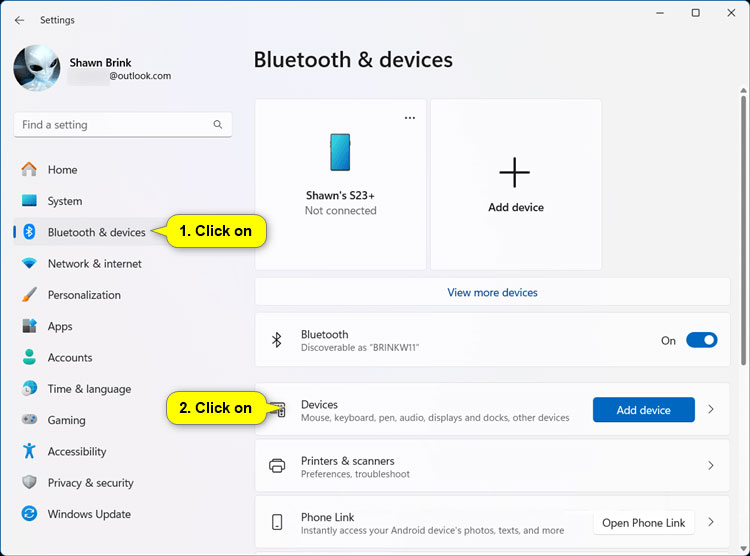
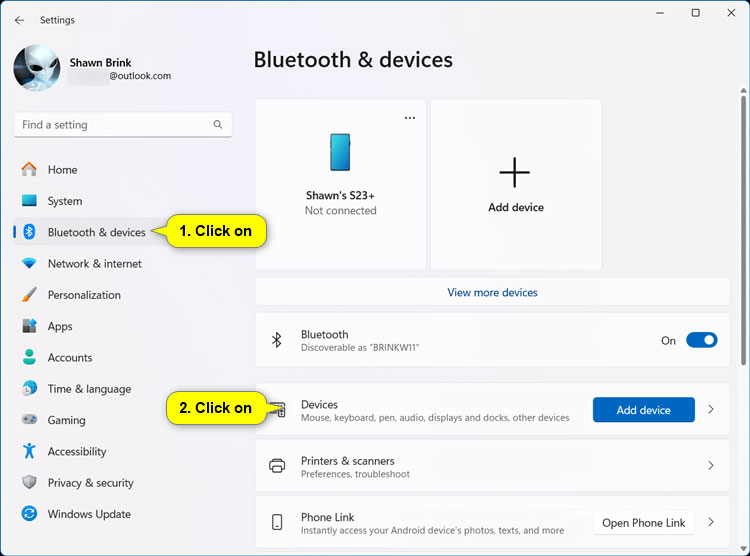
3. Click Bluetooth & devices on the left and click Devices on the right.
Click Bluetooth & devices > Devices
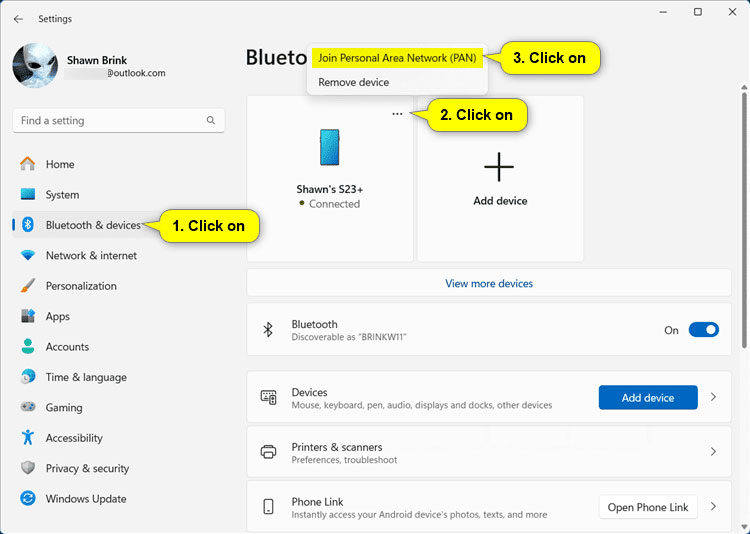
Note: If your paired and connected Bluetooth device is displayed at the top, you can click the More options (3 dots) button, click Join Personal Area Network (PAN), and skip to step 5 instead.
Click More options > Join Personal Area Network (PAN)
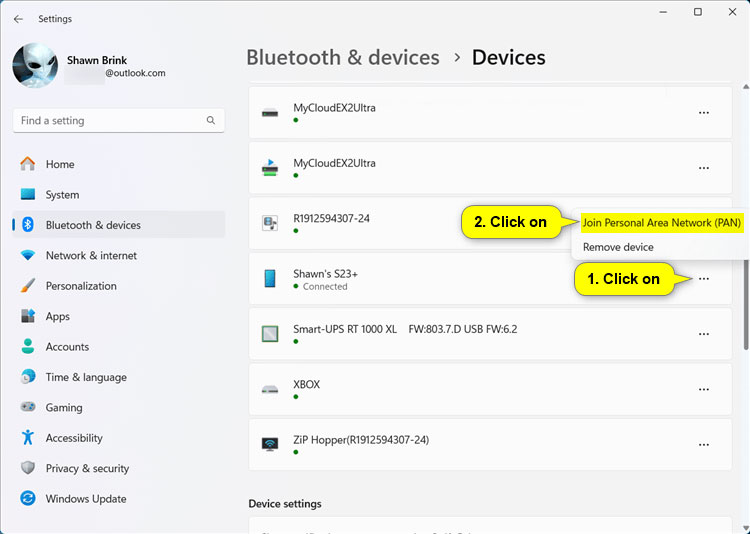
4. Click the More options (3 dots) button for the paired and connected Bluetooth device you want, then click Join Personal Area Network (PAN).
Click More options > Join Personal Area Network (PAN)
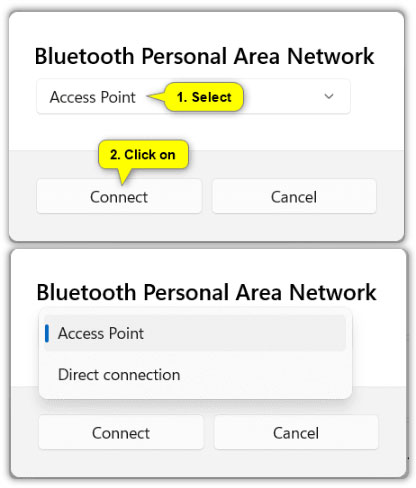
5. Select either Access Point or Direct connection from the drop-down menu and click Connect.
Select Access Point or Direct connection mode
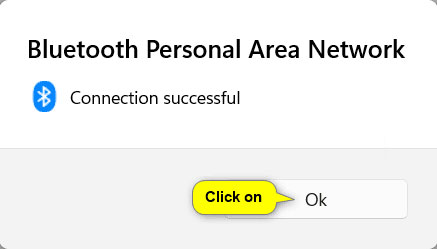
6. Click OK when the "Connection successful" notification appears.
Click OK when connection is successful
7. Now, you can close Settings if you wish.
Disconnecting from a Bluetooth Personal Area Network
1. Open Settings (Win + I).
2. Click Bluetooth & devices on the left and click Devices on the right.
Open Bluetooth & devices settings
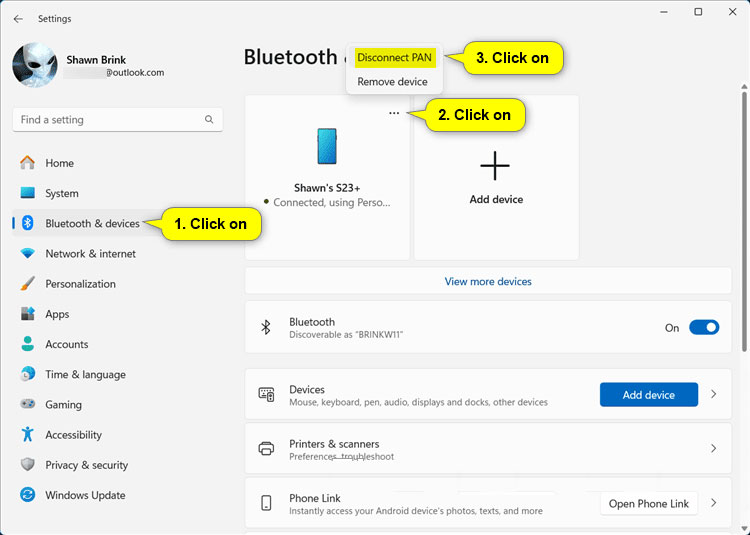
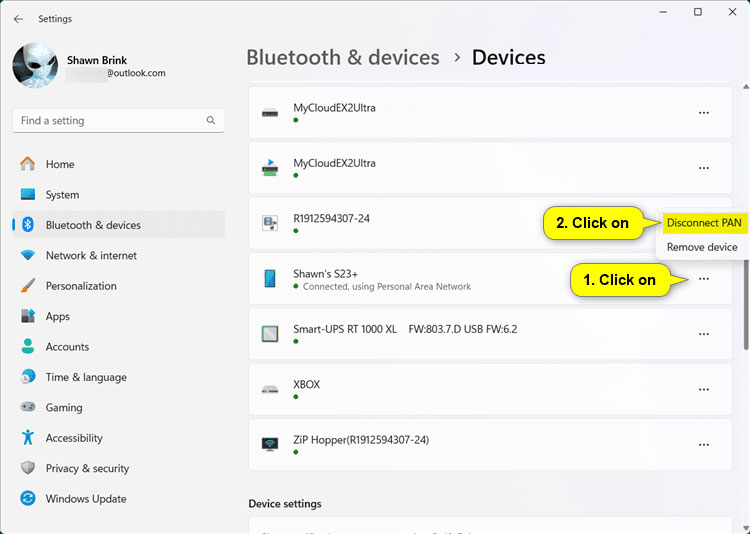
Note: If your BTPAN connected device is displayed at the top, you can click the More options (3 dots) button, click Disconnect PAN, and skip to step 4 instead.
Select More options > Disconnect PAN
3. Click the More options (3 dots) button for the BTPAN connected device you want and click/tap Disconnect PAN.