Many gamers still stick to wired mice out of concern over latency, while laptop users prefer a clean, cable-free desk. A modern wireless mouse can satisfy both needs, provided you pick the right connection type. The first spec to look at is the polling rate - simply put, how many times the mouse reports its position to the laptop each second; the higher the number, the more responsive the cursor feels. This article compares 2.4GHz, Bluetooth, and wired modes, and highlights three Alienware models for different needs.
Are Wireless Mice Slower Than Wired Mice for Gaming?
Mouse latency depends first and foremost on the polling rate, measured in Hz. At 1,000 Hz, the mouse sends a signal every 1 ms; a 4,000 Hz rate narrows that interval to 0.25 ms, while 8,000 Hz drops it to just 0.125 ms. The three Alienware models featured here clearly illustrate this difference: the 720M is rated at 1,000 Hz wirelessly, while the Pro Wireless achieves 4,000 Hz wirelessly and 8,000 Hz over a cable. Whether a wireless mouse is slower therefore depends on the specific model, rather than a blanket conclusion for every product.
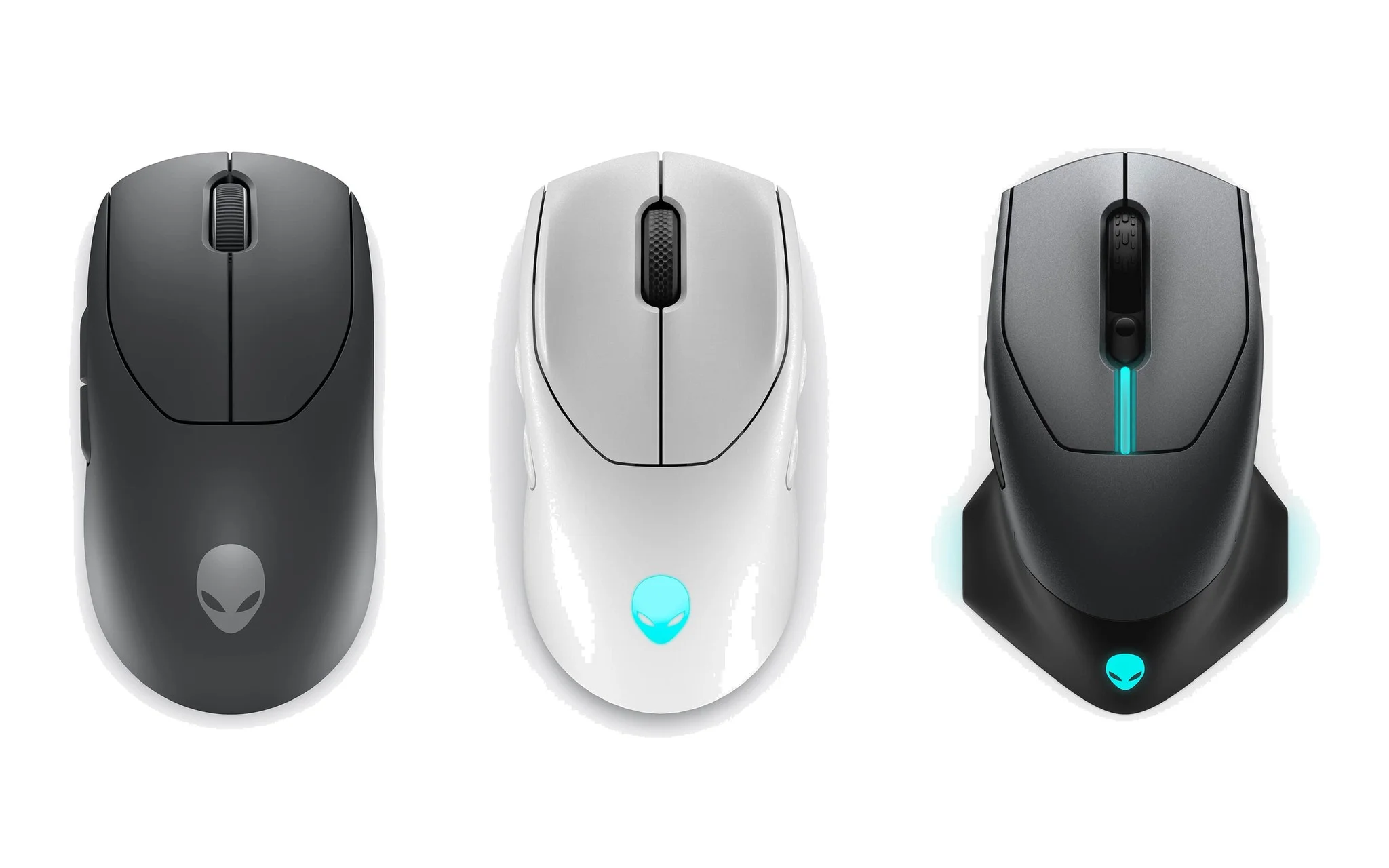
For the Alienware Pro Wireless, Dell advertises 4,000 Hz via its USB-C dongle and 8,000 Hz in wired mode. The difference between the two modes is just 0.125 ms per report, which is negligible compared to human reaction time. By default, the mouse runs at 1,000 Hz; you must open Alienware Command Center to increase the rate. A higher polling rate drains the battery faster, which is analyzed in the specs section below.
Real-world latency does not stem from the mouse alone. A low-refresh-rate display panel, a frame-rate-capped game, or a laptop running in power saver mode can all make input feel sluggish. Increasing the polling rate only helps when your laptop specs are powerful enough to sustain high frame rates. For casual gaming or office work, the 1,000 Hz rate of a wireless gaming mouse is plenty responsive while preserving long battery life, without needing to push specs to the absolute maximum.
What Is the Difference Between 2.4GHz via USB Dongle and Bluetooth?
The 2.4GHz mode uses a USB receiver plugged into your laptop to establish a dedicated link between the mouse and the machine. This is the connection Alienware prioritizes for gaming: the 720M is rated at 1,000 Hz, while the Pro Wireless reaches up to 4,000 Hz. Bluetooth requires no dongle because the laptop simply uses its built-in wireless module; in return, Dell does not state a response rate for this mode. The table below summarizes the differences among the three connection types, based on Dell's technical documentation for each wireless mouse.
| Criteria | Wired | 2.4GHz via USB Dongle | Bluetooth |
|---|---|---|---|
| Dell's Advertised Polling Rate | 8,000 Hz (Pro Wireless) | 4,000 Hz (Pro Wireless), 1,000 Hz (720M) | Not published |
| 720M Battery Life (Lighting Off) | Does not rely on battery | 140 hours | 420 hours |
| Ports Used on Laptop | 1 port for cable | 1 port for dongle | No ports used |
| Alienware Command Center Customization | Full | Full | 720M cannot adjust lighting, key assignments, or settings |
| Best Use Case | Competitive desk play, play while charging | Daily gaming | Work and study on the go |
Bluetooth's biggest advantage is battery life. According to Dell's user manual, the Alienware 720M uses a 500 mAh battery, delivering 140 hours over 2.4GHz and up to 420 hours over Bluetooth, both with lighting turned off. This mouse supports Bluetooth 5.1 LE. If you want to understand how different Bluetooth 5 versions compare in speed and power consumption before pairing, our article Bluetooth 5.3 là gì? Tìm hiểu các phiên bản của Bluetooth 5 explains each generation in detail.
Bluetooth also limits customization options. Dell documentation specifies that when the 720M is connected over Bluetooth, Alienware Command Center only displays the battery level and does not allow you to adjust lighting, remap keys, or tweak settings. To modify these items, you must switch back to the USB dongle or connect the cable. Pairing on Windows 11 is covered by Microsoft on its Pair a Bluetooth device in Windows page, taking just a few steps under Bluetooth & devices.
Understanding DPI, Polling Rate, Weight, and Battery Life Before Buying
DPI indicates how far the cursor travels across the screen when you move the mouse one inch. A ceiling of 26,000 DPI on the Pro Wireless and 720M sounds impressive, but most gamers stick to lower sensitivity steps. Dell itself sets the 720M's default at 1,200 DPI, while the 610M starts at 1,800 DPI. The crucial factor is how flexibly you can adjust those steps and save profiles for each game. The table below compiles the official specifications Dell published for its three currently available Alienware wireless mouse models.
| Specifications | Alienware Pro Wireless | Alienware 720M | Alienware 610M |
|---|---|---|---|
| Connection type | 2.4GHz, wired | 2.4GHz, Bluetooth 5.1, wired | 2.4GHz, wired |
| Maximum DPI | 26,000 | 26,000 | 16,000 |
| Maximum polling rate | 4,000 Hz wireless, 8,000 Hz wired | 1,000 Hz via dongle | Not listed in manual |
| Weight | Under 60 g | Under 90 g | Not listed in manual |
| Battery life | 120 hours at 1,000 Hz, 32 hours at 4,000 Hz | 140 hours on 2.4GHz, 420 hours on Bluetooth | Not listed in manual |
| Charging port on mouse | USB-C | USB-C, magnetic charging dock | Micro USB |
| Dongle | USB-C, includes extender | Includes extender | USB-A (USB 2.0 standard), includes extender |
| Price (VND) | 3,199,000 VND | 2,496,000 VND | 1,900,000 VND |
Weight directly influences flick speed in first-person shooters. At under 60 g, the Pro Wireless is noticeably lighter than the sub-90 g 720M. A lightweight wireless mouse eases wrist fatigue during long gaming sessions, making it well suited for fingertip or claw grip styles. For the 610M, Dell's current user manual does not list an official weight, so if weight is your top priority, you should test the mouse in hand before deciding rather than relying solely on product photos.
Battery life must always be evaluated alongside polling rate. The Pro Wireless lasts up to 120 hours at 1,000 Hz, but that figure drops to 32 hours at 4,000 Hz - an almost fourfold reduction. Dell balances this with fast charging: a five-minute charge provides roughly 6 hours of playtime at 1,000 Hz. On the 720M, the magnetic charging dock lets you recharge without plugging a cable directly into the mouse body. If you frequently forget to charge your peripherals, keeping the polling rate at 1,000 Hz offers a practical sweet spot between responsiveness and uptime.
Using a Wireless Mouse With Laptops: Ports, Signal Interference, and Firmware
Every laptop comes with a different port layout of USB-A and USB-C connections, so the type of wireless dongle dictates whether your mouse plugs straight into the machine or requires an adapter. The Pro Wireless includes a USB-C dongle, pairing well with modern laptops loaded with Type-C ports. The 610M uses a USB-A dongle operating on the USB 2.0 standard, alongside a Micro USB charging port on the mouse itself. Before picking a dongle format, take stock of the open ports on your machine; the guide Understanding Laptop Ports and Connectors helps identify each type.
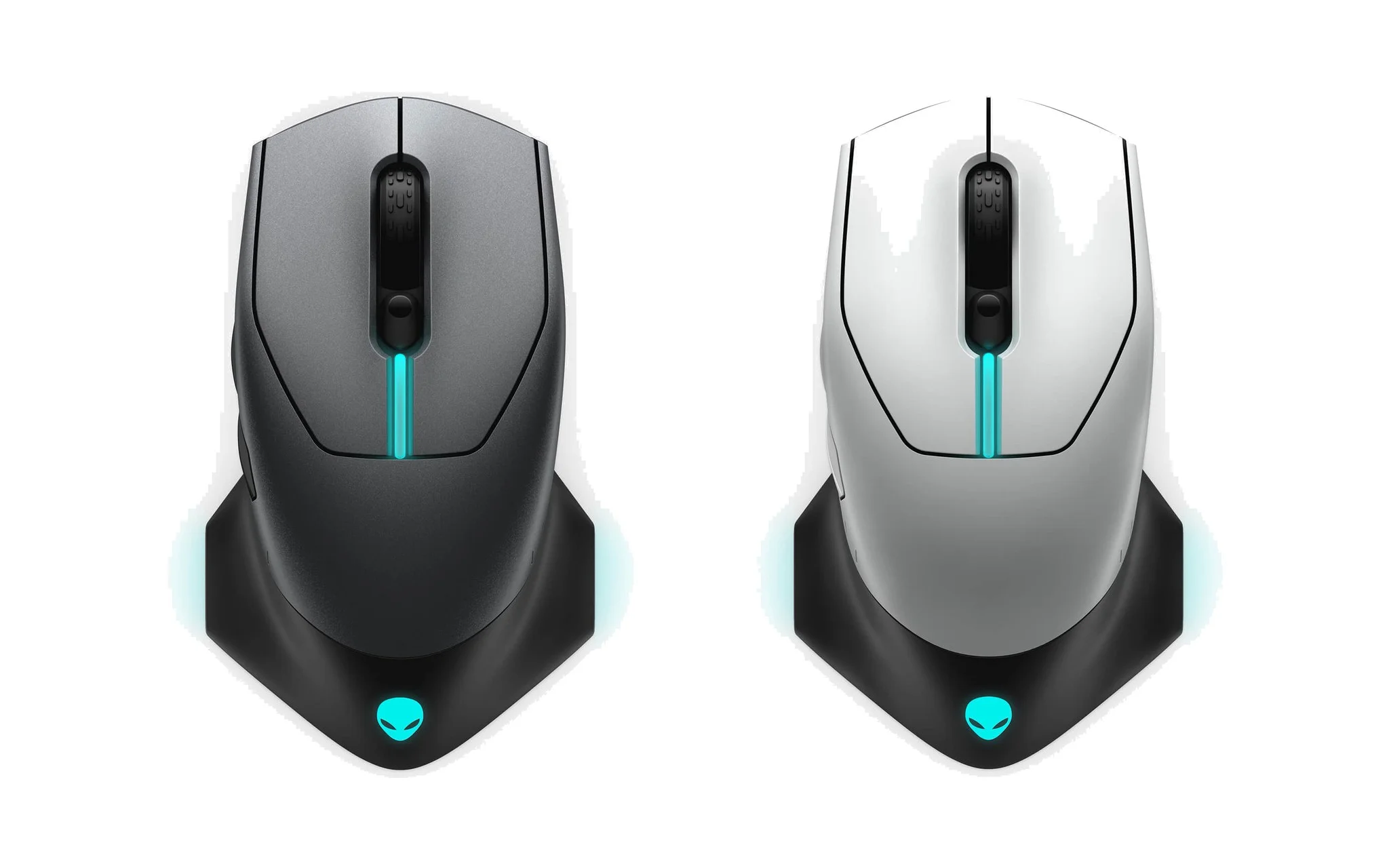
When plugged directly into the laptop chassis, a wireless mouse dongle can easily suffer from wireless interference, especially when positioned near other wireless hardware. Dell's troubleshooting documentation for the 610M explicitly states that cursor stuttering may stem from interference at the receiver, and the company recommends using the included extender cable. The Pro Wireless and 720M also pack an extender in the box, allowing you to position the receiver right next to your touchpad. According to Dell, the 720M maintains an operating range of up to 10 m, but keeping the receiver closer to the mouse preserves a far more stable signal.
Firmware is the embedded control software inside both the mouse and the receiver, directly governing connection reliability. For the 720M, Dell instructs users to plug in the dongle, connect the mouse via cable, and run the update through Alienware Command Center - or download standalone update tools for both the mouse and the receiver, following the steps in Dell's Alienware 720M user manual. The company advises updating both components simultaneously. For the Pro Wireless, Dell requires Alienware Command Center version 6.1 or newer to enable its full feature set.
Alienware Pro Wireless is ideal for shooters needing fast response times
The Pro Wireless is the most compelling wireless mouse option if you play competitive shooters like Valorant or Counter-Strike 2. This mouse features a symmetrical design, weighs under 60 g, and utilizes a 26,000 DPI sensor with 650 IPS tracking speed and a maximum acceleration of 50G, according to Dell. A 4,000 Hz wireless polling rate helps the cursor feel more responsive on high refresh rate monitors, where every frame clearly displays mouse movement.
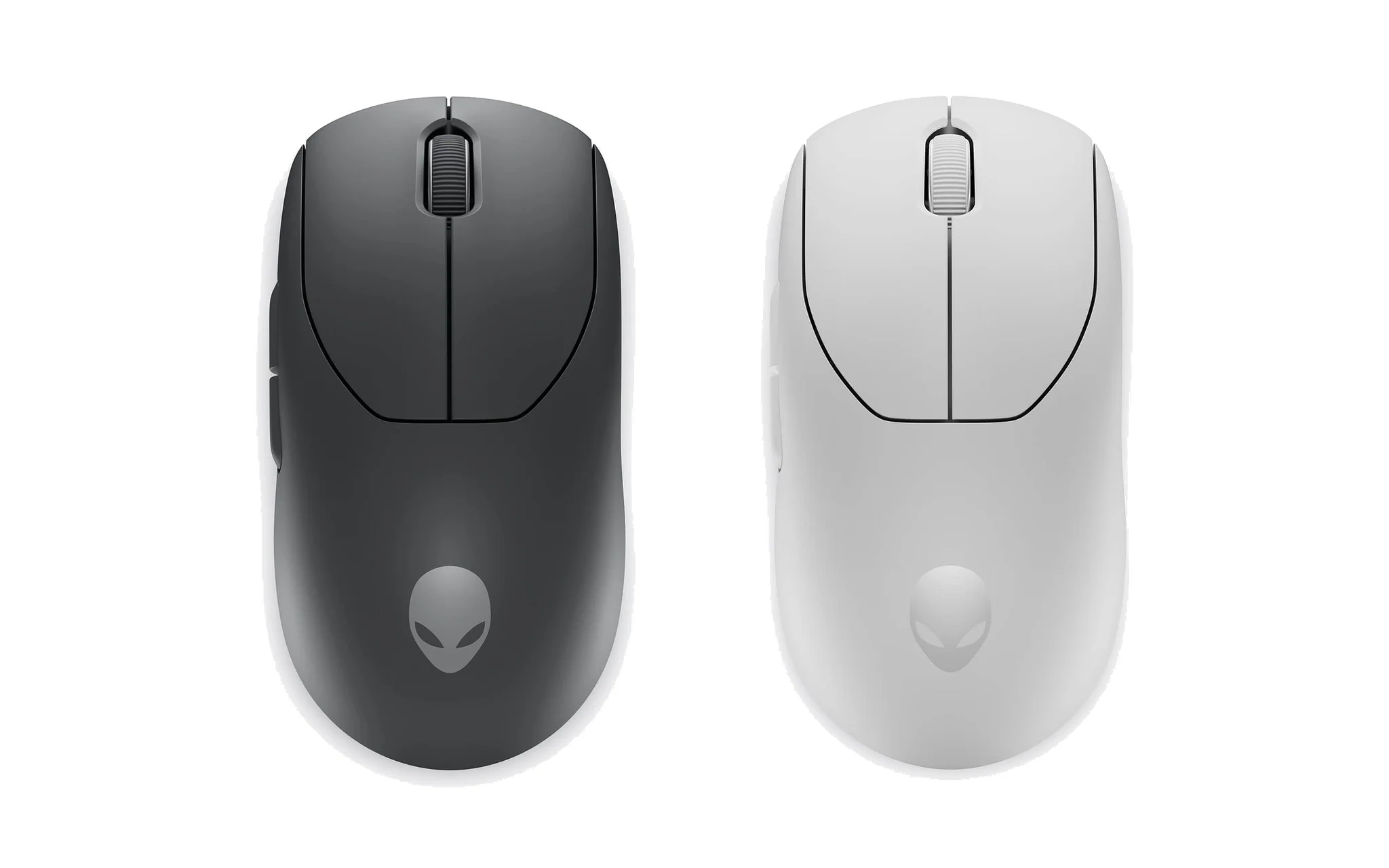
The main buttons use magnetic switches combined with optical switches, with Dell reporting a durability of 70 million clicks. The mouse body includes a compartment for the receiver, PTFE feet, and 6 programmable buttons, including a dedicated profile switch button. The mouse only offers two modes: 2.4GHz and wired, with no Bluetooth support, making it better suited for users with a fixed gaming laptop setup rather than those who frequently carry their machine to work.
A price of 3,199,000 VND places the Pro Wireless at the highest price point of the three models. If you have invested in a high refresh rate laptop and play ranked matches regularly, the Alienware Pro Wireless Gaming Mouse offers the highest polling rate and the lightest weight in the group, available in two colors: Dark Side of the Moon and Lunar Light. The included 2 m braided cable allows you to switch to 8,000 Hz mode during competition.
Alienware 720M and 610M for work and play
The 720M is a balanced option for those wanting a single wireless mouse for both work and entertainment. Three modes - 2.4GHz, Bluetooth 5.1, and wired - allow you to play games using the receiver at home, then switch to Bluetooth when taking your laptop to meetings to save ports. Dell's documentation also notes that the mouse works on macOS, though it lacks Alienware customization features, making it suitable for households sharing multiple operating systems.
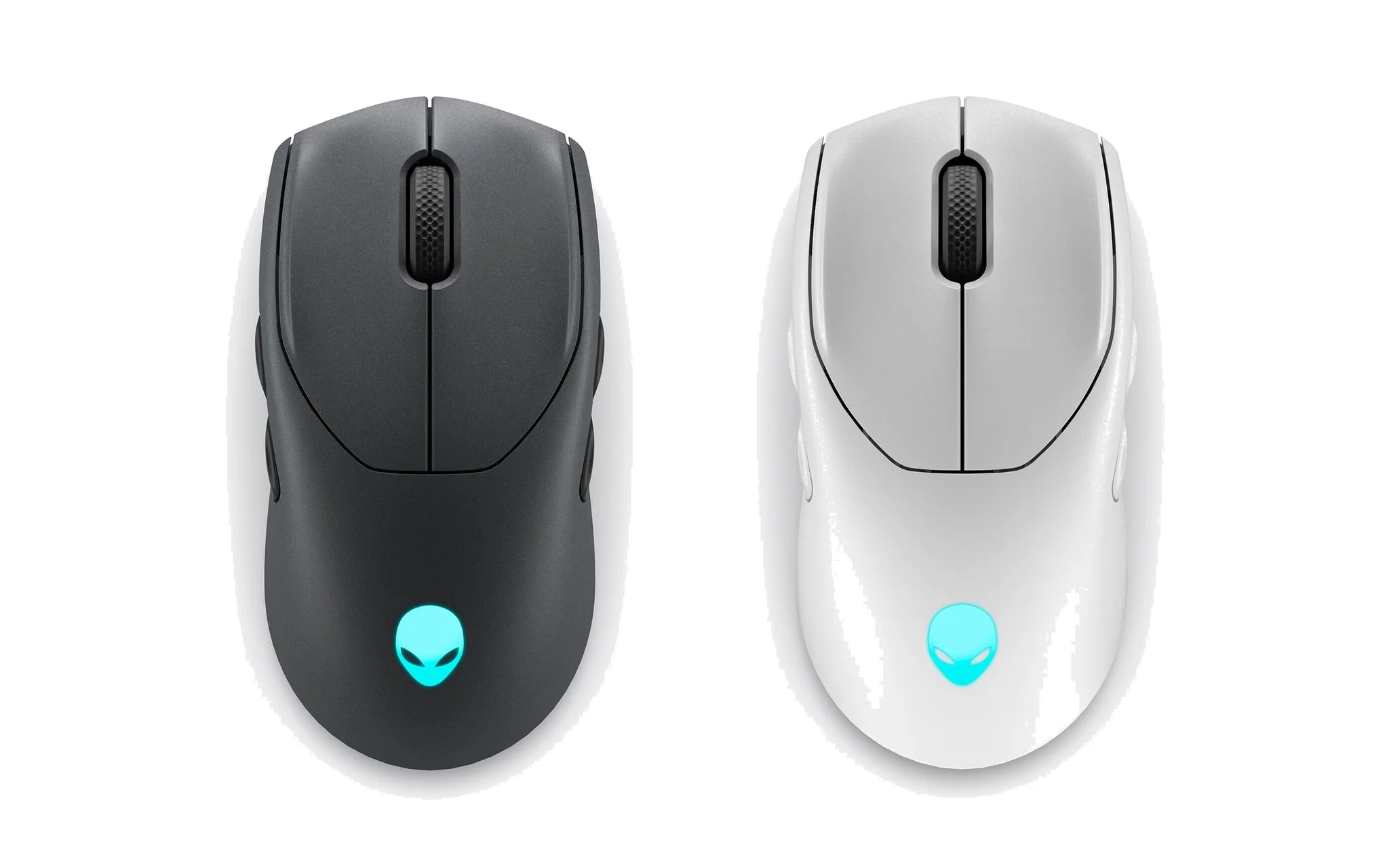
Priced at 2,496,000 VND, the Alienware 720M Tri-Mode Wireless Gaming Mouse is suited for users needing up to 420 hours of battery life on Bluetooth for the workday, a magnetic charging base, and a 26,000 DPI sensor for gaming evenings. At under 90 g, it is heavier than the Pro Wireless, but in exchange, the chassis is sturdier for clicking and dragging in spreadsheets or design software.
The 610M is priced at 1,900,000 VND, the lowest in the group, and supports wired and 2.4GHz connections. The mouse features a 5-step DPI slider ranging from 800 to 16,000 and a switch for 12 or 24-step scroll increments, which is convenient when scrolling through long documents. If you are on a budget and your laptop has an available USB-A port, the Alienware 610M Wired/Wireless Gaming Mouse is a sensible starting point. This line was released in 2019 and still uses a Micro USB charging port; all three models at Hung Phat Laptop are 100% brand new.
Frequently Asked Questions
Is there latency when gaming via Bluetooth?
Dell does not disclose the polling rate for the 720M's Bluetooth mode, only stating 1,000 Hz when using the 2.4GHz receiver. For games requiring fast reflexes, you should use the receiver or a cable. Bluetooth connectivity is better suited for typing, browsing, and online meetings, where 420 hours of battery life is more valuable than a few milliseconds of difference.
Should I push the polling rate to 4,000 Hz for every game?
Not necessarily. On the Pro Wireless, the 4,000 Hz setting reduces battery life from 120 hours down to 32 hours. You should only enable it when playing shooters on a high refresh rate monitor where the laptop can maintain stable frame rates. For RPG or strategy games, the default 1,000 Hz level is smooth enough.
Which model should I choose if my laptop only has USB-C ports?
The Pro Wireless comes with a USB-C receiver that can plug directly into the laptop. The 720M can connect via Bluetooth, so it does not require an open port. The 610M uses a USB-A receiver, so you will need an adapter or a hub if your machine has no available USB-A ports.
Do Alienware mice work with MacBooks?
Dell's documentation for the 720M states the mouse supports OS X but lacks Alienware Command Center customization features. For the Pro Wireless, Dell's product page only lists Windows, so you should prioritize the 720M if you need a wireless mouse that works on both a MacBook and a Windows laptop.