

The green checkmarks on your Windows Desktop icons indicate the sync status with cloud services-usually Microsoft OneDrive since it is integrated into Windows. While useful, these can be distracting. Today's article will explain how to remove these checkmarks and restore icons to their original state.
What do the green checkmarks on your Desktop icons mean?
Desktop icons often display two types of green checkmarks: a green outlined checkmark or a solid green checkmark. Each type is a visual indicator of different sync statuses for your files with OneDrive.
Solid green checkmark on Desktop
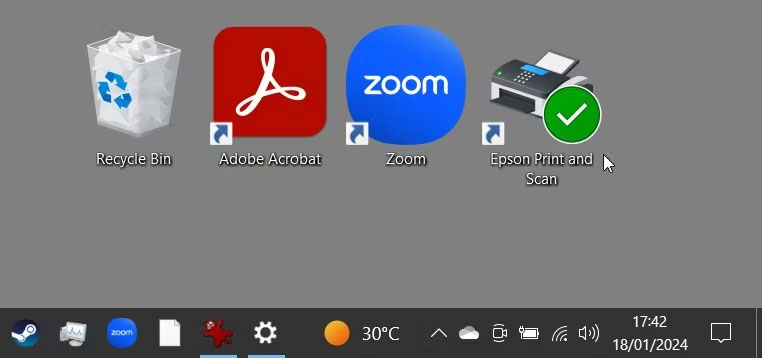
A solid green checkmark appears on files you have marked as Always keep on this device. It indicates that a file is not only synced but also available offline in OneDrive.
Green outlined checkmark
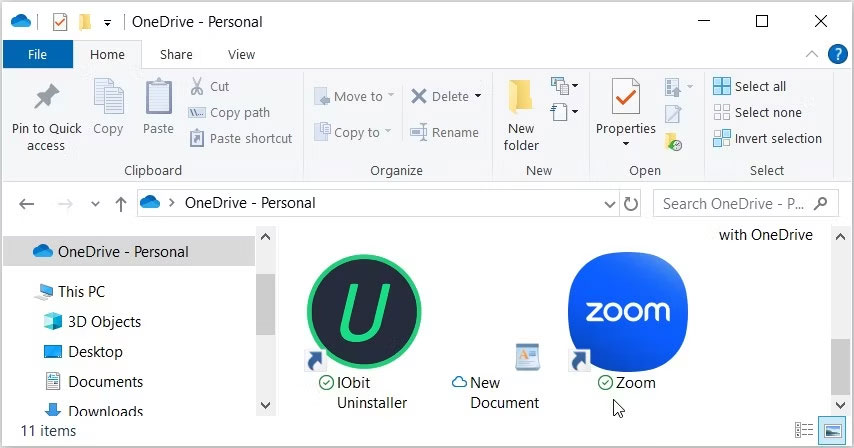
A green outlined checkmark indicates that the file or folder is stored only online, meaning that the file or folder is stored in the cloud and not on your local device. To access such a file offline, you need to download it to your device. If you later want to change the file back to online-only mode to free up device space, right-click the file and select Free up space.
How to remove green checkmarks on Desktop icons
While green checkmarks are useful indicators, they can be visually distracting. Here are three simple methods to remove the green checkmarks if you wish-note that removing these green status icons does not affect your files.
1. Pause syncing in OneDrive
You can temporarily remove the green checkmarks by pausing your device's sync with OneDrive. This action does not delete any data, but files and changes will no longer sync with OneDrive (and therefore will not be available on your other devices) until you resume syncing. Here is how to pause your file syncing with OneDrive.

Next, look at your desktop icons and see if the green checkmarks have disappeared. For example, the author of this article initially had a green checkmark overlaying one of their desktop icons. This is shown on the right side in the screenshot below:

After pausing sync, the checkmarks disappear, as shown here:

2. Close OneDrive or unlink your account from the service
Stopping OneDrive will remove the green checkmarks and stop the syncing process. This is similar to pausing sync, except OneDrive will not perform any action until you reopen it (which will happen at startup if you have set it to open every time you start up).
To stop the OneDrive service, click on the OneDrive icon in the system tray.

From there, follow these steps:
- Click the gear icon in the top right corner.
- Expand the Pause Syncing drop-down menu.
- Click on the Quit OneDrive option.

If you have decided you no longer want to use OneDrive on your PC, you can unlink your Windows account from OneDrive. This action will completely disable the service unless you log back into the OneDrive app and reset the sync feature.
3. Use Registry Editor to change icon overlay settings
This method involves tweaking the Windows Registry-a powerful tool that controls many aspects of a Windows device. Here is how to remove the green checkmarks using Registry Editor:
Warning: Be careful with Registry Editor because incorrect changes can affect system stability. To ensure safety, consider backing up the registry before proceeding.
- Press > and press >:
MicrosoftWindowsCurrentVersionExplorerShellIconOverlayIdentifiers">HKEY_LOCAL_MACHINE\SOFTWARE\Microsoft\Windows\CurrentVersion\Explorer\ShellIconOverlayIdentifiers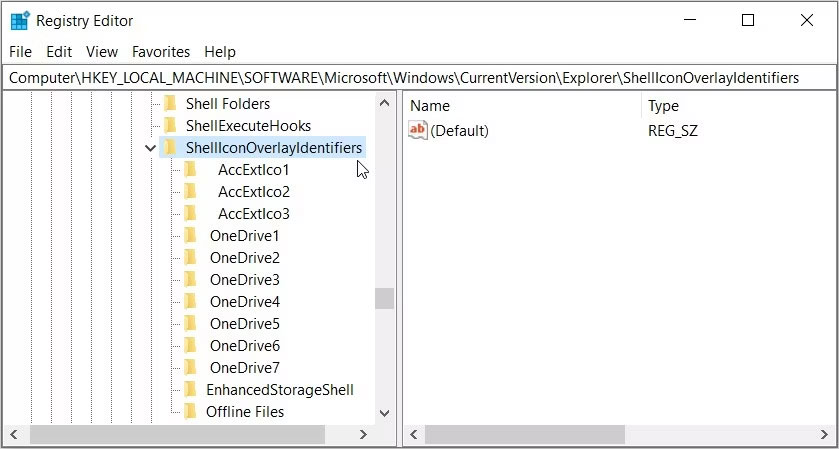
Under the ShellIconOverlayIdentifiers folder, you will find a list of subkeys representing different icon overlays. Cloud storage services like OneDrive, Google Drive, or Dropbox often add subkeys for their icon overlays here.
To remove the overlay icons, delete or rename the items related to your cloud service. Assuming you are using OneDrive, to remove the green checkmarks on your desktop icons, rename the registry subkeys like OneDrive1 and OneDrive2 so they appear at the end of the list. For example, rename them to "z_OneDrive1", "z_OneDrive2", etc...
Additionally, you can delete the OneDrive registry subkeys to remove the green checkmarks. However, deleting these subkeys may not be ideal because you will not be able to identify the OneDrive sync status.
After you rename or delete the subkeys, restart your computer to save these changes.











