Whether you want to modify specific file attributes, browse through a particular directory, or perform any other action in Command Prompt, your first step is navigating to the correct folder. Fortunately, navigating through directories in the Windows Command Prompt is straightforward once you master the `cd` command and a few other essential commands.
Open Command Prompt as Administrator
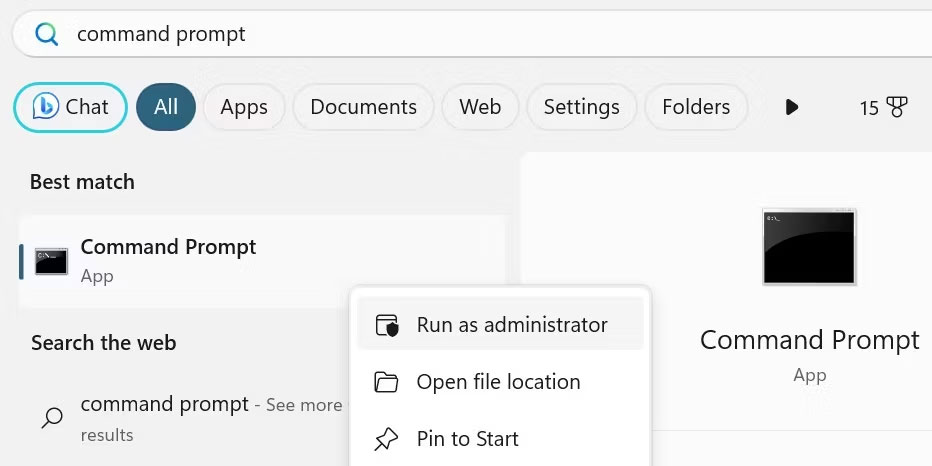
First, open Command Prompt with administrative privileges. This is crucial because, without it, Windows may restrict your ability to access or modify certain directories. To do this, search for Command Prompt in the Windows Search bar, right-click the result, and select Run as administrator. If a User Account Control (UAC) prompt appears, click Yes.
Running with administrative rights grants you the necessary permissions to perform management tasks without restrictions. However, use these privileges carefully; errors made while operating under an admin account can lead to more serious system issues.
Directory Navigation Commands in Command Prompt
To move between directories in Command Prompt, you need to become familiar with two primary commands:
- Change directory: cd
- List directory contents: dir
The `dir` command provides a list of available subdirectories and files that you can enter, while the `cd` command takes you directly to a specific folder. If you know the name of the directory you want to enter, simply type it after "cd" (for example, "cd downloads"). To move back up one level to the previous directory, use two dots after the `cd` command, like this: "cd.."
Tip: Use the `dir` command to list directories when you aren't sure exactly where you need to go. If you already know the folder name, there is no need to use `dir`.
How to Use the "cd" and "dir" Commands Together
Let's look at a practical example of how to navigate directories by combining the `cd` and `dir` commands.
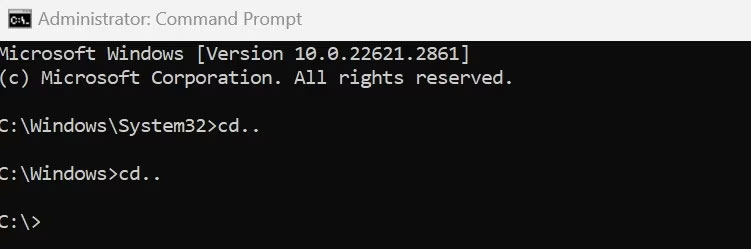
Suppose you want to navigate from your starting point (C:\Windows\System32) to your Downloads folder (C:\Users\
First, you need to return to the C: drive root. To do this, use the `cd..` command twice to move out of the System32 and Windows directories, bringing you back to the root directory.
Now, if you are unsure of the exact name of the first directory you need to enter, you can list the available folders to find it-simply type dir to display the list.
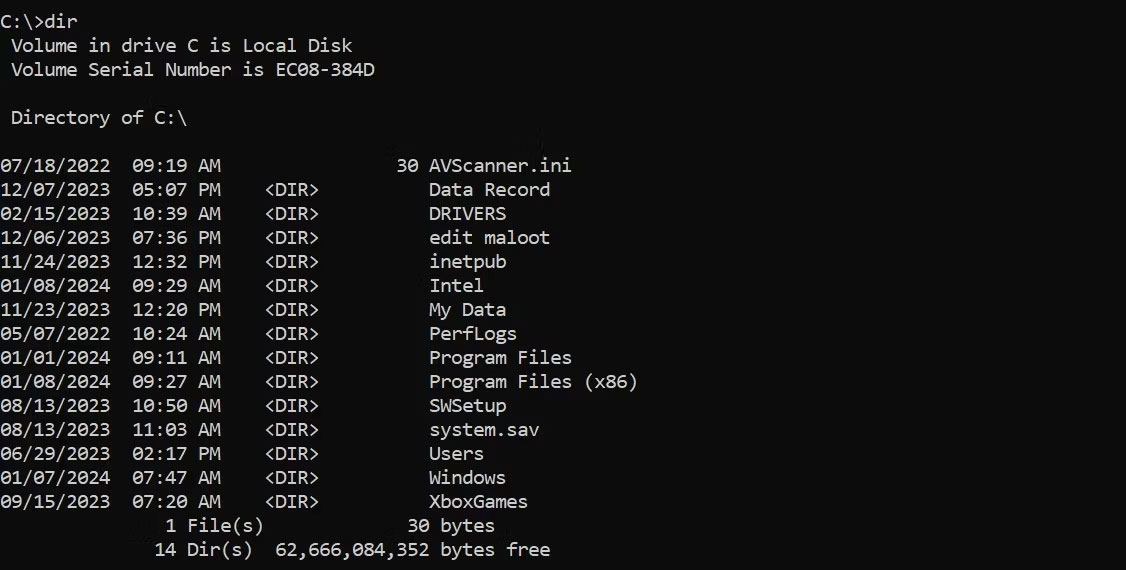
Once you identify the Users directory, type cd Users to move into it. From there, you can continue to the next two directories using the `cd` command as follows:
cd <username>cd Downloads
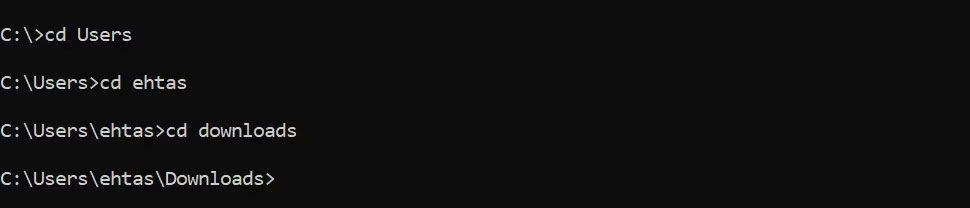
Note that your system will not show a folder named ehtas as seen in the example; that is just a placeholder username. You should enter your own username there.
Two Shortcuts for Easier Directory Navigation
In addition to the commands discussed, these two shortcuts will make navigating the Command Prompt even easier:
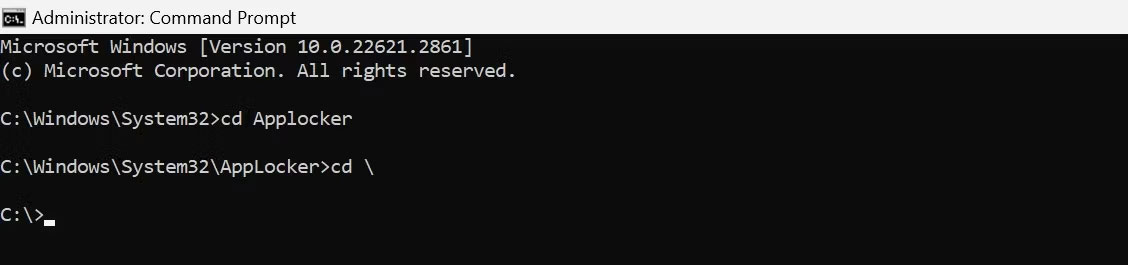
1. You can use the `cd` command with the syntax "cd \" to return immediately to the root directory of your current drive. For example, if you are deep within C:\Windows\System32\AppLocker and want to jump straight back to C:\, type this command and press Enter.
2. Similarly, the `cd` command alone isn't enough to switch between different drives. To switch drives, type the drive letter followed by a colon (for example, "D:") from the root or any other directory.

How to Open Command Prompt in a Specific Folder via File Explorer
Opening the Command Prompt directly from File Explorer eliminates the need to manually navigate through multiple directories using commands.
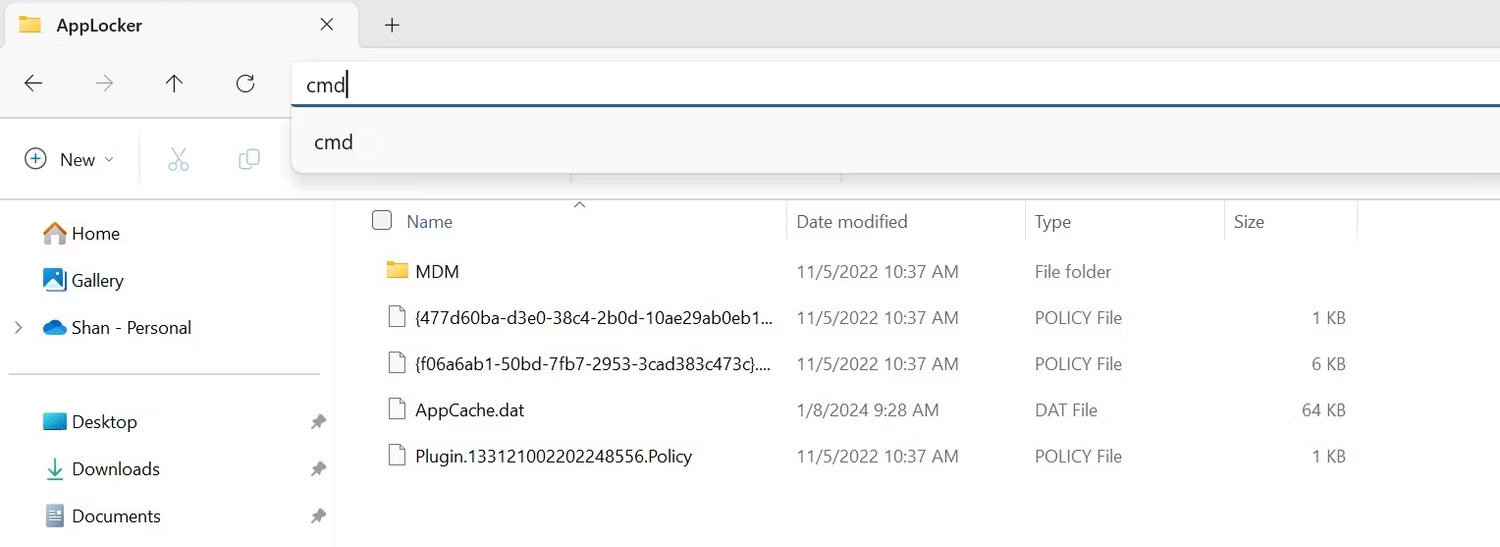
Open File Explorer by clicking the folder icon on your taskbar. Navigate to the folder you want to access in Command Prompt. Type "cmd" into the address bar and press Enter. This will launch Command Prompt already set to that specific directory.
Using the Command Prompt may not feel intuitive at first, and it will certainly take some time to master. However, once you are proficient with the `cd` command and other navigation tools, you will be able to browse through your computer's directories with ease and speed.