
Windows offers many more keyboard layouts than QWERTY. With just a few clicks, you can add new keyboard layouts, such as DVORAK and AZERTY, and then switch to that layout instead. Here is everything you need to know.
How to add a keyboard layout in Windows 11
Many keyboard layouts are already installed for your preferred language. To add them to Windows 11, follow the steps below:
1. Press Win + I to open Settings, then go to Time & language > Language & Region.
2. Click the three-dot icon next to your preferred language (the icon at the top) and select Language Options.
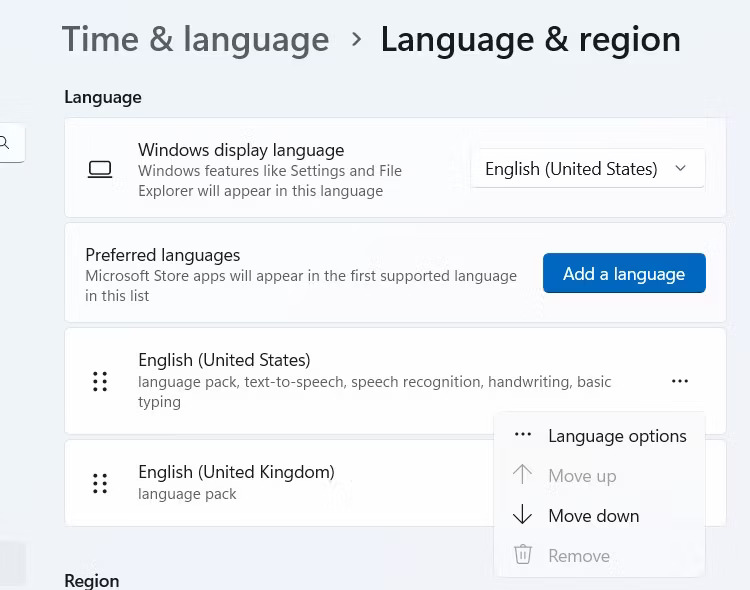
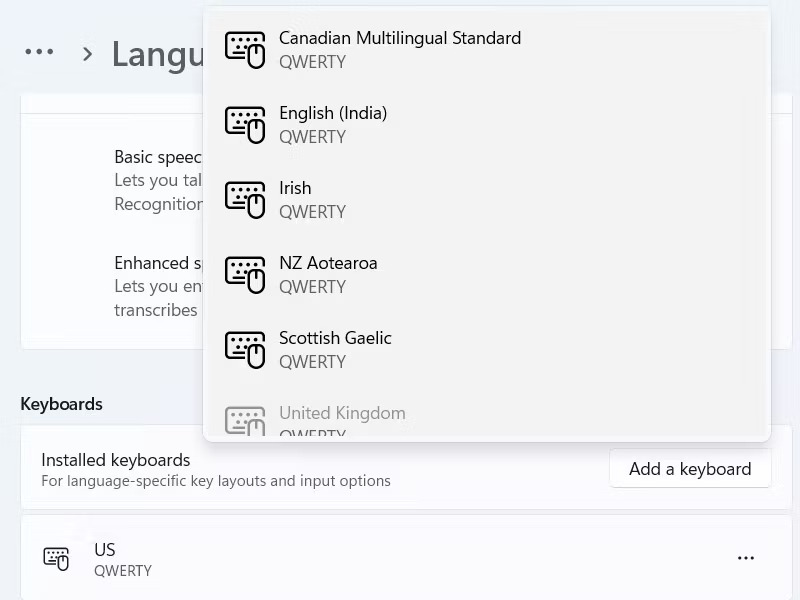
3. In the Keyboards section, click Add a Keyboard and select another keyboard layout from the available options.
You can have additional keyboard layouts by adding a new language. However, this requires an internet connection to download the new language. Therefore, ensure you are connected to the Internet and follow the steps below:
1. On the Language & Region page in Settings (step 1 above), click Add a Language.
2. In the pop-up window, select the language you want to install and click Next.
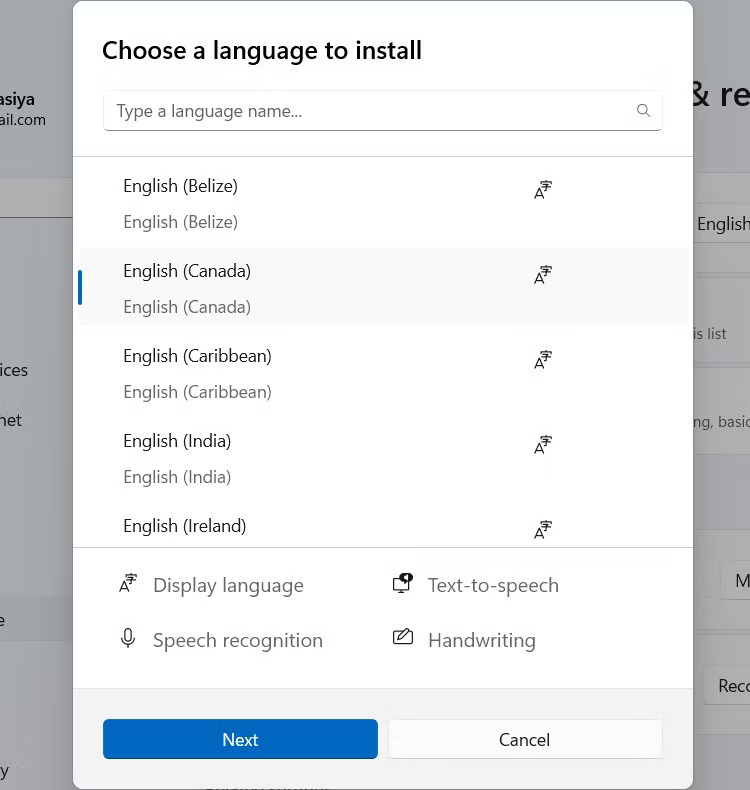
3. Press Install for Windows 11 to download and install the new language.
4. Follow steps 2 and 3 above to add a new keyboard layout for the language you just installed.
If you still cannot find your preferred keyboard layout, you should consider creating a custom keyboard layout.
How to change keyboard layout in Windows 11
To change the keyboard layout, click the language switcher in the system tray and select another layout from there.
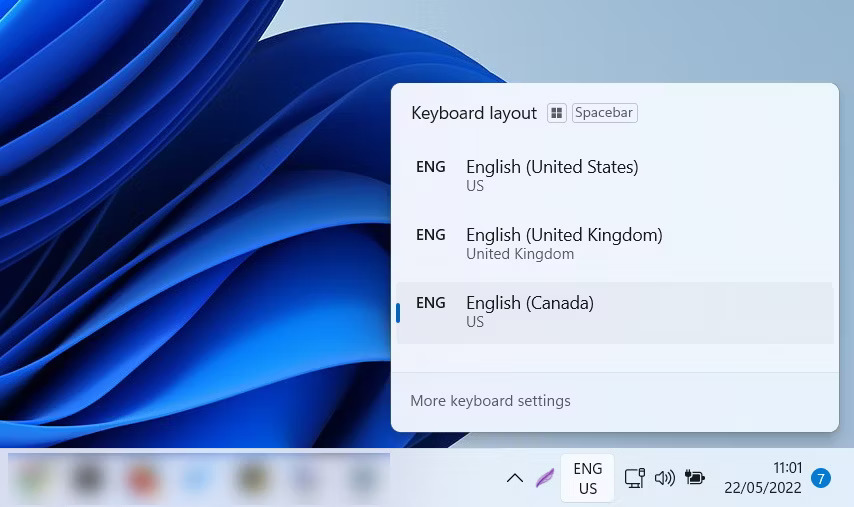
Additionally, you can press and hold Win and then press the Space key to switch between different keyboard layouts. You can do the same by holding the Shift key and pressing Alt.
How to change the order of keyboard layouts
Keyboard layouts appear in the list in the order you added them to Windows. However, you can now change their order. Here is how to do it:
Press Win + I to launch the Settings app. Navigate to the Time & language option. Click on the Keyboard option.
Now, click the three horizontal dots next to the keyboard in the list. To move a keyboard layout up in the list, select the Move up button. Similarly, click the Move down button to move a layout down one position in the list.
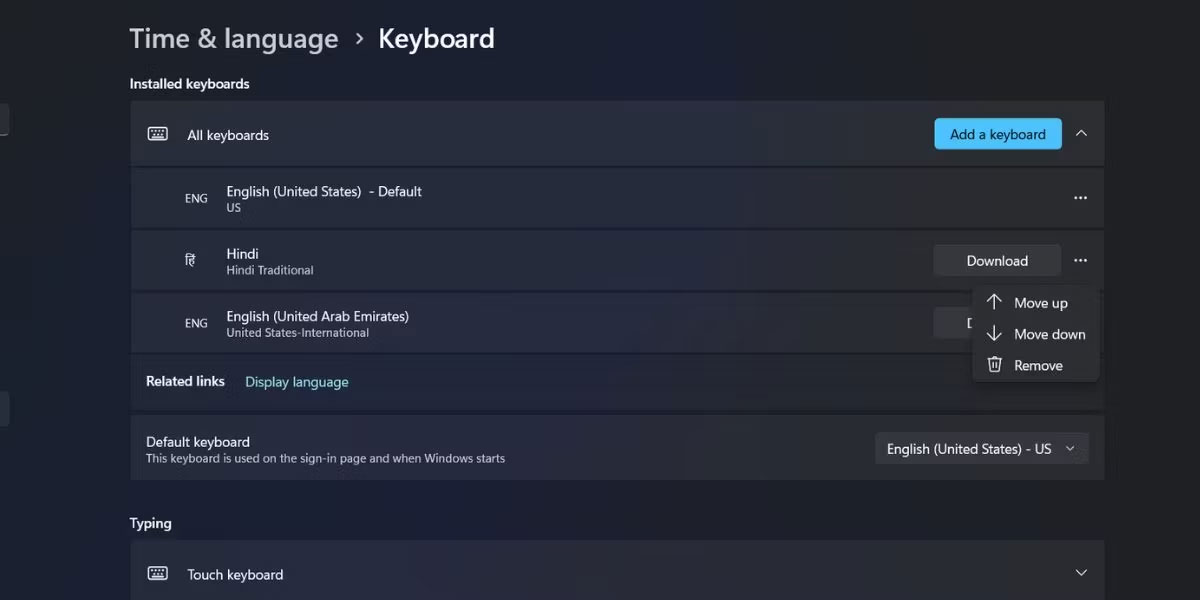
You can also click on a keyboard in the list, then drag and drop the layout up or down in the list. Close Settings after you have finished editing the order.
Now, press Windows + D to open the Keyboard Layout menu on the Taskbar. You will notice that the order appears exactly as you configured it in the Settings app.
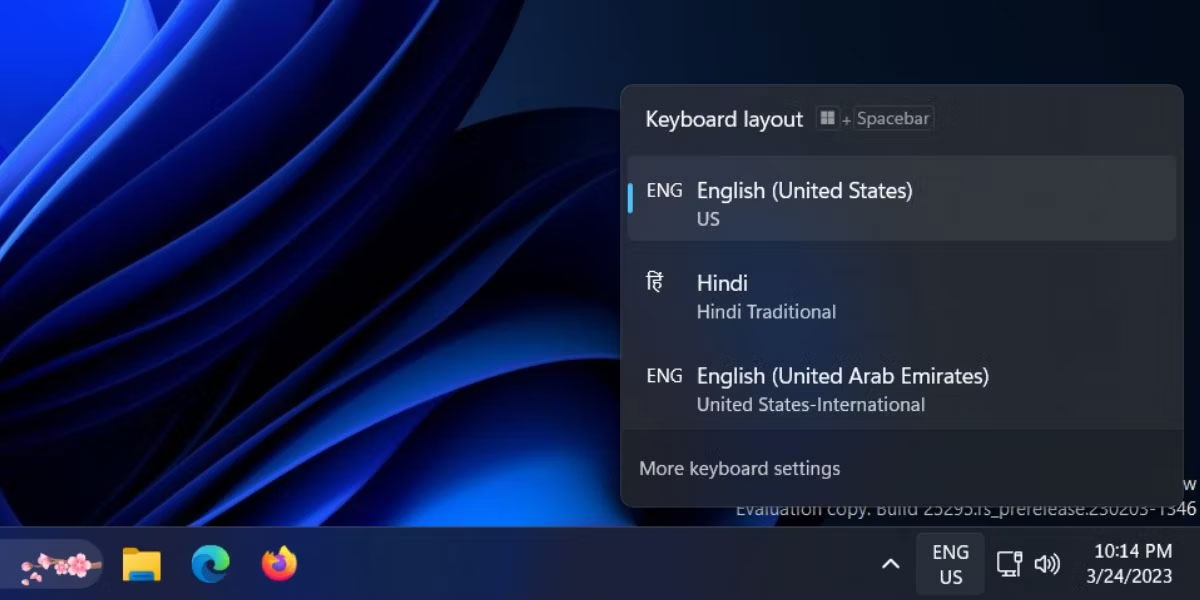
The keyboard layout list can get long, especially if you input many languages or have multiple users, each with their own language options accessing the system. Now, you can easily move your most favorite keyboard layouts to the first or second position and move less-used layouts to the bottom.
How to remove a keyboard layout in Windows 11
If you no longer need a keyboard layout, you can easily remove it. To do that, follow the steps below:
- Press Win + I to open Settings, then go to Time & language > Language & Region.
- Click the three-dot icon next to the keyboard layout you want to remove and select Language Options.
- In the Keyboards section, click the three-dot icon next to the keyboard layout and select Remove.
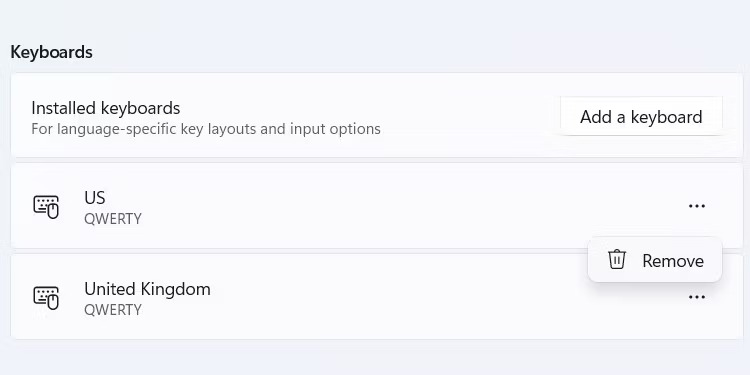
You can also remove a language if you no longer need it. To do that, follow the steps below:
- Go back to Language & Region in Settings.
- Click the three-dot icon next to the language you want to remove and click Remove.
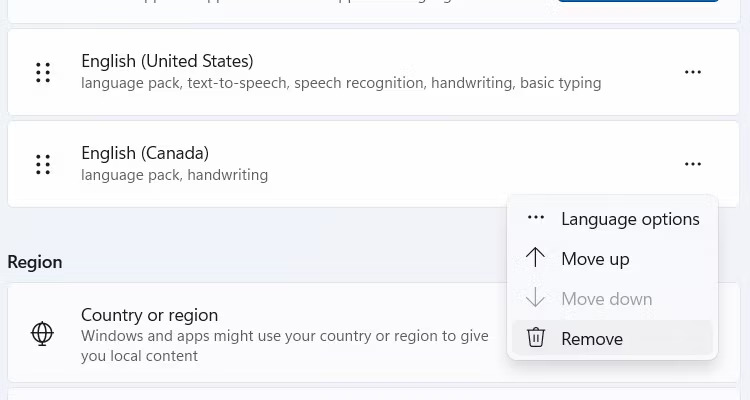
The language and its associated keyboard layouts will now be removed from your computer.
If you want to quickly rearrange your Windows keyboard, simply change its layout. You don't have to be stuck with the default layout if it doesn't meet your needs. Furthermore, layouts are very flexible and can be used on physical keyboards or on-screen touch keyboards.