


Modern Laptops often feature multiple CPU cores, and typically, the Windows operating system is quite capable of assigning tasks to different CPU cores. However, you can improve performance and resolve specific issues by assigning a dedicated CPU core to a particular application, a process known as setting processor "affinity."
How to set CPU core affinity in Windows
To set processor affinity in Windows, follow these steps:
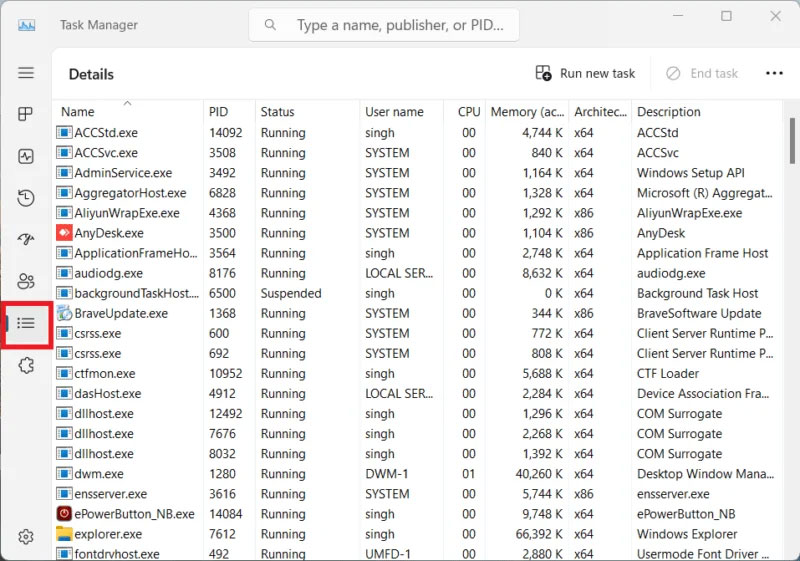
Open Task Manager by pressing Ctrl + Shift + Esc. Click on the Details tab to view the list of running processes.
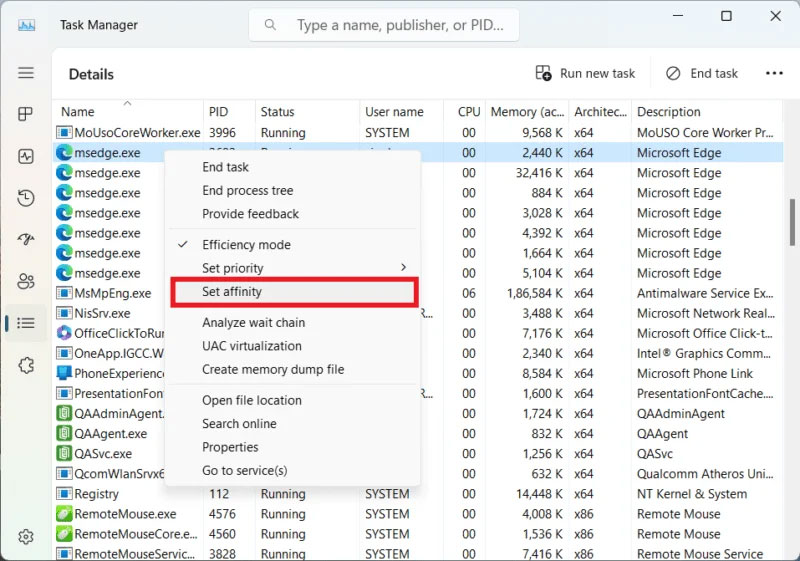
Right-click on the process you want to set affinity for and select Set affinity from the context menu.
In the pop-up window that appears, check the box next to the processor(s) you want the process to run on.
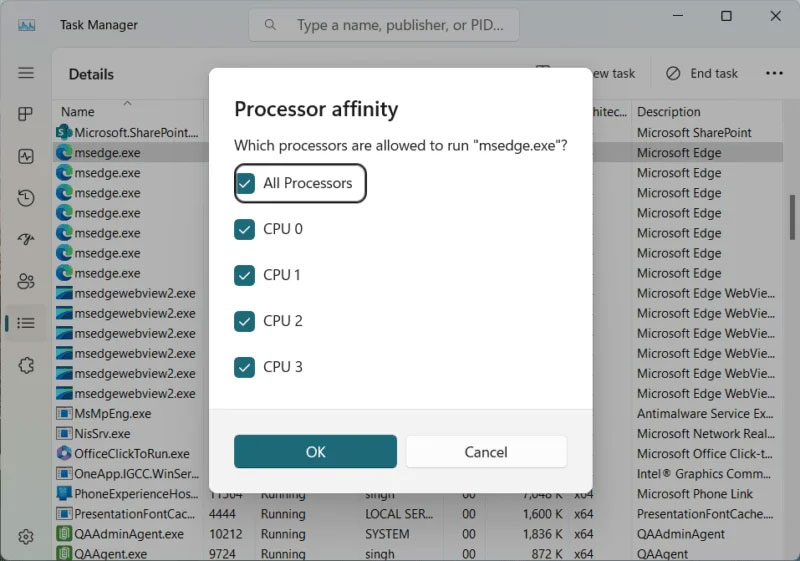
Click OK to save the changes and close the window.
How to set process priority in Windows
Additionally, if you want to set the priority of a process in Windows to force the system to allocate CPU resources to a specific process over others, follow these instructions:
Open Task Manager by pressing Ctrl + Shift + Esc and click on the Details tab to view the list of running processes. Right-click on the process you want to set priority for and select Set Priority from the context menu.
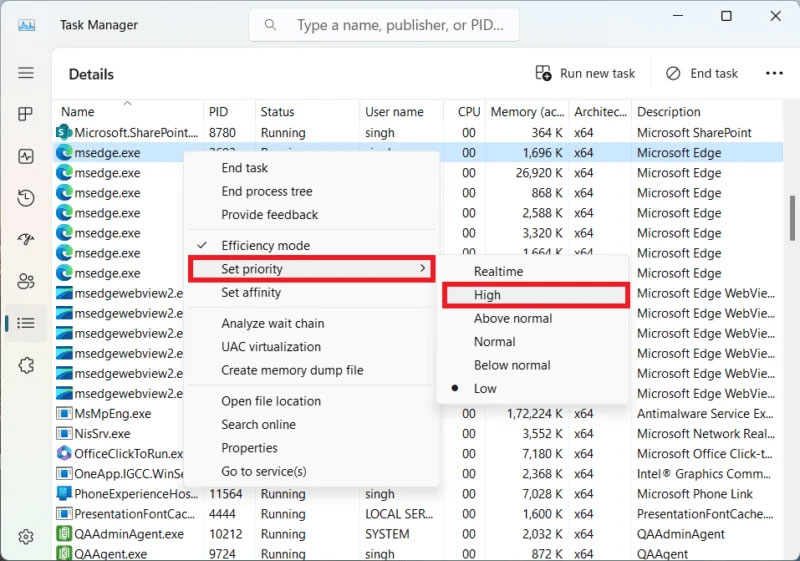
Select the desired priority level from the drop-down menu and click OK to save your changes.
The available priority levels are:
- Realtime: The process will have the highest priority and consume the most CPU time.
- High: The process will have high priority and be allocated a significant amount of CPU time.
- Above normal: The process will have higher than normal priority and be allocated more CPU time than standard processes.
- Normal: The process will have standard priority and CPU time allocation.
- Below normal: The process will have lower than normal priority and be allocated less CPU time than standard processes.
- Low: The process will have low priority and be allocated minimal CPU time.
Overall, manually applying processor affinity can be considered a useful method to optimize your system's performance. However, it is important to perform this process carefully and with a full understanding of the potential risks.











