

The Clean Boot process on the Windows 11 operating system can help you troubleshoot issues ranging from poor computer performance to sudden crashes of any specific program. This method works by starting your computer with a minimal set of drivers and applications, helping to identify the cause of the issue.
Fortunately, booting Windows 11 into Clean Boot mode is a smooth and uncomplicated process.
How to perform Clean Boot on Windows 11
Clean Boot in Windows is a troubleshooting method that helps start the system with the minimum necessary programs and drivers. This process helps determine whether an additional application is causing the issue or if the cause is a fault in the system files.
The main benefit of performing a Clean Boot is simple: if the issue persists after booting into the Clean Boot environment, the problem may lie in another area of your computer. Conversely, if no issues occur during Clean Boot, it is likely that a specific application is causing the problem. This way, once the cause is identified, you can proceed with the necessary troubleshooting steps.
To perform a Clean Boot on Windows 11, follow these instructions:
- Go to the search bar in the Start menu, type “msconfig” and select System Configuration from the results.
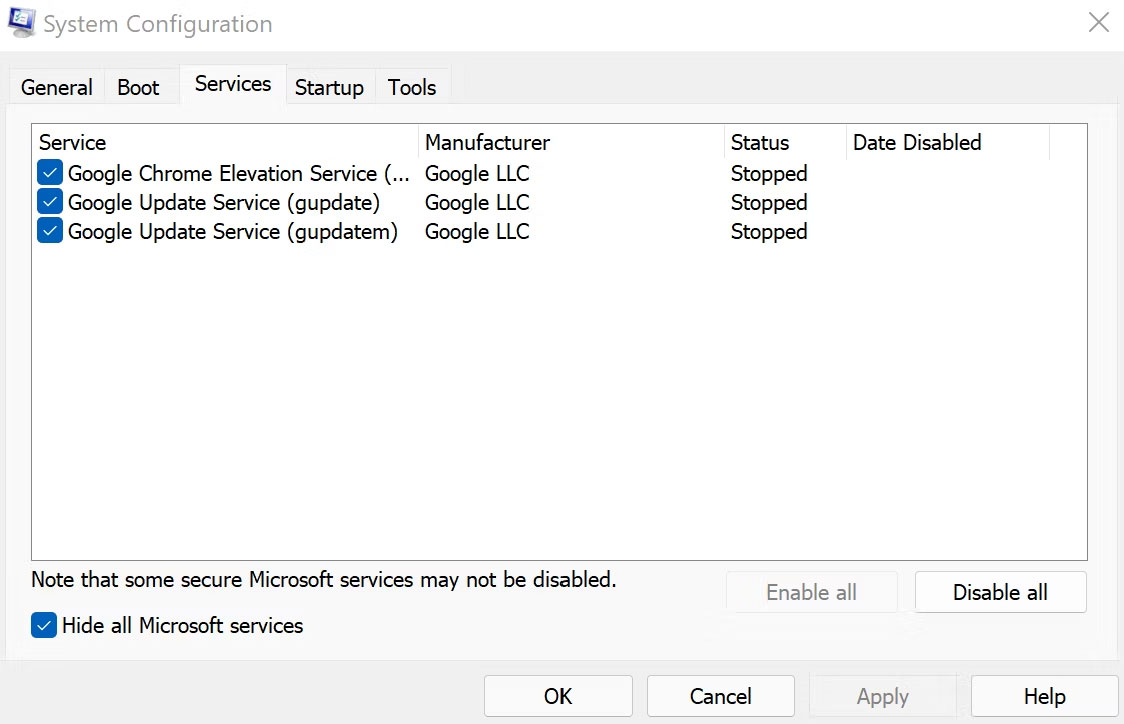
- Switch to the Services tab, check Hide all Microsoft Services and click Disable All.
Now, you must launch Task Manager. Here is how you can do it:
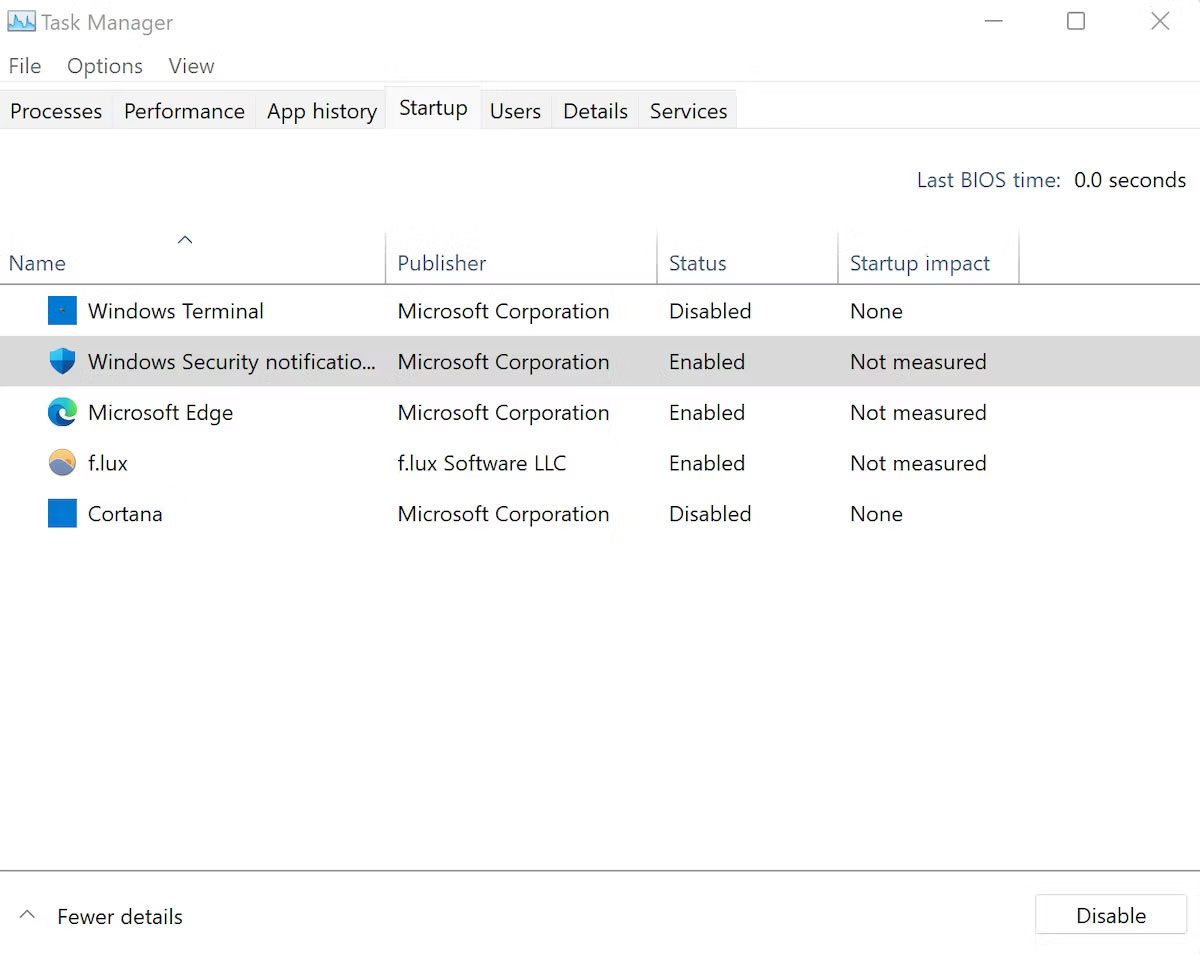
- In System Configuration, go to the Startup tab and select Open Task Manager.
- Now, disable each application one by one in the Startup tab.
- Return to the Startup tab in System Configuration and select OK.
On your next restart, Windows will launch in a Clean Boot environment.
If the issue continues to appear, the cause may lie in a different problem. Therefore, you will need to test different methods to resolve the situation. If you encounter this case, proceed to the next step to restore the normal boot process.
However, if your computer operates stably after performing a Clean Boot, you have achieved the desired result. From here, you should enable applications one by one to identify which application is causing the error on your Windows operating system. This is the method:
- Open System Configuration.
- Go to the Services tab, select an application in the upper half of the list and click Enable. (If the issue reappears, this action will isolate the lower half of the applications.)
- Then, click Task Manager and go to the Startup tab.
- Select the upper half of the services and enable (Enable) them.
- Finally, press OK and select Restart.
Repeat the process until you no longer have problematic applications on your PC.
How to stop Clean Boot on Windows 11
Whether the Clean Boot process fixes your Windows 11 error or not, you must eventually exit it. To do so, follow the steps below:
- Go to the search bar in the Start menu, type 'msconfig' and select System Configuration.
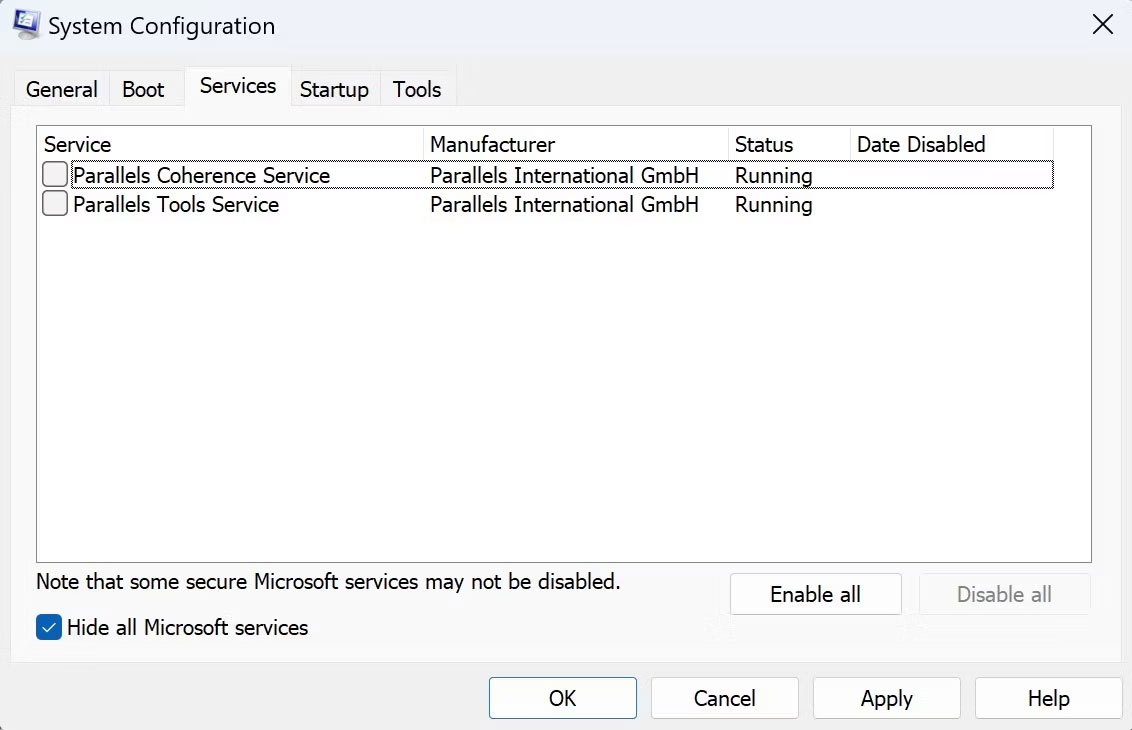
- Click on the Services tab, check the Hide all Microsoft services box and click the Enable all button.
Now, follow these steps:
- Now, click Startup > Open Task Manager.
- Select each disabled application and click Enable.
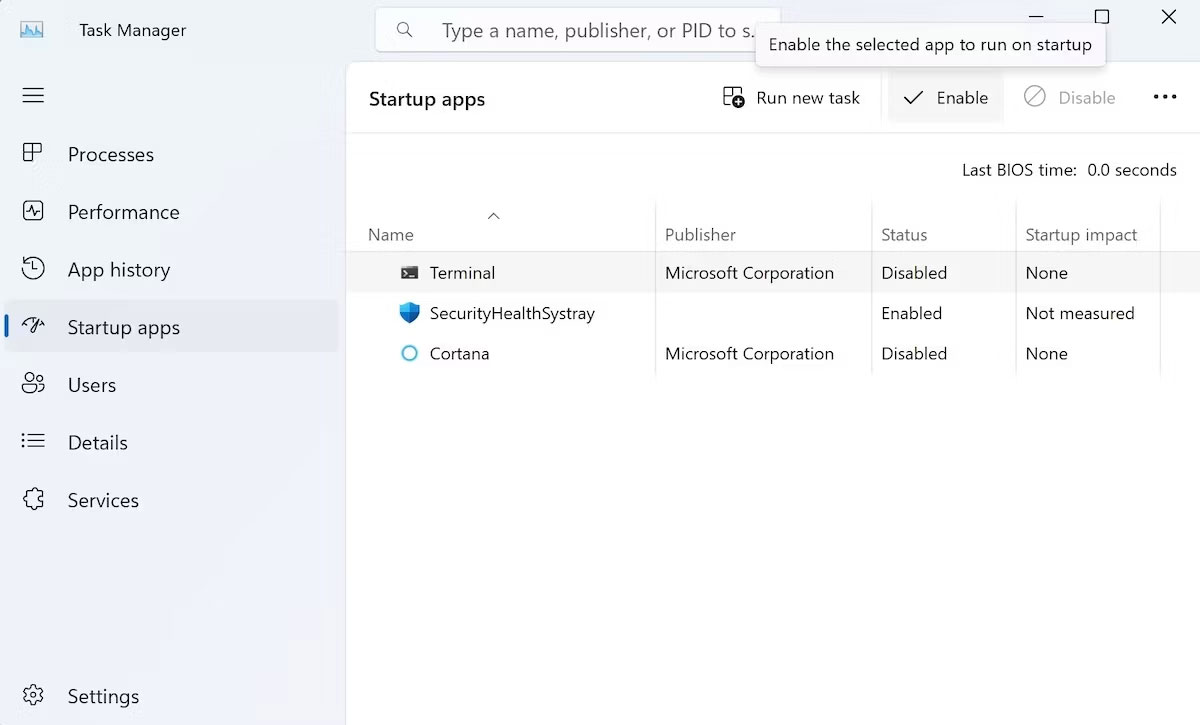
Now, restart your computer, and from this point forward, Windows 11 will boot normally.
The Clean Boot process is a useful method to remember for identifying issues on the Windows 11 operating system. Although users sometimes do not clearly understand the difference between Clean Boot and Safe Boot, Clean Boot allows users to have more control over the applications and services that can run during the boot process.











