Nvidia has just announced Chat With RTX, an AI chatbot that runs on your PC, capable of providing functions similar to ChatGPT and even more features. To use Nvidia's new AI chatbot, users only need to own an Nvidia RTX GPU.
What is Nvidia Chat with RTX?
Nvidia Chat With RTX is an artificial intelligence application that allows you to deploy Large Language Models (LLM) on your personal computer. This allows you to utilize this AI chatbot offline whenever you want, instead of needing an internet connection like other AI chatbots.
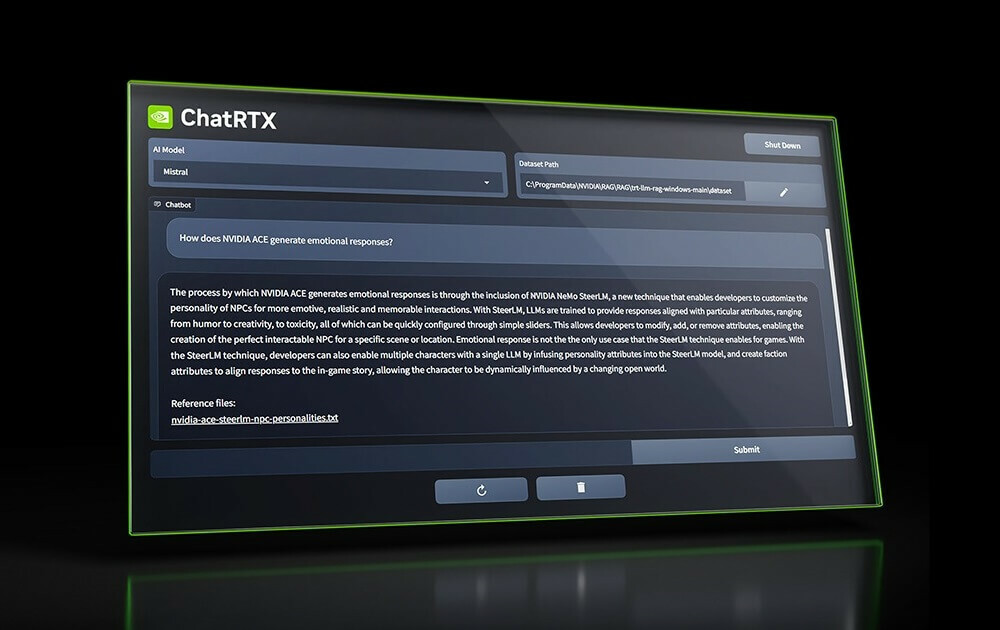
The Chat With RTX application uses TensorRT-LLM technology to enhance the performance of RTX and the Mistral 7B LLM through quantization, ensuring fast response times and quality comparable to other online AI chatbots. Additionally, this application provides Retrieval-Augmented Generation (RAG) capabilities, allowing the chatbot to access your files and generate personalized answers based on the provided data. This helps you tailor the chatbot to provide an experience suited to your personal needs.
To use Chat With RTX, you simply need to download and install the application like any other software. However, this AI chatbot requires certain minimum technical specifications to install and operate effectively.
- RTX 30-Series or 40-Series GPU
- 16GB RAM
- 100GB free storage space
- Windows 11
How to use Nvidia Chat With RTX
While you can use Nvidia's Chat With RTX as a standard online AI chatbot, you should consider its RAG feature. This feature allows you to customize its output based on the files you grant it access to.
Step 1: Create a RAG folder
To start using RAG on Chat With RTX, create a new folder to store the files you want the AI to analyze.
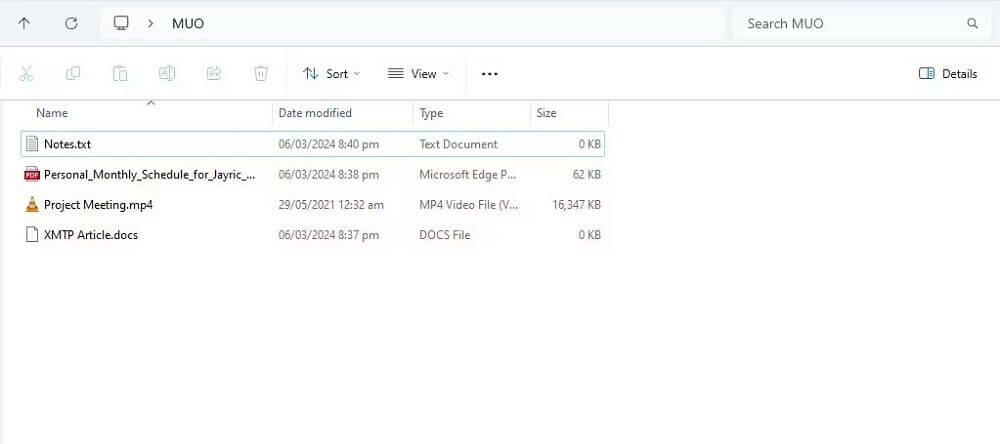
After creating it, place your data files into the folder. The data you store can include various topics and personal file types such as documents, PDFs, text files, and videos. However, you should limit the number of files in this folder to avoid affecting performance. More data to search through means Chat With RTX will take more time to answer specific questions (though this also depends on your hardware).
Now that your database is ready, you can set up Chat With RTX and start using that database to answer your questions.
Step 2: Set up the environment
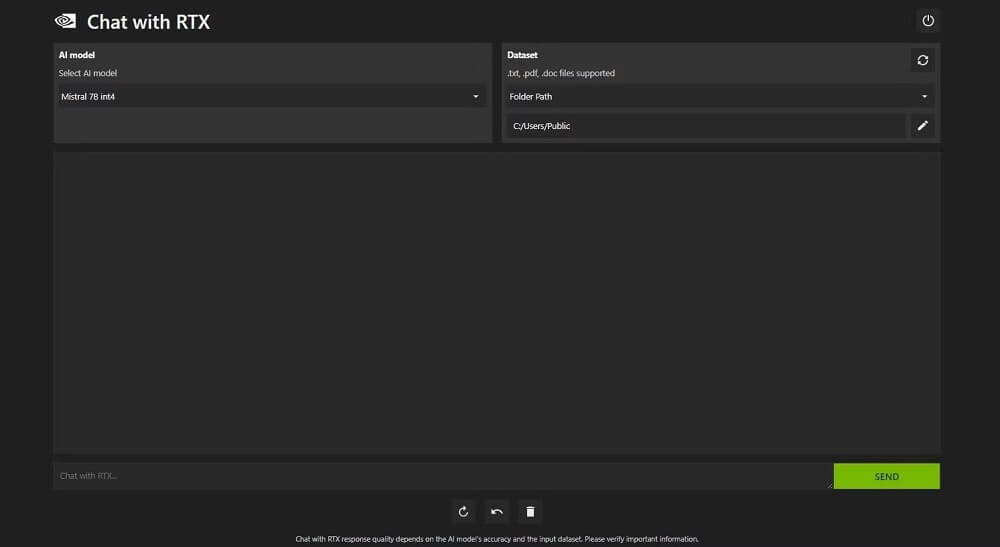
In Dataset, ensure that the Folder Path option is selected. Now, click on the edit icon (the pencil icon) and select the folder containing all the files you want Chat With RTX to read. You can also change the AI model if other options are available (currently only Mistral 7B is available, with more likely to be added in the future).
Step 3: Ask questions with Chat with RTX!
There are several ways to query Chat With RTX. First is using it as a regular AI chatbot. Since this AI has RAG capabilities, you can also use it as a personal AI assistant.
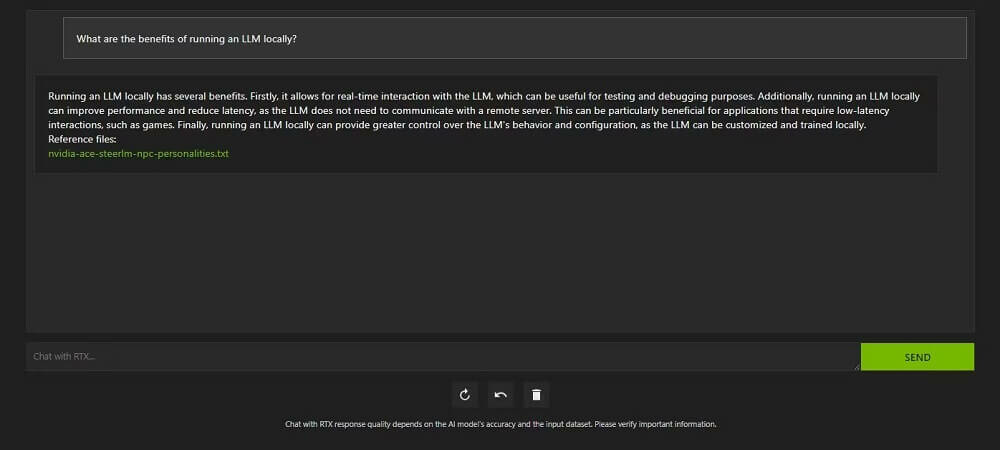
There are many ways you can apply Chat With RTX's RAG to your advantage. For example, you can use this tool to summarize information from legal documents, generate code related to a software project you are developing, identify key points in a video you don't have time to watch, and many other applications.
Step 4: Extended Features
In addition to local data folders, you can use Chat With RTX to analyze YouTube videos. To do this, in Dataset, change the Folder Path to YouTube URL, then copy the YouTube URL you want to analyze and paste it below the drop-down menu.
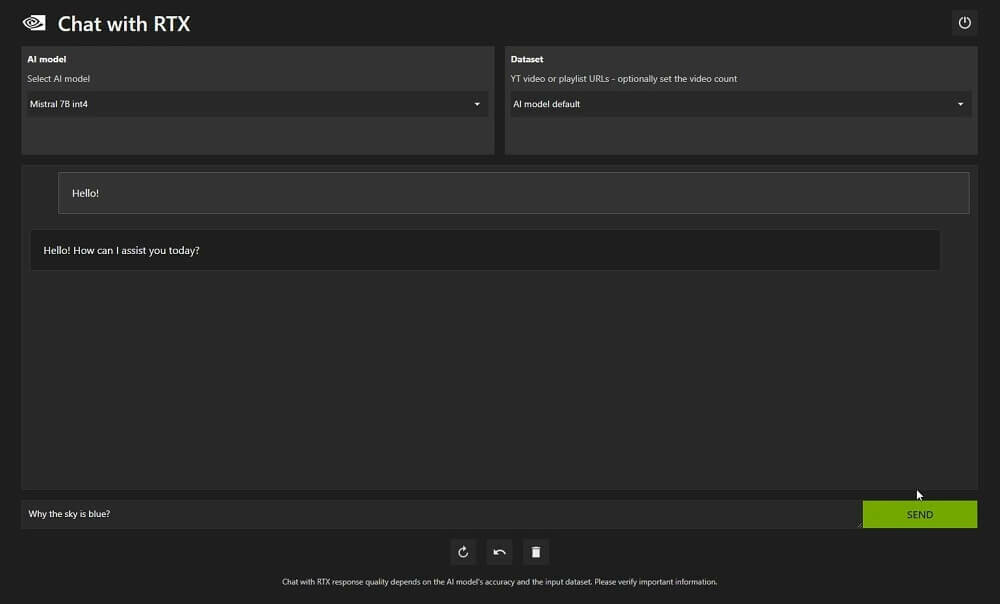
Chat With RTX's YouTube video analysis is quite good and provides accurate information, making it useful for research, quick analysis, etc.