

The Downloads folder serves as the storage location for all files downloaded from the Internet on Windows. From there, you can access and manage all the files you have retrieved from the web. However, this may become impossible if the Downloads folder stops responding on your Windows computer.
Below, this article lists several effective troubleshooting tips to help the Downloads folder run smoothly on your Windows PC.
1. Restart the Windows Explorer process
Restarting the Windows Explorer process is an easy way to fix temporary issues with File Explorer. If it is just a one-time glitch, the Downloads folder will run smoothly on your PC again.
2. Optimize the Downloads folder for general items
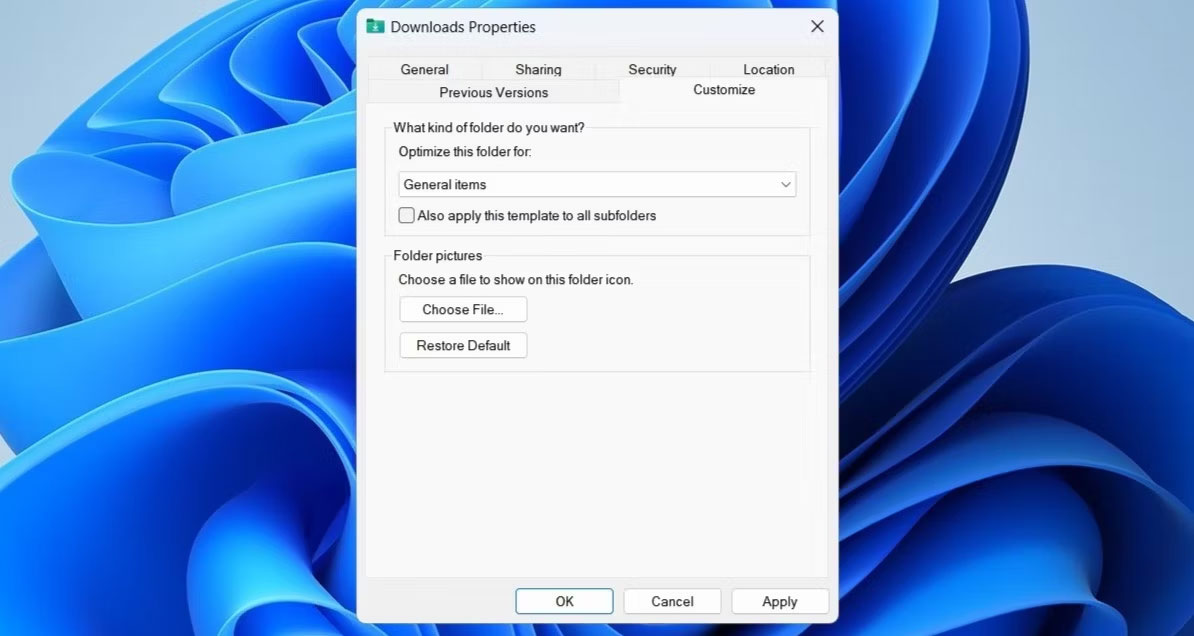
The Automatic Folder Type Discovery feature in Windows optimizes your folders depending on the type of files they contain. However, this optimization can sometimes lead to slow or unresponsive behavior, especially when there is a large number of files in the folder. Here is what you can do to avoid that.
- Open File Explorer on your PC.
- Right-click the Downloads folder and select Properties.
- Go to the Customize tab.
- Click the drop-down menu under Customize this folder for and select General items.
- Click Apply > OK.
3. Configure File Explorer to show icons instead of thumbnails
Another thing you can do to make the Downloads folder run smoothly is to configure File Explorer to show icons instead of thumbnails. Here are the steps to follow.
- Press Win + S to access the search menu.
- Type file explorer options into the text box and press Enter.
- In the View tab, check the box Always show icons, never thumbnails.
- Click Apply > OK.
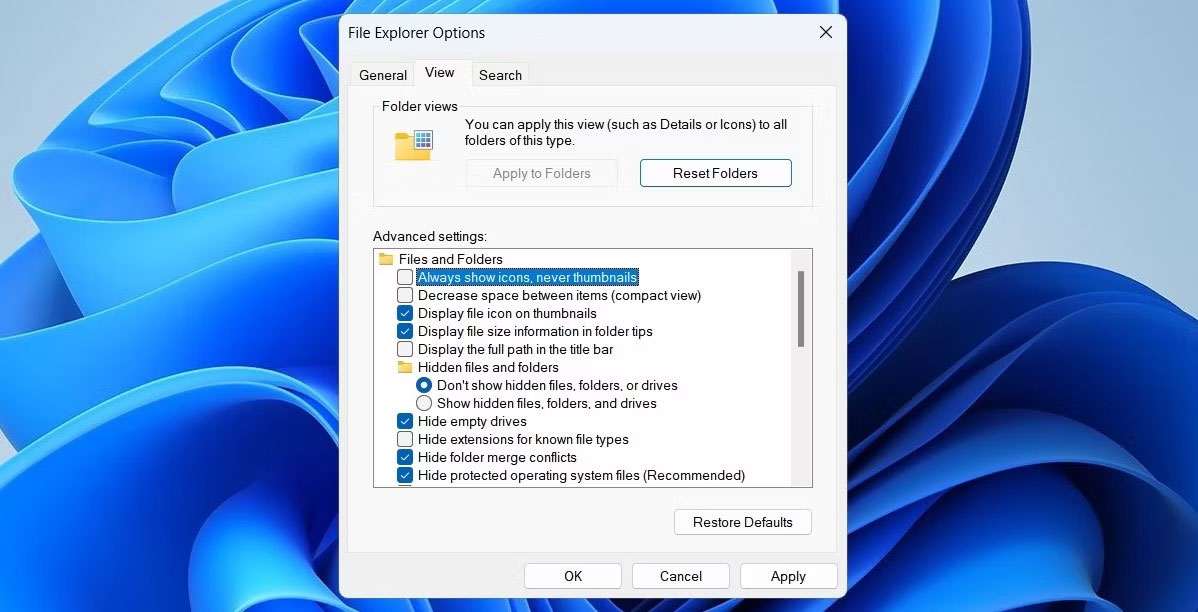
Keep in mind that this setting will apply to all folders on your system, not just the Downloads folder.
4. Delete unwanted files from the Downloads folder
Having too many files in the Downloads folder can cause the folder to hang and become unresponsive on your Windows computer. Some users on Microsoft forums have reported fixing the unresponsive Downloads folder by deleting unnecessary files from that folder. Additionally, you can move your files to another location to free up the Downloads folder.
5. Clear File Explorer history
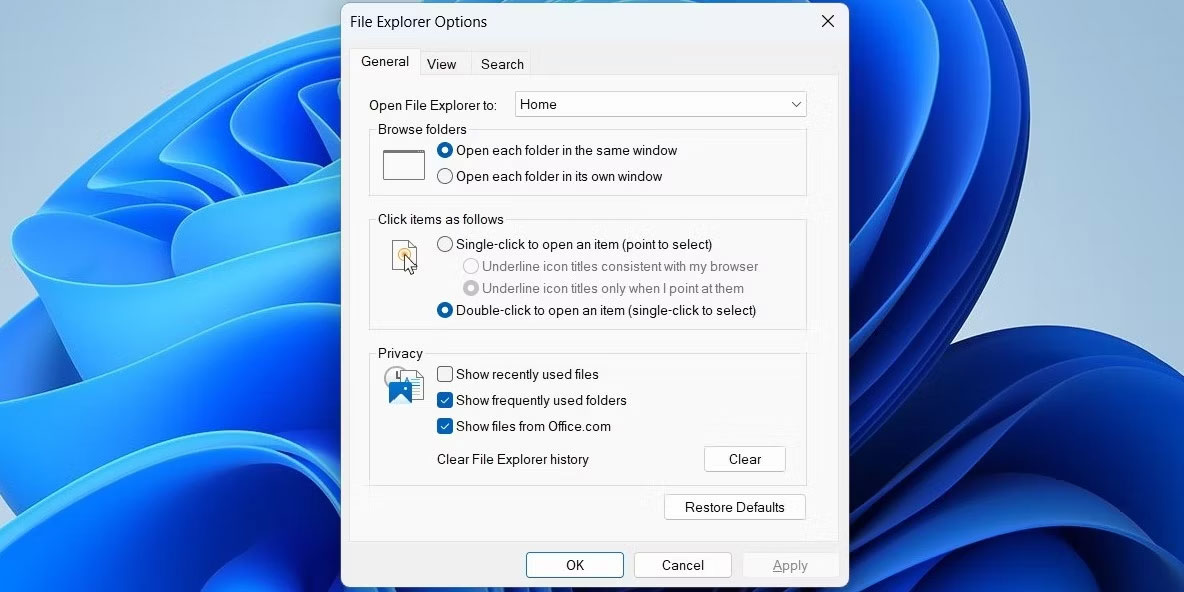
File Explorer on Windows keeps a record of all your previous search queries to enhance your experience. However, if this data becomes inaccessible, the Downloads folder may stop responding on Windows. You can try clearing this data to see if it makes everything work again.
- Click the magnifying glass icon on the taskbar.
- Type file explorer options into the box and select the first result that appears.
- In the General tab, click the Clear button next to Clear File Explorer history.
6. Try some general fixes for an unresponsive Downloads folder
If the Downloads folder still does not respond, you can try the following troubleshooting tips to restore it to normal.
- Run an SFC scan: If your PC has corrupted or damaged system files, it can disrupt Windows processes and lead to such abnormalities. To fix this, you can run an SFC (System File Checker) scan to repair problematic system files.
- Scan for malware: The presence of malware on your system can also cause issues with the Downloads folder. To check for this possibility, you can try scanning your PC for malware using PowerShell or Microsoft Defender.
- Install Windows updates: A buggy or outdated Windows build can hinder File Explorer processes and cause the Downloads folder to malfunction. Therefore, you should install all pending Windows updates and see if that helps.
- Perform a system restore: It is possible that recent changes made to your system are causing the Downloads folder to freeze frequently. If so, you can use System Restore to revert Windows to a previous state and fix the issue.











