

Hibernate mode on Windows is a useful feature that allows you to save your session, turn off your computer, and then resume your work exactly where you left off. However, there may be instances where your Windows PC does not enter hibernation as commanded, causing the PC to remain powered on.
If you encounter a similar issue, do not worry. Below are some effective solutions that will help fix the problem immediately.
1. Run Power Troubleshooter
Running the built-in Windows troubleshooter is the most effective way to fix common system-level issues. In this case, you can run the Power Troubleshooter to see if Hibernate mode starts working again. Here is how to do it:
- Press Win + I to open the Settings app.
- Click on Troubleshoot.
- Select Other troubleshooters.
- Click the Run button next to Power.
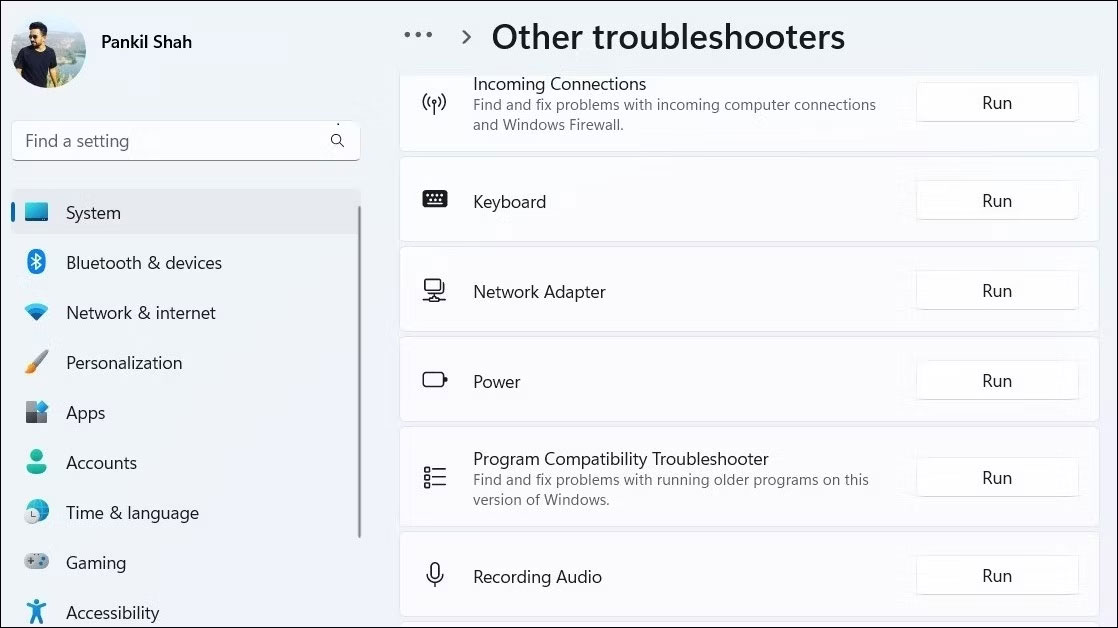
Allow the troubleshooter to scan your system for any issues and resolve them. Then, try using the Hibernate option again to see if it works.
2. Disable Fast Startup
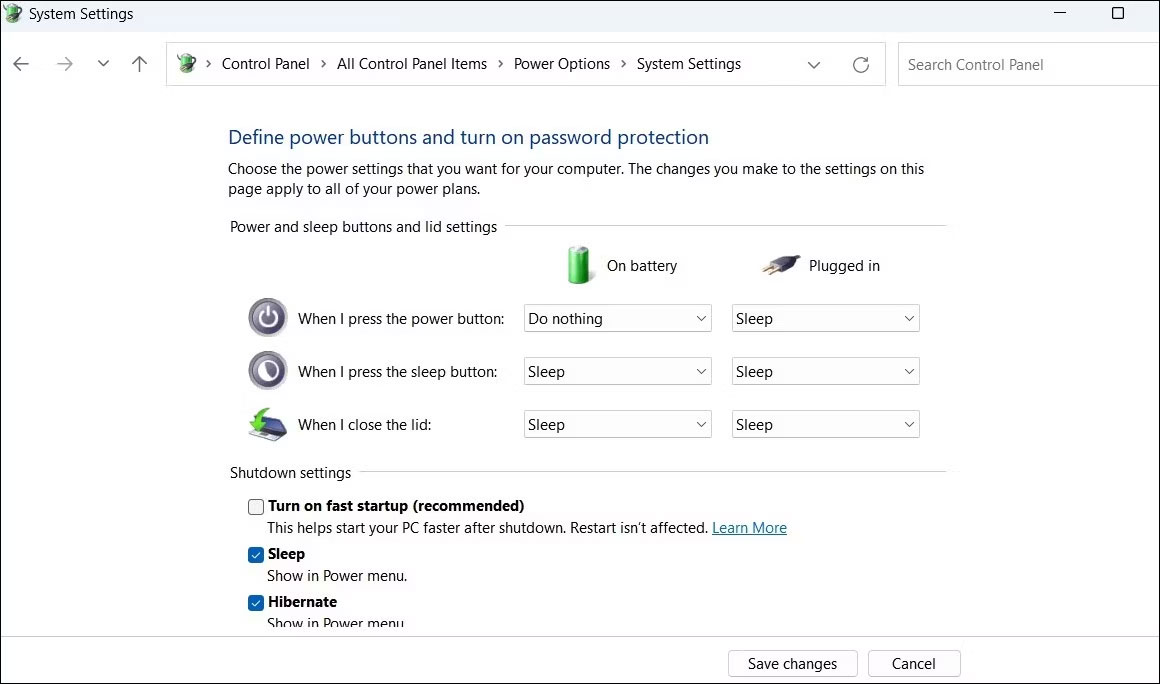
Fast Startup is a useful feature that helps you avoid slow boot times on your Windows computer. However, it can sometimes disrupt the functionality of Hibernate mode and cause issues. You can try turning off this feature to see if it helps.
3. Reset your power plan
If disabling Fast Startup does not work, there may be an issue with your current power plan settings. In that case, you can reset your Windows power plan to default settings and start fresh. To do this, follow these steps:
- Use one of the many ways to run Command Prompt as an administrator.
- Type the following command into the console and press Enter.
powercfg -restoredefaultschemes
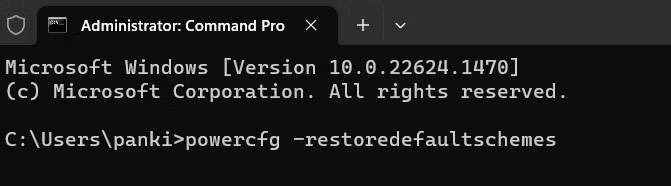
After completing the above steps, try using Hibernate mode once more.
4. Try basic fixes to resolve Hibernate issues on Windows
If the above fixes prove ineffective, you can try some general Windows fixes to resolve issues with Hibernate mode.
- Scan for malware: The presence of malware can lead to many system issues, including the one discussed here. To rule this out, you can try using the Microsoft Defender offline scan feature to find and remove malware.
- Update drivers: Outdated or incompatible device drivers can also prevent Hibernate mode from working correctly on Windows. Therefore, you should update outdated Windows drivers via Device Manager and see if that helps.
- Install Windows updates: Always keep your Windows PC updated to the latest version to benefit from the latest fixes and improvements. If the issue with Hibernate mode is caused by an operating system bug, installing Windows updates will help.











