

Are you encountering the “Word Found Unreadable Content” error? Here are some easy and quick steps to fix “Word Found Unreadable Content”.
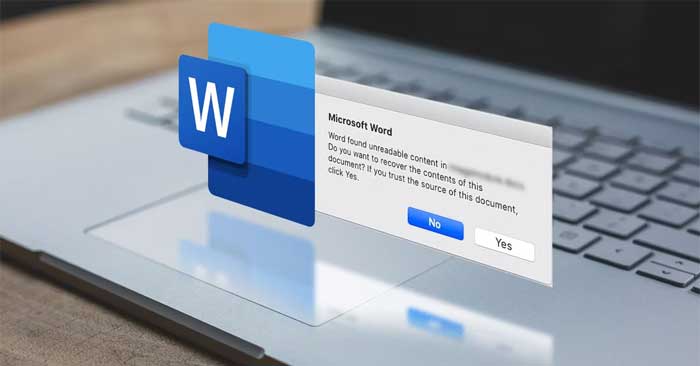
Does Word show the “Word Found Unreadable Content” error when you try to open a document? Even though Word remains one of the most popular word processors, it can still encounter issues sometimes.
When this happens, try basic troubleshooting steps like restarting Word or your system. However, if you are lucky, the methods below will help you fix the “Word Found Unreadable Content” error very quickly.
Repair the document
The truth is, the error message doesn't tell you much about how to fix the problem. Even if you click Yes, Word may still fail to load the document content.
However, Word can help you fix this error. Follow these steps:
- Create a blank Word document.
- Go to File > Open.
- From Other locations, click Browse.
- Locate and select the problematic document.
- Expand the Open drop-down menu and select Open & Repair.
- Wait for Word to complete this process and check if the issue is resolved.
Disable Read-Only attribute
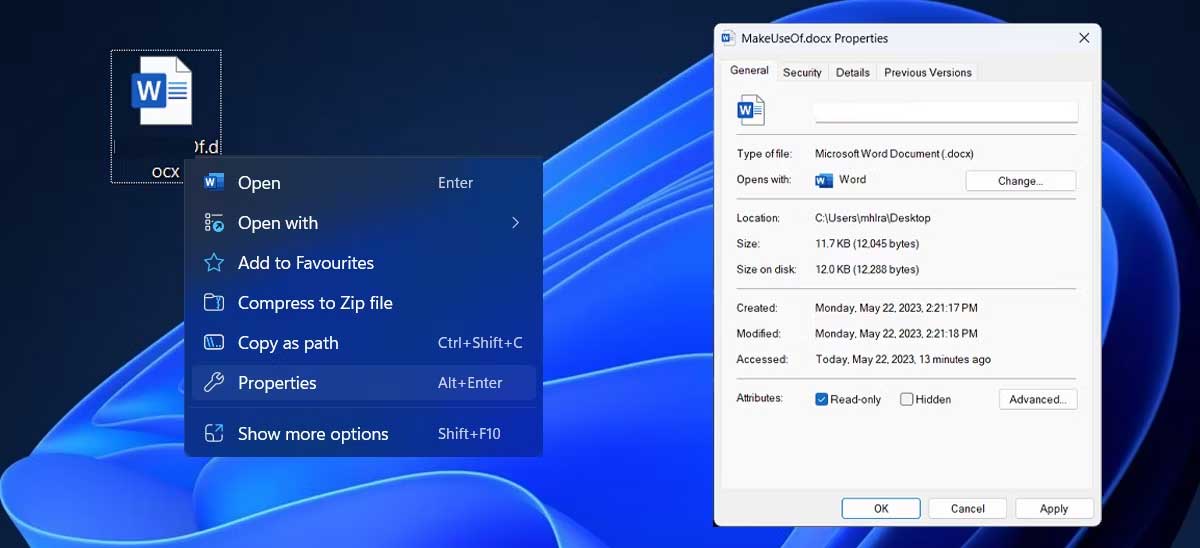
Another possible cause is that the content cannot be read because the document is set to Read-only. To fix this, right-click on the document and open the Properties menu. Here, select the General tab and uncheck Read-only. To save the changes, click Apply and then OK.
Repair Microsoft 365
If Word is not the only Microsoft 365 app experiencing issues, this could be a sign of a larger problem, such as Microsoft 365 missing critical updates or corrupted files.
To fix it on your computer, follow these steps:
- Press Windows + I to open the Settings menu.
- From the left pane, select Apps > Installed apps.
- Click the three-dot icon next to Microsoft 365 > select Modify.
- In the pop-up window, click Repair.
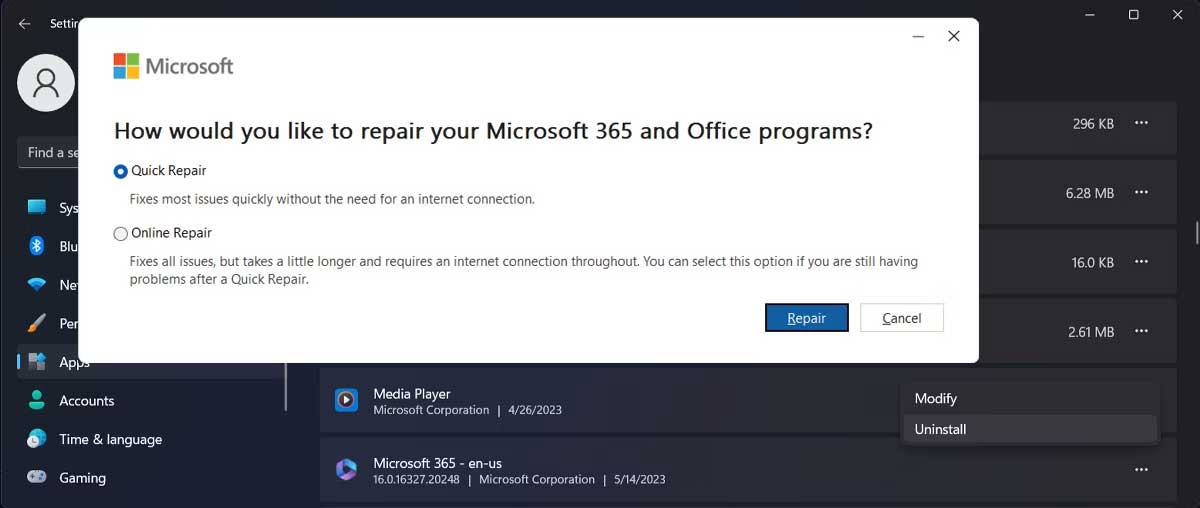
If you still cannot eliminate the unreadable content error, repeat the steps above but this time, select Online Repair. You may have to wait longer, but the likelihood of resolving the issue is higher.
Disable Protected View
The Protected View feature is designed to prevent you from opening dangerous files. However, this feature can sometimes be overly cautious, preventing you from accessing safe files and triggering the unreadable content error.
If you cannot open a personal document or a file from a trusted source, you can temporarily disable Protected View.
- Open Microsoft Word.
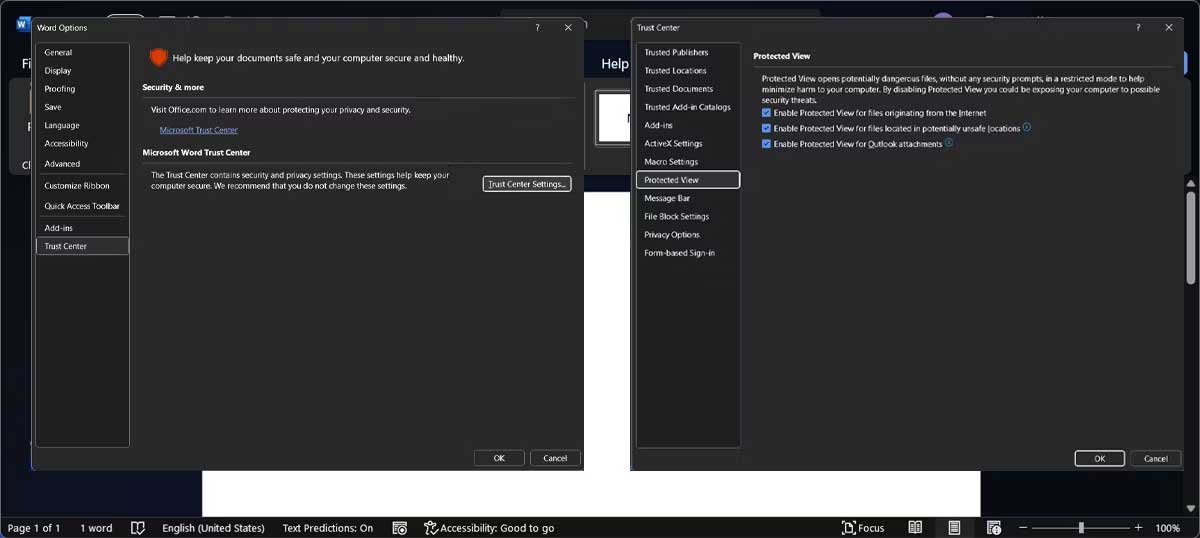
- Go to File > Options.
- Select Trust Center > Trust Center Settings.
- From the left menu, open Protected View.
- Uncheck all three options.
- Click OK.
Try reopening the problematic document. If it works, copy the content to a new document and re-enable Protected View. This way, you won't accidentally open a file containing malware.
Use Word's Recovery feature
Whenever you encounter issues with a Word document, you should use Recover Text from any file. This allows you to recover document content even if the file is corrupted.
- Open Microsoft Word.
- Go to File > Open Browse.
- Select the problematic document when opening.
- Open the Browse menu.
- Select Recover Text from Any File.
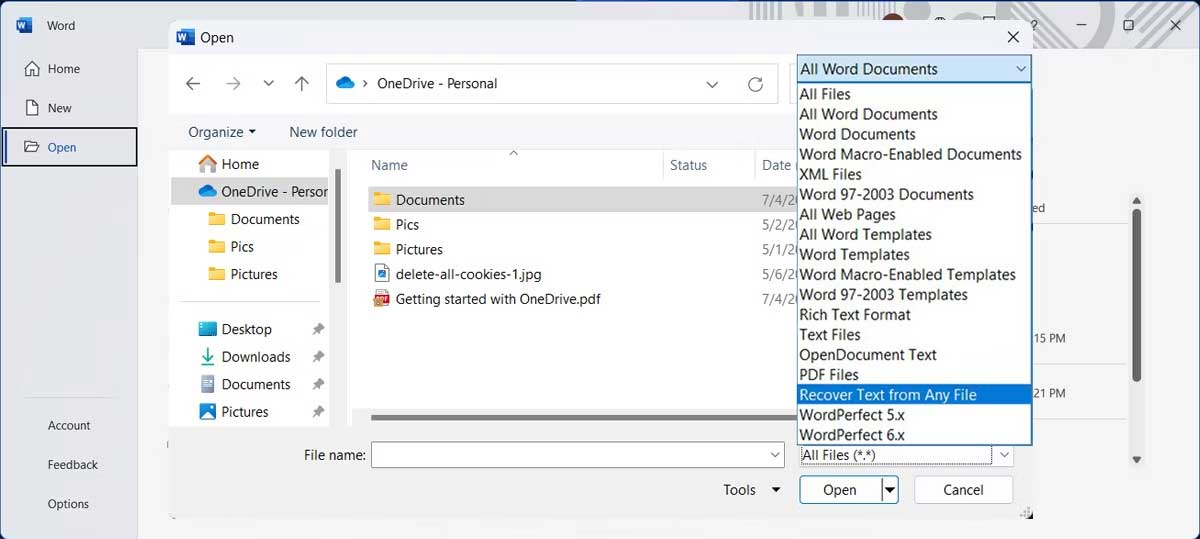
While this method can successfully recover content from older versions, it cannot recover everything. You will have to re-insert images, drawings, and other media elements, and even reformat the entire document.











