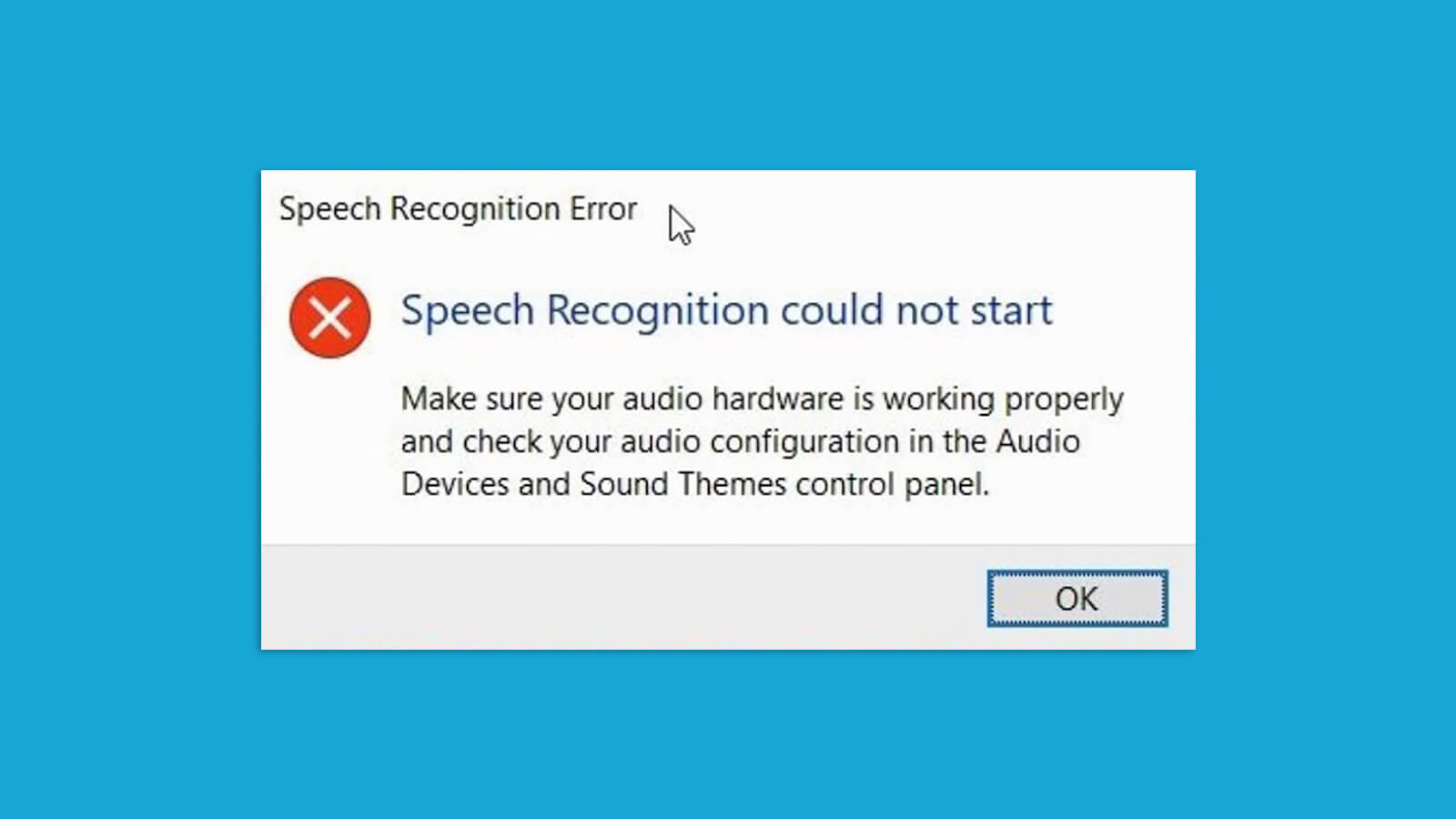
Windows Speech Recognition enables features such as speech-to-text, text-to-speech, and even voice access on your computer. However, problems sometimes arise when the speech recognition feature fails to work, causing your computer to display a pop-up window saying "Speech recognition could not start".
Don't worry! The following article will list several methods to help you fix speech recognition errors on Windows.
1. Start with some basic fixes
If you are experiencing issues with the speech recognition feature on Windows, the following tips may help you fix it quickly:
- Ensure your microphone is properly connected.
- Change the default microphone and try using the speech-to-text feature once.
- Check your system sound settings to ensure everything is set to default.
- Try updating your audio drivers using any free driver updater for Windows.
- If you are still using an old version of Windows, refer to how to update your Windows device for instructions on how to update.
If the problem persists after these quick fixes, try the more advanced solutions listed below.
2. Troubleshoot the microphone
One of the most common causes of the "Speech recognition could not start" error is a faulty or incorrectly configured microphone. To fix this issue, check your microphone for any physical damage and ensure the microphone is selected as the default device.
If your microphone is connected but does not appear in the device settings, see how to fix Windows not detecting a microphone. On the other hand, if your microphone is properly connected, follow the microphone troubleshooting instructions from Quantrimang.com for further assistance.
3. Modify Speech Properties
Another solution is to modify the speech recognition settings from Windows Speech Properties. Here is how to do it on your computer:
1. Click the Windows key and type Control Panel in the search bar.
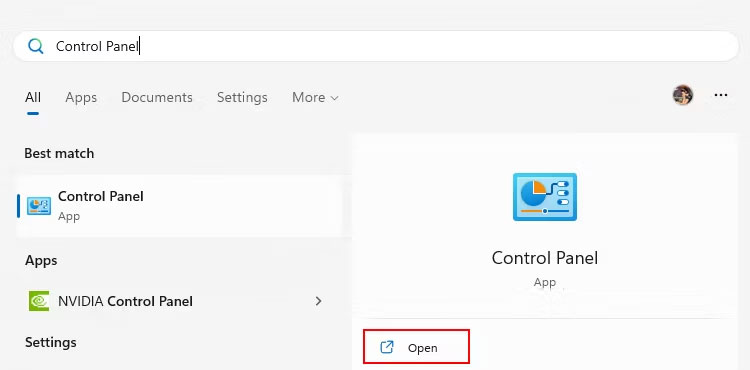
2. Click Open to launch it. Once you are in the Control Panel window, go to Ease of Access > Speech Recognition > Advanced speech options.
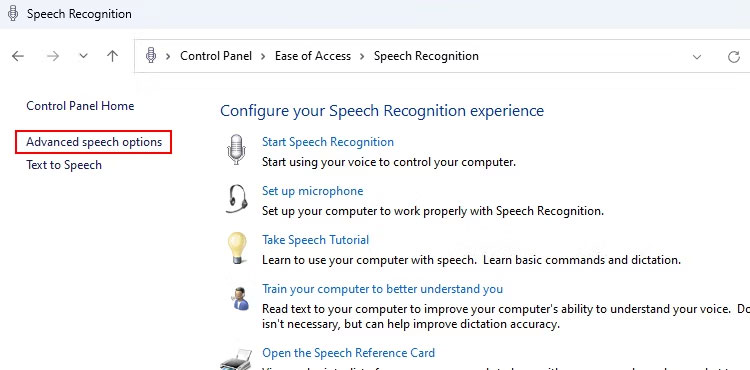
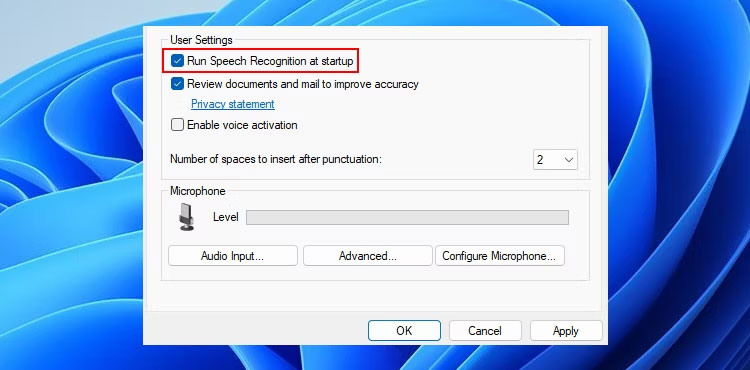
3. On the Speech Properties screen, select Run Speech Recognition at startup to enable this feature.
4. Under Recognition Profiles, click the New button and then press OK.
5. Follow the steps to create a new profile and restart your computer.
After returning to the desktop, you will be able to use all speech recognition features.
4. Restart necessary Windows services
Windows services always run in the background and can stop (in some rare cases), leading to speech recognition errors. It is easy to fix this through the Windows Services app.
Here is how to restart the necessary Windows Services for speech recognition:
1. Press Win + R and type services.msc into the field.
2. Press Enter to launch the Services window.
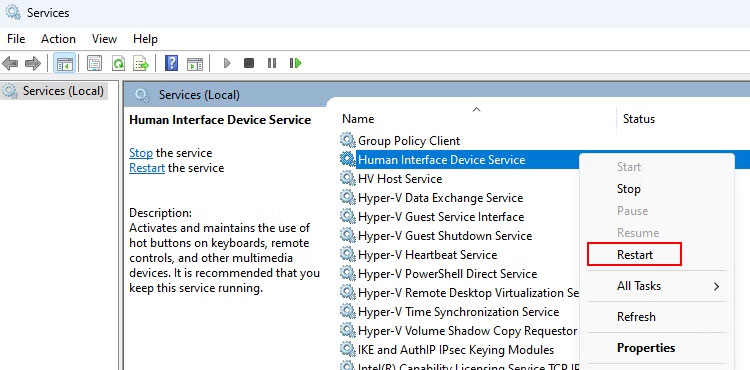
3. Locate the services related to speech recognition: Human Interface Device Service, Windows Audio and Windows Audio Endpoint Builder.
4. To restart the above services, right-click on each service and select Restart.
5. Finally, restart your computer and check the speech recognition issue again.
Tip: If you are using a Bluetooth microphone, restart the Bluetooth Support Service and Bluetooth Audio Gateway Service along with the mentioned services.
5. Set up speech recognition
Sometimes, the initial setup for speech recognition can cause issues for you. For example, you cannot use the speech-to-text feature if the wrong type of device is selected during setup.
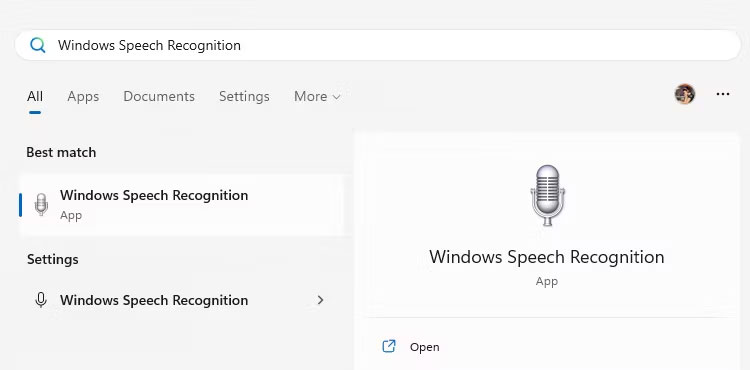
To fix this issue, you should reset the speech recognition feature on your device. You can type Windows Speech Recognition in the Windows search and open it. This will open the Speech Recognition Set Up screen.
Follow the setup prompts one by one and once completed, reconnect your microphone. This will quickly resolve your speech recognition issues. If you cannot open the setup, access it via Control Panel > Ease of Access > Speech Recognition > Set up microphone.
Good luck!