

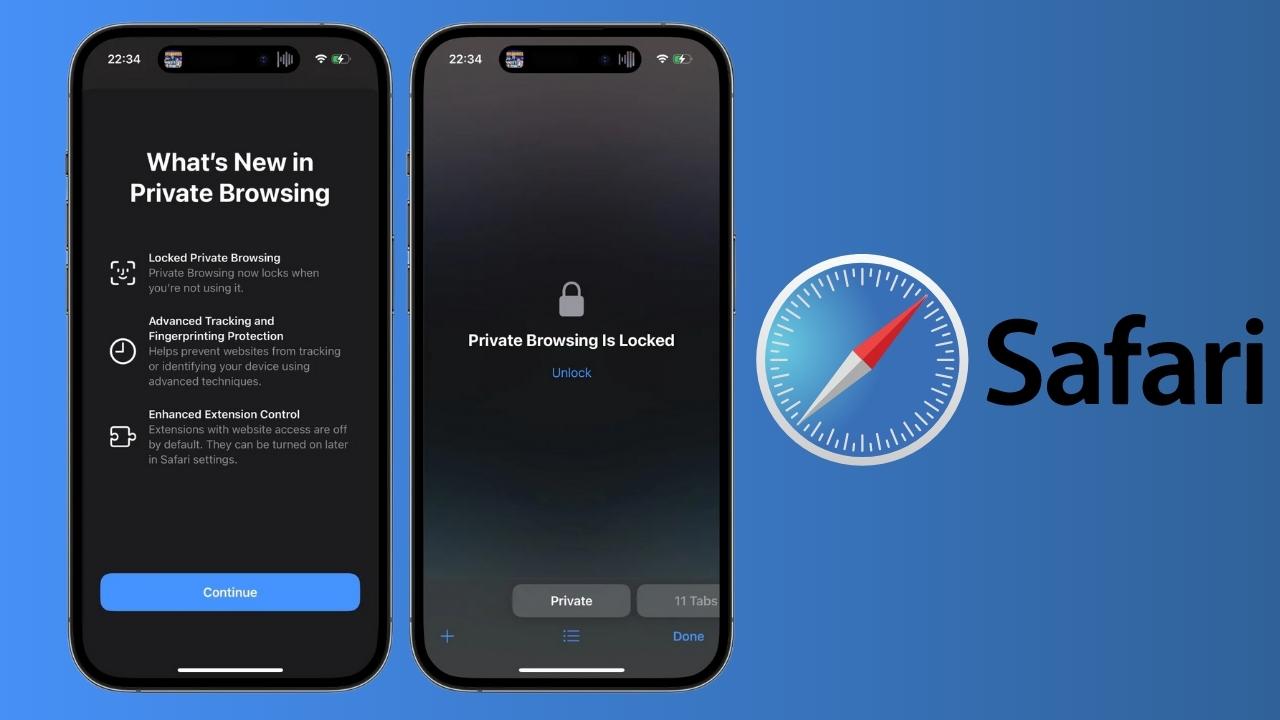
On iOS 17, the Safari browser has been updated with a feature to lock Private Browsing tabs using Face ID or a passcode, or Touch ID, depending on which security method your device supports. This feature is similar to the private tab locking feature on Chrome for mobile. Once enabled, the websites you visit in Private Browsing mode on Safari are fully protected. The article below will guide you on how to lock Private tabs on Safari.
How to lock Private tabs on Safari using Face ID
Step 1:
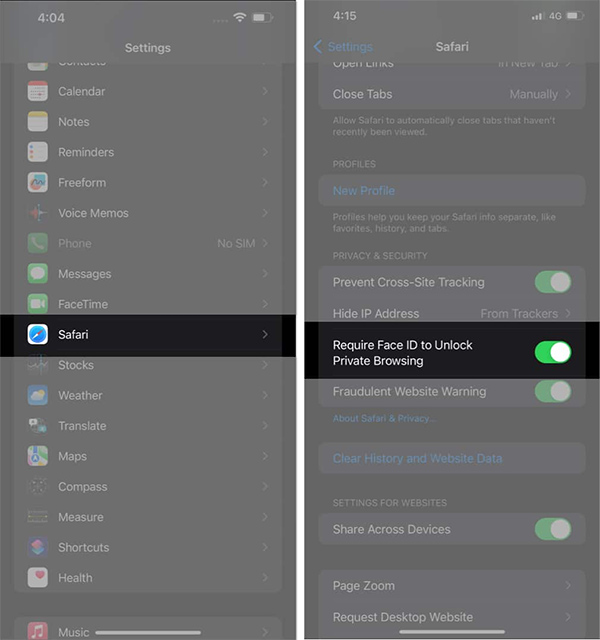
First, users should access the Settings app on their phone. Then, scroll down and tap on the Safari app to adjust the browser settings.
In the next interface, you will enable the Require Face ID to Unlock Private Browsing feature to require Face ID to unlock private tabs.
If your device only supports Touch ID or a passcode, it will display the options Require Touch ID to Unlock Private Browsing or Require Passcode to Unlock Private Browsing, and you can enable them in the same way.
Step 2:
Next, open the Safari browser and switch to Private Browsing mode. When the screen displays the Private Browsing is Locked notification, tap Unlock and then use Face ID to unlock Private tabs on Safari.
Finally, you can access your Private tabs on Safari as usual.
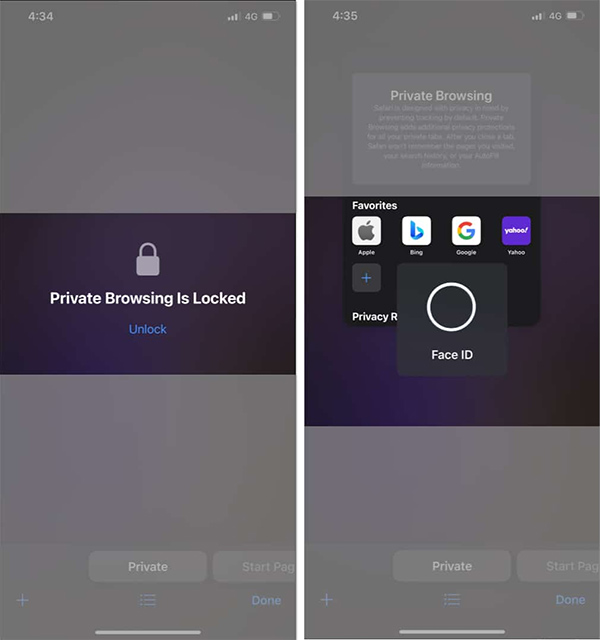
When you exit Private Browsing mode on Safari or switch to regular browsing mode, the Safari Private tab lock feature is automatically activated, and you must unlock it to regain access if desired.











