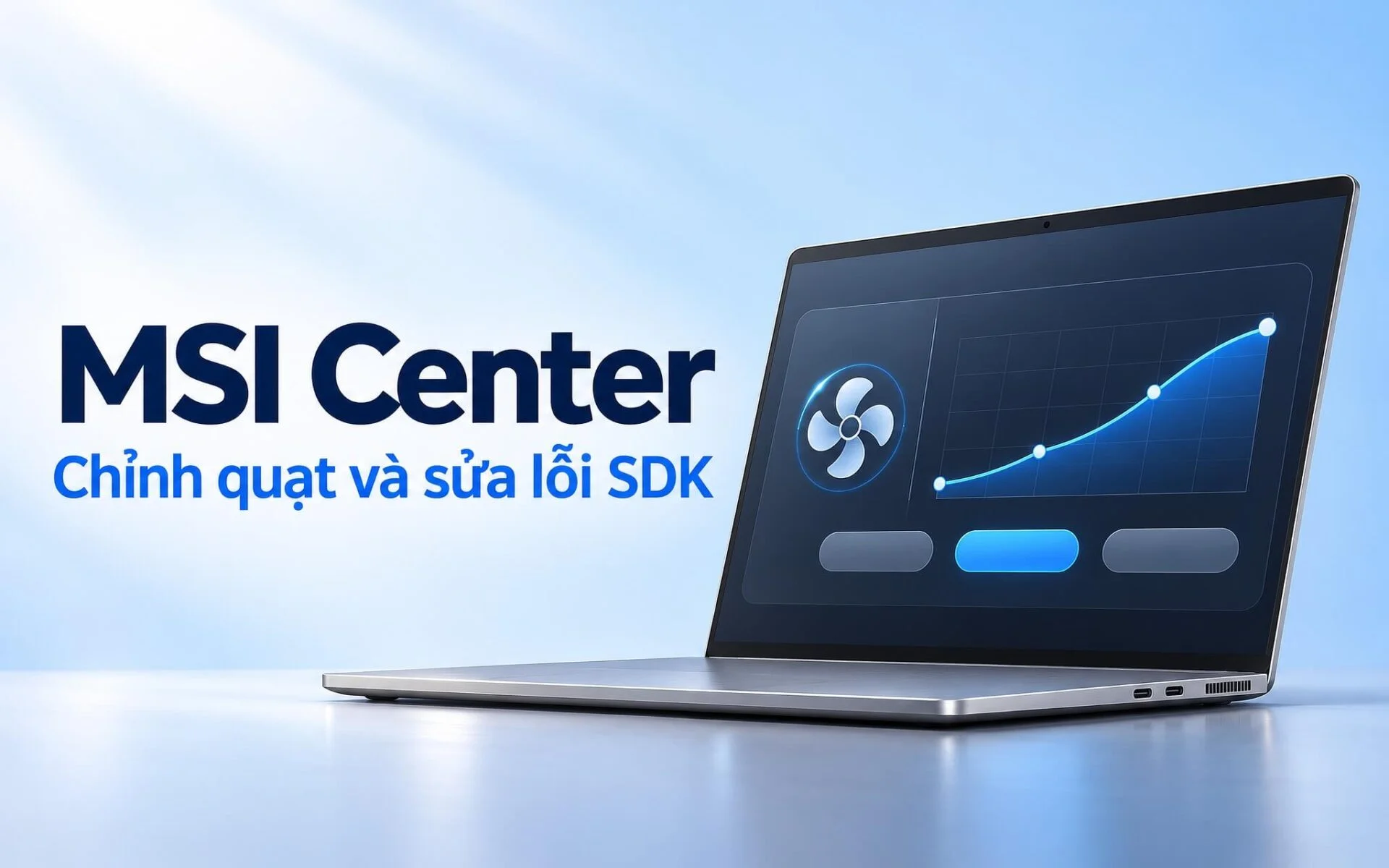
An MSI laptop may run loud while you are merely typing a document, or heat up quickly during gaming, simply because it is set to the wrong operating mode. MSI Center is MSI's system management software, where you can select performance profiles, adjust fans, and set battery charge thresholds. A common issue is the app getting stuck on the message Waiting for SDK initialization. The SDK is a collection of background components that the software downloads from MSI's servers during the initial run; without it, several sections will not work.
Downloading MSI Center From the Right Source and Identifying Key Sections on a Laptop
MSI instructs users to download MSI Center from the support page of their specific laptop model: open the Utility tab, click the download link to redirect to the Microsoft Store, and select Install or Get. If the Utility section for that laptop model lacks this link, the product is most likely unsupported. Alongside the common UWP version, MSI also releases Pro, S, and M versions designed for the MSI Claw handheld gaming console. Each version has its own installation guide, so you should check the correct page for your device before downloading.
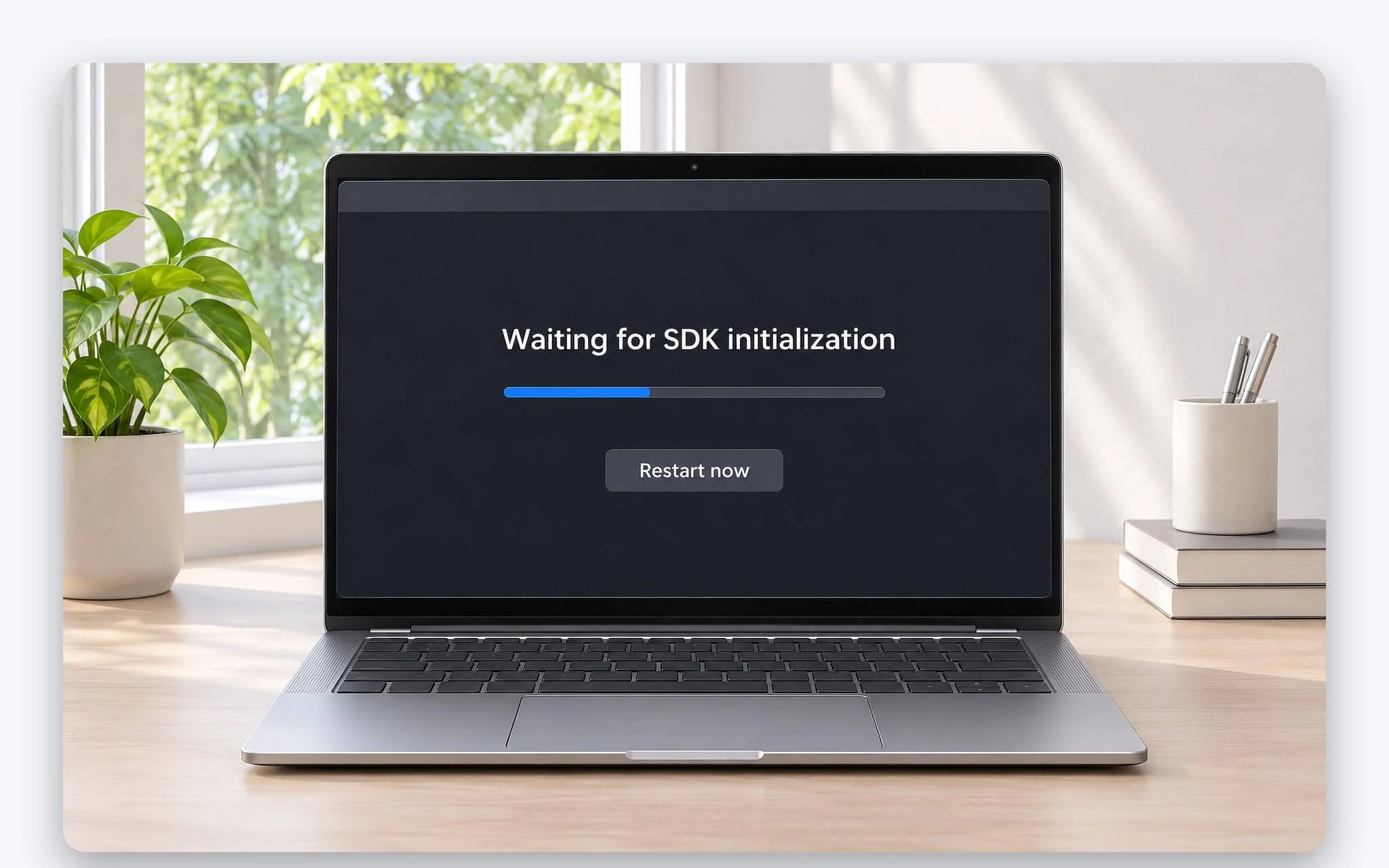
On the first run, search for the app in the Windows search bar, right-click it, and select Run as administrator. The progress bar will display Waiting for SDK initialization while the application downloads components from MSI's servers. When the dialog box appears, click Restart now to reboot the laptop. MSI notes that the internet connection must remain stable throughout installation and initialization, as an unstable network can cause this step to fail or hang.
Once initialization is complete, the Features section contains the modules you will use regularly: User Scenario to select performance modes, Battery Master to set charging limits, Hardware Monitoring to check real-time CPU and GPU usage, and Live Update to scan for and download drivers. The Feature Sets icon in the upper-right corner allows you to select, install, or uninstall individual features. Installing only the necessary modules keeps the interface clean and reduces background processes.
Five User Scenarios Differing in Fan Noise and Performance
According to the April 2024 MSI Center user manual, User Scenario offers 5 modes: MSI AI Engine, Extreme Performance, Balanced, Silent, and Super Battery. MSI AI Engine is available only on select laptop models and includes 4 smart profiles: Gaming, Work, Meeting, and Entertainment. Depending on the laptop model, you can repeatedly press the FN + F7 key combination to switch quickly between scenarios without opening the app. The table below summarizes the official description of each scenario and its corresponding use case.
| Scenario | MSI Description | Corresponding Use Case | Key Notes |
|---|---|---|---|
| Extreme Performance | Pushes performance for AAA games | Gaming, video rendering while plugged in | Fans spin fast, audible airflow noise |
| Balanced | Balances performance and battery life | Office work, studying, entertainment | Reasonable default for most tasks |
| Silent | Reduces fan noise | Online meetings, working at night | Sustained heavy workloads will run slower |
| Super Battery | Lowers power consumption for basic needs | Typing, reading documents on battery power | Not suitable for gaming or video editing |
| MSI AI Engine | Includes 4 profiles: Gaming, Work, Meeting, Entertainment | Users who prefer not to switch modes manually | Available only on select laptop models |
Silent reduces fan noise at the cost of less airflow through the heatsink, making it difficult for the processor to sustain high clock speeds during extended rendering or gaming sessions compared to Extreme Performance. Super Battery cuts power consumption even further to extend battery run time. According to MSI's support site, only the Extreme Performance scenario unlocks the fan customization page. Older versions once featured an additional User mode, allowing manual selection of performance levels and fan speeds.
If long-term quiet in your workspace is the main priority, the article Quiet Laptops for a Quiet Workspace: Choosing Chips, Fans, and Measuring Noise Levels explains why processor families and dB(A) ratings determine hardware-level quietness well before you switch profiles. Depending on the laptop model, User Scenario also lets you select graphics modes such as MSHybrid, Discrete, or Integrated Graphics, which impacts both temperatures and battery life.
How to Adjust Auto, Cooler Boost, and Advanced Fan Modes in Extreme Performance
To adjust the fans, open MSI Center, navigate to Features, select User Scenario, choose Extreme Performance, and click the gear icon in the lower-right corner to open Advanced settings. This screen offers three fan modes with distinct purposes. MSI notes that menu labels may vary slightly between software versions, so look for the gear icon rather than browsing by text. On select CPU and GPU configurations, an OC Option is also available to tune the graphics card's Core Clock Offset and VRAM Clock Offset.
| Fan Mode | How It Works According to MSI | When to Choose | Notes |
|---|---|---|---|
| Auto | The system automatically regulates fan speed according to temperature | Everyday use without manual intervention | A safe default if you are unfamiliar with fan curves |
| Cooler Boost | Fans run at maximum speed for short periods | Rapidly cools the system before or after demanding workloads | Loud airflow noise is completely normal |
| Advanced | Manually assigns fan speeds across specific temperature ranges | When you need to rebalance acoustics against thermals | Do not set every threshold to 0% |
When configuring fan curves in Advanced, the available curve points and percentage ranges depend on your specific laptop model. It is best to lower fan speeds in small increments across lower temperature bands for light tasks, while leaving higher temperature ranges untouched so fans can ramp up quickly under heavy load. If your laptop becomes unusually loud, MSI recommends checking whether Cooler Boost is active, switching back to Auto, and clicking Save; if high noise persists, open Advanced to pull the sliders down and retest.
Software adjustments cannot compensate for dust accumulation or dried-out thermal paste. If operating temperatures stay high across every profile, the article What Is PTM7950: Phase-Change Thermal Pads for Laptops That Outlast Standard Paste breaks down replacement materials designed for longer-lasting durability. Before taking that step, run Hardware Diagnosis, choose Auto Scan, and click Start to check the fans; if you hear mechanical rattling, MSI advises contacting an authorized warranty center right away.
Super Battery and Battery Master Preserve Battery Life During Light Tasks on MSI Laptops
Super Battery is simply a performance scenario, whereas Battery Master is a standalone set of settings in MSI Center that manages charging thresholds. The two features complement each other: Super Battery cuts power consumption while running on battery power, and Battery Master avoids keeping the battery pinned at 100% when plugged in throughout the day. Battery Master offers four modes, including AI Charger, which automatically switches states based on software algorithms.
| Charging Mode | Starts Charging Below | Stops Charging At | Corresponding Need |
|---|---|---|---|
| Best for Mobility | Charges at all times | 100% | Preparing to travel, full charge required |
| Balanced | 70% | 80% | Alternating between desk power and mobile use |
| Best for Battery | 50% | 60% | Plugged in at a desk for most of the day |
| AI Charger | Calculated by software | Calculated by software | Prefer not to select thresholds manually |
A practical workflow is to leave the setting on Best for Battery when the laptop sits at a desk on continuous AC power, then switch to Best for Mobility before travel to bring the cell up to 100%. Once unplugged, the Super Battery scenario is well-suited for typing, reading documents, or attending brief meetings. When gaming or rendering, plug the charger back in and return to Extreme Performance, which MSI specifies as the profile intended for AAA gaming.
MSI recommends running Battery Calibration once every three months to keep the reported charge reading true to actual capacity. During calibration, if the software asks you to disconnect the power adapter, you must reconnect it within 15 seconds. Charging limits only dictate where the charge cycle stops and do not substitute for performance profiles in User Scenario, so the two sections should be configured independently.
Troubleshooting SDK Initialization Freezes and Missing User Scenario in Order
In its clean installation FAQ for earlier UWP editions of Dragon Center and Creator Center, MSI lists several symptoms requiring attention: getting stuck on SDK initialization, missing sidebar features, an empty Monitor page, and being unable to switch User Scenarios. The MSI Center clean installation FAQ updated July 2026 also warns that network interruptions can cause initialization to fail or hang. Therefore, the first step is to rule out an interrupted initialization process.
| Symptom | Possible Cause | Priority Action |
|---|---|---|
| Stuck on Waiting for SDK initialization | Unstable network during component download | Connect to a stable network, relaunch using Run as administrator |
| Missing User Scenario option | Module not installed or incomplete initialization | Open Feature Sets to reinstall module, then restart |
| Hardware Monitoring displays no data | Background components not completed | Repair or Reset the application in Windows |
| Unusual fan, shortcut, or charging behavior | Embedded controller (EC) requires a reset | Perform an EC reset following MSI's instructions |
Here is the recommended troubleshooting sequence: update the BIOS and Windows, restart the system, and then open the app using Run as administrator over a stable network. If the problem persists, go to Settings, Apps, Installed apps, click the three dots icon next to MSI Center, select Advanced options, and click Repair; if that does not work, select Reset. Microsoft notes that not all applications include these options, as detailed in Microsoft's guide to repairing apps in Windows.
When the fans, keyboard, touchpad, or power management behave abnormally, MSI recommends an EC reset: shut down the laptop, unplug the power adapter, hold down the power button for 30 seconds, reconnect the charger, and turn the laptop back on normally. Plugging in the charger is required for the first boot after an EC reset; if pressing the power button does not immediately power on the machine, that confirms the reset succeeded. You should try this step before considering software uninstallation.
Cleanly Uninstall With Clean Center Master and Reinstall in the Correct Sequence
When Repair, Reset, and an EC reset fail to resolve MSI Center issues, the manufacturer recommends a clean install. For laptops using the UWP version, Dragon Center UWP, or the Pro version, the official utility is Clean Center Master. Open the tool and click the Clean button in the center of the window; it clears cache files, cookies, and leftover SDK components, then automatically restarts the laptop. Be sure to save all open documents before clicking it.
| Software Version | Official Removal Tool | Primary Action |
|---|---|---|
| UWP version, Dragon Center UWP, Pro version | Clean Center Master | Click Clean; the laptop restarts automatically |
| S version | MSI Center S Clean Tool | Select Uninstall all, wait for completion confirmation |
| M version on MSI Claw | Dedicated FAQ for MSI Claw | Follow the specific handheld device instructions |
After uninstalling, do not reinstall from an old setup file stored on your laptop. Go to the support page for your laptop model, navigate to Utility, click the link to open the Microsoft Store, and select Install or Get. Once installed, launch the application using Run as administrator, let the SDK initialization finish completely, and then click Restart now. For the S version, both the uninstaller and installer are available under the Utility tab on the product page.
Before doing a clean reinstall, consider taking screenshots of your current configuration: User Scenario profiles, Battery Master charge thresholds, and custom fan curves in Advanced, since uninstalling can erase custom settings. Once MSI Center is reinstalled, open Feature Sets to add modules one at a time, verifying that each works properly before installing the next. Proceeding sequentially helps pinpoint which component is responsible if problems resurface.
Frequently Asked Questions (FAQ)
Why does MSI Center only allow fan adjustments in Extreme Performance?
According to MSI's guidelines, the fan adjustment menu is located within the Advanced settings of the Extreme Performance scenario. Balanced, Silent, and Super Battery profiles do not provide access to this page, as the laptop manages fan speeds automatically based on the chosen profile. To adjust fans, switch to Extreme Performance and click the gear icon.
Is my laptop defective if the fans make a loud whine when Cooler Boost is turned on?
No. MSI explains that Cooler Boost runs the fans at maximum capacity, making loud airflow noise normal. If the sound is bothersome, switch the setting back to Auto and click Save. You only need to take the laptop to a service center if you hear mechanical rattling or suspect a foreign object inside the cooling fan.
Is there a keyboard shortcut to quickly switch User Scenarios?
On select MSI laptop models, pressing FN + F7 repeatedly cycles through scenarios without opening the application. Availability varies by model, so if the shortcut does not respond, switch scenarios directly within the Features tab in MSI Center.
Do I need to uninstall the app the first time an SDK error appears?
Not right away. First restart the machine, connect to a stable network, launch the app with Run as administrator, and then try Repair or Reset under Installed apps. Use Clean Center Master for a clean install only if these steps and an EC reset all fail to resolve the issue.