Users need to fix the AMD Radeon Software not working, where they cannot open the application or access its settings. Are you one of those users? If so, you can fix the AMD Radeon Software not opening issue on Windows PC using the solutions below.
1. Run AMD Radeon Software as administrator
Users often choose to run AMD Radeon Software without admin privileges from the context menu. Instead, try running AMD Radeon Software as an administrator to see if that helps. You can do this by pressing the Windows + S button, typing AMD into the search box, and selecting Run as administrator for the found AMD application.
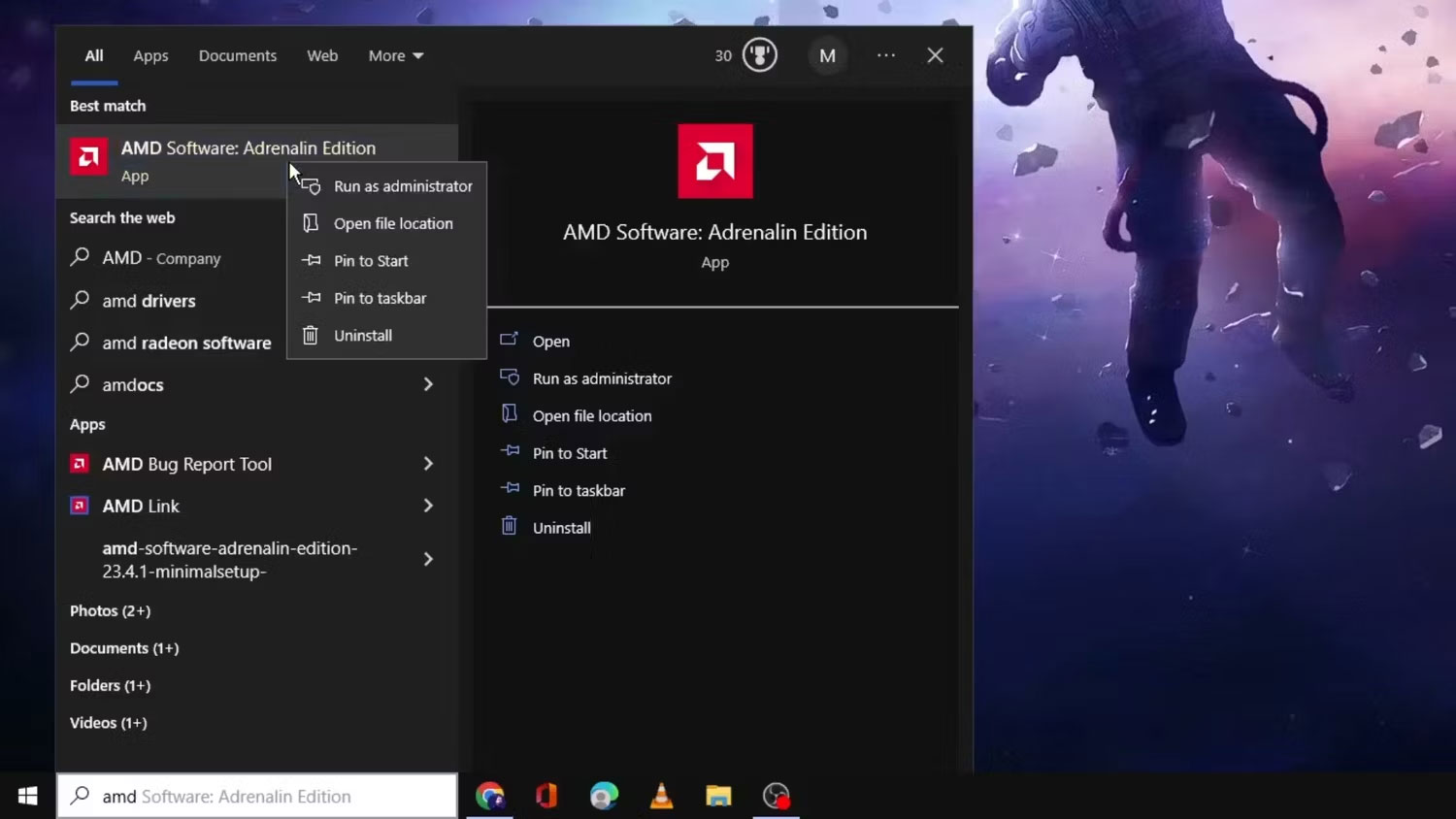
If that works, set AMD Radeon Software to always run as administrator permanently. Refer to the steps in this article on how to always run applications as administrator. However, please note that you cannot set the AMD Radeon Software MS Store app to run as administrator permanently.
2. End the RadeonSoftware process tree
First, check if Task Manager shows a process for AMD Radeon Software. If it does, it means the application is running in the background. Ending the RadeonSoftware process tree may then resolve the issue. You can close the RadeonSoftware process tree like this:
1. Press Ctrl + Shift + Esc to activate Task Manager.
2. Select the Details tab in Task Manager.
3. Find and right-click RadeonSoftware.exe to select the End process tree option.
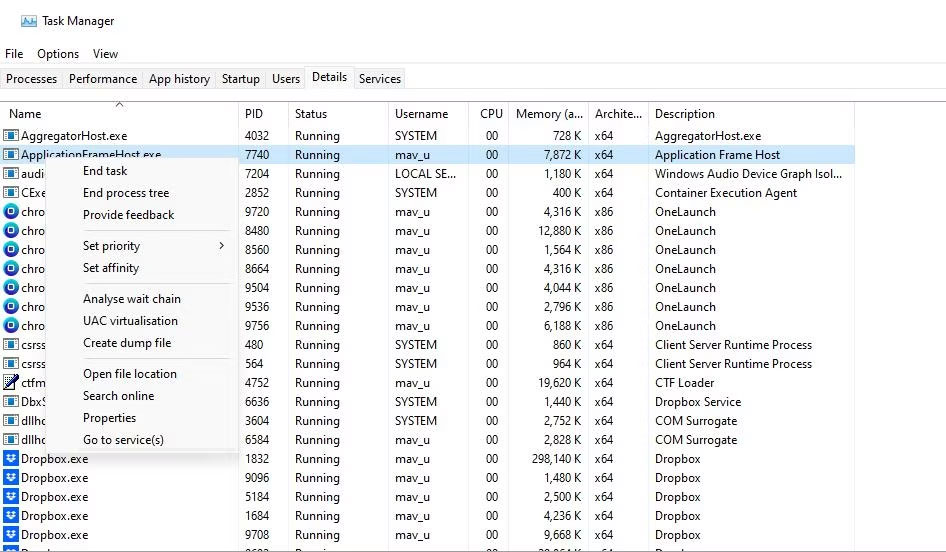
4. Click the End process tree button to confirm.
3. Delete the CN folder
Corrupted profile data often causes AMD Radeon Software to stop working. You can fix this by deleting the CN folder containing Radeon profile data. Deleting that folder will rebuild the profile. Here is how you can delete the CN folder:
1. Use the Windows + R shortcut to access the Run dialog.
2. Type %appdata% into Run and click OK to access the Roaming folder.
3. Click AppData in the Explorer address bar.
4. Open the Local subfolder inside the AppData folder.
5. Click on the AMD folder to enter it.
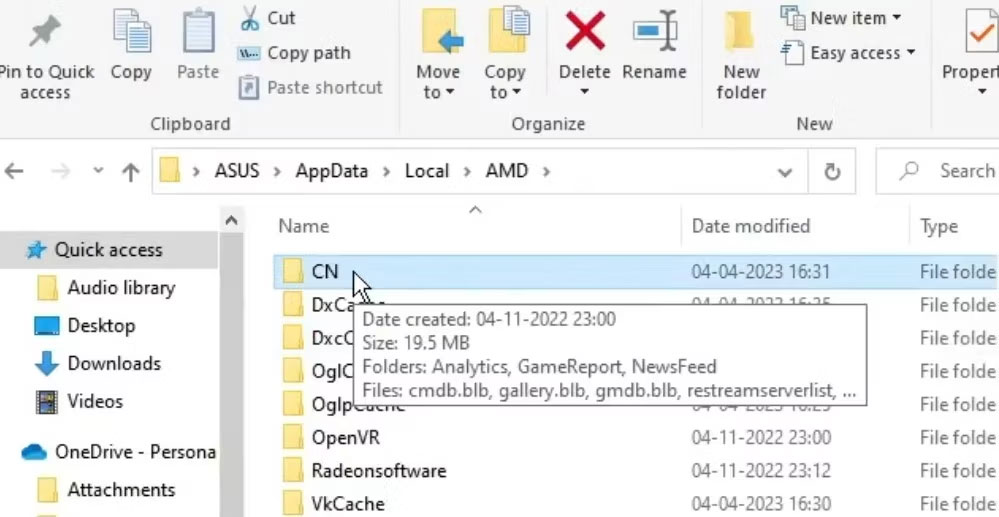
6. Right-click the CN folder and select Delete.
Additionally, you can try deleting a specific file within the CN folder, which some users have confirmed works. To do this, open the CN folder to view its contents. Right-click the gmdb.blb file in that folder and select Delete.
4. Disable and re-enable the AMD Radeon Graphics Adapter
Disabling and re-enabling the AMD graphics adapter is another potential solution that users confirm can help start AMD Radeon Software. You can turn the AMD graphics adapter on and off on your PC as follows:
1. First, open Device Manager (press Windows + X and select the shortcut for that tool).
2. Double-click the Display adapters category to expand it.
3. Right-click the AMD Radeon graphics card to select Disable device.
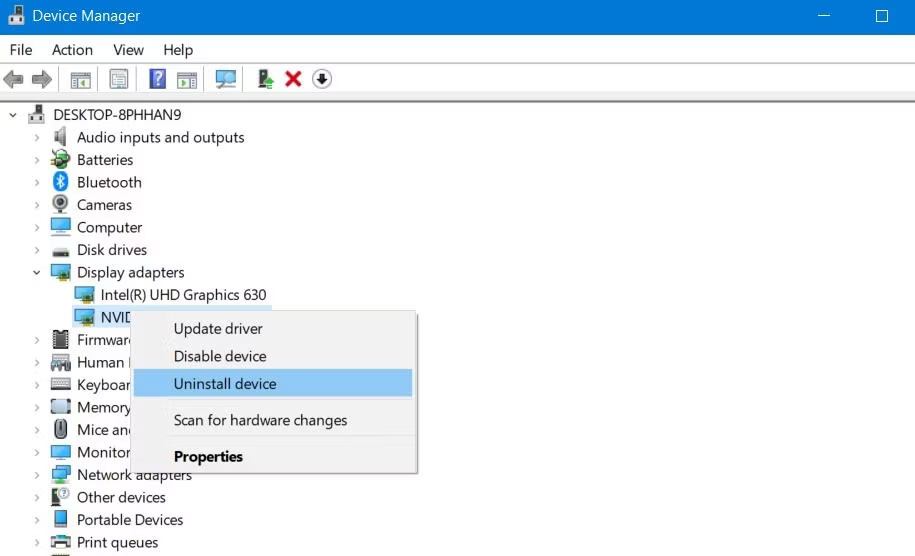
4. Click Yes when prompted to confirm the selected option.
5. Wait a minute and right-click the AMD Radeon graphics card again to select Enable device.
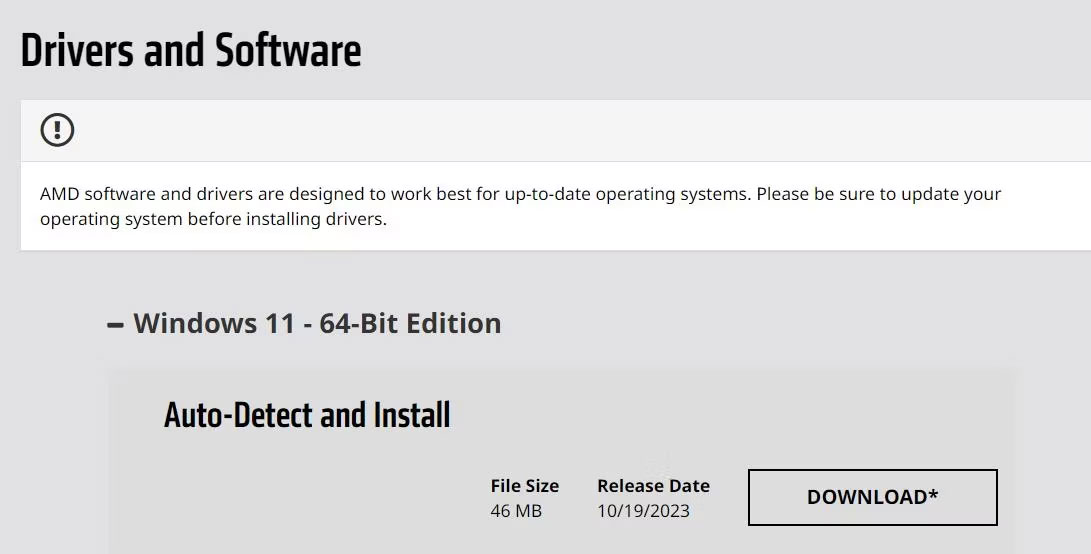
5. Update AMD graphics drivers
Corrupted or outdated AMD drivers on your PC can be the cause of Radeon software not working. You can fix this by installing the latest AMD drivers for your PC's graphics card.
See the guide on updating graphics drivers on Windows from Quantrimang.com for more details on how to apply this potential fix.
6. Roll back previously installed AMD drivers on PC
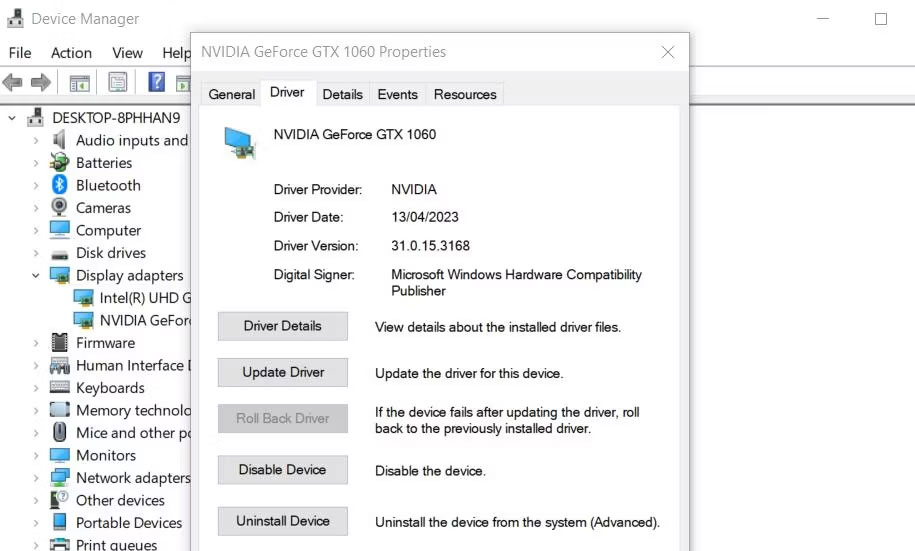
Sometimes a new graphics driver has bugs that cause issues, which is why NVIDIA and AMD release hotfixes. If your PC already has the latest AMD driver, rolling back to a previously installed driver might be a viable solution for some users.
You can do this by selecting the Roll Back Driver option, as mentioned in the Quantrimang.com guide on how to roll back graphics drivers on Windows.
7. Set Windows 11/10 to Clean Boot
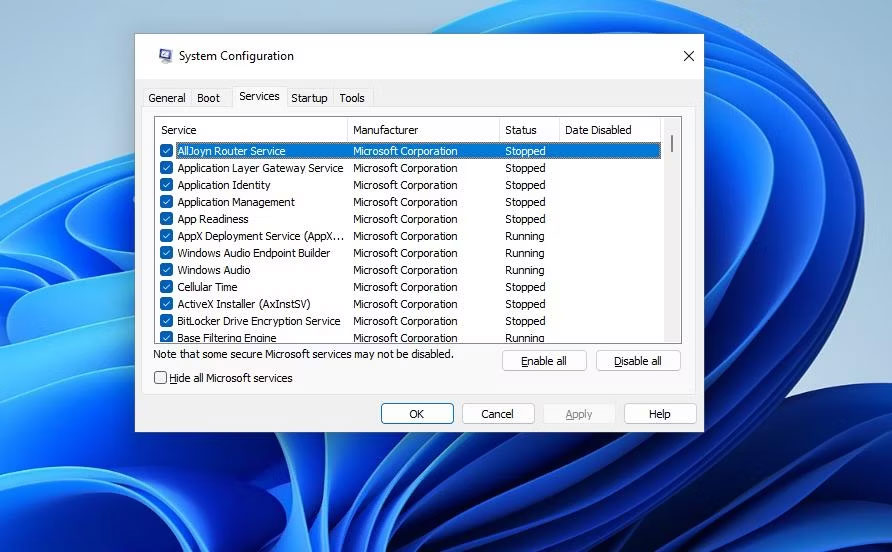
Conflicting background programs can be another factor causing AMD Radeon not to open. The best way to fix this cause is to configure your PC to perform a clean boot and restart it. This will disable third-party applications and services that automatically start with Windows.
To apply a clean boot, you need to remove applications and services from the startup process using Task Manager and MSConfig. The Quantrimang.com article on how to perform a clean boot on Windows includes specific instructions on how you can disable necessary startup items. Restart your PC after disabling the startup items and try opening AMD Radeon.
8. Edit CN registry key
Editing the CN registry key is a confirmed solution to fix the "Radeon Settings and Driver versions do not match" error message that some users see when attempting to start AMD Radeon. This registry fix involves entering a new value for the DriverVersion string in the CN key. Here are the steps to apply this registry fix:
1. First, open the Display adapters category in Device Manager, as instructed in steps one and two of the fourth solution in this guide.
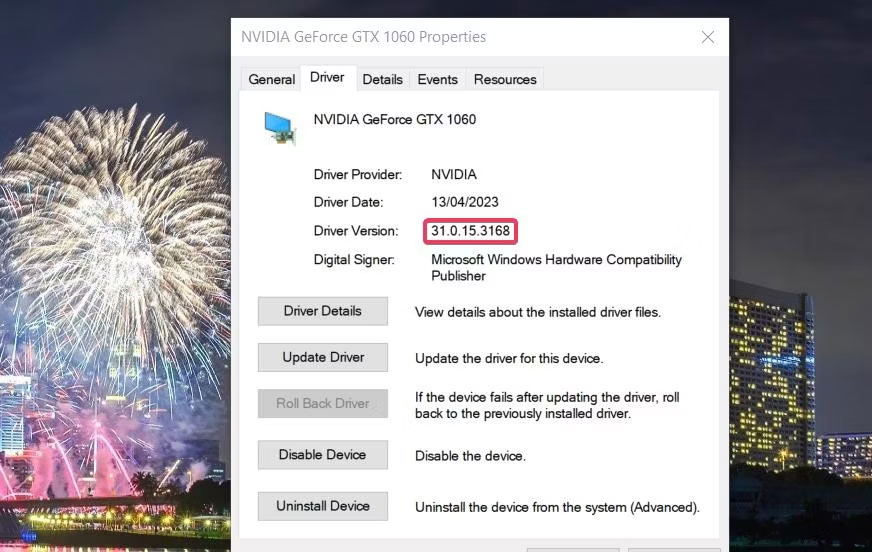
2. Right-click the AMD graphics card and select Properties.
3. Select the Driver tab.
4. Highlight the driver number on that tab and press Ctrl + C to copy.
5. Close the properties window and the Device Manager tool.
Now, open the Registry Editor on Windows before proceeding.
1. Clear the registry address bar and enter the following key location:
Computer\HKEY_LOCAL_MACHINE\SOFTWARE\AMD\CN2. Double-click the DriverVersion string in the CN registry key.
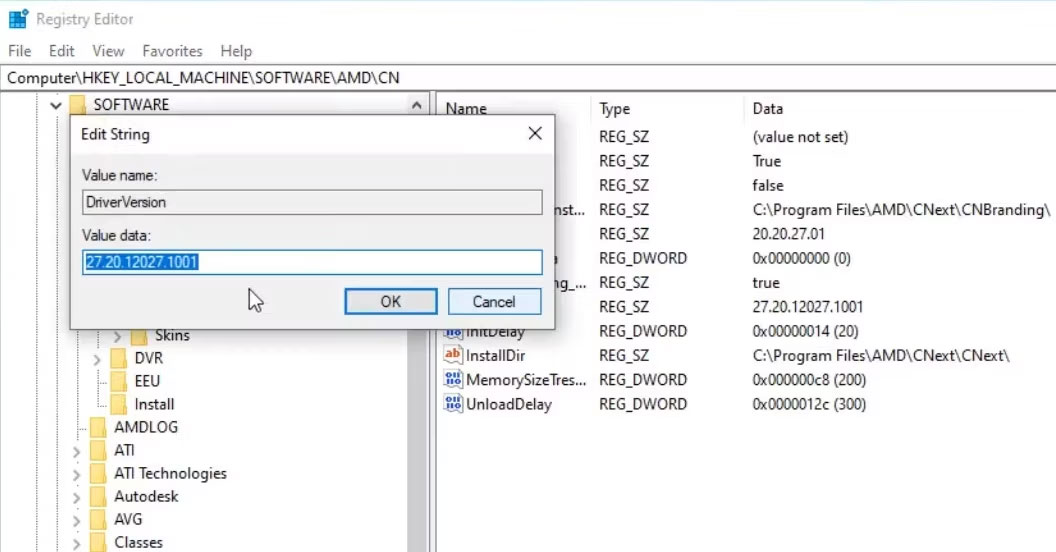
3. Clear the Value data box.
4. Press Ctrl + V to paste the copied driver version number into the Value data box.
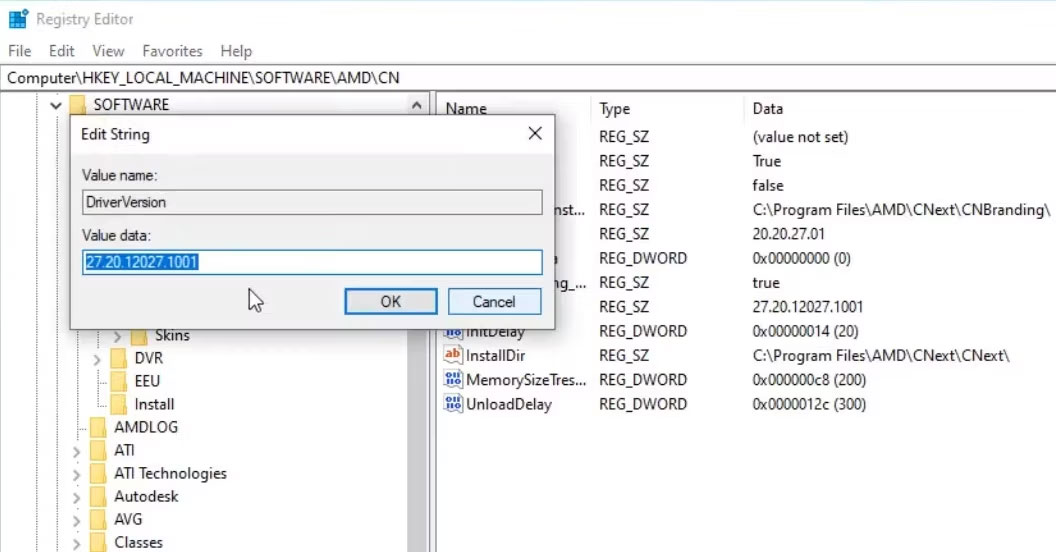
5. Select OK in the Edit String window.
9. Reinstall AMD Radeon Software
Reinstalling AMD Radeon Software can also fix various issues that prevent the application from starting. You can uninstall AMD Radeon using the Control Panel or Settings methods in the Quantrimang.com Windows software uninstallation guide. Alternatively, you can use a third-party uninstaller to remove the software and completely wipe its remnants.
To reinstall the application, open this AMD Radeon Software Microsoft Store page. Click the Install button and Open in Microsoft Store; select Get to install AMD Radeon Software.