

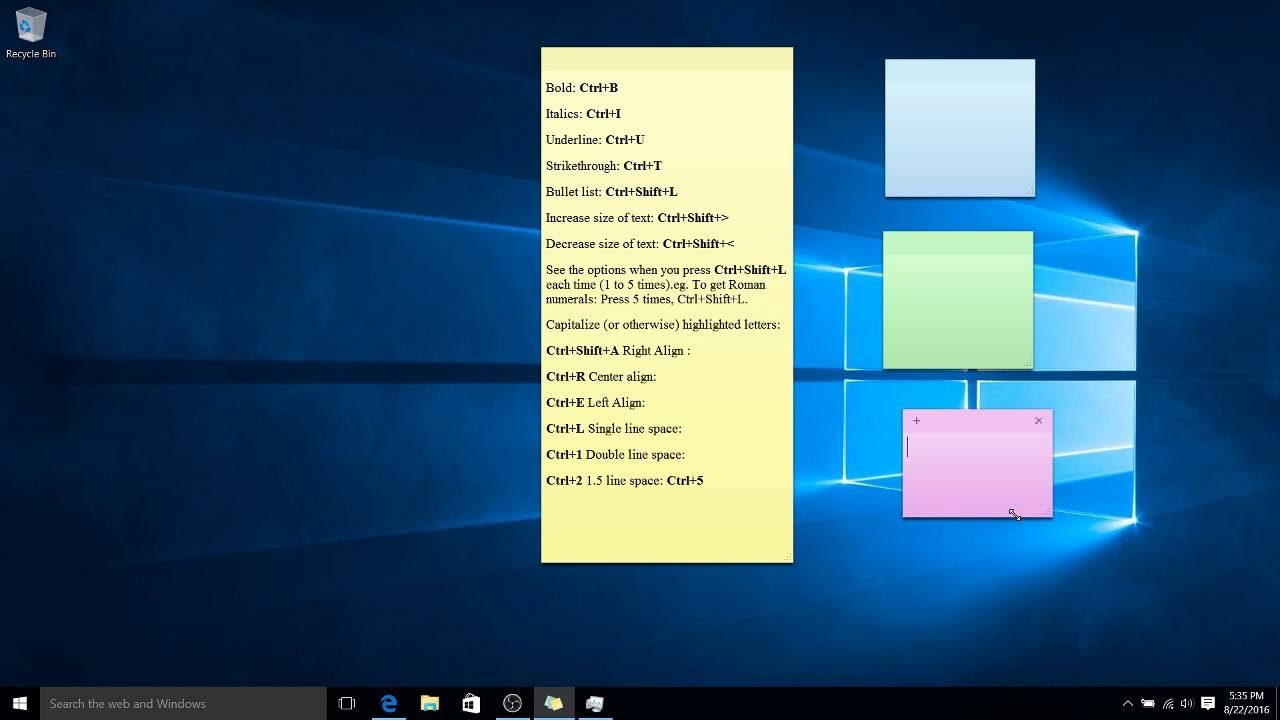
Windows 11 Windows 11 Sticky Notes is a wonderful application to keep everything organized, whether you are at home or at work. If you want to take notes anytime, anywhere, you are not limited to using Windows Sticky Notes on your PC.
This guide will explore how to use Windows Sticky Notes on all your devices, whether you are an Android or iOS user or are using a web browser.
How to get started with Windows 11 Sticky Notes on PC
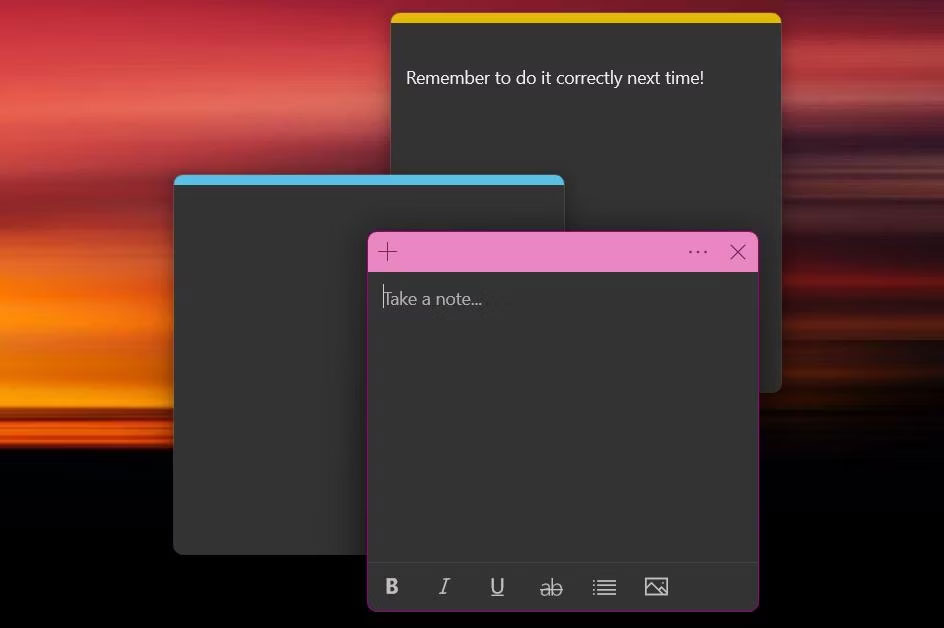
Sticky Notes is a great application for quick notes and recording important reminders. The best part is that there is no need to download anything - Sticky Notes is pre-installed on all Windows 11 machines. To open Sticky Notes on Windows 11:
- Click on the Windows Search bar or use the Windows + Q shortcut.
- Search for “Sticky Notes”, then click on the app from the search results.
By default, the app will open a sticky note. You can add other sticky notes at any time by clicking the plus button in the top left corner. To view your previous sticky notes, click the three dots in the top right corner to access the menu, then select Notes List.
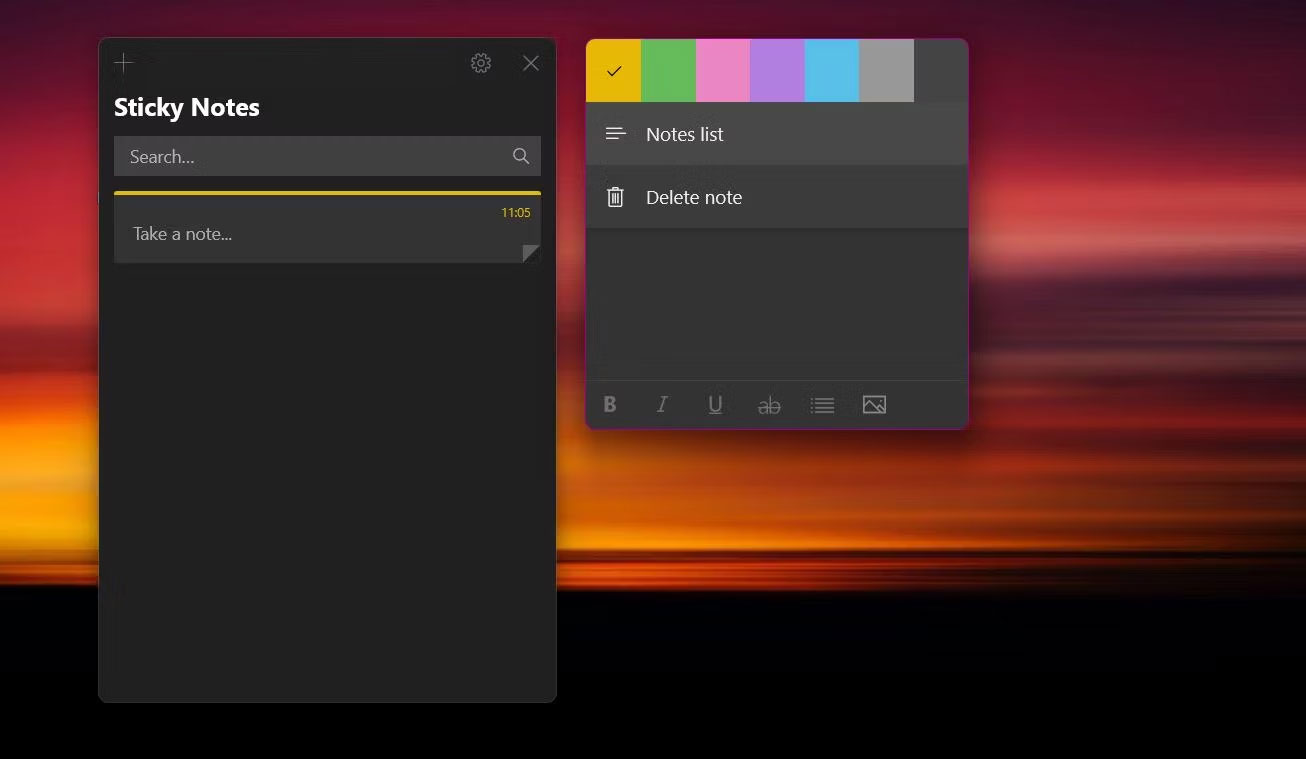
Although it is a basic note-taking app, it has many features to style your notes. On the formatting ribbon at the bottom, you can format text by making it bold, italic, or strikethrough. There is also an option to toggle bullet points, which is perfect for making quick lists.
If you use Windows Sticky Notes frequently, you might want to have Sticky Notes open on startup in Windows 11.
How to set up the sync feature on Windows Sticky Notes
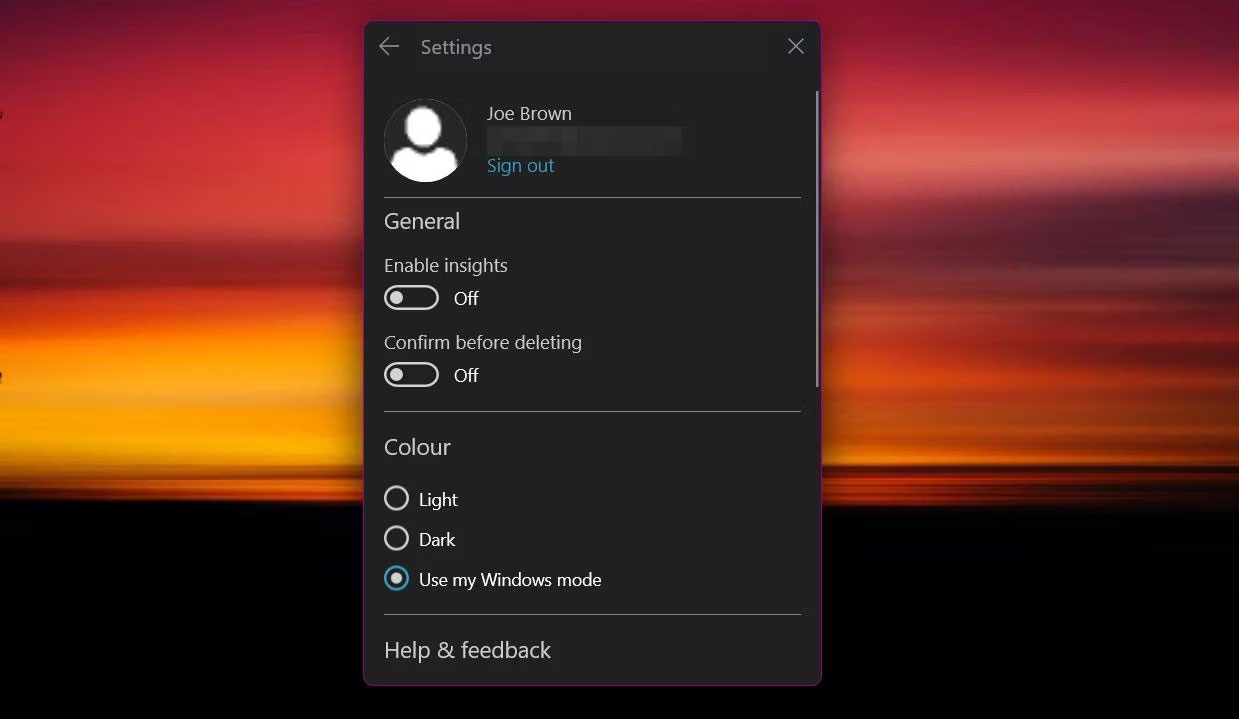
To sync sticky notes across all your devices, you first need to sign in with your Microsoft account. This step syncs your notes to the cloud and connects them to other Microsoft services required later. Here is how to set up sync for your Sticky Notes:
- Click the three dots in the top right corner of the Sticky Note to access the menu.
- Select Notes List.
- Click the settings icon, then click Sign in.
If you encounter any issues, there are several ways to troubleshoot Windows 11 Sticky Notes sync problems that you can explore.
How to use Windows Sticky Notes on iOS devices
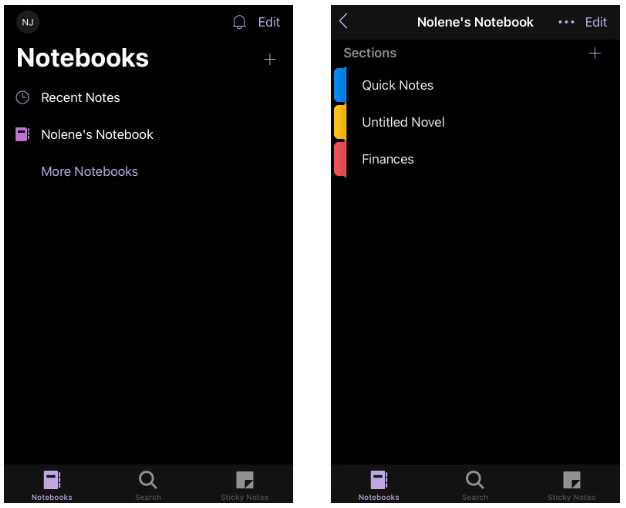
Instead of providing a separate Sticky Notes app, Microsoft uses Windows Sticky Notes as part of the Microsoft OneNote app. This lesser-known feature of Microsoft OneNote is perfect for those already experienced with OneNote; however, anyone can easily learn this trick.
You can access Windows Sticky Notes on your iOS by following the steps below:
- Go to the App Store and search for Microsoft OneNote.
- After installing, sign in with your Microsoft account.
- At the bottom right corner of the home screen, tap Sticky Note.
To create a new note, tap the plus icon in the bottom right corner of the screen. You will then see a screen similar to the Sticky Notes app for Windows, including text formatting options. A useful tool is the camera button, which allows you to upload photos from your camera or iOS photo album.
How to use Windows Sticky Notes on Android devices
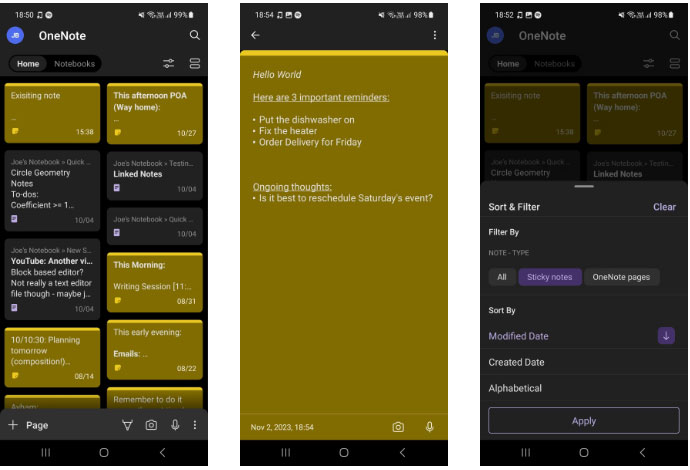
You can also view your sticky notes if you are an Android user. Windows Sticky Notes is available within the Microsoft OneNote app for Android, although it is a bit harder to find. Here is how to access your sticky notes on an Android device:
- Go to the Google Play Store and search for Microsoft OneNote.
- Download and open the app, then sign in with your Microsoft account.
On the home screen, you will see a combination of Sticky Notes and text notes from OneNote. To view only sticky notes, you need to filter the results. Tap the Sort & Filter button on the left side of the top banner. Under the Note Type heading, select Sticky Notes and then select Apply. You can also sort notes by date created, date modified, or alphabetically.
To create a new sticky note, tap the three dots in the bottom right corner of the home screen. Then, tap Create a Sticky Note. The app includes many of the prominent options found on iOS, including the photo upload tool. You can change the color of the note by tapping the three dots in the top right corner. From the same menu, you can also tap the Export button to share the sticky note with friends.
How to use Windows Sticky Notes with Microsoft Launcher
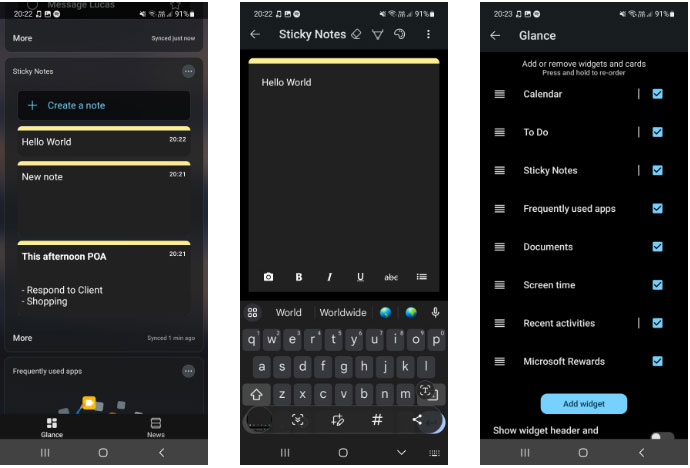
Another way to use Windows Sticky Notes if you are an Android user is through Microsoft Launcher. This sleek Launcher has many features that help increase your productivity and is a must-have feature for Android users who own a PC.
Using Microsoft Launcher, you can view your sticky notes almost directly from your home screen. Simply swipe left from the home screen to access your feed.
At the end of the list is the Windows Sticky Notes widget that allows you to view and create notes. If you cannot see this widget, scroll to the bottom of your feed, then click the Edit this view button. Check the box next to Sticky Notes to add the widget to your feed.
Since you are using a widget on the launcher, the sync process may take a little longer than when using the app. However, you can manually sync your sticky notes at any time by tapping the three dots in the top right corner of the widget and selecting Sync.
How to use Sticky Notes online
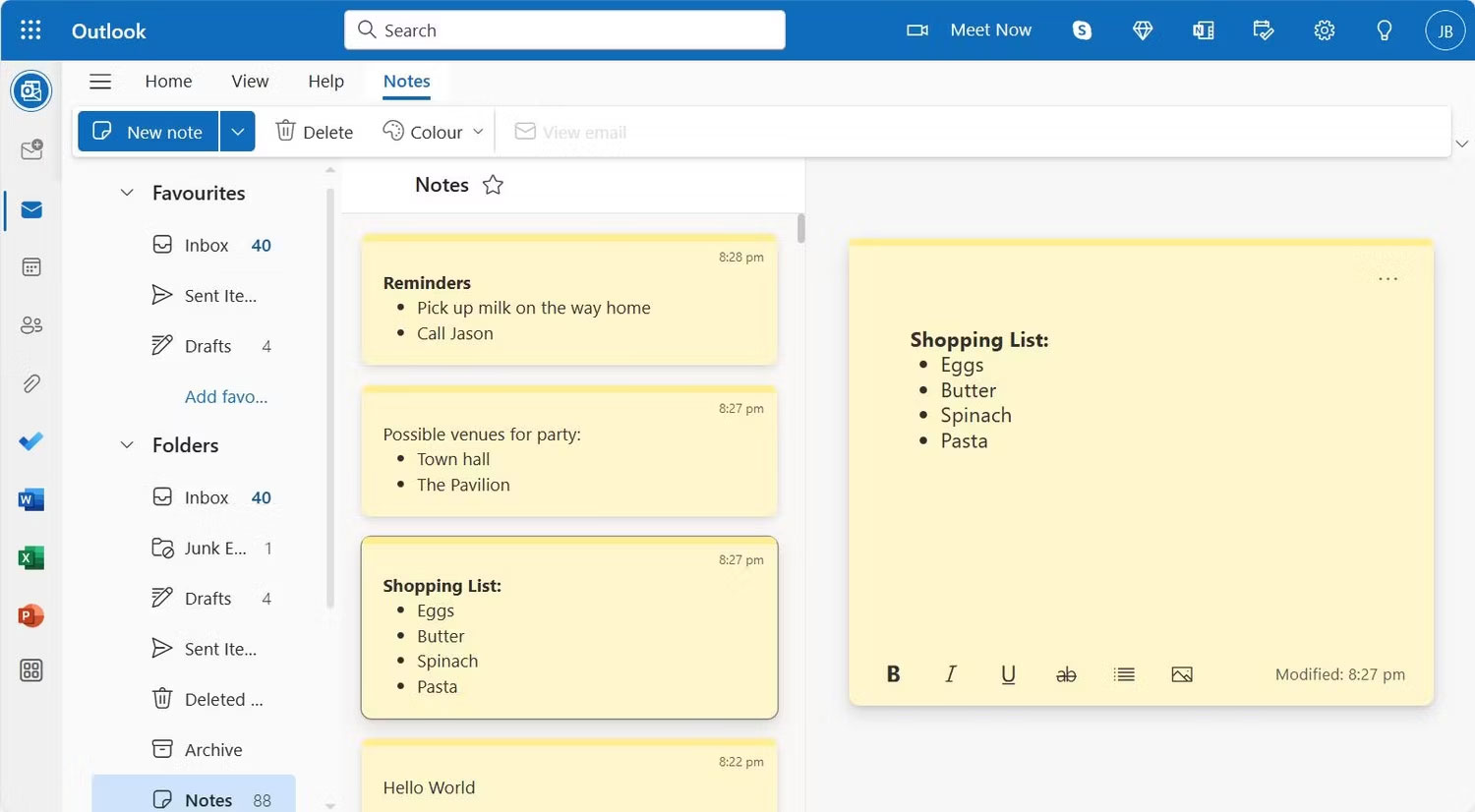
You can also edit Windows Sticky Notes on the web. To integrate note-taking with your planning needs, Microsoft has integrated Windows Sticky Notes with Microsoft Outlook.
Ensure you are signed into your Microsoft account, then you can access Windows Sticky Notes directly in Outlook, or you can sign into Outlook and access the dedicated Notes tab. This can be found within the Folders drop-down menu from the sidebar. For faster access to your Sticky Notes, you can tap the star icon next to the Notes heading to add that note to your favorites.
Quản Trị Mạng">Source: Quản Trị Mạng











