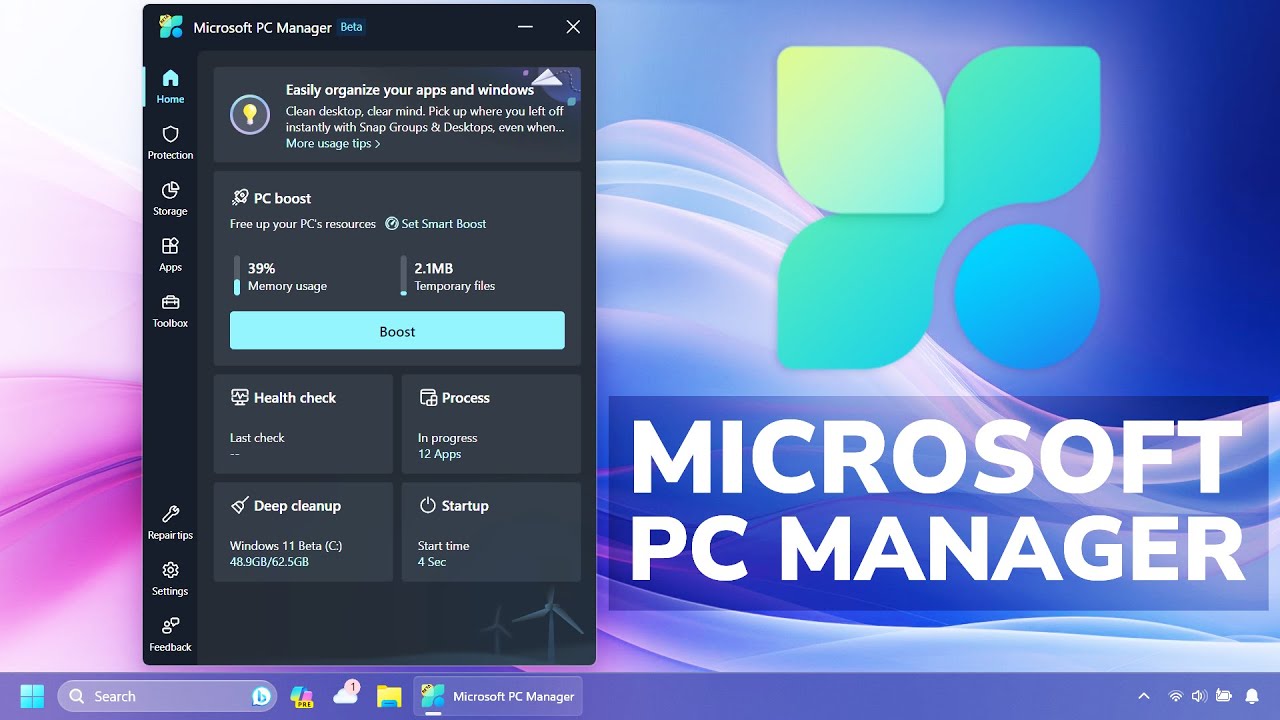
Microsoft PC Manager is stronger than before and has introduced many new features, including a floating toolbar. This application is Microsoft's response to all third-party PC cleaning/management applications, which currently seem less useful.
You will get a better overall design, with a vertical menu and multiple sub-sections, including a new Toolbox section. Let's explore these features in detail.
What's new in the Microsoft PC Manager app?
The Microsoft PC Manager app is still in its testing phase. Previous versions of the app had two main sections: Cleanup and Security. However, the update brings a new Home section to the app, neatly organizing all useful settings into tiles. It supports light, dark, and adaptive modes that match your default system theme.
In addition to aesthetic improvements, you have 4 distinct sections: Protection, Storage, Apps, and Toolbox. You can restore the taskbar interface and default applications in the Protection section.
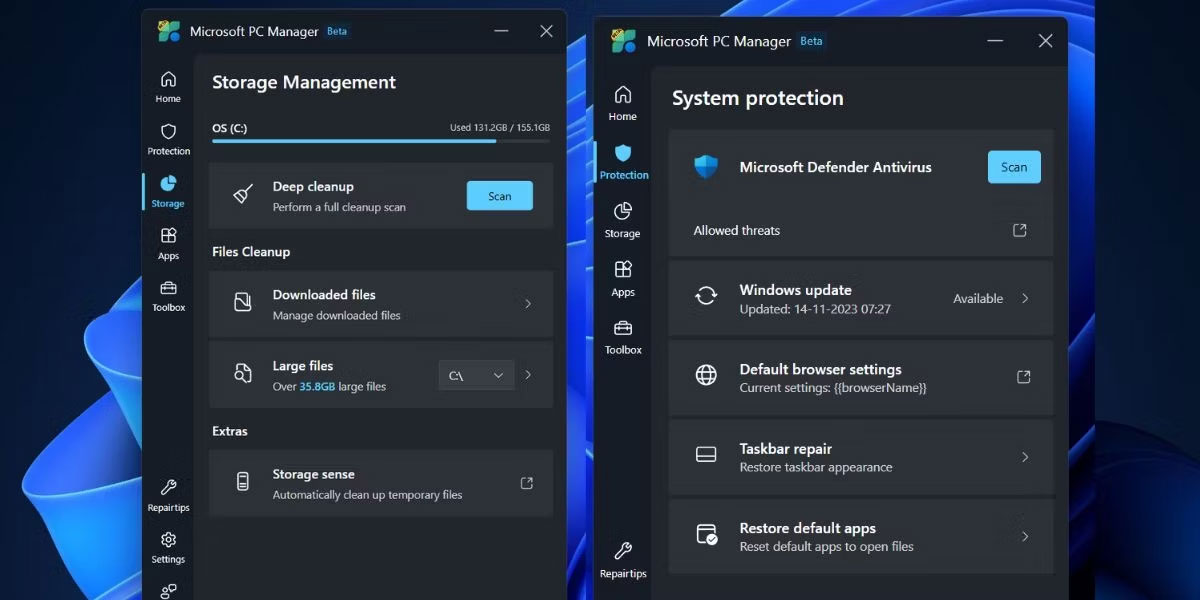
The Storage section features improved Files Cleanup tools, including an enhanced large file identification tool. Previously, you could only preview files in File Explorer, but now the app opens a new sub-page for large files with multiple filters and scanning options.
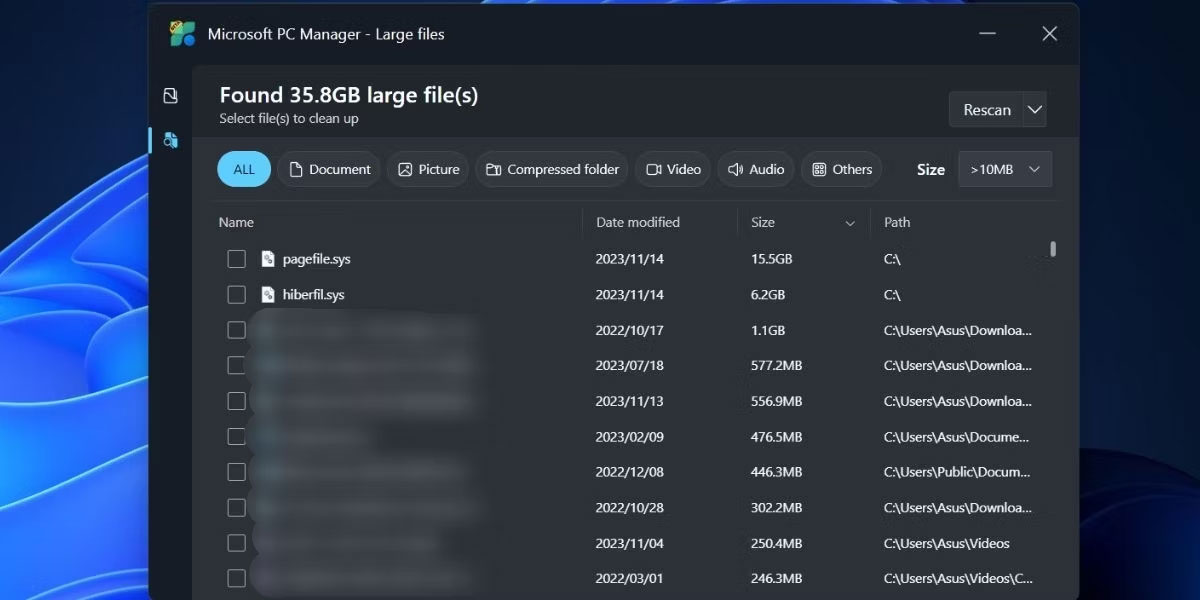
You can move or permanently delete one or more files directly from this window without opening File Explorer. The Deep Scan option is still available, and you can even access Storage Sense from the Microsoft PC Manager app. The App Management section has nothing new; you can end processes, manage startup apps, and access the Microsoft Store directly.
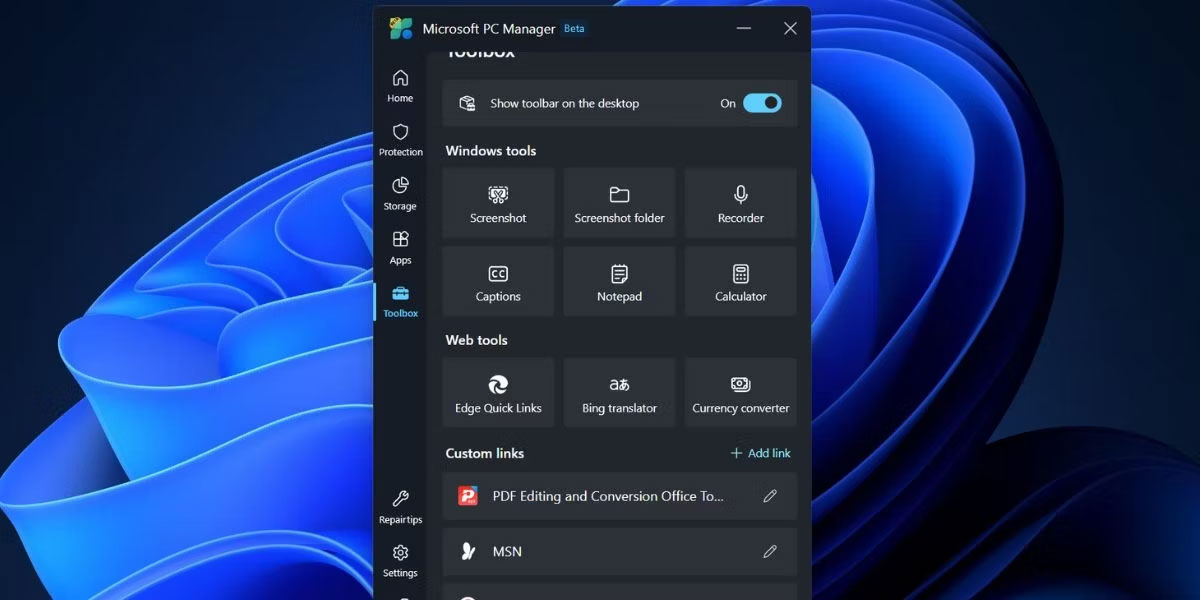
The final part is the Toolbox section; using this, you can access various Windows tools, display a floating toolbar on your screen, and add custom links.
How to activate Toolbox on your desktop
You must install the latest version of the Microsoft PC Manager app (3.8.2.0) from the official Microsoft PC Manager website. However, if you encounter difficulties downloading or installing the app, you can also download it from Techspot, a reliable website.
After installing the Microsoft PC Manager app, click the Toolbox icon in the vertical menu on the left. Then, click the toggle button next to the Show toolbar on the desktop option to activate the toolbar.
With the floating toolbar on your screen, you can now minimize the Microsoft PC Manager app. Click and drag the toolbar to any side of the screen to pin it in that position. If you do not do this, it will appear on top of all open applications.
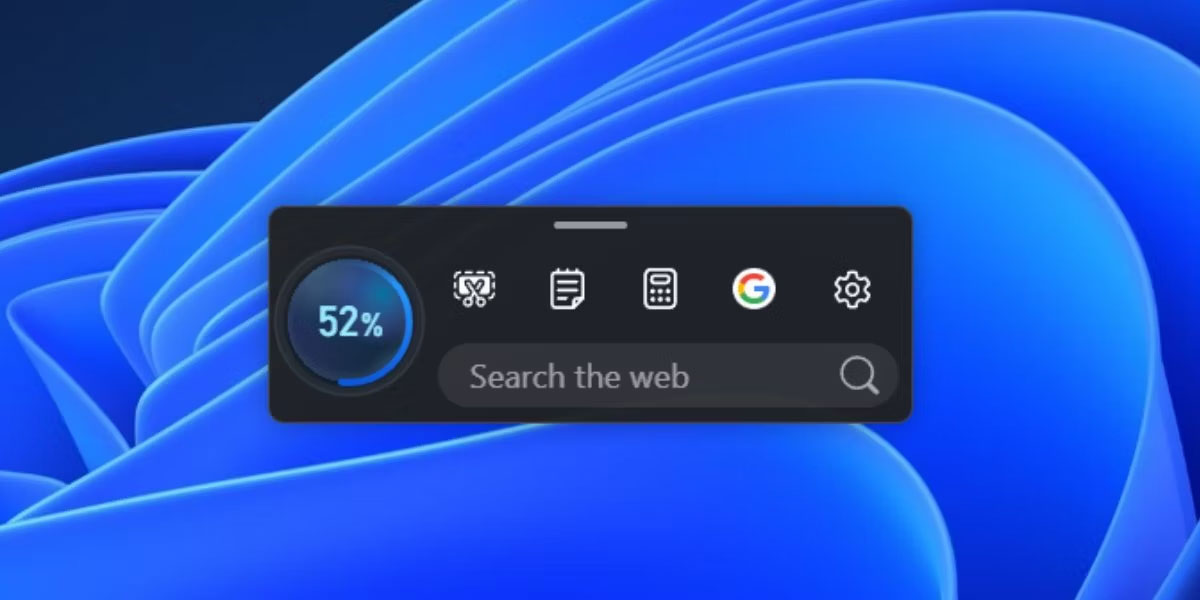
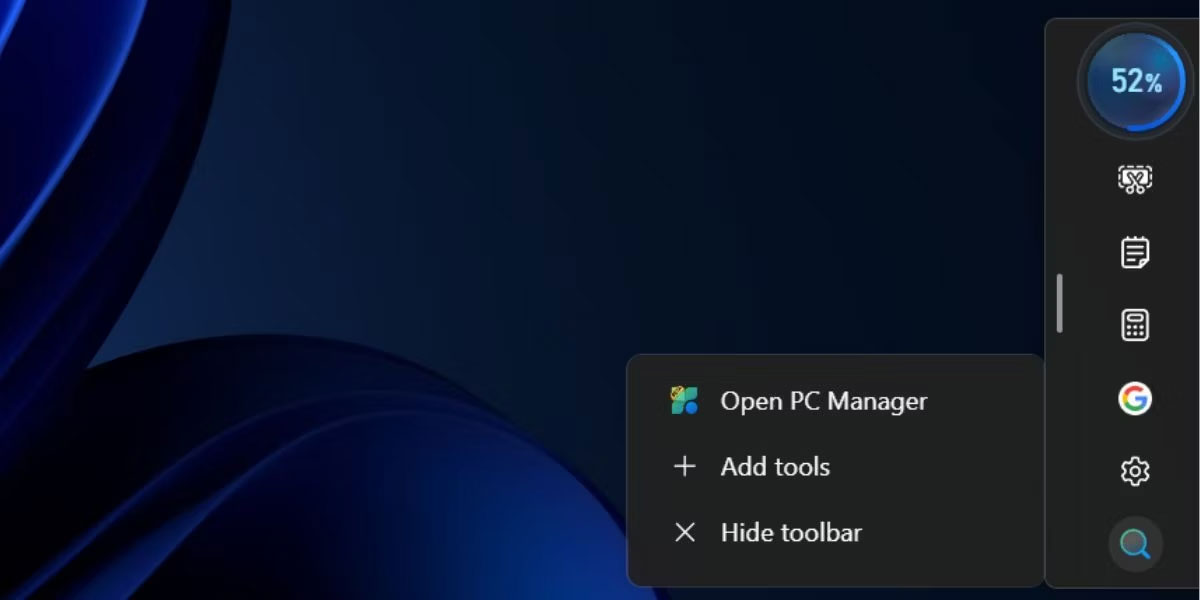
When you hover over it, the toolbar will automatically appear. Click the Boost button to clear memory or launch any tool. You can even add custom links to websites on the toolbar and then launch them directly in Edge.
How to customize the Toolbar
The default list of tools on the toolbar may not suit everyone. You might not need the Edge search option, or you might want to add more tools or remove some of them. Here is how to customize it:
1. Hover over the Toolbox on your desktop to open it.
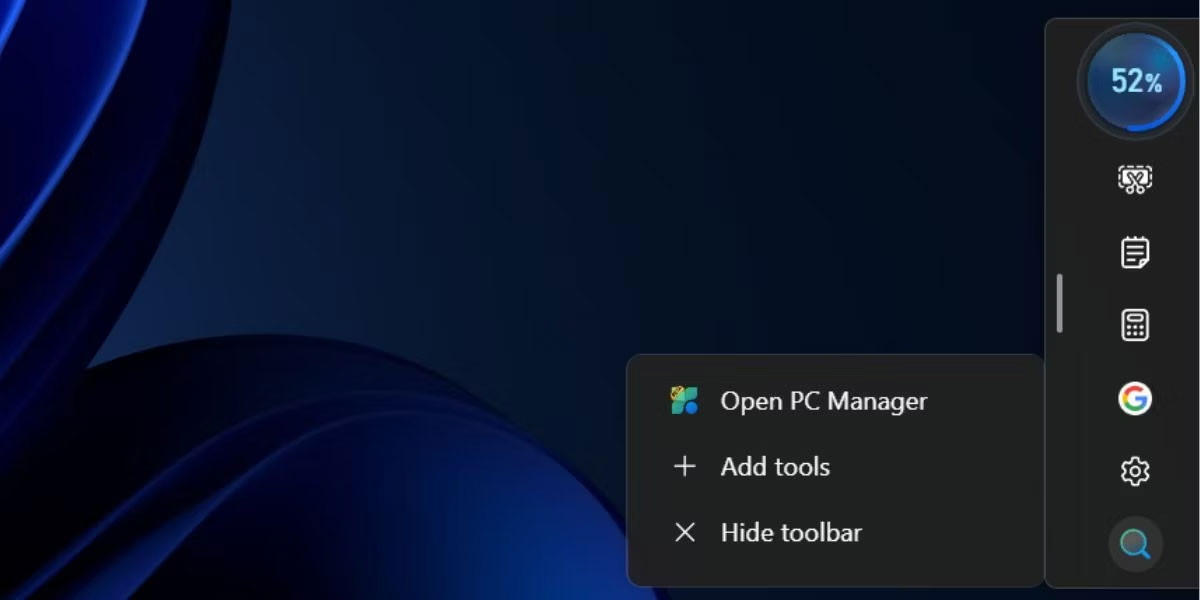
2. Click Settings.
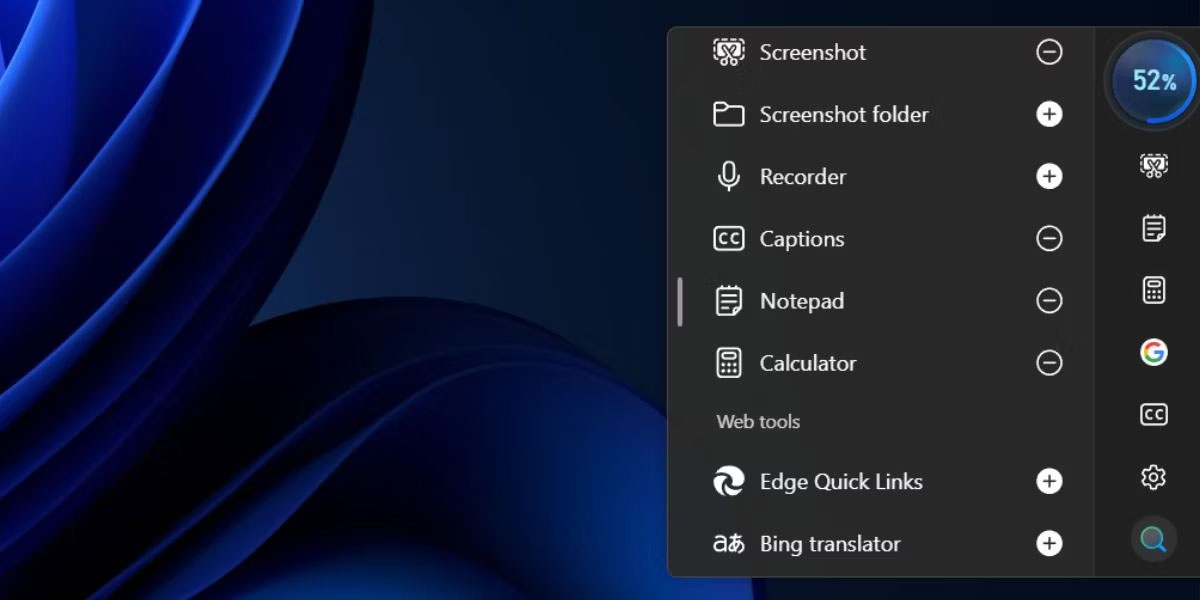
3. Now, click Add tools.
4. Press the plus (+) sign to add tools to the toolbar.
5. If you want to remove a tool icon from the toolbox, click the minus (-) icon.
6. Finally, click on the desktop to close the toolbar.
You can hide the toolbar without closing the Microsoft PC Manager app in the background. Hover over the toolbar to open it and click Settings. Then, click Hide toolbar to hide it from your desktop. However, you will have to access the Toolbox section in the Microsoft PC Manager app to make the toolbar appear again.
The new Microsoft PC Manager app has better Windows management capabilities and so many features that it could compete with any PC management or cleaning application. Now, you can identify larger files, manage applications and taskbar activities, as well as access many available Windows applications through the toolbar with a significantly improved user interface. However, it remains unclear when the app will move out of the Beta stage and appear on the Microsoft Store for general users.