

You may have heard that you shouldn't interfere with the Windows Registry, however, sometimes cleaning the Windows Registry is still necessary. Over time, the registry accumulates broken, outdated, and even missing registry keys, which affects computer performance. You may receive error messages frequently. Use built-in tools or third-party software to fix any issues caused by the registry.
1. Use the Disk Cleanup feature
The simplest method to clean the Windows Registry is to use the built-in Disk Cleanup tool. This tool is also useful for removing unnecessary files from your hard drive. Although not specifically designed for registry cleaning, it can help remove remnants from applications and drivers. When these files are removed, the corresponding entries in the registry are often deleted as well.
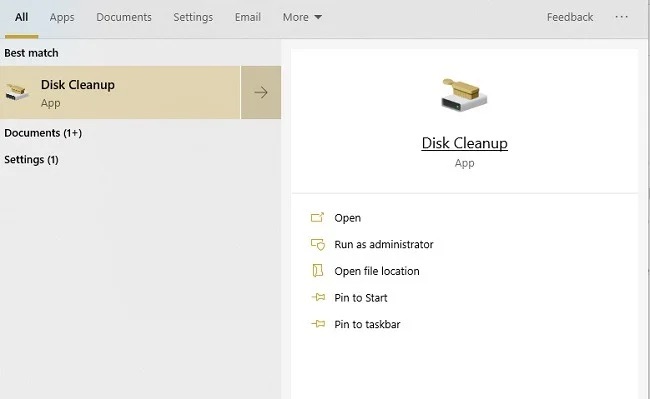
To use it, you can open Start, type disk cleanup, and select the Disk Cleanup result.
After the tool finishes scanning, you can click Clean Up System Files to see additional options after the tool runs a second time.
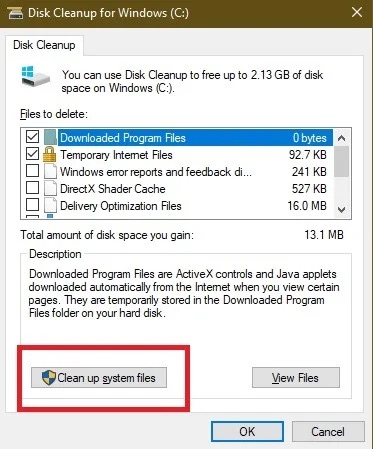
Then, you can select the options you want to delete or select all. Make sure there are no files in the Recycle Bin that you want to keep. Finally, press OK to clean the system.
2. Use DISM
DISM, which stands for Deployment Image Servicing and Management, is a built-in Windows tool used to fix update and system errors. It also has the capability to help repair issues related to corrupted registries. Although it is not a full-fledged registry cleaning tool, DISM can improve the state of the registry.
To use DISM, you need to open Start and type cmd. Then select Run as administrator in Command Prompt.
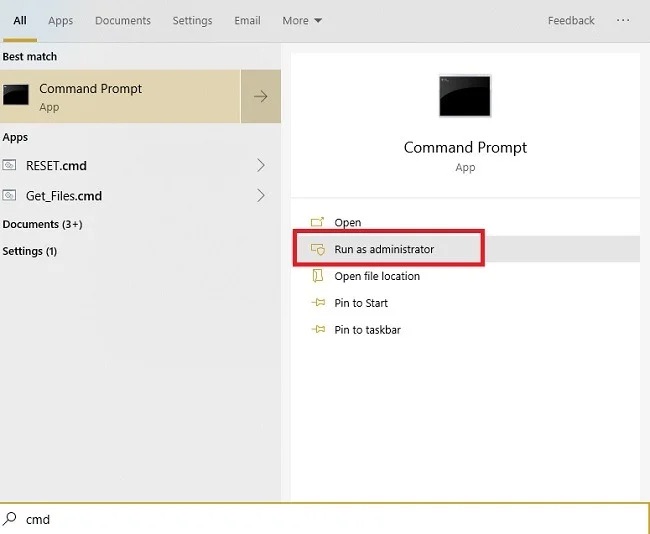
After opening Command Prompt, enter the following command:
DISM /Online /Cleanup-Image /ScanHealth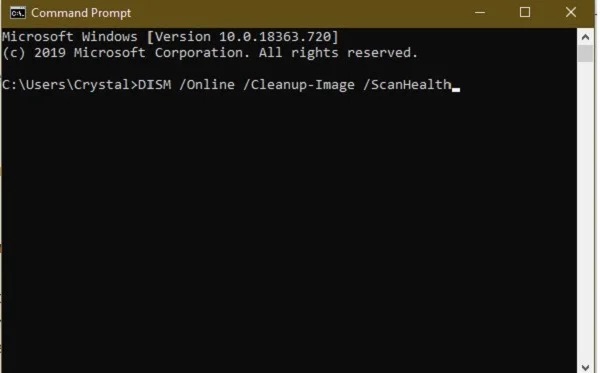
The scanning and error cleaning process will be performed. Although this is not directly related to the registry, it can help the computer run more smoothly by fixing encountered issues.
3. Clean the Windows Registry manually
If you do not want to dive deep into the Registry, you can clean the Registry manually without using any other tools. Before performing this method, always ensure you have backed up your data.
Press Win + R and type regedit to open the Registry Editor. Navigate to HKEY_CURRENT_USER > Software. Search for uninstalled software/applications. If you find a folder containing that software, right-click on that folder and select Delete.
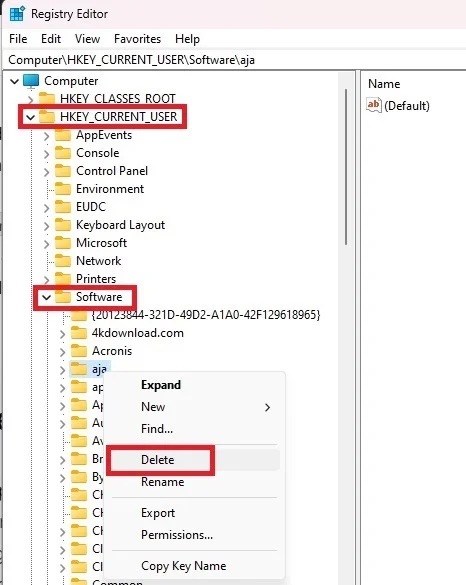
Delete software keys from the Registry. Once finished, navigate to HKEY_LOCAL_MACHINE > Software and repeat the process of deleting folders of uninstalled software.
4. Use CCleaner
CCleaner is a popular PC cleaning software that has existed for many years. From deleting cookies and temporary files to supporting startup option management, it performs many useful tasks, including cleaning the Windows Registry. Additionally, CCleaner has the ability to back up the Registry before proceeding with cleaning, which is a good idea.
To clean the Windows Registry with CCleaner, simply open the program, select Registry, then click Scan for Issues. Next, you can select Review selected Issues > Yes to back up the Registry and delete individual items or all items.
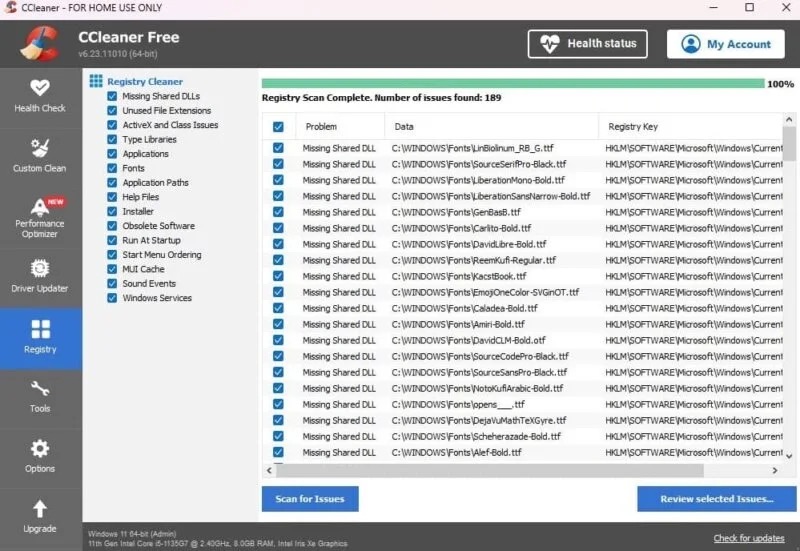
Although premium options are available, the free version of CCleaner still provides all the necessary features. You can run this tool by right-clicking the Recycle Bin or opening it through the Start menu.
5. Clean with Wise Registry Cleaner
Wise Registry Cleaner is a lightweight, free tool to clean the Windows Registry. Simply select Registry Cleaner > Scan. You will be prompted to back up the Registry the first time.
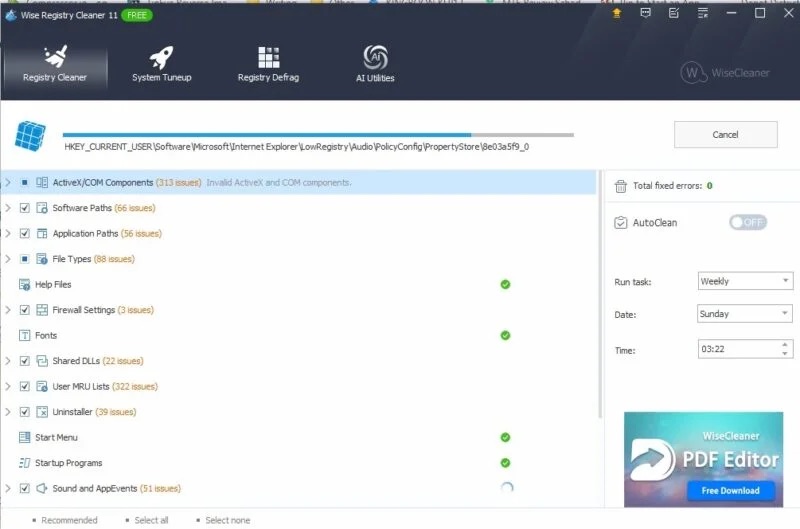
Clean Windows Registry with Wise. A premium version is available, but the free version handles most of everything needed. The premium version has a scheduled cleaning feature. If using the free version, remember to use it every few months.
6. Use Auslogics Register Cleaner
Auslogics Register Cleaner is a software with a long history of supporting users in cleaning the Windows Registry. The free version provides basic scanning functions, which are sufficient for most users' needs. However, users can upgrade to the premium version to receive notifications, as well as perform more detailed scans and cleaning. You just need to select Scan Now below to start scanning for errors.
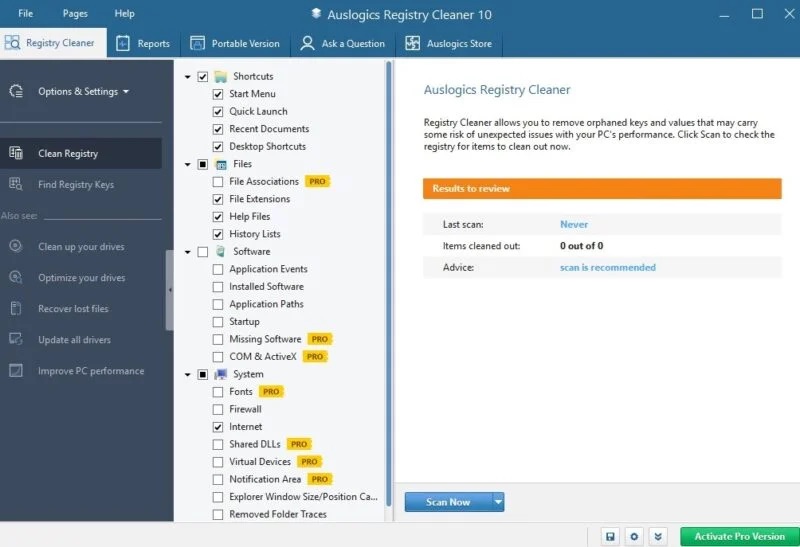
Clean Registry with Auslogics. Before deleting any items, you can review all of them to have full control. The tool will only remove safe items to ensure the safety of your system.











