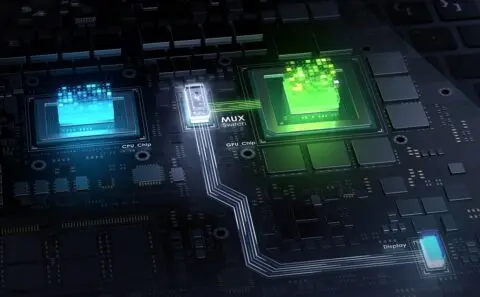

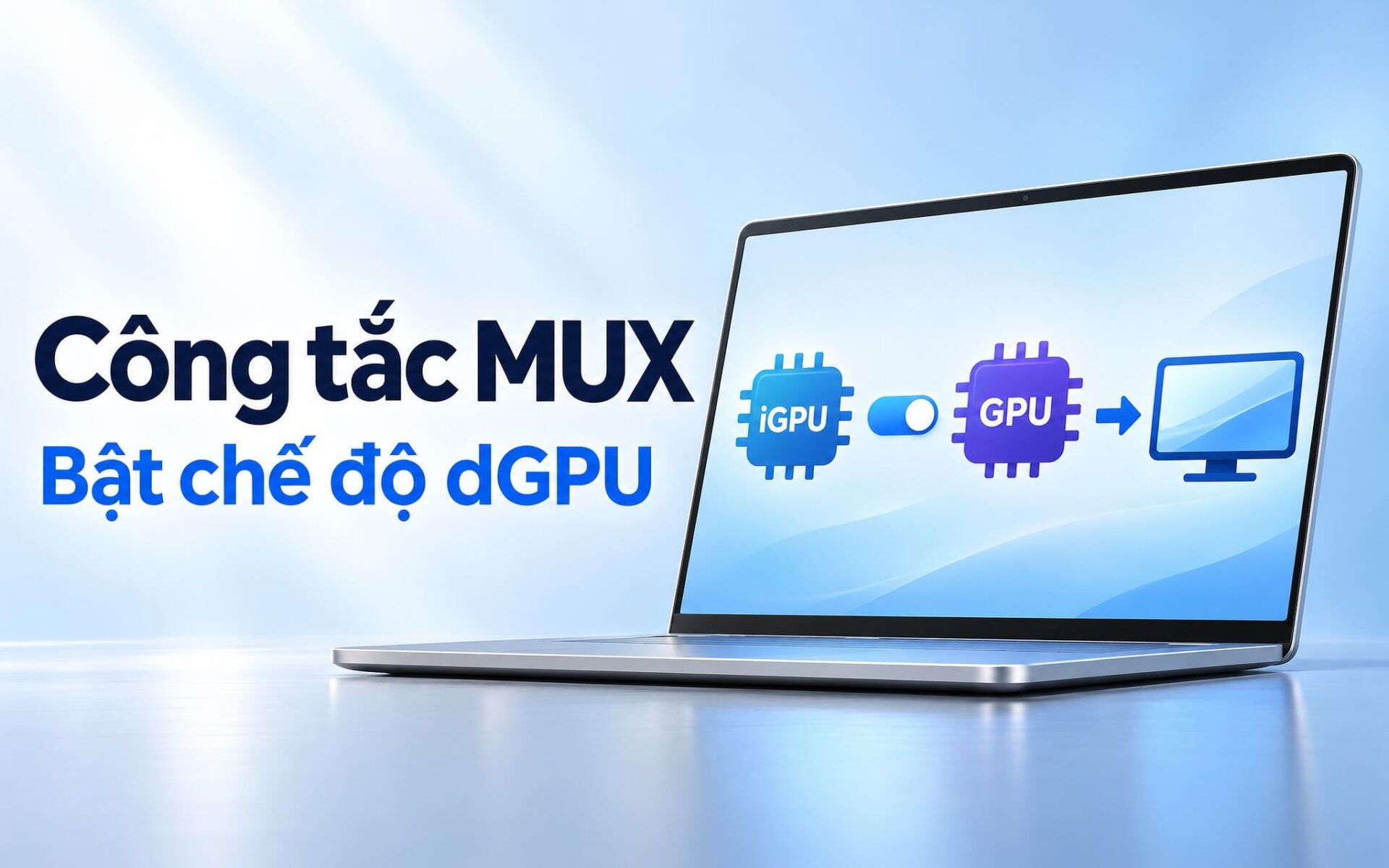
A MUX switch is a hardware switching chip on a gaming laptop's motherboard that lets the discrete GPU (dGPU) route display output directly to the screen instead of routing through the CPU's integrated graphics (iGPU). This guide explains how to tell whether a laptop has a hardware switch, how to enable dGPU mode in software from Lenovo, ASUS, MSI, HP, and Dell, what to keep in mind when connecting an external monitor, and how to troubleshoot common issues after switching modes.
What a MUX Switch Does in a Laptop's Display Signal Path
In principle, on laptops using NVIDIA Optimus, the discrete GPU renders frames and sends them across the PCI Express bus to the iGPU, which then outputs the image to the display panel. NVIDIA describes the iGPU's role here simply as a display controller. Under light workloads, the discrete GPU is powered down so the iGPU handles both rendering and display output, extending battery life. This is the Hybrid mode enabled by default on many gaming laptops out of the box.
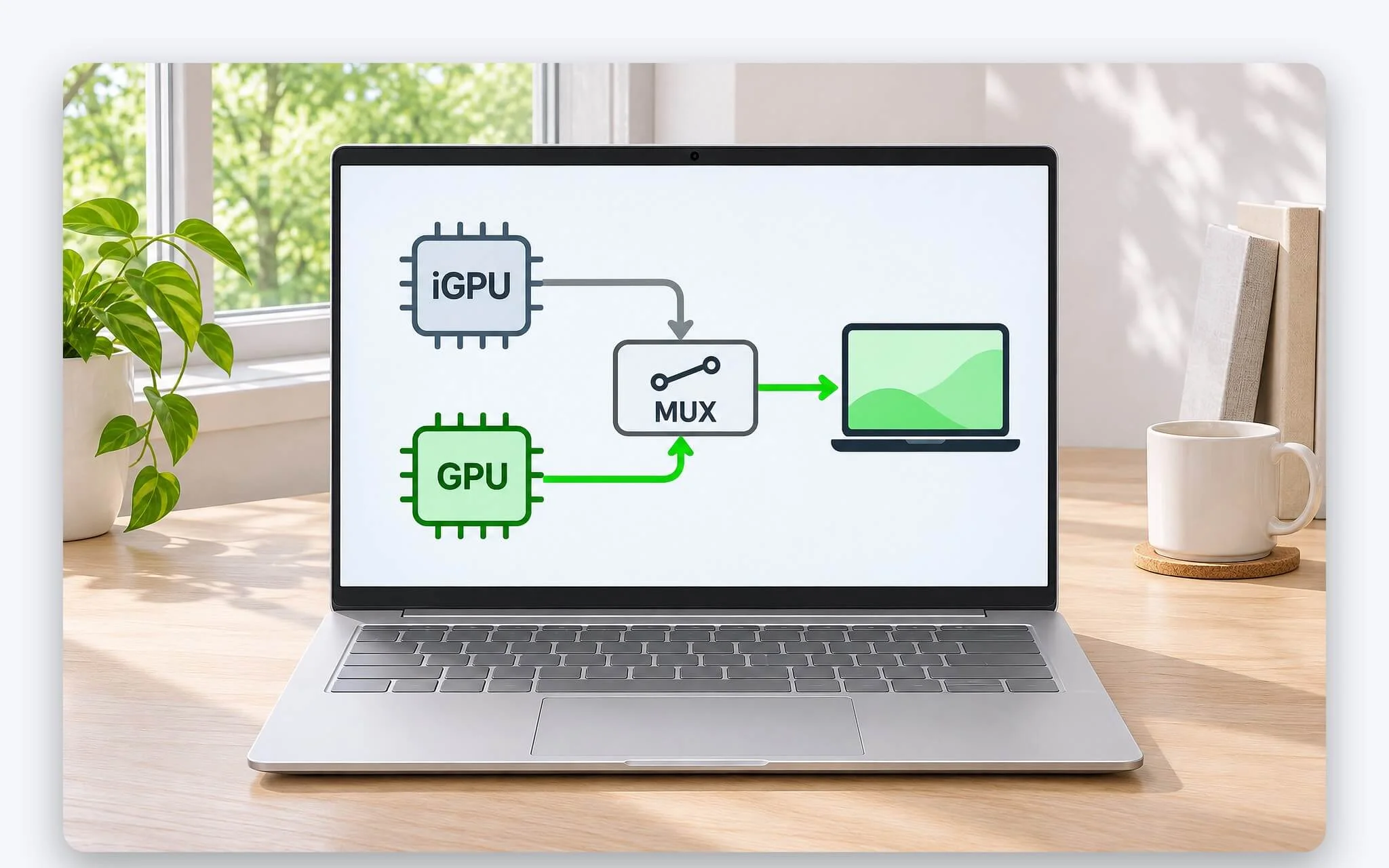
A MUX switch (Display Multiplexer) adds a direct connection from the discrete GPU to the internal display. When switching to dGPU mode, frames no longer need to pass through the iGPU, reducing latency and enabling G-SYNC on the laptop screen. NVIDIA Control Panel help documentation notes that the discrete GPU-only option maximizes performance and enables G-SYNC, while the iGPU-only option saves power.
In terms of numbers, NVIDIA claims Advanced Optimus boosts FPS by 11% to 27% and reduces system latency by up to 22% in select games, while ASUS recorded an average increase of about 9% in internal testing. These are manufacturer-reported figures; the actual difference on your laptop will depend on the game, specs, resolution, and CPU bottlenecks. In exchange, dGPU mode keeps the discrete GPU running constantly, draining the battery faster than Hybrid mode, which is why both HP and Dell recommend enabling it only when plugged in.
How to Tell if a Laptop Has a MUX Switch or Advanced Optimus
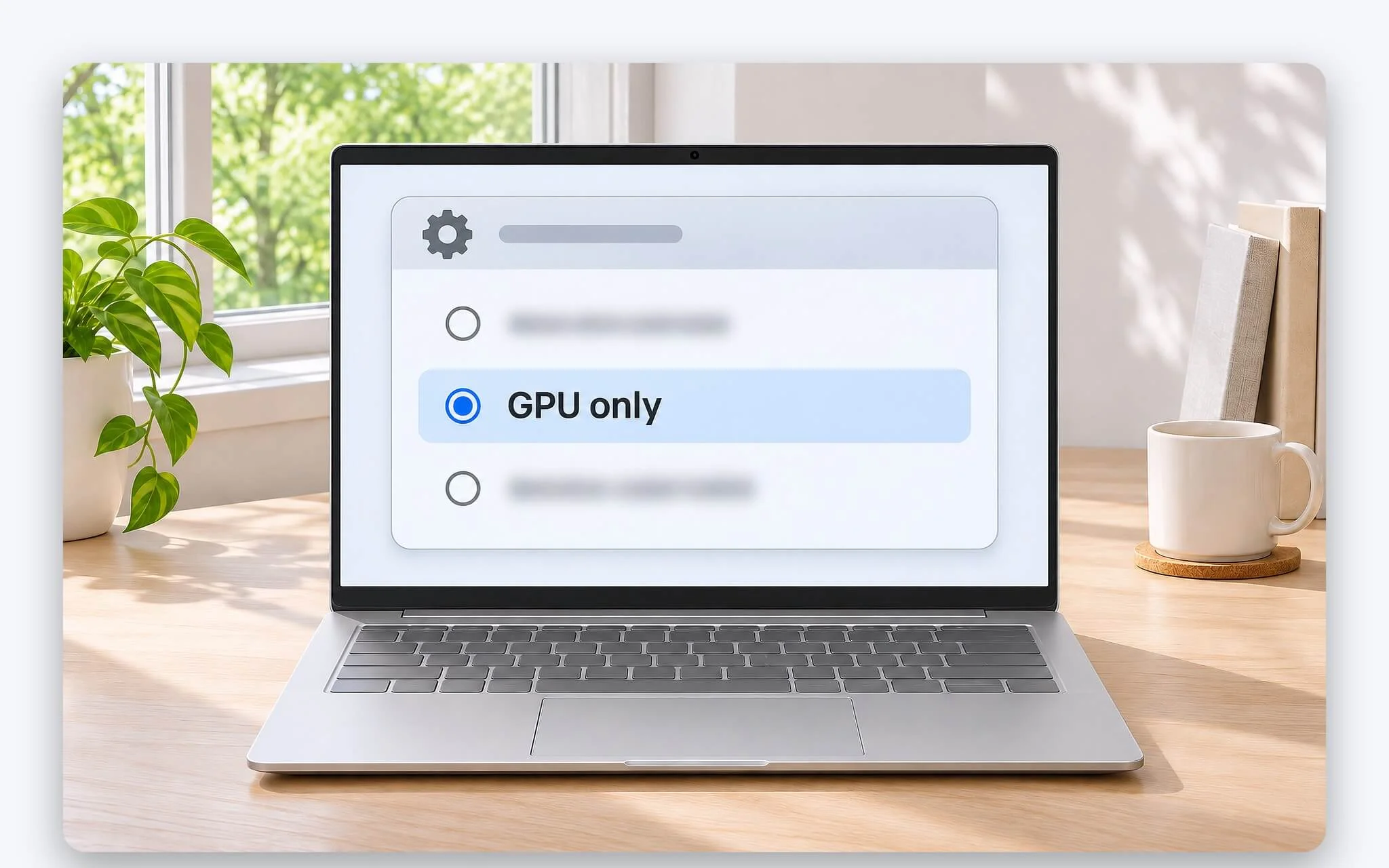
A quick way to check is to open NVIDIA Control Panel, go to 3D Settings, and look for Manage Display Mode. Laptops with a hardware switch will show options such as Optimus or NVIDIA GPU only, while configurations that support Advanced Optimus also include Automatic Select, allowing the driver to switch GPUs automatically based on the application. NVIDIA explains what each option does on its NVIDIA Control Panel Display Multiplexer page. If you do not see this section, the laptop most likely only runs standard Optimus.
The per-app GPU selection in Windows (Settings, Display, Graphics, with options for Let Windows decide, Power saving, and High performance) is not enough to verify whether a laptop has a MUX switch. According to Dell's documentation, this setting merely selects the rendering GPU for each app; under Optimus, frames from the discrete GPU are still routed through the iGPU before reaching the screen. Similarly, having a GPU Mode option in the manufacturer's software is not proof either, as modes like Eco or Standard only enable or disable the discrete GPU without changing the display routing.
The definitive way to confirm is to check the spec sheet or user manual for your exact model, looking for terms such as MUX Switch, Advanced Optimus, dGPU Mode, or Discrete Graphics Mode. ASUS recommends checking the Tech Specs section on its ROG website, while certain Dell and Alienware models place the Enable Hybrid Graphics or Advanced Optimus option directly in the BIOS. When shopping in-store, you can ask a staff member to open NVIDIA Control Panel to look for the Manage Display Mode section.
How to Enable dGPU Mode in Each Laptop Brand's Software
On the Lenovo Legion lineup, GPU mode settings are located in Lenovo Vantage or Legion Space, offering three options: Hybrid Mode, Hybrid-iGPU Only Mode, and dGPU Mode. According to Lenovo's documentation, Hybrid Mode automatically switches the active GPU to balance performance and power consumption, while dGPU Mode assigns all graphics tasks to the discrete GPU and requires a restart. Some models running Legion Space also include an automatic Hybrid mode. If your laptop uses Legion Space, the article What Legion Space Is: How to Download It Officially, Switch GPU Modes, and Troubleshoot shows exactly where to find the GPU mode switcher in the app.
| Brand | Control Software | Mode Names | Number of Modes | Reboot Required When Enabling Discrete GPU |
|---|---|---|---|---|
| Lenovo | Lenovo Vantage | Hybrid Mode, Hybrid-iGPU Only Mode, dGPU Mode | 3 | Yes (dGPU Mode) |
| ASUS | Armoury Crate | Eco, Standard, Optimized, Ultimate | 4 | Yes (Ultimate) |
| MSI | MSI Center (GPU Switch) | MSHybrid, Integrated graphics mode, Discrete graphics mode, depending on the model | 3 | Yes |
| HP | OMEN Gaming Hub (Graphics Switcher) | Hybrid, Discrete | 2 | Yes |
| Dell, Alienware | Alienware Command Center or BIOS | Enable or disable MUX Switch, Hybrid Graphics | 2 | Yes |
| NVIDIA | NVIDIA Control Panel (Manage Display Mode) | Optimus, NVIDIA GPU only, Automatic Select | 3 | No, with Advanced Optimus |
On ASUS ROG and TUF laptops, Armoury Crate provides four GPU modes. According to the guide Maximize your ROG laptop performance with a MUX Switch, Ultimate uses the MUX switch to route display output directly from the discrete GPU and requires a reboot, Standard reverts to Microsoft Hybrid mode so Windows can decide on its own, Eco disables the discrete GPU entirely to prolong battery life, and Optimized automatically applies Eco on battery power and Standard while plugged in. If you are currently in Ultimate mode, you must switch back to Standard first before you can choose Eco or Optimized.
For MSI models equipped with a MUX switch, the GPU Switch setting is located in MSI Center under Features and then General Settings, or accessible via User Scenario, and MSI requires a system restart to activate the new mode. HP OMEN Gaming Hub places the Graphics Switcher in the sidebar - or under Performance Control on certain models - where you select Hybrid or Discrete, click Apply, and reboot. Supported Alienware laptops allow you to enable the MUX Switch in the Performance tab of Alienware Command Center, while Dell also includes an option to disable Hybrid Graphics in the BIOS.
External Displays, G-Sync, and Display Output Ports Wired Directly to the Discrete GPU
Not every port on a laptop connects to the same GPU. Display output charts published by MSI show that across many models, the HDMI, Type-C, or mini DisplayPort connects to the discrete GPU, while the Thunderbolt port connects to the iGPU. When you plug an external monitor into a port wired directly to the discrete GPU, video frames reach that display directly without requiring a MUX switch, even while the internal laptop panel continues running in Hybrid mode.
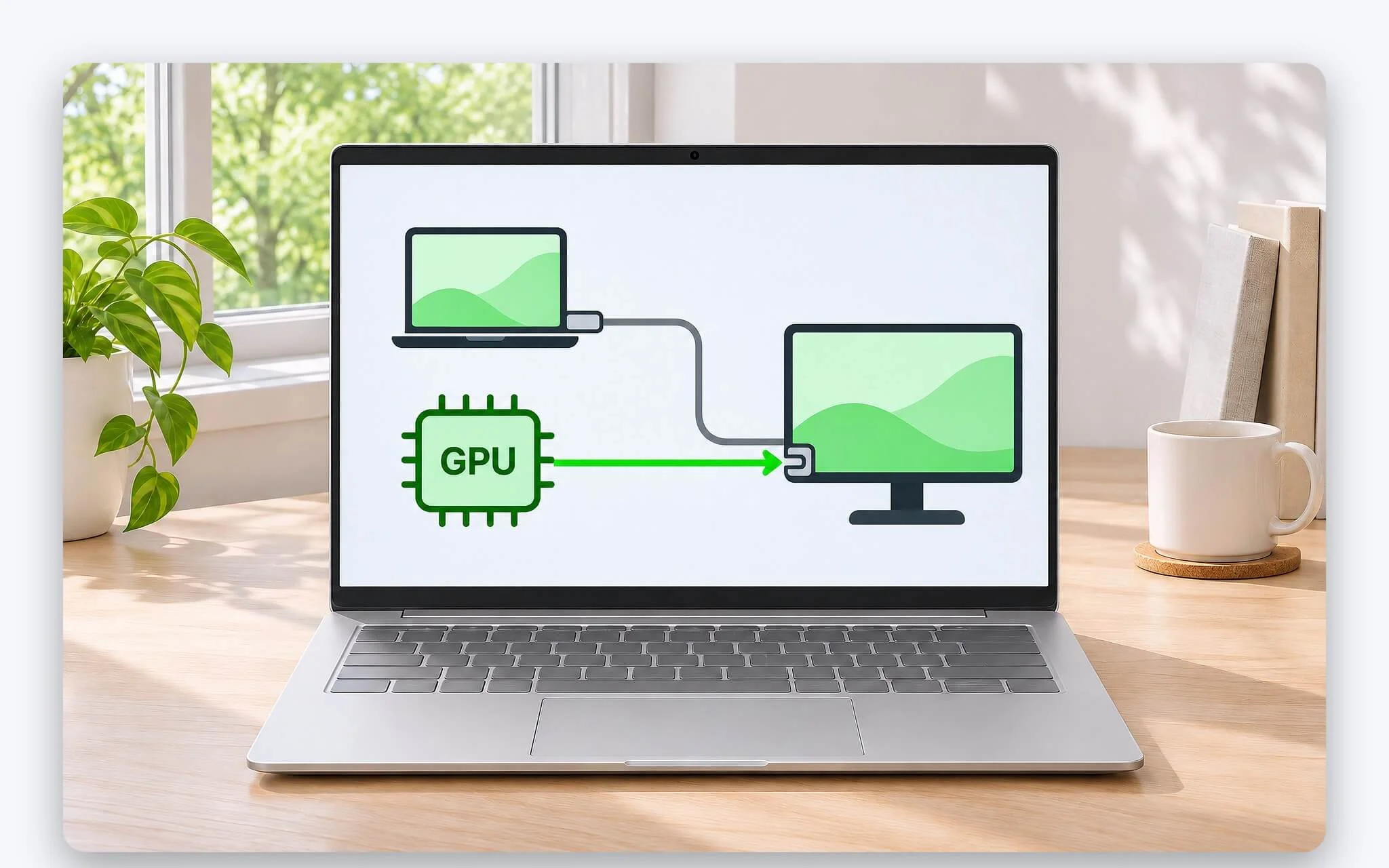
MSI documentation also notes that Thunderbolt ports only support external displays in Hybrid mode (MSHybrid), and Intel Thunderbolt has limited support when discrete GPU mode is active. VR headsets must be plugged into a port wired directly to the discrete GPU to function properly. Therefore, before buying an adapter cable or dock, you should confirm which port connects to which GPU; MSI suggests checking the Set PhysX Configuration page in the NVIDIA Control Panel to see which GPU currently drives each display.
On the internal display, G-SYNC can only be enabled when the discrete GPU drives the panel directly - meaning in dGPU mode or via Advanced Optimus. For display output ports equipped with a dedicated switch, the NVIDIA Control Panel lets you select the GPU for the external monitor; in automatic mode, the driver relies on the iGPU on battery power, switches to the discrete GPU when plugged in, and changes only when no display is currently connected. NVIDIA recommends using the discrete GPU-only setting for this port when connected to AC power.
Common Errors After Switching GPU Modes and How to Fix Them
When Advanced Optimus automatically switches GPUs, ASUS notes that the screen may turn black for 3 to 5 seconds accompanied by a brief flicker, which is normal behavior. If screen flickering persists after the switch, HP recommends disabling and re-enabling the display adapter in Device Manager, updating the graphics driver, and checking external display cables. If the display still flickers even when mode switching does not occur, the article Laptop Screen Flickering: Driver, Refresh Rate, or Display Cable Issues explains how to isolate each cause.
| Symptom | Cause per Manufacturer Documentation | Solution |
|---|---|---|
| Screen goes black for 3 to 5 seconds with a slight flicker | Advanced Optimus is switching between the iGPU and discrete GPU (ASUS) | Wait for the transition to finish |
| Unable to switch modes in OMEN Gaming Hub | System has not restarted, or drivers/Windows are not up to date (HP) | Restart the system, update GPU drivers, run Windows Update, and reset Gaming Hub |
| Applications Preventing Display Mode Change error | Background processes are keeping the display locked to the iGPU (Dell) | Select Optimus or NVIDIA GPU only instead of Automatic Select |
| Armoury Crate reports GPU Mode is unavailable | NVIDIA Control Panel is set to Automatic Select (ASUS) | Set Manage Display Mode to Optimus |
| BitLocker recovery screen appears, PIN sign-in fails | Can occur after switching GPU Mode (ASUS) | Back up the BitLocker recovery key beforehand and follow the manufacturer instructions |
| Games still run on the iGPU | The transition has not finished (HP) | Assign the game to the high-performance GPU in Windows Graphics settings |
On laptops equipped with an Advanced Optimus MUX switch, certain running processes can block display mode switching. Dell noted that Alienware Command Center version 6.14.20 on the Dell G16 7630 triggers an Applications Preventing Display Mode Change driver error, keeping the GPU locked to the iGPU when launching a game. Dell suggests selecting Optimus or NVIDIA GPU only instead of Automatic Select, or disabling Hybrid Graphics and Advanced Optimus in the BIOS and restarting the machine.
ASUS cautions that switching GPU Mode can trigger the BitLocker recovery screen or cause PIN sign-in to fail, so you should back up your BitLocker recovery key before switching. Certain Dolby Vision content may also fail to display correctly when the discrete GPU controls the screen; ASUS recommends closing the game or media player, switching GPU Mode to Standard or Eco, and reopening it. You should also save any open files before clicking Apply.
When to Use Hybrid Mode and When to Enable dGPU Mode
When running on battery power for studying, online meetings, or word processing, Hybrid mode or iGPU-priority modes allow the discrete GPU to sleep, keeping the laptop cooler and quieter. HP recommends using Hybrid mode when battery life is needed, setting non-gaming applications to Power saving, turning on Battery Saver when the battery reaches 20%, and only selecting Discrete while plugged in. Lenovo also suggests Hybrid-iGPU Only for web browsing and word processing to save power.
| Use Case | Recommended Mode | Rationale |
|---|---|---|
| Battery power, studying, office work, web browsing | Hybrid, Hybrid-iGPU Only, or Eco | Recommended by Lenovo, HP, and ASUS for light tasks to reduce power consumption |
| Stationary gaming while plugged in | dGPU Mode, Ultimate, or Discrete | Direct frame output, enables G-SYNC (NVIDIA, ASUS) |
| Alternating between work and gaming | Automatic Select or Optimized | Automatically switches GPUs without a reboot (NVIDIA, ASUS) |
| External display output via Thunderbolt | MSHybrid | Thunderbolt port connects to the iGPU on many models (MSI) |
| Video editing, 3D rendering on internal display | Hybrid, switch to dGPU when G-SYNC is needed | Discrete GPU still handles render commands in Optimus (NVIDIA) |
When gaming at a fixed desk while plugged in, dGPU mode (Ultimate on ASUS, Discrete on HP and MSI) routes output directly from the discrete GPU to the display via the MUX switch, lowering latency and enabling G-SYNC. Dell advises using discrete GPU mode only on AC power because the battery drains rapidly. On laptops equipped with Advanced Optimus, keeping Automatic Select enabled lets the driver switch GPUs on a per-app basis without requiring a reboot, though ASUS notes that this automatic mechanism works only when plugged into power.
For graphics workloads such as video editing or 3D rendering, the discrete GPU still handles all rendering commands in Hybrid mode under NVIDIA's Optimus design, so dGPU mode mainly differs in how frames are delivered to the display. You can keep Hybrid mode active when working on the internal display and switch to dGPU mode only when you need G-SYNC or if an application fails to detect the discrete GPU.
Frequently Asked Questions (FAQ)
Can you game on a laptop without a MUX switch?
Yes. The discrete GPU still renders games through Optimus; the only difference is that frames must pass through the iGPU, resulting in higher latency and the inability to enable G-SYNC on the internal display. Connecting an external monitor to a port wired directly to the discrete GPU is one way to take advantage of a direct display path on these laptops.
Does enabling dGPU mode affect laptop lifespan?
No. This is a built-in feature designed by manufacturers in the control software and BIOS. The main trade-off is that battery drain is faster than in Hybrid mode and many models require a reboot after switching, which is why HP and Dell recommend turning it on only when plugged in.
Can you add a MUX switch to an existing laptop?
No. The switch is a hardware component soldered onto the motherboard, paired with dedicated traces and compatible BIOS support designed by the manufacturer, so it cannot be added via software or external accessories. The alternative is outputting video through a port wired directly to the discrete GPU.
How does ASUS's Optimized mode differ from Ultimate?
Optimized automatically selects Eco on battery and Standard when plugged in, both of which route frames through the iGPU or power down the discrete GPU. Ultimate uses the MUX switch to output directly from the discrete GPU and requires a reboot when enabled.