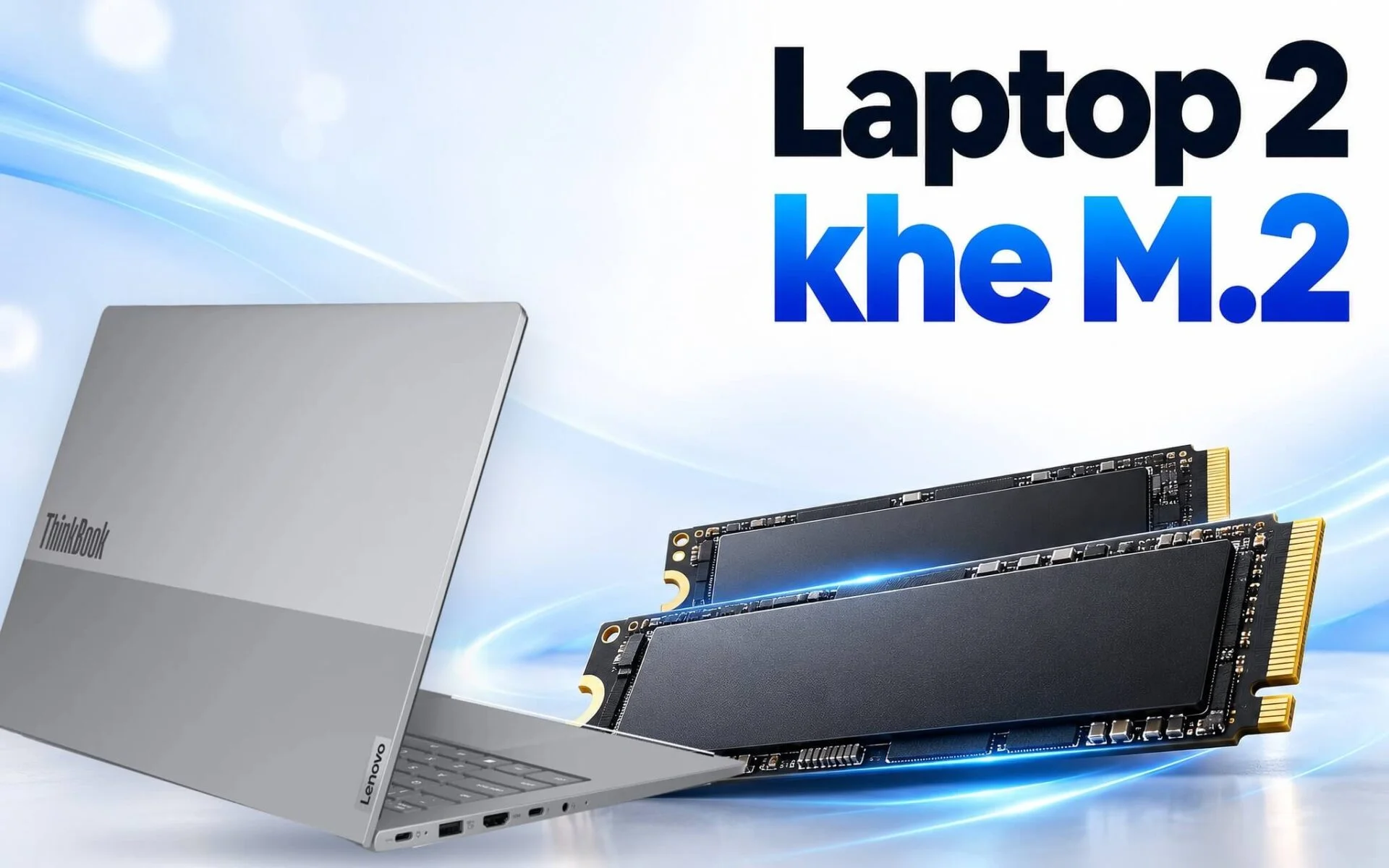
Dual M.2 slot laptops are laptops that feature two M.2 SSD slots on the motherboard, typically with one slot housing the Windows boot drive and the other left empty so you can expand storage yourself. An M.2 slot is a slim connector for internal SSDs, with dimensions designated by number sequences such as 2242 or 2280. This guide explains when you need an extra drive, how to read manufacturer spec sheets to check for an empty slot, key installation considerations, and five 2025 and 2026 laptop models equipped with a second M.2 slot.
What Needs Require Adding an Internal SSD to a Laptop
The first group includes RAW photographers and high-resolution videographers. Every shoot or video editing project generates massive amounts of raw source footage and data, alongside proxy files and cache from editing software. The Windows drive quickly fills up, and the laptop gradually slows down as free space dwindles. A high-storage laptop with a second internal drive lets you keep project data right on the machine rather than plugging in an external drive throughout your workday.
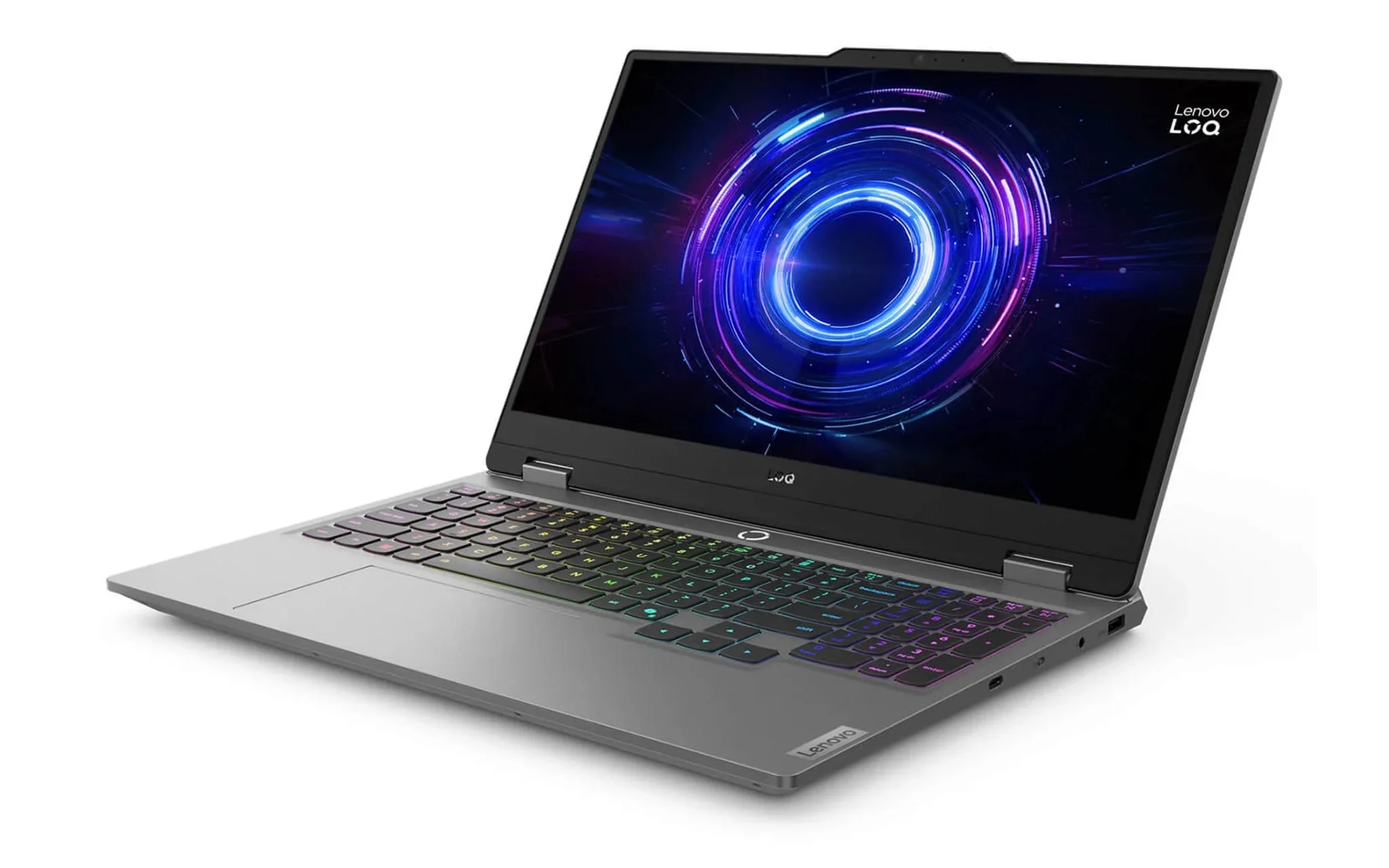
The second group comprises gamers and virtual machine users, who need a high-storage laptop just as much as video editors. Modern game libraries take up substantial capacity, with each update downloading more data, while every virtual machine used for software testing or programming requires its own virtual disk file. On a dual M.2 slot laptop, placing game libraries or virtual machine folders on the second drive keeps the OS drive clear for Windows Update and temporary files, keeping overall performance more stable.
A third benefit is separating the operating system drive from your data drive. When Windows runs into problems and requires a reinstall, you only format the system drive, leaving all photos, videos, and documents on the second drive intact. This is why many people choose a dual M.2 slot laptop from the start, even if they do not need to install a second drive right away: the empty second M.2 slot provides headroom to expand capacity later without having to replace the active drive.
Reading Manufacturer Spec Sheets to Know How Many M.2 Slots a Laptop Has
Retail product pages typically list only the capacity of the installed SSD, such as 512GB or 1TB, without stating how many slots the laptop has. That information resides in the manufacturer's technical documentation. For Lenovo, look for the Storage Slot section in the PSREF (Product Specifications Reference), which details the number of slots, slot form factors, and PCIe standards. For ASUS, the corresponding section is Expansion Slots (includes used) on the specifications page; the phrase "includes used" means the count already includes occupied slots. Checking this exact section is the surest way to identify a dual M.2 slot laptop before buying.
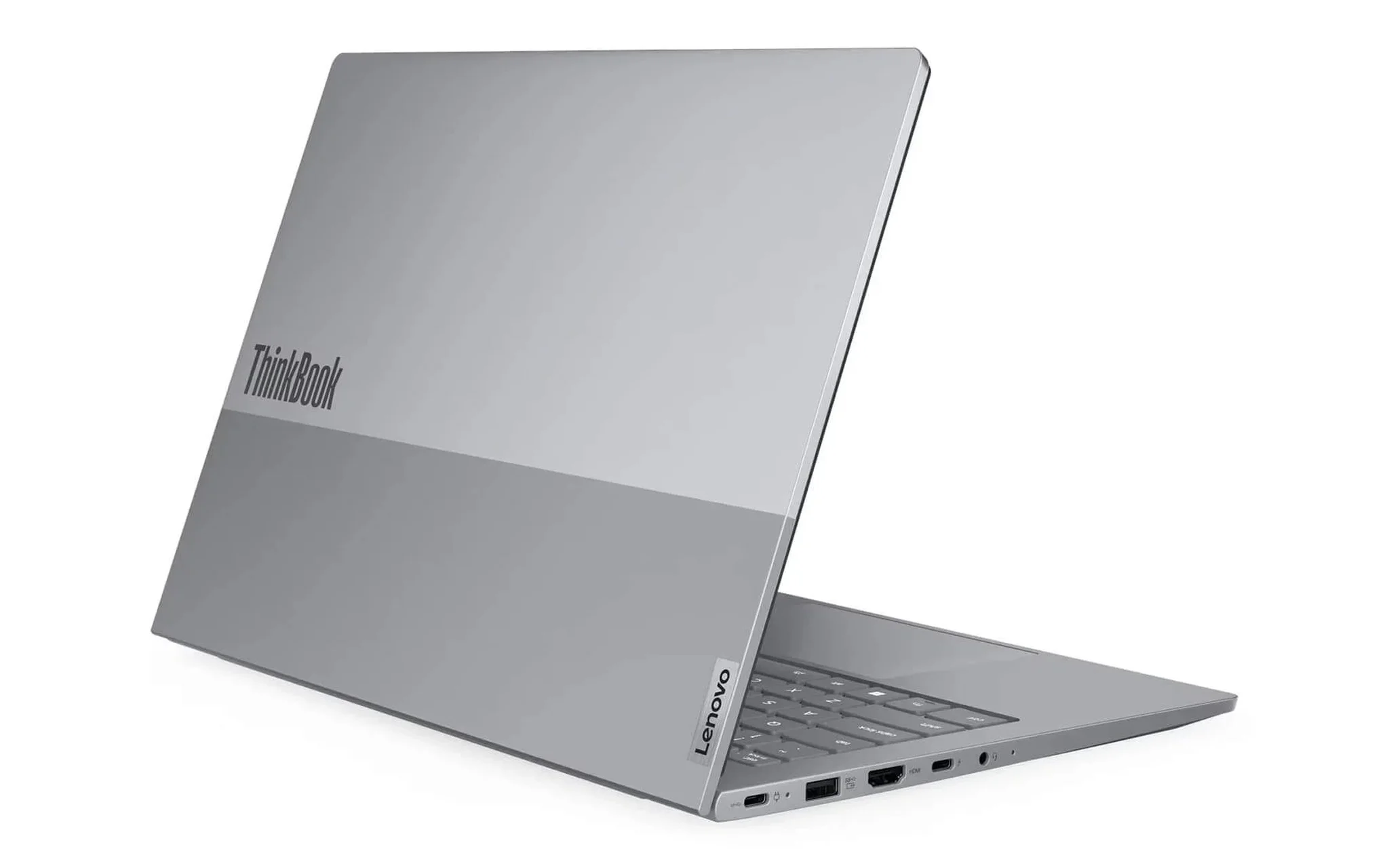
In the PSREF, there is a note worth reading carefully: the system supports two SSDs via two M.2 slots, but Lenovo sells single-drive configurations only, leaving the remaining slot for buyers to expand on their own. This statement appears on the PSREF ThinkBook 14 G8 IRL and Legion 5 15IAX11 pages, meaning the second M.2 slot on these laptops is empty straight from the factory. The Max Storage Support section indicates the per-slot capacity that the manufacturer has tested or confirmed technically ready.
You should distinguish between the number of slots on the motherboard and the number of installed drives. A dual M.2 slot laptop might still ship with only one drive, while some workstations like the ThinkPad P16 Gen 3 feature up to three slots. Conversely, some models offer only a single slot despite coming with a large-capacity drive; for instance, the PSREF for the ThinkPad T16 Gen 4 explicitly states One drive, meaning turning this model into a high-storage laptop requires replacing the drive rather than adding another.
2242 and 2280 Dimensions and PCIe Standards Determine Drive Fit
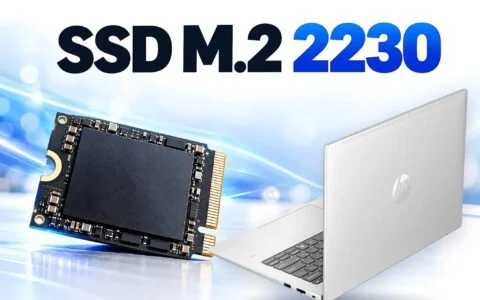
The four-digit number on an M.2 drive indicates its dimensions: the first two digits represent width, and the last two represent length in millimeters. A 2280 drive measures 22 mm wide by 80 mm long, making it the most common form factor in the standalone drive market, whereas 2242 (42 mm long) and 2230 (30 mm long) are designed for compact profiles. The second M.2 slot must have a screw standoff that matches the length of the drive you intend to buy, or the drive cannot be secured to the motherboard. Therefore, when choosing a dual M.2 slot laptop, you need to know the dimensions of both slots, not just the one currently housing a drive.
| Slot PCIe Standard | Theoretical x2 Bandwidth (GB/s) | Theoretical x4 Bandwidth (GB/s) | Found in Laptops Featured in This Article |
|---|---|---|---|
| PCIe 3.0 | 2 | 4 | None |
| PCIe 4.0 | 4 | 8 | ThinkBook 14 G8 IRL, LOQ 15IRX10, 2280 slot on Legion 5 15IAX11, two slots on ThinkPad P16 Gen 3 |
| PCIe 5.0 | 8 | 16 | 2242 slot on Legion 5 15IAX11, one slot on ThinkPad P16 Gen 3 |
A case requiring careful reading is the Legion 5 15IAX11: the PSREF lists one M.2 2242 PCIe 5.0 x4 slot and one M.2 2280 PCIe 4.0 x4 slot, so any additional drive you purchase must match the size of the remaining empty slot. The PCIe standard dictates the hardware bandwidth limit. According to Lenovo's notes, PCIe 4.0 x4 reaches a theoretical 8 GB/s, while PCIe 5.0 x4 reaches 16 GB/s. A PCIe 5.0 drive installed in a PCIe 4.0 slot will still function, but only at PCIe 4.0 speeds, as confirmed by the ThinkPad P16 Gen 3 PSREF.
For a high-storage laptop dedicated to storing photos, videos, and games, a PCIe 4.0 drive is well suited because the deciding factor is capacity rather than sequential read speed. After installation, you should benchmark the drive to see if it runs at the proper slot standard; the article Measuring SSD Speed with CrystalDiskMark: Understanding the 4 Tests on Laptops Correctly explains how to interpret sequential and random results against the drive manufacturer's published specifications.
Things to Keep in Mind When Installing a Second Drive and Separating Data
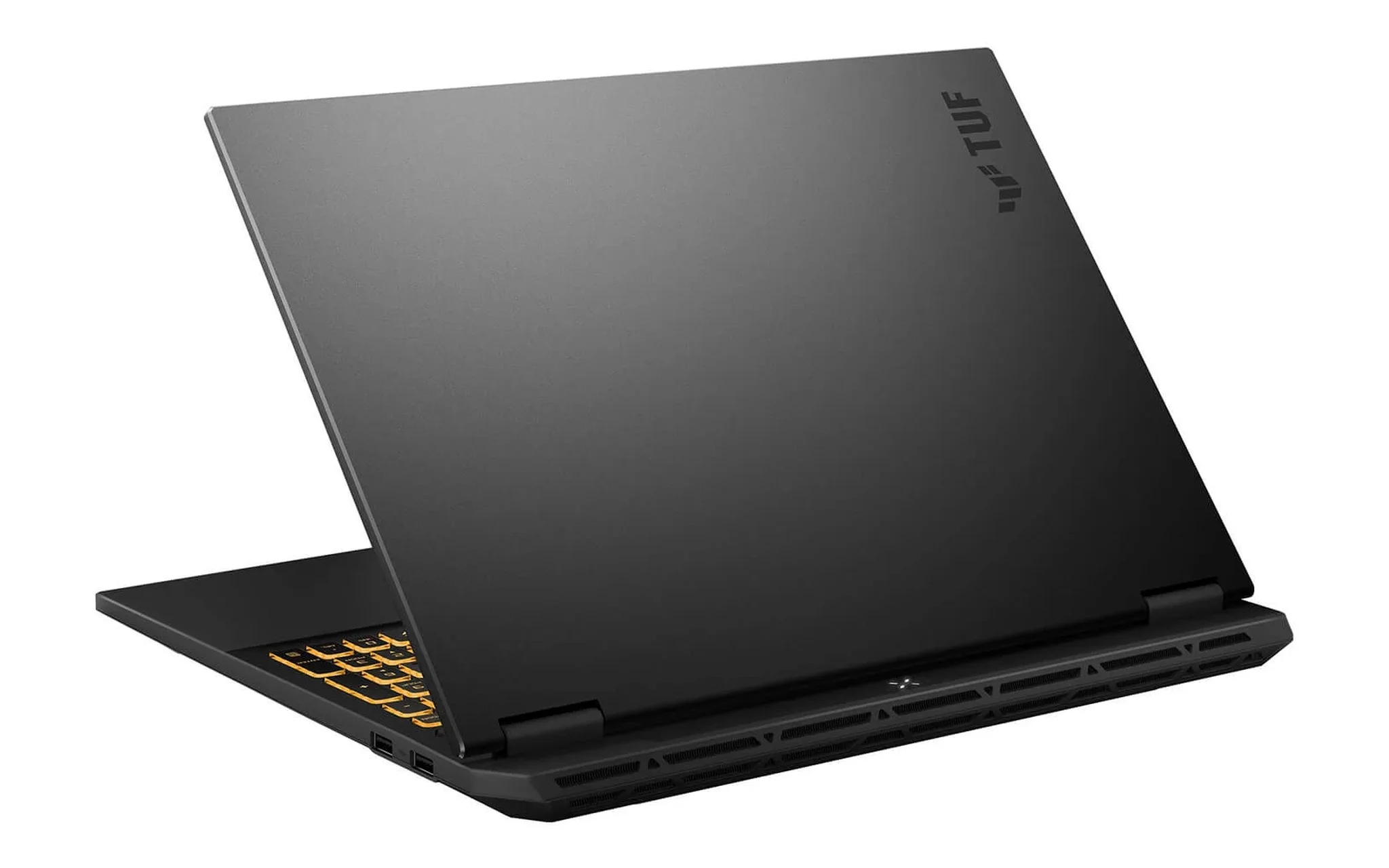
First is drive thickness. The ASUS TUF Gaming F16 (2025) spec sheet clearly notes that the M.2 slot only supports single-sided SSDs because surface-mounted components sit right next to the slot. Double-sided drives or desktop models with thick heatsinks may not fit inside the chassis. When choosing a drive for extra capacity, prioritize slim, single-sided 1TB or 2TB SSDs that fall within the manufacturer's supported limits.
The second consideration is warranty coverage and electrical safety. Before removing the bottom panel to install a drive in the second M.2 slot, review the warranty terms from the retailer or manufacturer, as each line has its own policies regarding warranty seals and user upgrades. The laptop must be completely powered off, unplugged from the charger, and have its battery disconnected according to manufacturer guidelines before you touch the motherboard. If you are not comfortable handling the hardware, having a technician install the drive is the safest approach for both the laptop and the new SSD.
Once the drive is installed in the second M.2 slot, Windows will not display it immediately. Following Microsoft's instructions, open Disk Management, select Initialize Disk with the default GPT partition style, create a New Simple Volume, assign a drive letter, and format the drive as NTFS. Next, relocate your Documents, Pictures, and Videos folders to the new drive via the Location tab in Properties. If you prefer to migrate all of Windows to the higher-capacity SSD rather than keeping the original drive, the guide on Cloning a Laptop SSD: How to Move Windows to a New SSD Without Reinstalling walks through the complete cloning process.
Office and Midrange Gaming Laptops With an Available M.2 Slot
In the productivity segment, the Lenovo ThinkBook 14 G8 IRL (2025) is an accessible option starting at 26.99 million VND for a configuration with a Core 5 210H, 16GB of RAM, a 512GB SSD, a WUXGA display, and no pre-installed OS. Lenovo's PSREF lists two M.2 2280 PCIe 4.0 x4 slots, each accommodating up to 2TB. It is a dual-M.2-slot machine well suited for office staff, accountants, or students who need to keep extensive archives of documents, photos, and backups directly on a 14-inch laptop.
| Laptop | Number of M.2 Slots (Manufacturer Source) | Slot Size and Standard | Installed SSD | RAM | Starting Price (Million VND) |
|---|---|---|---|---|---|
| Lenovo ThinkBook 14 G8 IRL (2025) | 2 | 2280, PCIe 4.0 x4 on both slots | 512GB | 16GB | 26.99 |
| Lenovo LOQ 15IRX10 (2025) | 2 | 2280, PCIe 4.0 x4 on both slots | 512GB | 16GB | 37.99 |
| ASUS TUF Gaming F16 FX608LM (2025) | 2 | M.2 PCIe, single-sided drives only | 1TB | 32GB | 46 |
| Lenovo Legion 5 15IAX11 (2026) | 2 | One 2242 PCIe 5.0 x4 slot, one 2280 PCIe 4.0 x4 slot | 512GB | 24GB | 63.99 |
| Lenovo ThinkPad P16 Gen 3 (2025) | 3 | 2280, one PCIe 5.0 x4 slot, two PCIe 4.0 x4 slots | 1TB or 512GB | 32GB or 64GB | 87 |
For gamers looking under the 40 million VND mark, the Lenovo LOQ 15IRX10 (2025) sells for 37.99 million VND with a Core i7 13650HX, 16GB of RAM, a 512GB SSD, an 8GB RTX 5050, and a 144Hz FHD panel. PSREF indicates two M.2 2280 PCIe 4.0 x4 slots, and Lenovo has tested drives up to 1TB in each. The factory 512GB drive will fill up after installing just a few modern releases, so the second M.2 slot offers a dedicated place for an expanding game library without having to clear existing files.
Priced at 46 million VND, the Asus TUF Gaming F16 (FX608LM) (2025) comes configured with a Core Ultra 9 275HX, 32GB of RAM, a 1TB SSD, an 8GB RTX 5060, and a 165Hz 2.5K display. ASUS lists 2x M.2 PCIe slots under its expansion options, confirming an available second slot. That built-in 1TB capacity alongside an open bay-compatible solely with single-sided drives-gives the laptop plenty of room for both gaming and video editing without needing a storage upgrade on day one.
Dual M.2 Slot Laptops for High-End Gaming and Mobile Workstations
The Lenovo Legion 5 15IAX11 (2026) is priced at 63.99 million VND with a Core Ultra 7 251HX, 24GB RAM, a 512GB SSD, an RTX 5060 8GB, and a 165Hz WQXGA OLED display, available in Eclipse Black and Glacier White. What sets it apart is the slot configuration: one 2242 PCIe 5.0 x4 slot and one 2280 PCIe 4.0 x4 slot. The included 512GB drive is on the small side for a game library, so the second M.2 slot allows you to install a large-capacity 2280 drive while keeping the system drive intact.
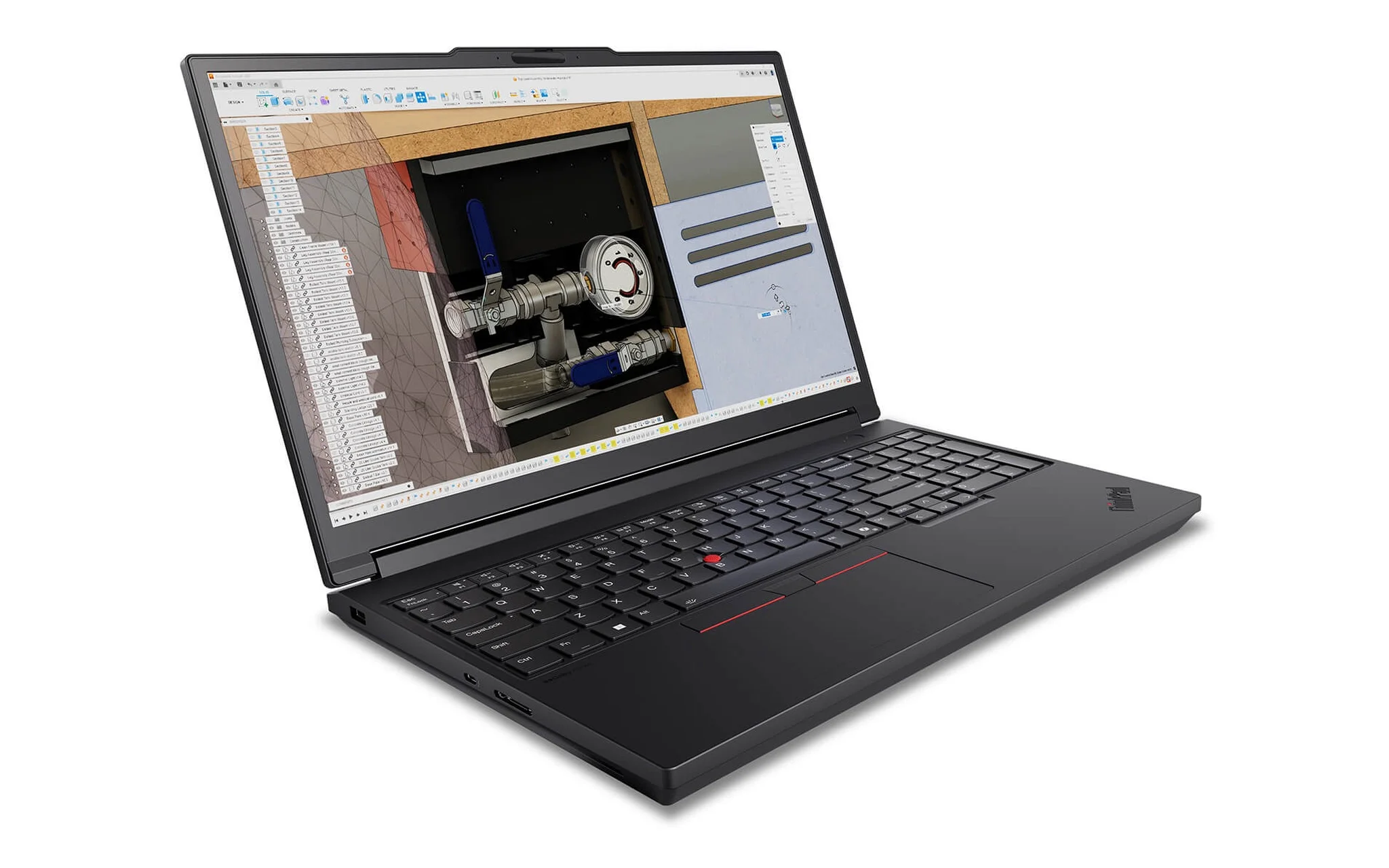
For engineers, architects, and professional video editors, the Lenovo ThinkPad P16 Gen 3 - Mobile WorkStation (2025) starts at 87 million VND for a Core Ultra 7 255HX, 32GB RAM, a 1TB SSD, and an RTX PRO 2000 8GB, while the 98 million VND version features a Core Ultra 9 285HX, 64GB RAM, and an RTX PRO 4000 16GB. PSREF lists three M.2 2280 slots: one PCIe 5.0 x4 and two PCIe 4.0 x4, supporting up to three 4TB drives along with RAID 0, 1, 5, making it well suited as a high-capacity storage laptop for project data.
All five models feature two or more M.2 slots, differing in their PCIe standards and slot form factors. When weighing your options, first identify the type of data you need to store. If you need space for documents and photos on a moderate budget, the ThinkBook 14 G8 IRL is plenty. If you need to game and keep a large library, the LOQ 15IRX10, TUF Gaming F16, and Legion 5 15IAX11 each offer a second M.2 slot. If you need multiple drives for technical data along with RAID, the ThinkPad P16 Gen 3 provides the most expansive high-capacity storage configuration in this lineup.
Frequently Asked Questions (FAQ)
Can I add an internal drive if my laptop has only one M.2 slot?
No. When the motherboard has only one slot, your options are either replacing the existing drive with a higher-capacity model and cloning Windows over, or using an external SSD via USB or Thunderbolt ports. That is why choosing a dual M.2 slot laptop from the start makes future upgrades much simpler if you know in advance that you will need large storage capacity.
Will a PCIe 5.0 drive work in a PCIe 4.0 slot?
Yes. The system will still recognize and run the drive, but it will top out at the bandwidth of the PCIe 4.0 slot, which is theoretically 8 GB/s over an x4 connection. The ThinkPad P16 Gen 3 PSREF explicitly notes that a Gen 5 drive installed in a PCIe 4.0 slot will run under the PCIe 4.0 protocol.
Does the second drive need to be the same brand and capacity as the existing drive?
Not necessarily. On a dual M.2 slot laptop, if you use the second drive as a standalone data drive, each drive functions independently in Windows. Only when configuring drives in RAID, such as RAID 0, 1, 5 on the ThinkPad P16 Gen 3, should you use drives of matching capacity and product lines to keep the array stable.
Can a 2280 slot accommodate a 2242 drive?
It depends on whether the motherboard provides a screw mount for the 42 mm length. The PSREF for the ThinkBook 14 G8 IRL and LOQ 15IRX10 lists 2280 slots even though the factory-installed Lenovo drive is a 2242, with the shorter drive secured by a bracket or a dedicated screw mount. Before purchasing a drive for your second M.2 slot, check which drive lengths the vacant slot has screw mounts for.