
Newer Lenovo Legion and LOQ laptops typically come with an app that bundles games, keyboard lighting, fan controls, and graphics card settings into a single window. That software is Legion Space, a management utility developed by Lenovo for its gaming laptop lines - essentially a central control panel that lets you toggle performance profiles, switch graphics modes, and launch games. Understanding where to download it, which versions match specific models, and how to troubleshoot startup issues will help you avoid installing the wrong package or losing access to key hardware controls.
What Legion Space Is and Which Lenovo Laptops Come with It
According to Lenovo's support documentation, Legion Space is a control center built for the Legion lineup that coordinates software and hardware to fine-tune operating parameters, reducing stuttering and overheating during gameplay. The interface is split into core sections: a game store, a game library, Gaming Zone, and device management. The spec sheet for the 2026 Legion 5 15IAX11 describes the app as a unified hub to adjust device settings, connect peripherals, and purchase or launch games from one window.
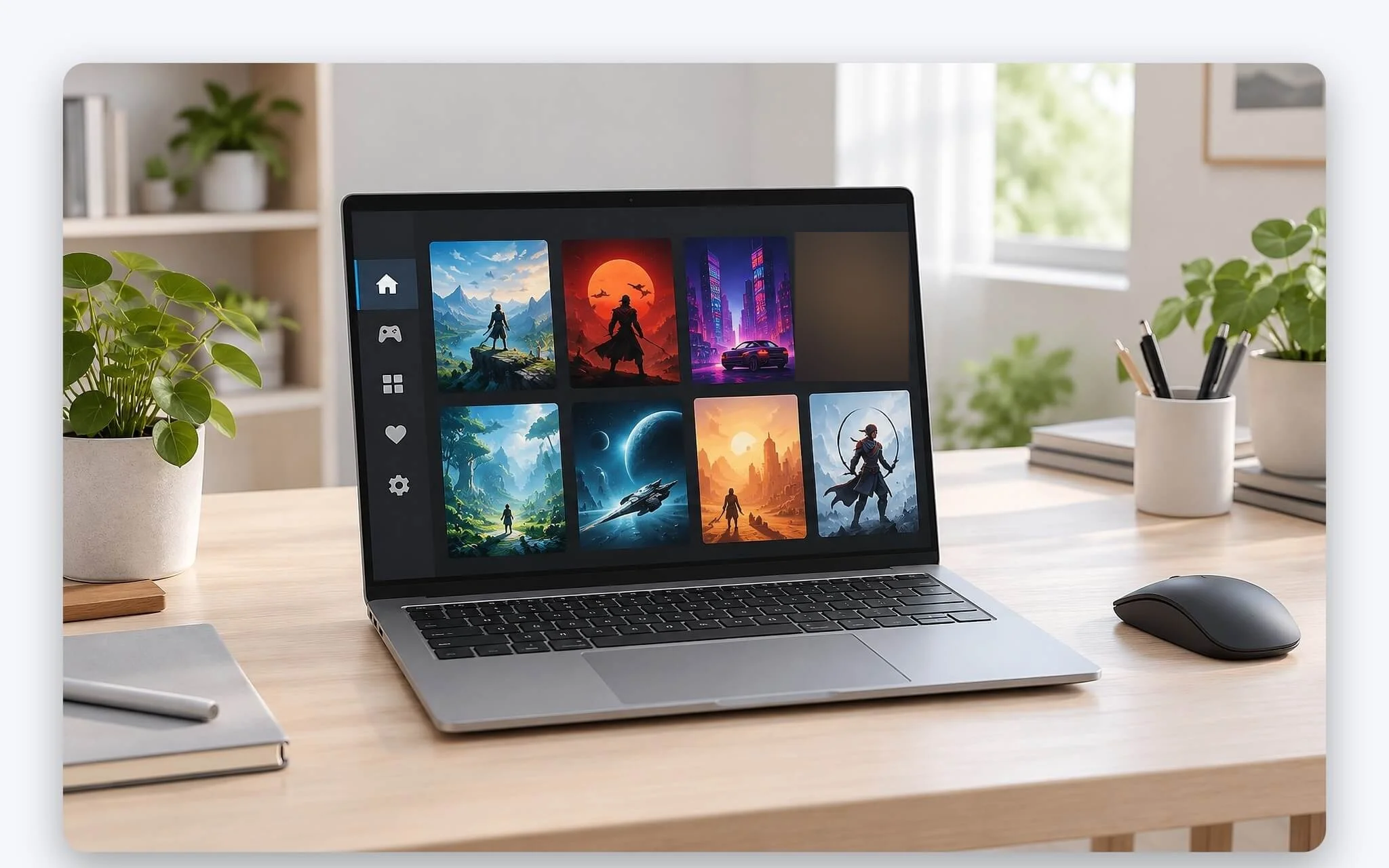
The application comes preinstalled from the factory rather than being utility software you have to track down on your own. Preloaded software sections on Lenovo spec sheets for the 2026 Legion 5 15IAX11, Legion 5 15AHP11, and Legion 5 15IPH11 all list this app, while the 2025 Legion 7 16IAX10 and LOQ 15IRX10 list both Legion Space and Lenovo Vantage. On a new laptop, you can locate its icon in the Start menu, system tray, taskbar, or Windows search box.
Lenovo officially lists support only for Windows 11 with this application, and installer packages on the support portal specifically designate Windows 11 (64-bit). The language settings provide 26 options, including English, Japanese, Korean, Chinese, German, and French, but Vietnamese is not yet supported, so users in Vietnam typically select English. On the Legion 5 15IAX11 and LOQ 15IRX10, the Fn+Q shortcut still quickly cycles through operating modes without requiring you to open the app window.
Differences Between Legion Space and Lenovo Vantage on Gaming Laptops
Lenovo Vantage serves as a general maintenance utility across multiple Lenovo laptop lines, distributed through the Microsoft Store with features covering hardware customization, warranty tracking, update checks, driver installation, hardware diagnostics, and Smart Performance. The Legion-specific application focuses primarily on the gaming experience, featuring the game library, game store, highlight capture tools, and a thermal monitoring dashboard directly on the home screen. Consequently, the two applications complement one another rather than function as direct substitutes.
| Criteria | Legion Space | Lenovo Vantage |
|---|---|---|
| Primary focus | Gaming, thermal modes, RGB lighting, graphics cards | Maintenance, warranty, drivers, diagnostics |
| Official download channel | Lenovo support site, EXE file | Microsoft Store, published by Lenovo |
| Gaming features | Game library, Game Store, Gaming Zone | Not listed in Store description |
| Smart Performance | Accessed via Services & Utilities | Built directly into the app |
| Preinstalled on | 2026 Legion 5 models, 2025 Legion 7 and LOQ models | 2025 Legion 7 16IAX10, LOQ 15IRX10 |
The clearest overlap involves Lenovo Smart Performance and Lenovo Smart Lock, as Lenovo allows users to launch both services directly from the Services & Utilities menu inside the gaming app. Driver check functionality in Lenovo documentation is currently detailed only for the Legion Go handheld gaming device, requiring version 1.0.2.7 or later. On laptops, driver and BIOS updates are still best handled through Lenovo Vantage or by searching by serial number on the support site.
On 2025 models that come with both utilities preinstalled, keep Legion Space to manage thermal modes, change GPU settings, and launch titles from your game library, while retaining Lenovo Vantage to check warranty status and handle updates. Uninstalling the gaming utility means losing the interface for RGB lighting controls, GPU modes, and the integrated game library. On the 2026 Legion 5, which does not include Lenovo Vantage on its preinstalled software list, the gaming utility acts as the primary gateway for all hardware gaming configurations.
Downloading the Official Version from Lenovo and Choosing the Right Package
Searching the Microsoft Store only brings up Lenovo Vantage, Lenovo Commercial Vantage, Lenovo Hotkeys, and a few other Lenovo utilities, not this gaming software. Lenovo distributes the program through the download page for Legion Space Application for Laptops & Desktops, designated DS572220 and categorized under Software and Utilities. Version 1.9.11.5, released on March 31, 2026, is a 591.75 MB EXE installer exclusively for 64-bit Windows 11 and requires no login to download.
| Device Group | Number of Models Listed | Applicable Version | Examples |
|---|---|---|---|
| Legion laptops | 22 models | 1.9.11.5 (591.75 MB) | Legion 5 15IAX11, Legion Pro 7 16IAX10H |
| LOQ laptops | 6 models | 1.9.11.5 (591.75 MB) | LOQ Essential 15IRX11, LOQ 15IPH11E |
| Legion and LOQ Tower desktops | 6 models | 1.9.11.5 (591.75 MB) | Legion T5 30IAX10 |
| Version-restricted LOQ laptops | 5 models | 1.8.12.9 (556.44 MB) | LOQ 15IRX10, LOQ 15AHP10 |
| Legion Go handheld gaming consoles | 5 models | 3 separate installer packages | Legion Go 8APU1, Legion Go S 8ARP1 |
The most confusing part involves the LOQ lineup. Lenovo notes that due to system configurations, the LOQ 15AHP10, LOQ 15AHP11, LOQ 15ARP10E, LOQ 15IRX10, and LOQ 17IRX10 are capped at version 1.8.12.9, which has its own dedicated download link. If you are running a 2025 LOQ 15IRX10 and the app does not prompt you to upgrade to 1.9.11.5, that is by design rather than an update bug. The Legion Go also uses 3 dedicated installation packages across its 5 models rather than sharing the laptop installer.
Lenovo publishes the installer file's SHA-256 hash on download page DS572220, allowing you to verify that the file has not been altered via PowerShell's Get-FileHash command after downloading. Your system drive will need more free storage than the 591.75 MB package size because the installer needs space to extract files. Avoid third-party download mirrors, as their files cannot be verified against Lenovo's official SHA-256 checksum.
How the Games Library and Gaming Zone Manage Your Titles
The games library in Legion Space displays all titles downloaded under the current Windows account and automatically scans for newly installed games to add them to your list. If a title does not appear on its own, clicking Add Game lets you select it from suggested titles or click the plus sign to direct the path straight to the game executable. This is particularly handy for games installed across multiple platforms, such as Steam, Epic Games, or the Xbox app.
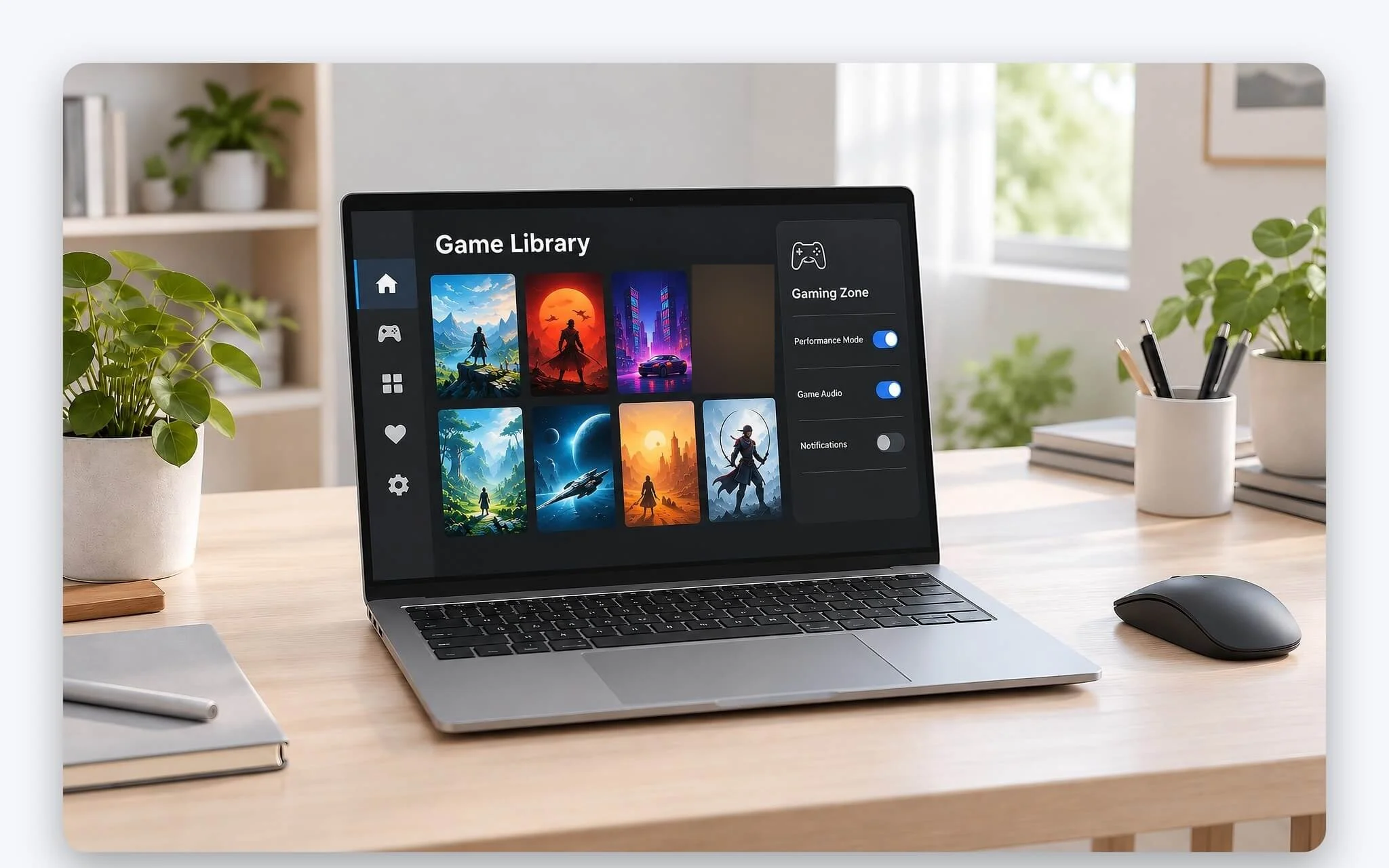
Hovering over a game card in the games library reveals action buttons that vary depending on its state. While a game is running, you can exit the title, remove it from the library, or pin it to the top; when it is closed, an uninstall option also appears. Next door, the Game Store section provides game details and purchase transactions, which may require signing in with the publisher's platform account, while payment inquiries are routed by Lenovo to its partner, Gamesplanet.
Sitting alongside the games library, the Gaming Zone includes two tools. Game Clip Master automatically captures highlights and victory moments, editing them into videos using Exciting, Funny, Anime, Surreal, and Dreamy presets, while also allowing you to manually record full sessions up to 90 minutes long. Game Companion delivers voice or text hints during gameplay when online mode is enabled. In Settings, you can customize your game installation directory, screenshot hotkey, and image capture save path.
Which Thermal and GPU Modes to Choose for Your Needs
Thermal Mode under Device Management regulates the system through fan speeds and CPU and GPU performance levels, offering four options: Quiet, Balanced, Performance, and Custom. Spec sheets for the Legion 5 15IAX11 and LOQ 15IRX10 note that the Fn+Q shortcut quickly toggles between these four modes. On the Legion 5 15IAX11, Lenovo AI Engine+ also automatically detects usage scenarios when the laptop is in Balanced mode to adjust parameters in real time.
| Setting | Operation According to Lenovo | Suitable Scenarios |
|---|---|---|
| Quiet | Reduces fan speed and performance levels | Online meetings, reading documents |
| Balanced | Balances fans and performance, with AI Engine+ adjusting automatically | Studying, working, light gaming |
| Performance | Prioritizes CPU and GPU performance, high fan speed | Demanding games while plugged in |
| Hybrid mode | System automatically switches the active graphics card | Everyday use, balanced battery life |
| dGPU Mode | Assigns all graphics tasks to the discrete card; restart required | Gaming at a fixed desk |
| Hybrid-iGPU Only | Uses only integrated graphics, quiet and power-efficient | Web browsing and word processing on battery power |
| Hybrid-Auto Mode | Automatically manages GPU mode based on current tasks | When you prefer not to switch manually |
GPU Mode lets you configure how the laptop divides tasks between integrated graphics and the discrete card, offering Hybrid mode, dGPU Mode, Hybrid-iGPU Only, and Hybrid-Auto Mode. According to Lenovo, switching to dGPU Mode requires restarting Windows, while the three Hybrid GPU modes take effect immediately. When gaming at a desk while plugged in, pairing Performance with dGPU Mode routes every frame directly through the discrete card rather than looping through integrated graphics.
On high-power discrete graphics configurations such as the RTX 5090 on the 2025 Legion Pro 7 16IAX10H, Performance mode only shines when the cooling system can sustain the GPU power draw across long sessions, as analyzed in detail in Legion Pro 7 Handling RTX 5090 24GB: How Much TGP Can the Cooling System Sustain?. When taking your laptop to class or work on battery, combining Quiet with Hybrid-iGPU Only delivers quiet fan operation and reduced battery drain.
Troubleshooting Legion Space Launch and Update Issues
Before reinstalling, check three basic prerequisites. Windows must be a 64-bit version of Windows 11, as Lenovo does not list support for Windows 10. Your laptop model must also appear on the support list for page DS572220, which you can verify on the bottom label of the laptop or via the msinfo32 command. If your laptop is among the five restricted LOQ models, only install version 1.8.12.9, as newer packages are not intended for that hardware configuration.
| Symptom | Initial Check | Resolution |
|---|---|---|
| Clicking the icon does not open a window | Process is hanging in Task Manager | End task, restart Windows |
| Opens and immediately closes | Installed version matches the laptop model | Repair or Reset in Installed apps |
| Will not update to the new version | LOQ model is on the restricted list | Keep version 1.8.12.9, do not force an install |
| Installation halts midway | Pending Windows Update, full disk drive | Finish updates, free up disk space |
| GPU mode section is missing | Laptop lacks discrete graphics or is not yet supported | Check the model list on the download page |
If the app opens and immediately closes, Microsoft recommends going to Start, Settings, Apps, Installed apps, clicking the three-dot button next to the app name, selecting Advanced options, and clicking Repair - or Reset if the issue persists - as detailed in Repair apps and programs in Windows. If the app lacks an Advanced options entry, open Control Panel, go to Programs and Features, right-click the program, and choose Repair or Change. As a last resort, fully uninstall the app and reinstall it from page DS572220.
If the installer freezes midway due to a stuck Windows Update, resolve the operating system update first using our guide on 7 ways to fix Windows Update not working, then rerun the setup file. If the issue continues, click the menu icon in the upper-right corner of the app window, select Software Support, and describe your exact steps in detail so Lenovo technicians can assist.
Frequently Asked Questions (FAQ)
Is Legion Space free to use?
Yes. Lenovo offers the installer on its support page without requiring a login or license purchase. Costs only occur if you purchase games in the Game Store, where transactions are handled by partner Gamesplanet.
Can I download Legion Space from the Microsoft Store?
Currently, the Microsoft Store only carries Lenovo Vantage, Lenovo Commercial Vantage, and several other Lenovo utilities. This gaming application is distributed as an EXE file on the Lenovo support site under package ID DS572220 for laptops and desktops.
Does Legion Space have a Vietnamese interface?
Not yet. Lenovo lists 26 supported languages, including English, Simplified Chinese, Traditional Chinese, Japanese, Korean, German, French, Russian, and various other European languages, but Vietnamese is not included.
Why can't the LOQ 15IRX10 update to version 1.9.11.5?
Lenovo limits the LOQ 15IRX10 and four other LOQ models to version 1.8.12.9 due to system configuration requirements. You should remain on this version and download the specific package provided via Lenovo's dedicated link on page DS572220.