
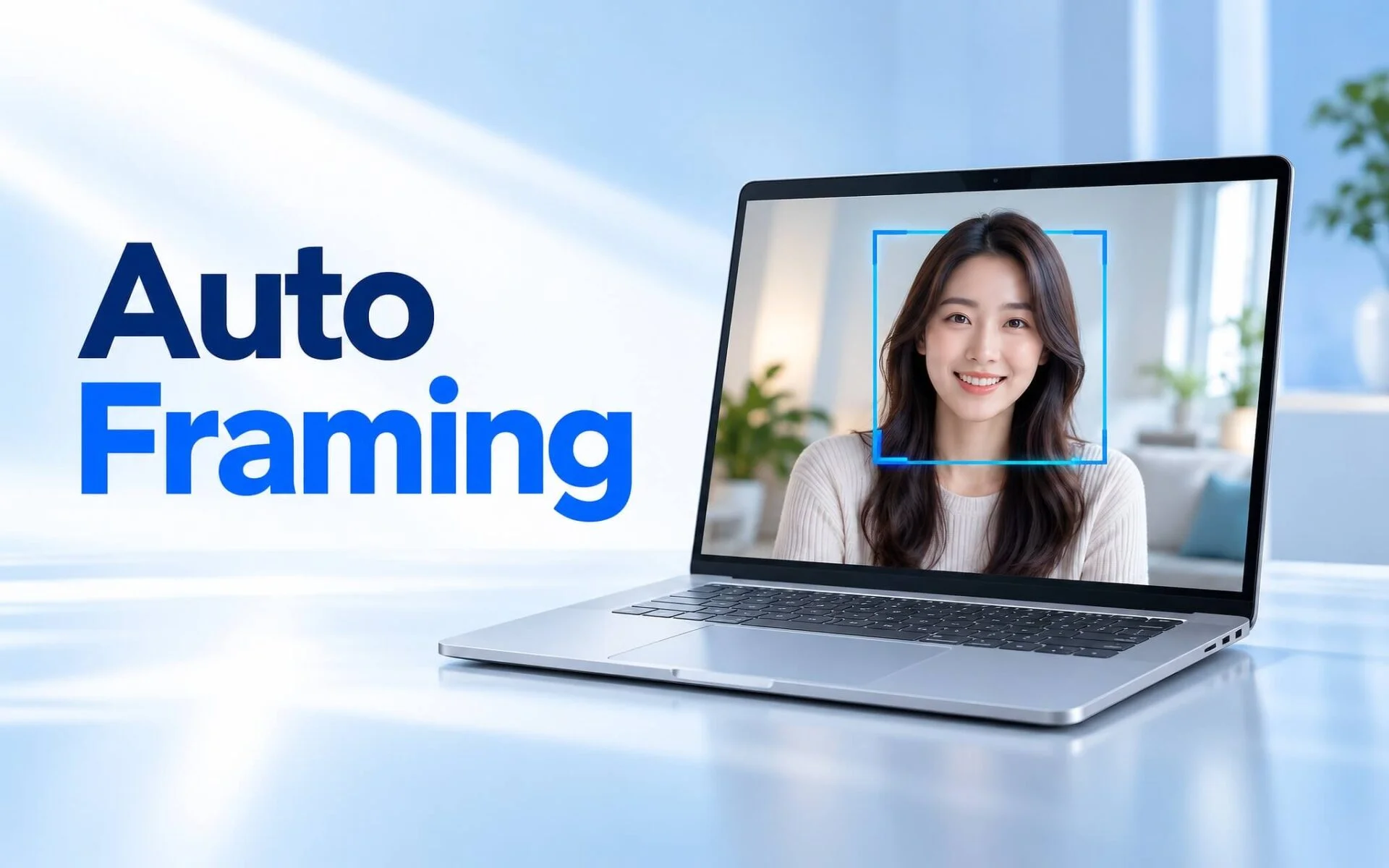
Auto Framing is a feature that lets a webcam automatically crop and zoom the frame so your face always stays near the center, but on laptops it doesn't come in just one form. It can run at the Windows level on the NPU (a processor dedicated to AI tasks), on an RTX graphics card through NVIDIA Broadcast, or directly inside a meeting app like Zoom. All three approaches crop the original image, so the camera's resolution determines how sharp the picture stays. This article compares each layer, calculates how many pixels remain when zooming, points out when to turn the feature off, and explains how to choose an external webcam with hardware-based framing.
Auto Framing on Laptops Runs at Three Different Processing Layers
In principle, Auto Framing detects the person in the frame, then crops and enlarges the area around them so the face stays near the center when you lean over or push your chair back. On a laptop, the same visible result can come from three places: the Windows camera driver, an RTX graphics card, or the meeting app itself. Where the processing happens determines what resources the feature consumes, how it affects performance, which apps it applies to, and where you have to turn it off. Understanding the right layer helps you avoid stacking two layers of automatic framing without realizing it.

At the operating system level, Windows Studio Effects uses the NPU to run a person-detection model. The effects package is attached to the end of the camera processing pipeline, turning the physical camera into a composite camera, so once it is enabled, every app that opens the camera receives the already-framed image. The requirements are a laptop with a supported NPU, Windows 11 version 22H2 or later (build 22623.885), and Studio Effects drivers installed by the laptop maker. The accompanying effects, such as background blur, are covered in the article Windows Studio Effects: Background Blur and Eye Contact in Online Meetings.
At the GPU level, NVIDIA Broadcast uses the Tensor cores on an RTX card to run the Auto Frame effect, which tracks movement and zooms and crops the frame in real time. The software creates a camera device named NVIDIA Broadcast, and you have to select this device in Zoom or Teams for the effect to show up in your meeting. At the app level, the Zoom Workplace desktop app has an Auto-frame my video option in the arrow menu next to the Video button. This kind of Auto Framing is processed right inside the software, only works for Zoom meetings, and is an available option for laptops that don't meet the NPU threshold.
How Many Webcam Pixels Does Digital Zoom Cost?
Built-in laptop webcams almost never have an optical zoom lens, so every type of automatic framing has to crop the frame and then enlarge what remains. The number of remaining pixels drops with the square of the zoom level. A 1.5x zoom keeps only about 44% of the pixels (1 divided by 2.25), and a 2x zoom leaves exactly 25%. The table below runs the numbers for four common webcam resolutions, all at a 16:9 aspect ratio.
| Native resolution | Total pixels (million) | Remaining at 1.5x zoom (million) | Remaining at 2x zoom (million) | Remaining frame at 2x zoom |
|---|---|---|---|---|
| 720p (1280×720) | 0.92 | 0.41 | 0.23 | 640×360 |
| 1080p (1920×1080) | 2.07 | 0.92 | 0.52 | 960×540 |
| 1440p (2560×1440) | 3.69 | 1.64 | 0.92 | 1280×720 |
| 4K (3840×2160) | 8.29 | 3.69 | 2.07 | 1920×1080 |
The figures show that a 1080p webcam at 2x zoom is left with just 960×540, fewer pixels than a native 720p frame. If the meeting app sends video at 720p, that image has to be upscaled through interpolation, so details like strands of hair, text on a shirt, or the rims of glasses get softer. A 1440p webcam at 2x zoom still keeps a full 1280×720, while a 4K camera retains a full 1920×1080. That is why two webcams that produce similar images before Auto Framing is turned on can differ significantly once automatic framing starts zooming in.
The actual zoom level depends on how far you sit and the camera's field-of-view settings. Sit close and your face already fills most of the frame, so the algorithm only needs to zoom slightly; move back or stand up to present, and the frame has to be cropped more aggressively, with a clear drop in image quality. Low light makes the problem worse because the sensor raises its gain, which creates noise, and that noise is then enlarged along with your face. A simple fix is to place a light source in front of you and sit closer, reducing the amount of zoom the face tracker has to apply.
Latency and Frame Jitter When the Camera Follows You
Automatic framing doesn't shift the frame the instant you move. The algorithm has to confirm your new position across several consecutive frames, then move the crop along a smooth curve so the image doesn't jerk. At 30 frames per second, each frame lasts about 33 milliseconds, while at 60 frames per second it's about 16.7 milliseconds. For the same latency measured in frames, a 30 fps webcam will react twice as slowly as a 60 fps camera. This delay is an intentional part of Auto Framing's design to keep the picture comfortable to watch, not a hardware fault.
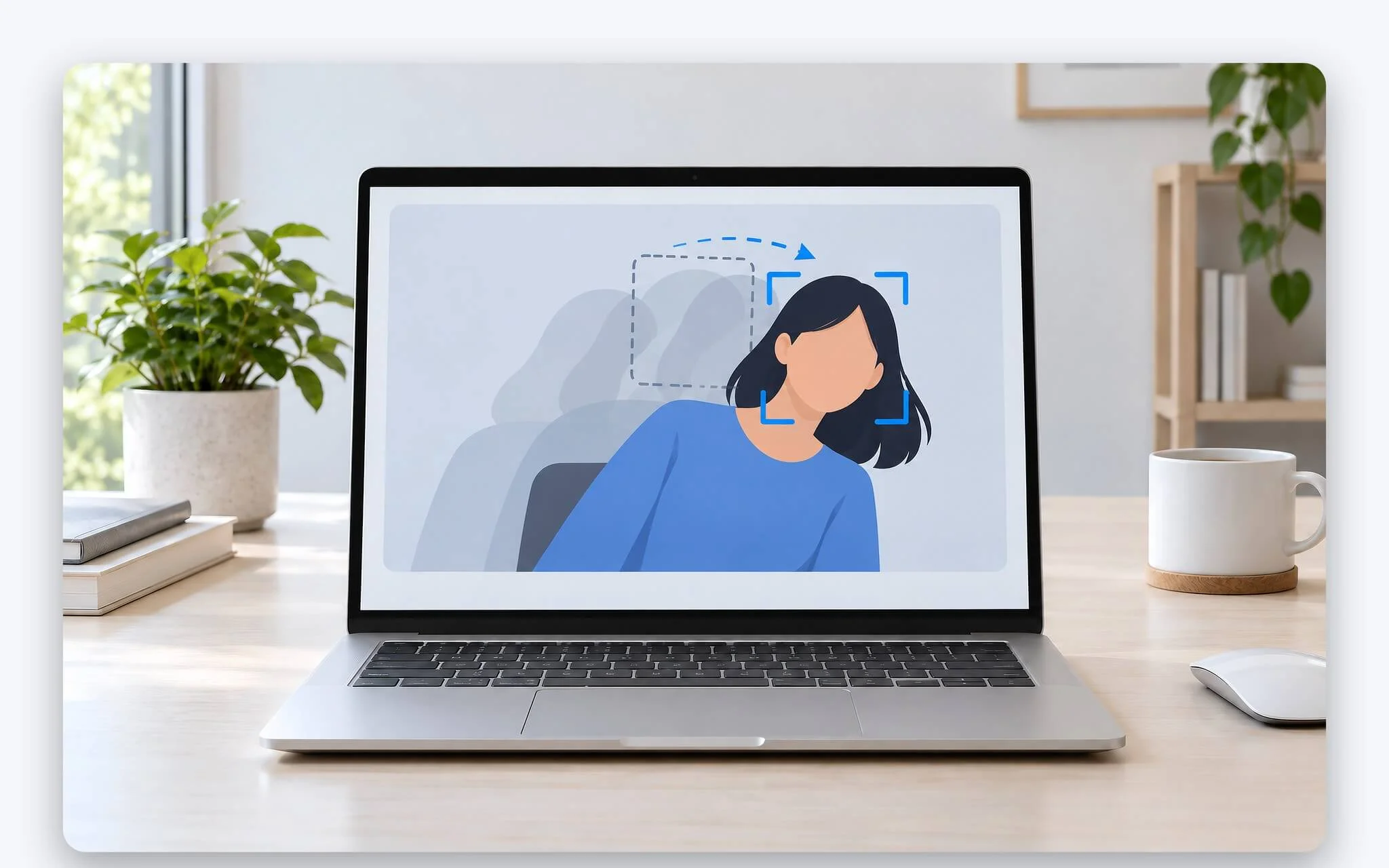
Frame jitter typically shows up when the face tracker gets confused, for example when you raise a hand to your face, look down at a sheet of paper, turn too far to the side, or have paintings and posters showing people behind you. The frame then keeps zooming out and back in, which is distracting for viewers. Low light also causes many webcams to cut their frame rate significantly to lengthen exposure time, so each tracking step is spaced further apart and looks choppier.
At the GPU level, NVIDIA Broadcast requires at least a GeForce RTX 2060, Quadro RTX 3000 or TITAN RTX, along with driver R570 or later. NVIDIA says the performance impact of its effects generally ranges from 5 to 10% as measured on an RTX 5090, and suggests lowering the camera's resolution or frame rate if the system slows down. On an RTX laptop that is handling a meeting and video editing at the same time, GPU-based Auto Framing will share resources with the main task, so you need to decide which task matters more. Microsoft designed the NPU layer to take load off the CPU and GPU and to save battery.
Multi-Person Framing and When to Turn Off Automatic Framing
Microsoft describes Automatic framing, the Windows version of Auto Framing, as detecting a person in the camera's field of view and then cropping and zooming to keep that person in the frame. When two people sit side by side in front of a laptop, the result depends on how each piece of software implements it, since the prioritized subject may differ: some systems widen the frame to fit both, while others follow the face that takes up more of the image. Built-in webcams already have a narrow field of view, so someone sitting at the edge can easily lose half their face when the frame zooms in.

Team meeting rooms are a different problem. Microsoft Teams Rooms uses IntelliFrame to zoom in on and frame each face in the room, but this feature requires a supported smart camera such as the Yealink SmartVision 60 or Jabra PanaCast 50, connected over USB3. If you often meet with three or four people around a single laptop, a dedicated conference camera handles this better than a built-in webcam.
There are times when you should turn automatic framing off. When you're presenting on a whiteboard, the frame follows your face and cuts off what you just wrote. When you're filming a product or holding components or documents up to the camera, the face tracker still prioritizes your face over the object. Drawing lessons, hands-on tutorials, or recordings that will be edited together later should also keep a fixed angle. Turn it off at the layer that is actually running, then confirm in the preview window.
How to Tell Which Framing Layer Is Running on Your Laptop
The quickest way to find out which layer is active is to open each place where the feature can be turned on. In Windows, go to Settings, choose Bluetooth & devices, then Cameras, and click the front camera; if you see an Automatic framing option, your laptop supports automatic framing at the NPU level. For the GPU, check whether your meeting app is set to the NVIDIA Broadcast camera or the original camera. In Zoom, open the arrow menu next to the Video button to see whether Auto-frame my video is selected.
| Processing Layer | Where to Turn It On or Off | Scope | Resources Used |
|---|---|---|---|
| Windows Studio Effects | Settings, under Cameras, or the Studio Effects tile in Quick Settings | Every app that opens the front camera | NPU |
| NVIDIA Broadcast | NVIDIA Broadcast app, Auto Frame effect | Apps that select the NVIDIA Broadcast camera | RTX GPU |
| Zoom Workplace | Menu next to the Video button, Auto-frame my video option | Zoom meetings only | The laptop's CPU and GPU |
| Manufacturer software or external webcam | The bundled camera app | Depends on the device | The chip in the camera or the laptop's resources |
Turning on two layers at once is a common mistake. Windows has already cropped the frame once, the meeting app crops that image again, the zoom levels multiply, and the remaining pixel count drops by the square, as shown in the table in the section above. According to Microsoft Learn, apps that want to use their own effects should turn off the matching Studio Effects, because running two effects on top of each other wastes resources. The rule for you is simple: keep only one Auto Framing layer and turn off the rest.
Some laptop makers also add a fourth layer in the form of their own camera software. Microsoft lets manufacturers' bundled apps extend the camera settings page, and Samsung has built Auto Framing into the Studio Mode suite on Galaxy Book laptops, which turns on automatically whenever the camera opens. If the frame still moves on its own after you've turned it off in Windows and in your meeting app, look in the manufacturer's software. The Studio Effects defaults can only be changed on the camera settings page; meeting apps don't change them on their own.
Choose an External Webcam with Hardware Face Tracking
If your built-in webcam's resolution is too low to crop, an external webcam with hardware face tracking is a sensible upgrade. These cameras typically handle the processing inside the camera itself, so the laptop only receives a video stream that is already framed. That means no NPU or RTX GPU is needed, and it works with any meeting app. External webcams fall into two groups: those with a mechanical gimbal that turns the lens to follow you, and those that auto-frame by digitally cropping a sensor with a high pixel count.
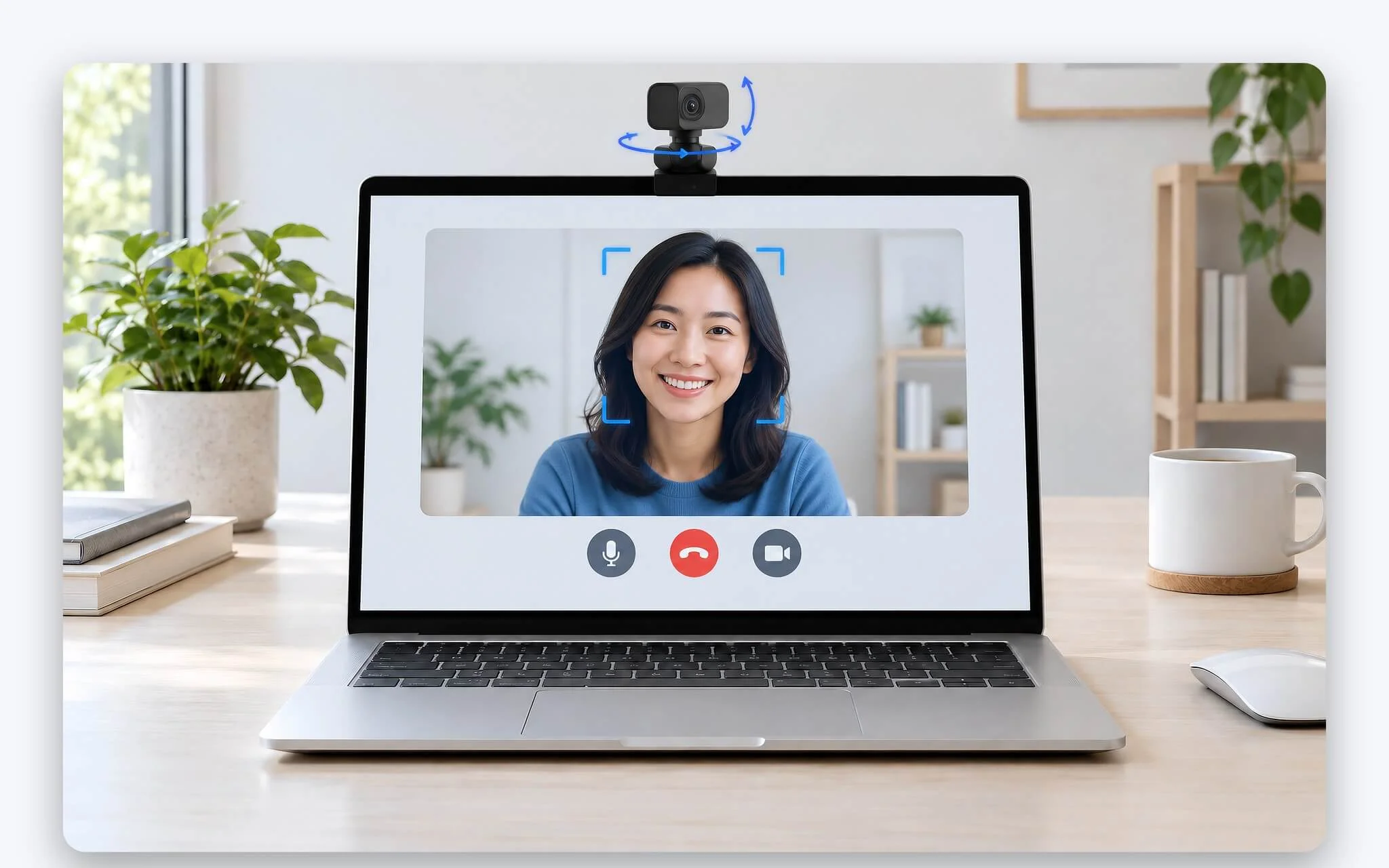
For example, the Insta360 Link 2 uses a 2-axis gimbal that pans up to ±141° and tilts up or down up to ±90°, according to the manufacturer's specs, so it can track your face and follow you as you move around without cropping deeply. The Link 2C drops the gimbal in favor of an Auto Framing mode in a more compact body. Both use a 1/2-inch sensor and record 4K at 30 frames per second. For the digital-crop group, a native 4K resolution is the level to aim for, since a 2x zoom still leaves a full 1080p frame, as calculated in the table above.
When choosing an external webcam, look at three things. First, whether the person-tracking feature runs on the camera's own processor or requires companion software that is always open on the laptop. Second, the connection port: Microsoft requires Teams Rooms intelligent cameras to use USB3, and the high bandwidth helps a 4K stream maintain its full frame rate. Third, Windows Studio Effects now supports some compatible external cameras, so after plugging one in, you should turn off any overlapping auto-framing layers and leave only one active.
Frequently Asked Questions About Auto Framing on Laptop Webcams
Does Auto Framing make a laptop webcam image blurrier?
Yes, and how much depends on the native resolution and zoom level. A 2x zoom leaves only 25% of the pixels, so a 1080p webcam drops to 960×540, lower than a 720p frame. A 1440p or 4K webcam retains detail better when cropping, while sitting close and having enough light helps the algorithm zoom in less.
Can a laptop without an NPU do auto framing?
Yes, through the other two layers. Laptops with an RTX 2060 GPU or higher can run NVIDIA Broadcast with its Auto Frame effect, and the desktop version of Zoom Workplace has an Auto-frame my video option that is processed right inside the app. Another option is to use an external webcam with built-in face tracking.
Why is the image still zoomed in too tightly after I turn on framing?
The cause is usually two auto-framing layers running at the same time, for example Windows Studio Effects and Zoom both cropping the same video stream. You should keep only one layer, turn off the other, and then check the preview window. Sitting too close to the webcam also makes the frame zoom in tighter than necessary.
Should you turn on framing when presenting on a whiteboard?
No. The face tracker follows the person, so it can easily cut off the writing on the board or the product being shown. For teaching sessions, product shoots or recordings that need to be edited together later, keeping the camera angle fixed gives more consistent results.